> ## Documentation Index
> Fetch the complete documentation index at: https://cal.id/docs/llms.txt
> Use this file to discover all available pages before exploring further.
# Configure Language, Timezone, and Travel Schedule in Cal ID
> Set your preferred language, adjust your primary timezone, and configure travel schedules in Cal ID to keep bookings accurate even when you're on the move.
Set your preferred language, adjust your primary timezone, and manage travel schedules so your bookings stay accurate even when you are on the move.
## Steps to access general settings
Access your account dashboard at [Cal ID](https://cal.id/home).
Click your profile name and select **Settings** from the menu.
Click **General** in the left-hand sidebar to view your basic account configuration.
## Setting your preferences
### Language
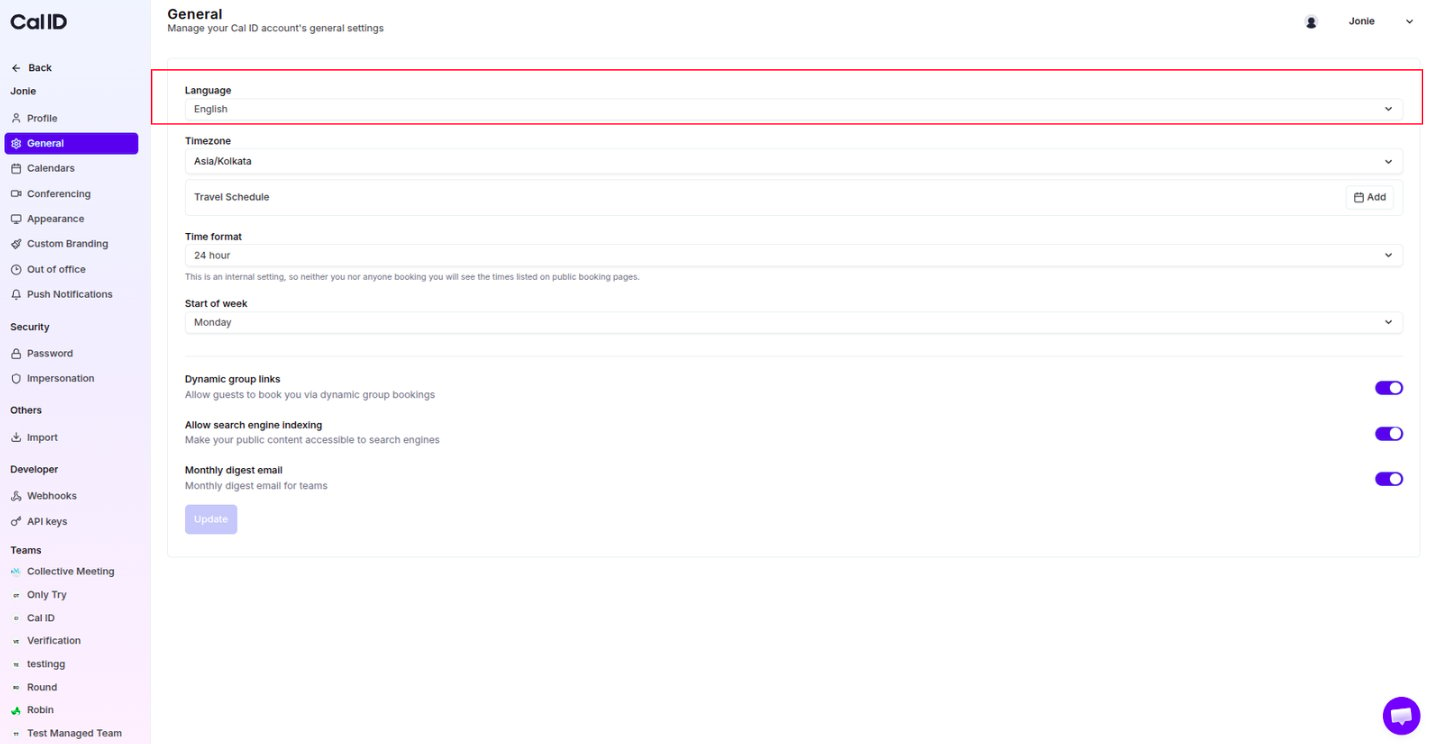
* **What it does** — changes the language of the words you see while using your Cal ID dashboard.
* **How to change** — select your preferred language from the **Language** dropdown list.
 ### Timezone
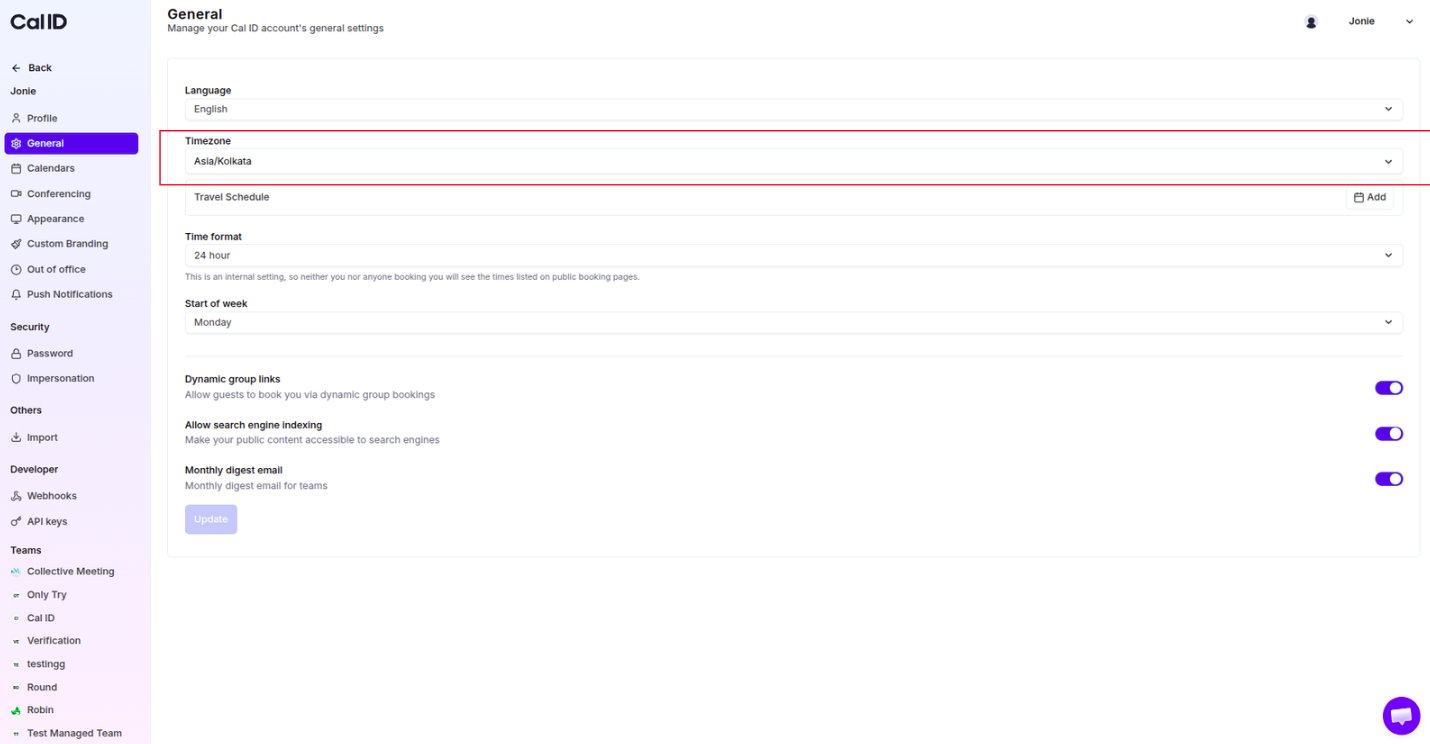
* **What it does** — sets your main home timezone so all your meeting times are calculated correctly.
* **How to change** — select your local city or region from the **Timezone** dropdown menu.
### Timezone
* **What it does** — sets your main home timezone so all your meeting times are calculated correctly.
* **How to change** — select your local city or region from the **Timezone** dropdown menu.
 ### Travel schedule
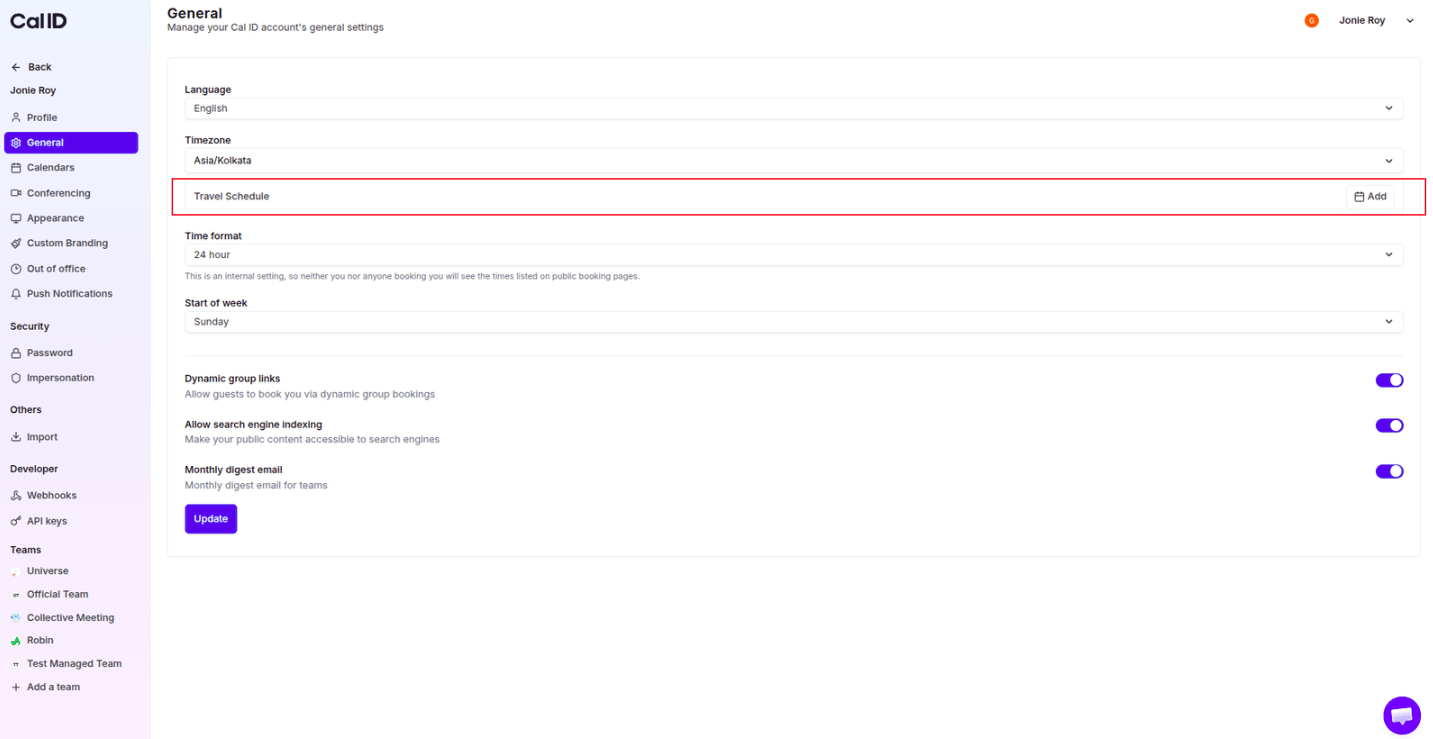
The travel schedule lets you plan a trip ahead of time to keep your existing schedule in a different timezone, so clients can't accidentally book you at midnight while you are traveling.
### Travel schedule
The travel schedule lets you plan a trip ahead of time to keep your existing schedule in a different timezone, so clients can't accidentally book you at midnight while you are traveling.
 Set it up in a few steps:
Click the **Add** button next to **Travel Schedule**.
Set it up in a few steps:
Click the **Add** button next to **Travel Schedule**.
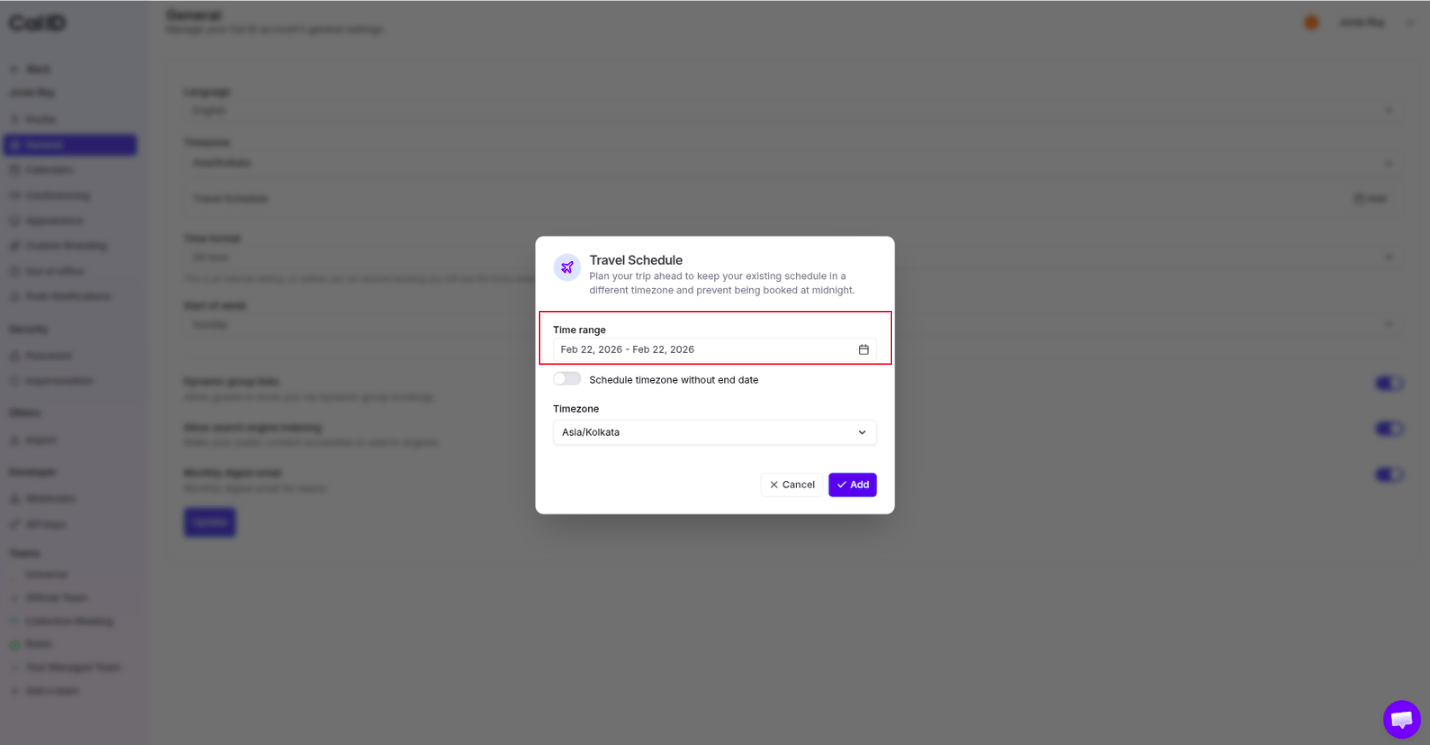
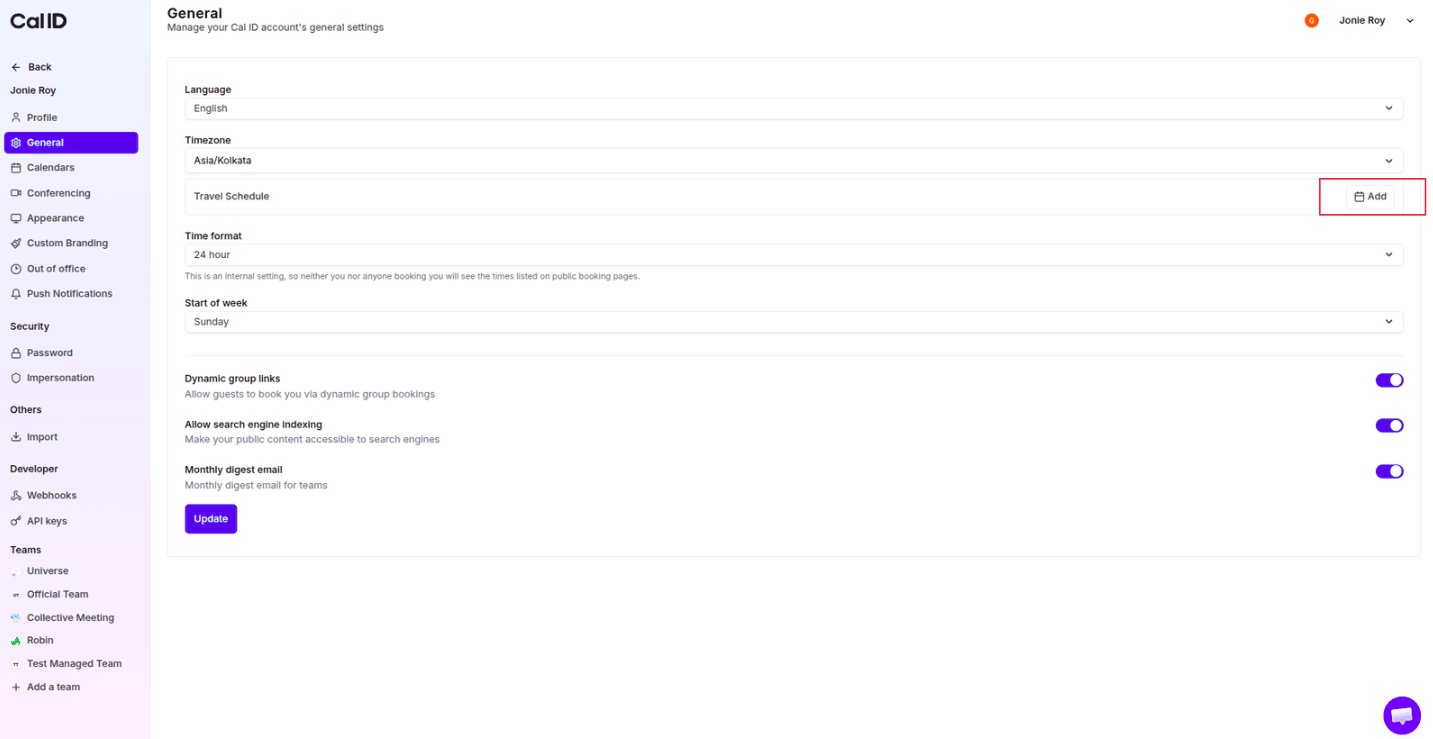 Select the dates you will be traveling using the calendar picker.
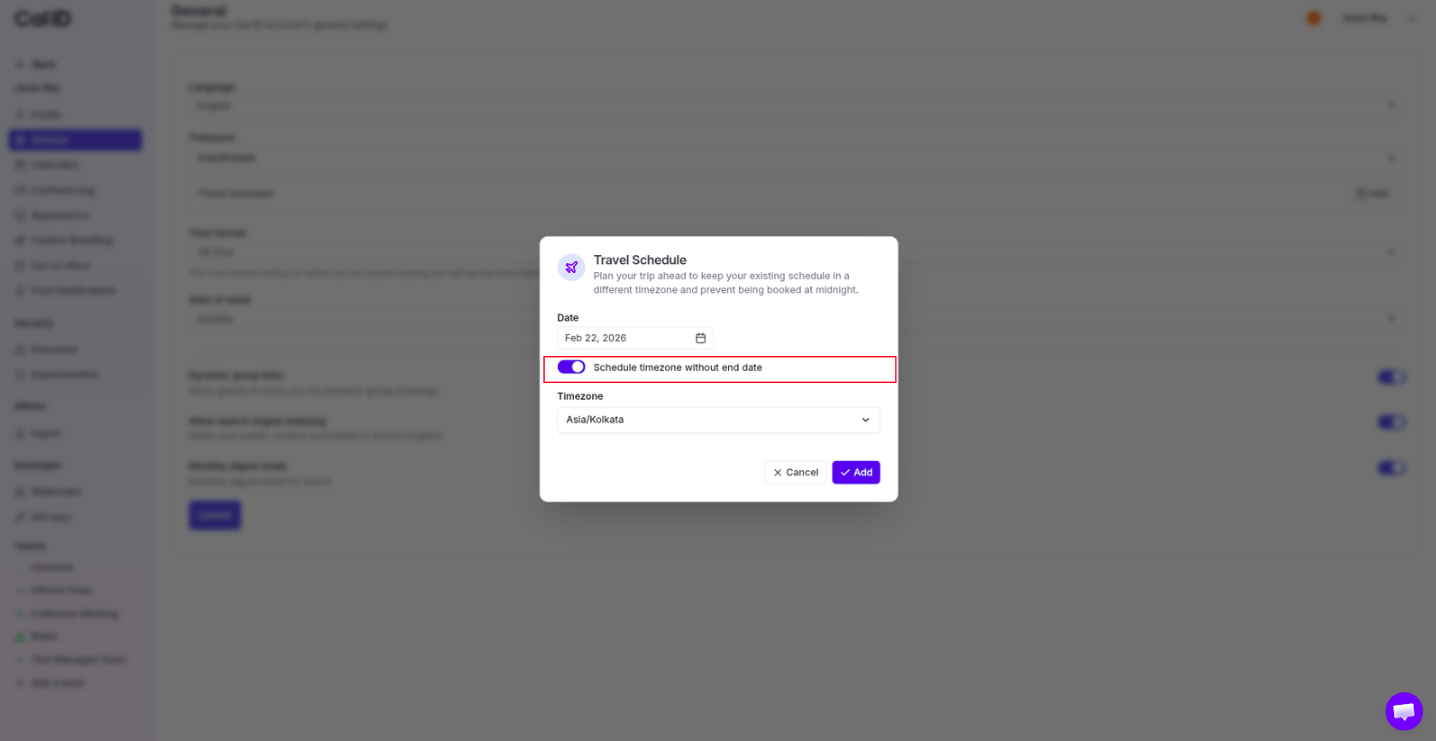
 If you don't know when you are coming back, toggle **Schedule timezone without end date** to **ON**.
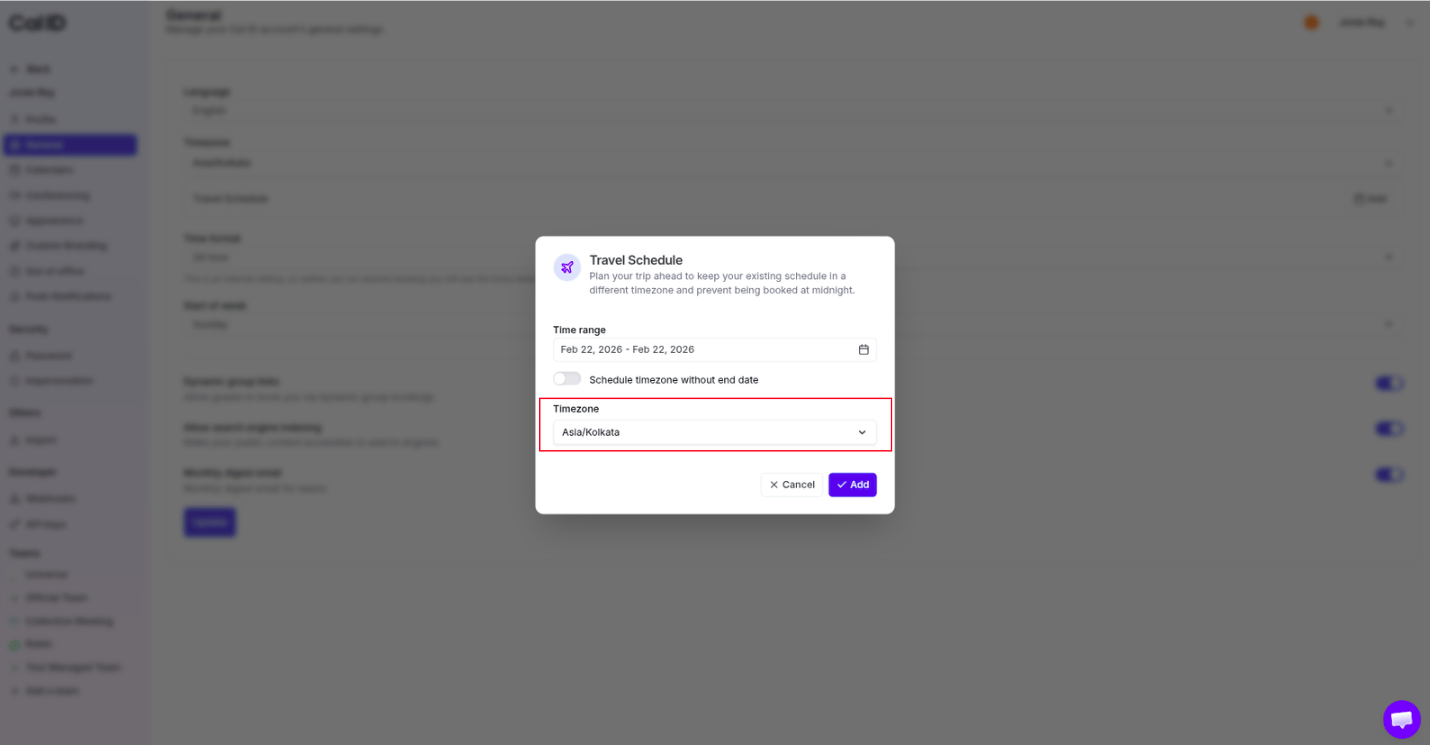
 Choose the timezone of the place you are visiting.
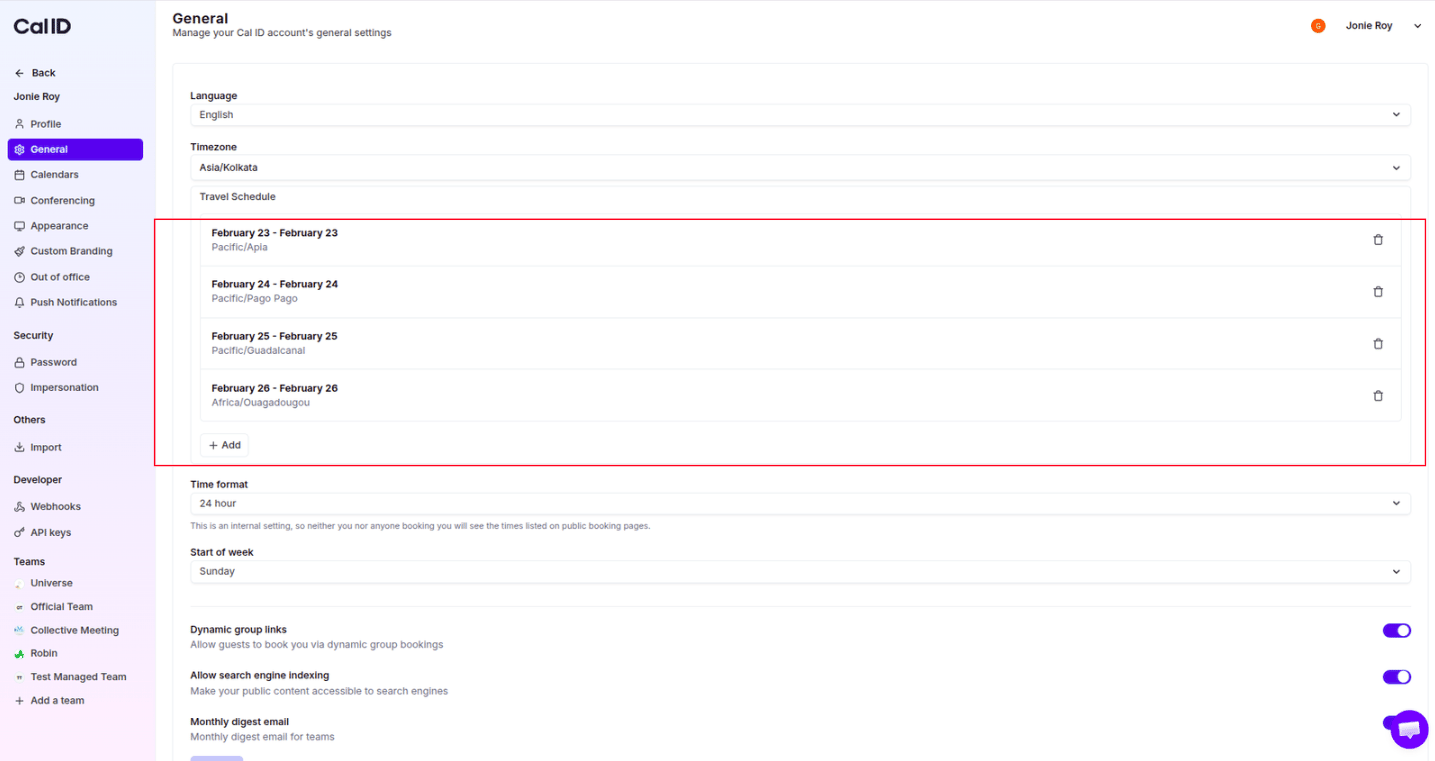
 Click the blue **Update** button to save your changes and activate the travel schedule.
 ## Next steps
Switch your dashboard between 12-hour and 24-hour time.
Choose which day appears first on your calendar.
## Related topics
- [Managing Your Cal ID Profile Settings](/docs/settings/profile.md)
- [How to Set Your Internal Time Format](/docs/settings/time-format.md)
- [Start of the Week](/docs/settings/start-of-week.md)
- [Managing Push Notifications in Cal ID](/docs/settings/push-notifications.md)
## Next steps
Switch your dashboard between 12-hour and 24-hour time.
Choose which day appears first on your calendar.
## Related topics
- [Managing Your Cal ID Profile Settings](/docs/settings/profile.md)
- [How to Set Your Internal Time Format](/docs/settings/time-format.md)
- [Start of the Week](/docs/settings/start-of-week.md)
- [Managing Push Notifications in Cal ID](/docs/settings/push-notifications.md)