> ## Documentation Index
> Fetch the complete documentation index at: https://cal.id/docs/llms.txt
> Use this file to discover all available pages before exploring further.
# Managing Your Cal ID Account Password
> Set or change your Cal ID account password whether you originally signed up with Google or with an email and password, and keep sign-in secure.
Set or change your account password to keep sign-in secure. The exact flow depends on how you originally created your Cal ID account.
## Steps to access password settings
Access your account dashboard at [Cal ID](https://cal.id/home).
Open **Settings** from the left sidebar.
Click **Password** in the left-hand menu.
## Managing your password
Choose the tab that matches how you signed up.
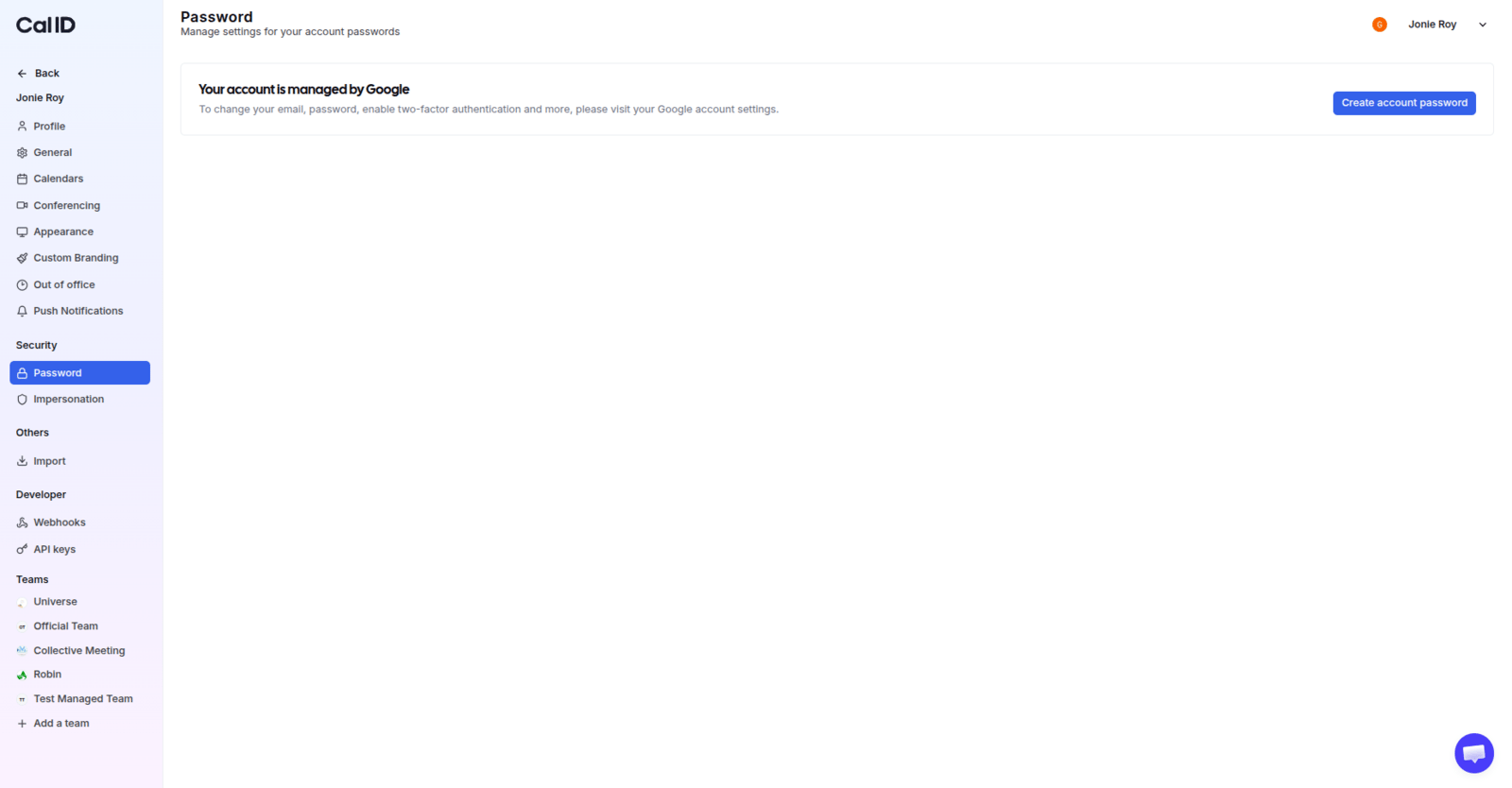
If you created your account by clicking **Sign in with Google** (Gmail), you have not set a specific password for Cal ID yet.
**What you will see:** the password page displays the message **"Your account is managed by Google"**.
**How to create a password:**
Click the button labeled **Create account password**.
An email is sent to your primary email address.
Open that email and click the link inside to set your new password.
 If you signed up with an email and password, or have previously added a password, you can change it here.
**What you will see:** fields for **Old password** and **New password**.
**How to change it:**
Type your existing password in the **Old password** field.
Type your desired new password in the **New password** field.
Click **Update**.
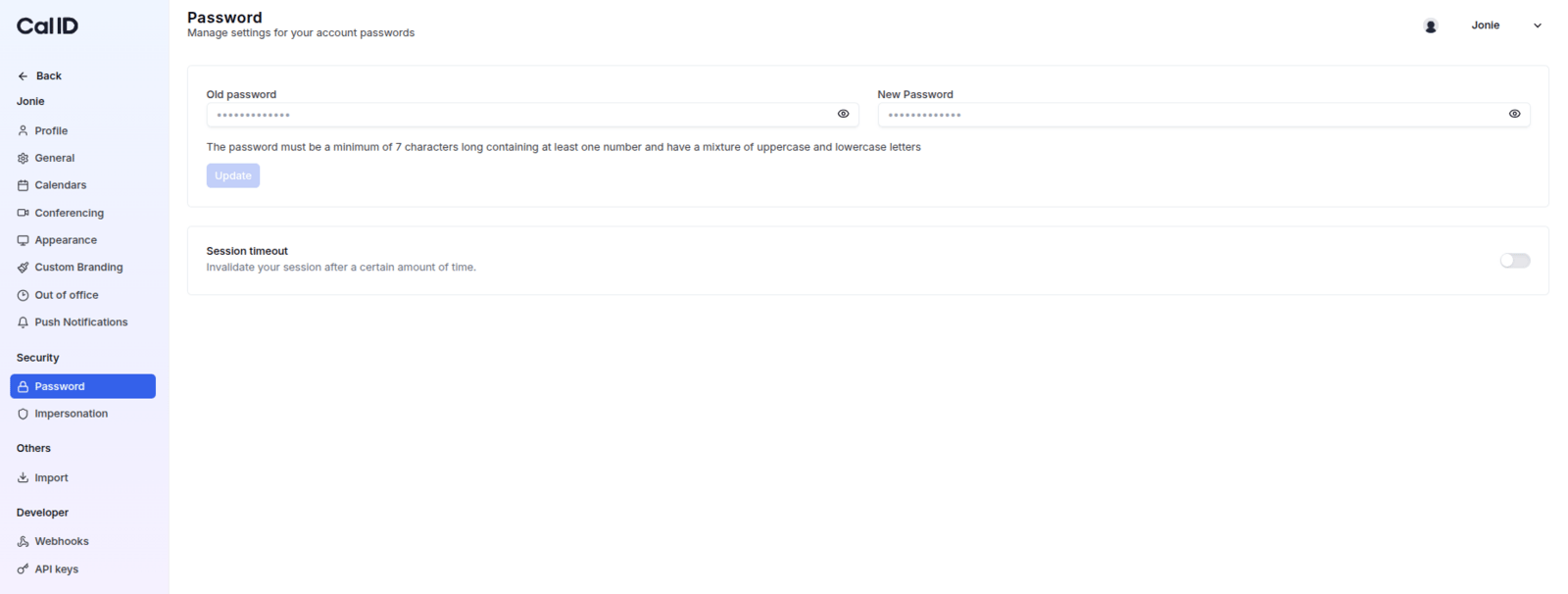
If you signed up with an email and password, or have previously added a password, you can change it here.
**What you will see:** fields for **Old password** and **New password**.
**How to change it:**
Type your existing password in the **Old password** field.
Type your desired new password in the **New password** field.
Click **Update**.
 Never share your password with anyone. Cal ID will never ask you to send it by email or message. Choose a strong, unique password you don't reuse on other sites.
## Related topics
- [Managing Your Cal ID Profile Settings](/docs/settings/profile.md)
- [Configure Language, Timezone, and Travel Schedule in Cal ID](/docs/settings/general.md)
- [Complete your Cal ID Onboarding](/docs/getting-started/onboarding.md)
Never share your password with anyone. Cal ID will never ask you to send it by email or message. Choose a strong, unique password you don't reuse on other sites.
## Related topics
- [Managing Your Cal ID Profile Settings](/docs/settings/profile.md)
- [Configure Language, Timezone, and Travel Schedule in Cal ID](/docs/settings/general.md)
- [Complete your Cal ID Onboarding](/docs/getting-started/onboarding.md)