> ## Documentation Index
> Fetch the complete documentation index at: https://cal.id/docs/llms.txt
> Use this file to discover all available pages before exploring further.
# Managing Push Notifications in Cal ID
> Configure Cal ID push notifications to receive real-time browser alerts for new bookings, cancellations, reschedules, and other scheduling activities.
Enable push notifications to get real-time browser alerts for booking activity — new bookings, cancellations, reschedules, and more — the moment they happen.
## Steps to enable push notifications
Access your account dashboard.
Click your profile icon and select **Settings**.
Select **Push Notifications** from the settings menu.
Click the **Allow Browser Notifications** button, then accept the permission prompt when your browser asks.
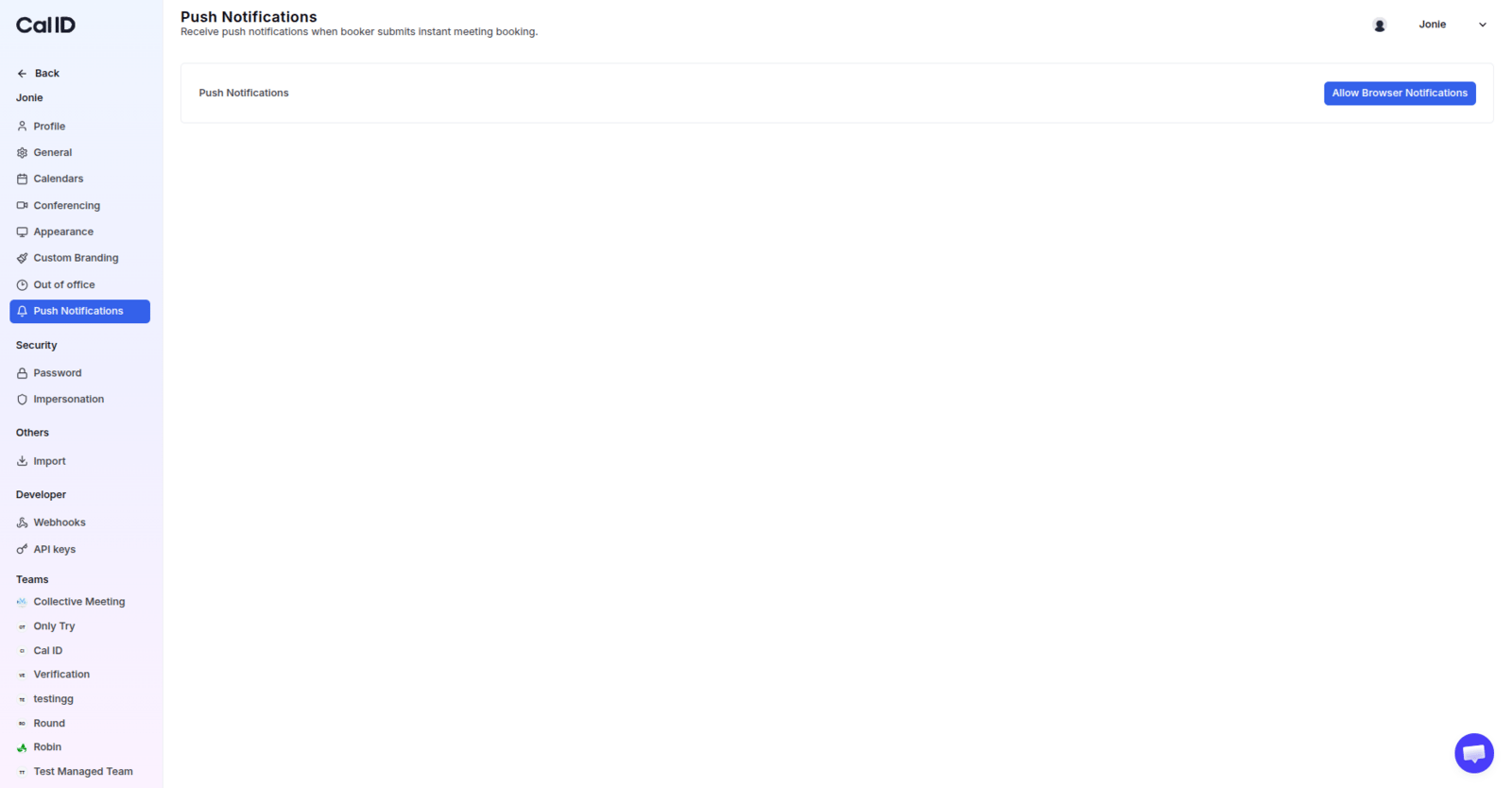 You're done — Cal ID will now send booking alerts straight to your browser.
## Related topics
- [Configure Language, Timezone, and Travel Schedule in Cal ID](/docs/settings/general.md)
- [Cal ID Mobile Apps](/docs/getting-started/mobile-apps.md)
- [Managing Your Cal ID Profile Settings](/docs/settings/profile.md)
- [Workflows Setup to Cal ID](/docs/workflows/overview.md)
You're done — Cal ID will now send booking alerts straight to your browser.
## Related topics
- [Configure Language, Timezone, and Travel Schedule in Cal ID](/docs/settings/general.md)
- [Cal ID Mobile Apps](/docs/getting-started/mobile-apps.md)
- [Managing Your Cal ID Profile Settings](/docs/settings/profile.md)
- [Workflows Setup to Cal ID](/docs/workflows/overview.md)