> ## Documentation Index
> Fetch the complete documentation index at: https://cal.id/docs/llms.txt
> Use this file to discover all available pages before exploring further.
# Start of the Week
> Choose which day appears first on your Cal ID calendar to match your preferred work schedule and how the week displays on your public booking page.
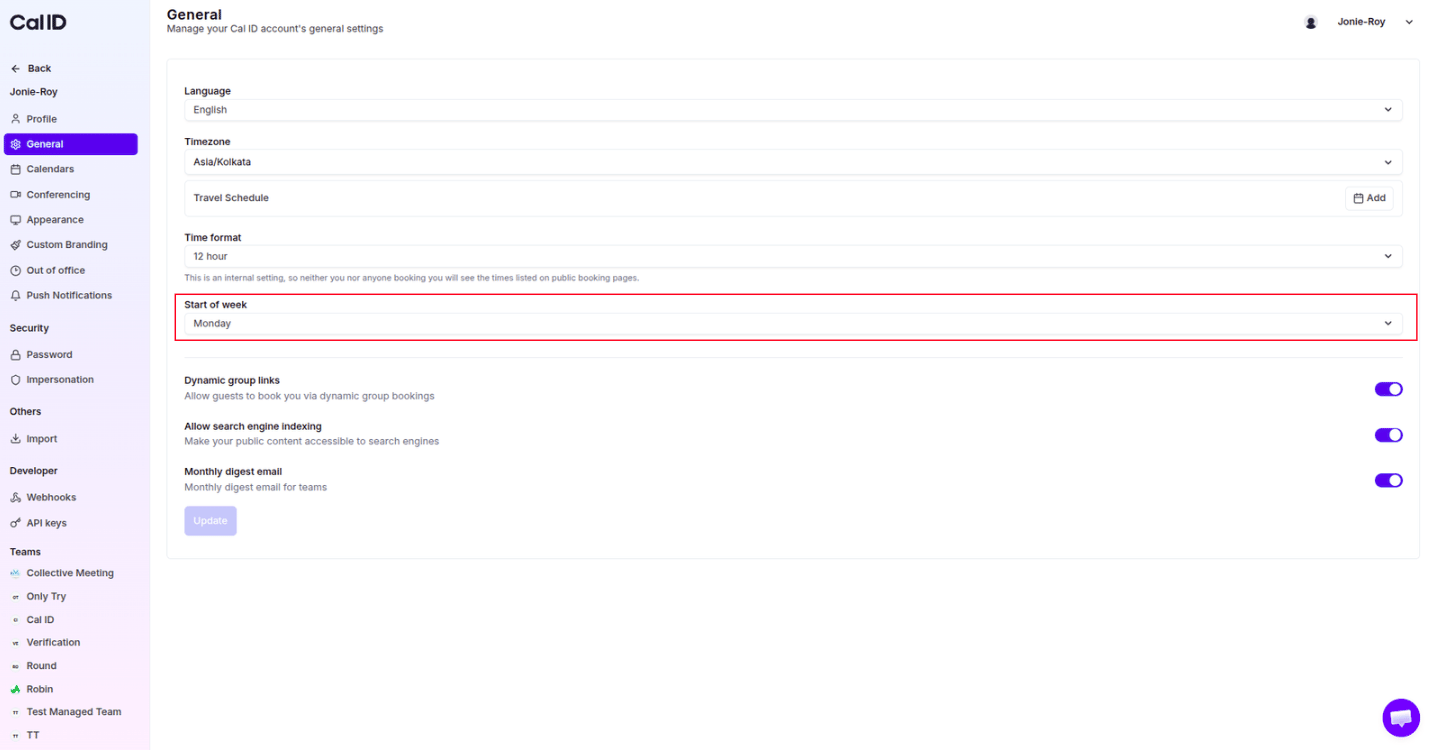
The **Start of week** setting lets you choose which day of the week appears first on your calendar. Changing it reorganizes the layout of your **public booking page** to match your preferred work schedule.
## Why change the start of the week?
The day you select becomes the "anchor" for your calendar grid.
* **Standard business view** — many professionals prefer a **Monday** start so the work week (Monday–Friday) is grouped together.
* **Traditional view** — selecting **Sunday** places the weekend at the start of the calendar grid.
* **Visual only** — this change only moves the columns; it does **not** change your available hours or existing meetings.
## Update your calendar layout
Locate the sidebar on the left side of your dashboard and click **Settings**.
Inside the settings menu, click the **General** sub-tab.
Scroll down the page until you see the dropdown menu labeled **Start of week**.
Click the menu and select your preferred day (for example, **Monday**).
Click the blue **Update** button at the bottom of the screen to save your new layout.
 ## What your guests will see
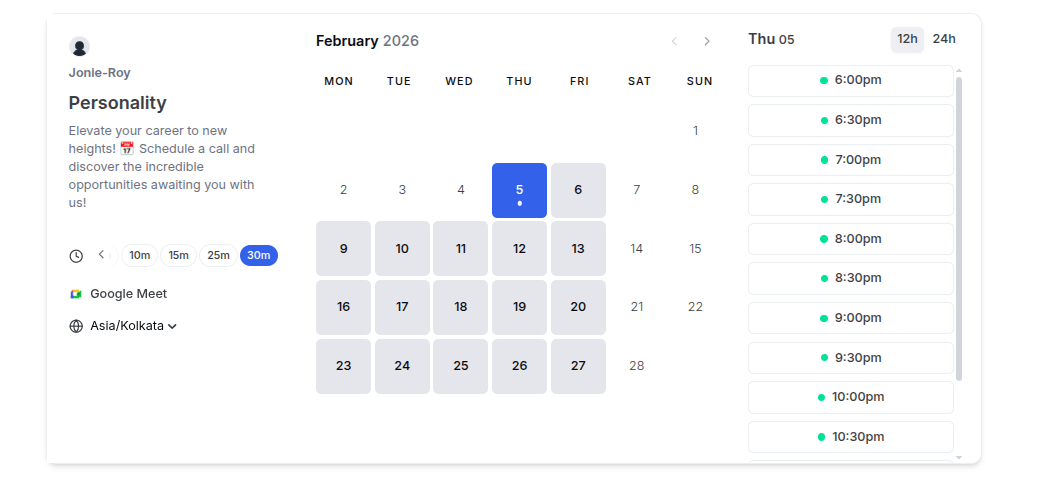
Once you click **Update**, your public booking page immediately reflects the new layout.
* **New column order** — if you selected **Monday**, the first column on the far left is **MON**, followed by **TUE**, and ending with **SUN** on the far right.
* **Correct dates** — all your dates automatically shift to stay under the correct day (e.g., if February 5th is a Thursday, it stays under the **THU** column regardless of which day the week starts).
* **Easy navigation** — this makes it much easier for clients to view your availability based on the work week they are used to.
## What your guests will see
Once you click **Update**, your public booking page immediately reflects the new layout.
* **New column order** — if you selected **Monday**, the first column on the far left is **MON**, followed by **TUE**, and ending with **SUN** on the far right.
* **Correct dates** — all your dates automatically shift to stay under the correct day (e.g., if February 5th is a Thursday, it stays under the **THU** column regardless of which day the week starts).
* **Easy navigation** — this makes it much easier for clients to view your availability based on the work week they are used to.
 Most international businesses use a **Monday** start to keep the work week clear for clients. If you primarily work with clients in North America, a **Sunday** start is often the most familiar choice.
## Related topics
- [How to Set Your Internal Time Format](/docs/settings/time-format.md)
- [Configure Language, Timezone, and Travel Schedule in Cal ID](/docs/settings/general.md)
- [Managing Your Cal ID Profile Settings](/docs/settings/profile.md)
- [Create Availability in Cal ID](/docs/availability/create.md)
Most international businesses use a **Monday** start to keep the work week clear for clients. If you primarily work with clients in North America, a **Sunday** start is often the most familiar choice.
## Related topics
- [How to Set Your Internal Time Format](/docs/settings/time-format.md)
- [Configure Language, Timezone, and Travel Schedule in Cal ID](/docs/settings/general.md)
- [Managing Your Cal ID Profile Settings](/docs/settings/profile.md)
- [Create Availability in Cal ID](/docs/availability/create.md)