> ## Documentation Index
> Fetch the complete documentation index at: https://cal.id/docs/llms.txt
> Use this file to discover all available pages before exploring further.
# How to Set Your Internal Time Format
> Choose whether your Cal ID dashboard displays hours in 12-hour or 24-hour format for your internal views without affecting your public booking page.
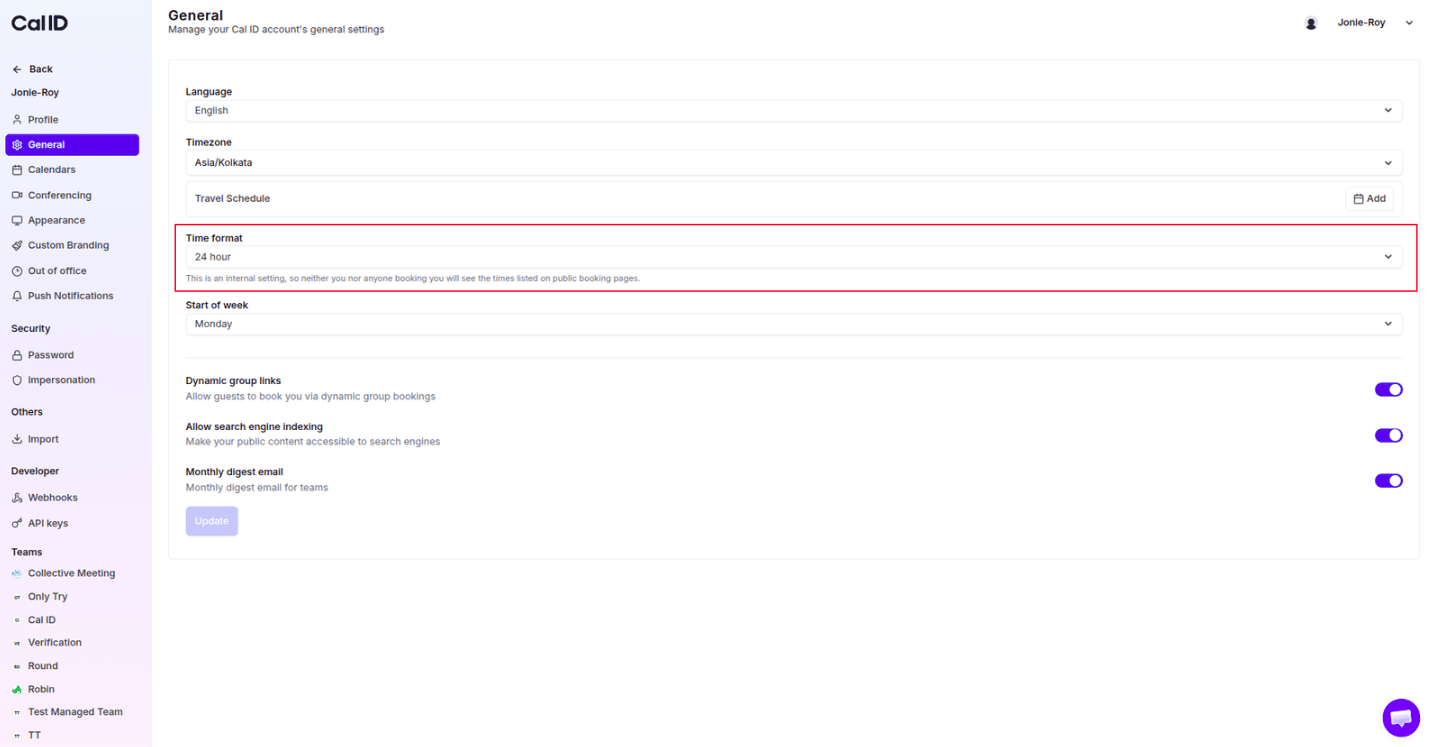
The **Time format** setting in Cal ID controls how hours are displayed within your dashboard, letting you manage your schedule using the clock system you are most comfortable with — a standard 12-hour clock or 24-hour (military) time.
## What this setting affects
This is an internal display preference only. It does not move your meetings or change your availability.
* **Internal setting only** — applies **only** to your internal view, such as your Bookings list, Availability settings, and Dashboard.
* **Public booking page** — does **not** change how times are listed for your guests. Guests always see times based on their own browser's local standards to avoid confusion.
* **Visual preference** — purely for your convenience; it does not shift your meeting times or availability slots.
## Update your time format
Click the **Settings** option in the left-hand sidebar.
Select the **General** sub-tab to see your account preferences.
Find the dropdown menu labeled **Time format**.
Select **12 hour** (e.g., 2:15 PM) or **24 hour** (e.g., 14:15).
Click the blue **Update** button at the bottom to apply the setting.
 ## Choosing the right format
* **12-hour (AM/PM)** — best if you prefer seeing a distinction between morning and afternoon (e.g., 9:00 AM vs. 4:00 PM).
* **24-hour (military time)** — best for professionals working across global timezones who want to eliminate any "AM vs. PM" ambiguity in their internal planning.
## Visible changes in your Cal ID dashboard
Once you update your time format and click **Update**, the change is reflected across your entire account:
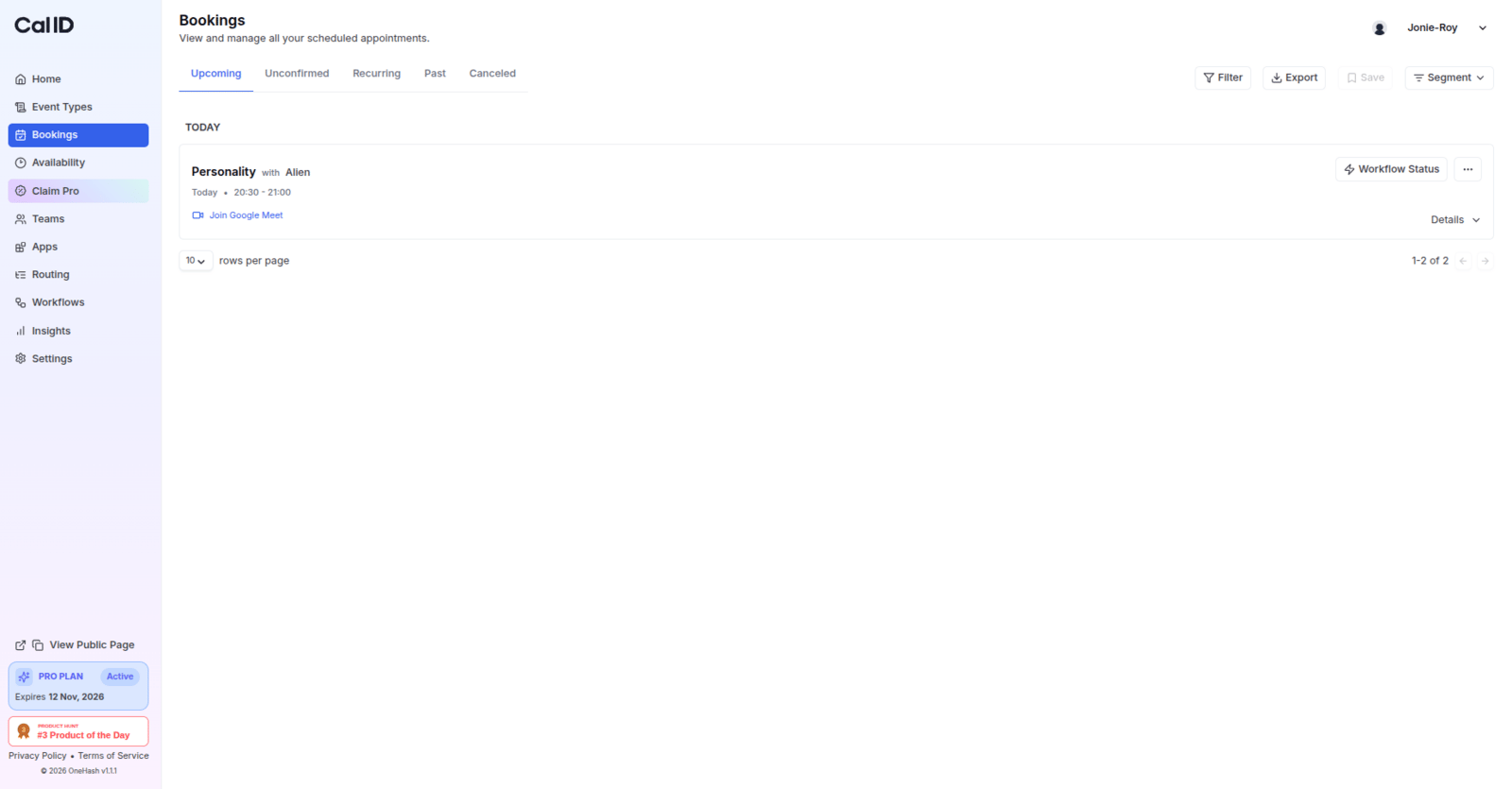
* **Bookings tab** — the start and end times for all your scheduled meetings (Upcoming, Past, etc.) automatically update to your selected format (e.g., changing from 2:15 PM to 14:15).
## Choosing the right format
* **12-hour (AM/PM)** — best if you prefer seeing a distinction between morning and afternoon (e.g., 9:00 AM vs. 4:00 PM).
* **24-hour (military time)** — best for professionals working across global timezones who want to eliminate any "AM vs. PM" ambiguity in their internal planning.
## Visible changes in your Cal ID dashboard
Once you update your time format and click **Update**, the change is reflected across your entire account:
* **Bookings tab** — the start and end times for all your scheduled meetings (Upcoming, Past, etc.) automatically update to your selected format (e.g., changing from 2:15 PM to 14:15).
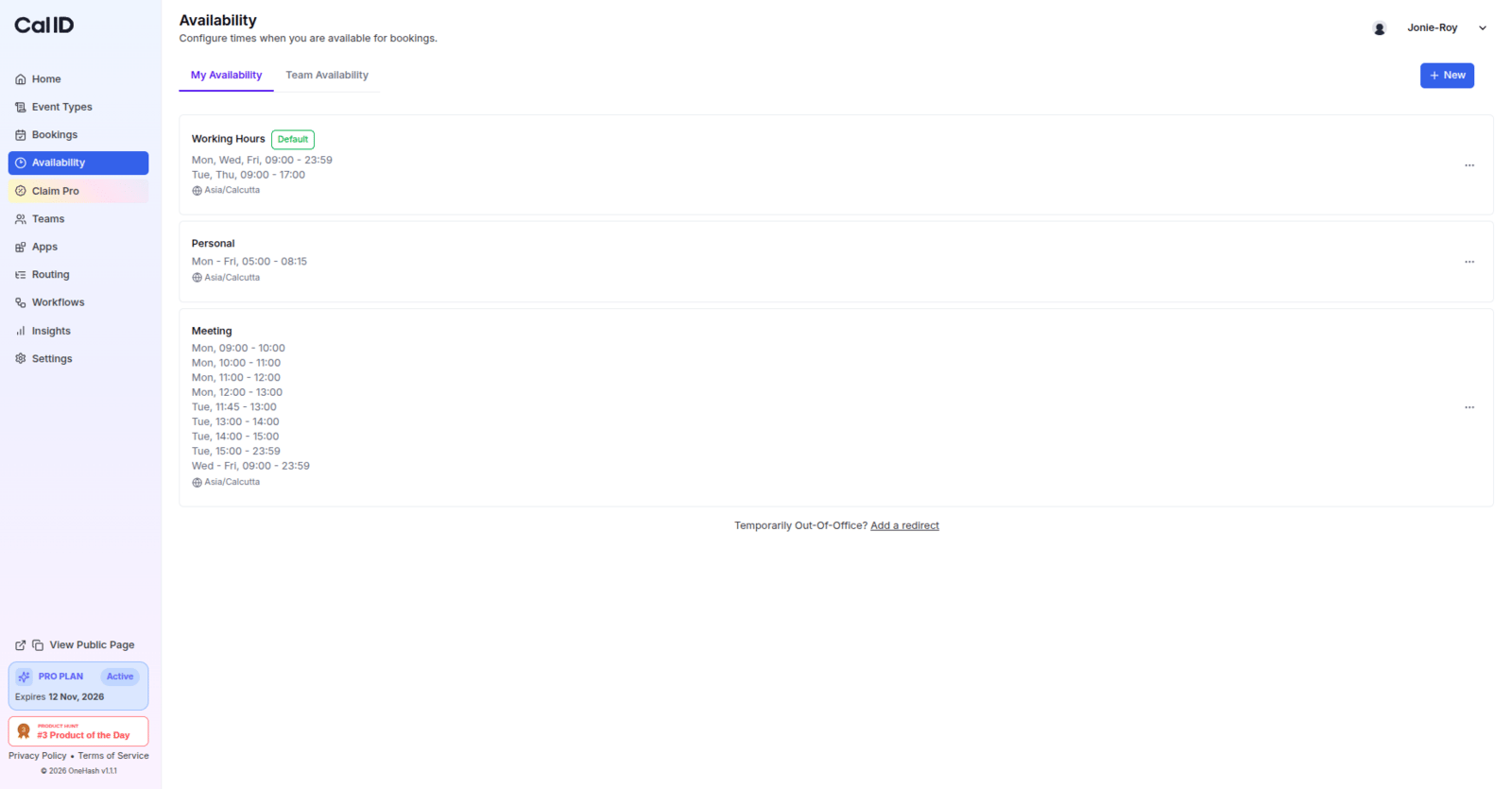
 * **Availability tab** — your working hours and time slots now appear in the 12-hour or 24-hour format you chose, making it easier to set your schedule.
 If you manage a heavy schedule of afternoon and evening meetings, the **24-hour** format helps you quickly calculate durations and gaps without the risk of misreading "12 PM" and "12 AM".
## Related topics
- [Start of the Week](/docs/settings/start-of-week.md)
- [Configure Language, Timezone, and Travel Schedule in Cal ID](/docs/settings/general.md)
- [Managing Your Cal ID Profile Settings](/docs/settings/profile.md)
- [Create Availability in Cal ID](/docs/availability/create.md)
If you manage a heavy schedule of afternoon and evening meetings, the **24-hour** format helps you quickly calculate durations and gaps without the risk of misreading "12 PM" and "12 AM".
## Related topics
- [Start of the Week](/docs/settings/start-of-week.md)
- [Configure Language, Timezone, and Travel Schedule in Cal ID](/docs/settings/general.md)
- [Managing Your Cal ID Profile Settings](/docs/settings/profile.md)
- [Create Availability in Cal ID](/docs/availability/create.md)