> ## Documentation Index
> Fetch the complete documentation index at: https://cal.id/docs/llms.txt
> Use this file to discover all available pages before exploring further.
# Team Advanced Settings
> Manage user impersonation, private team visibility, and team-wide booking frequency limits from the advanced Settings tab of your Cal ID team.
The **Settings** tab lets Team Owners and Admins control internal privacy, administrative access, and booking limits for the whole team from one place.
These controls are available to **Team Owners** and **Admins** only. Regular members won't see the Settings tab.
## Access team settings
Open your account dashboard.
Click the **Teams** icon in the left-hand sidebar.
Locate your team, click the **three horizontal dots**, and select **Edit team**.
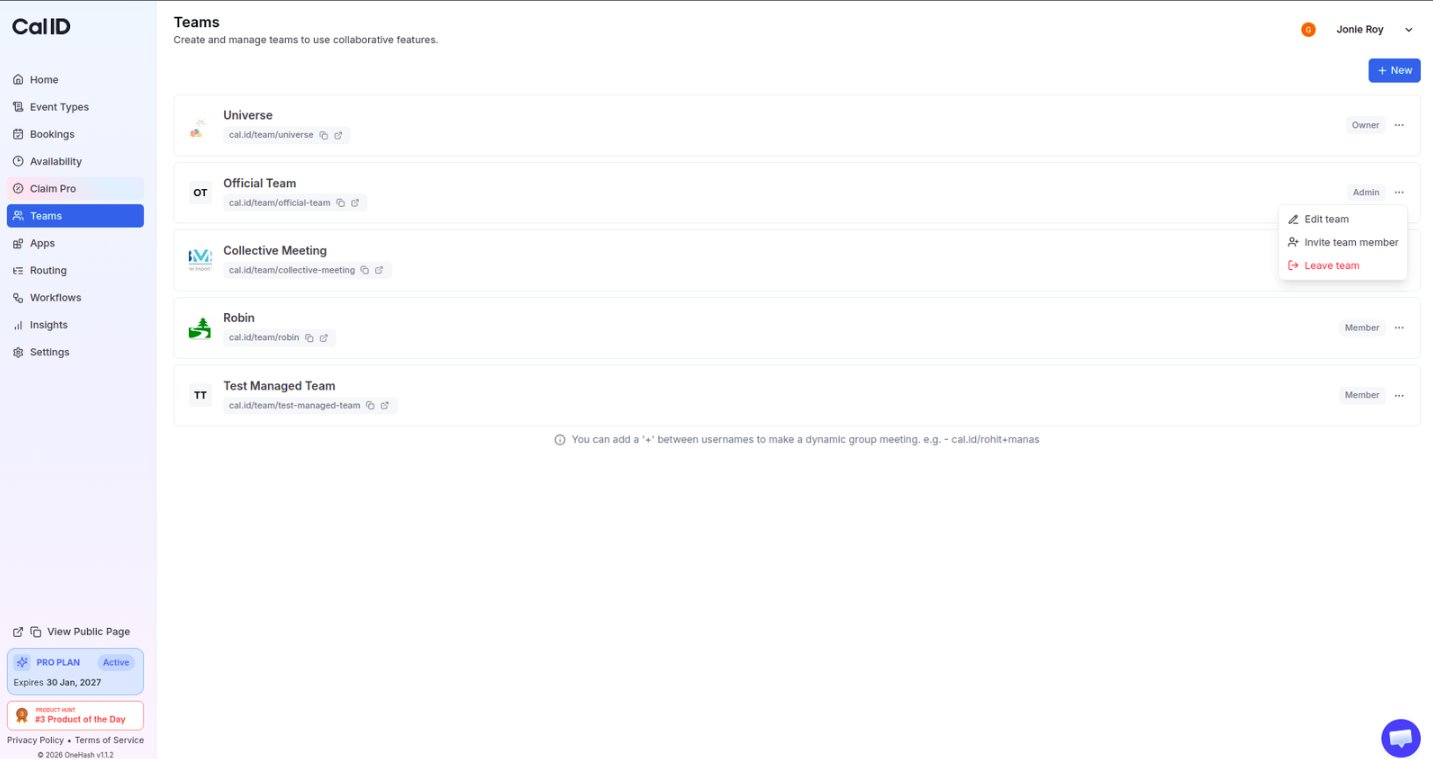 Click the **Settings** tab at the top.
## Available settings
| Setting | What it does | When toggled ON |
| --------------------------- | ----------------------------------------------------------- | ------------------------------------------------------------------------------------- |
| **User impersonation** | Lets Owners/Admins log in temporarily as another member | Admins can access a member's interface to view config or make changes on their behalf |
| **Private team** | Hides the team roster from non-admin members | Members can't see each other; they see "Only admins can see members of this team." |
| **Limit booking frequency** | Caps how many appointments a member can take in a timeframe | Enter a count and interval to enforce the restriction |
## Feature breakdown
### User impersonation
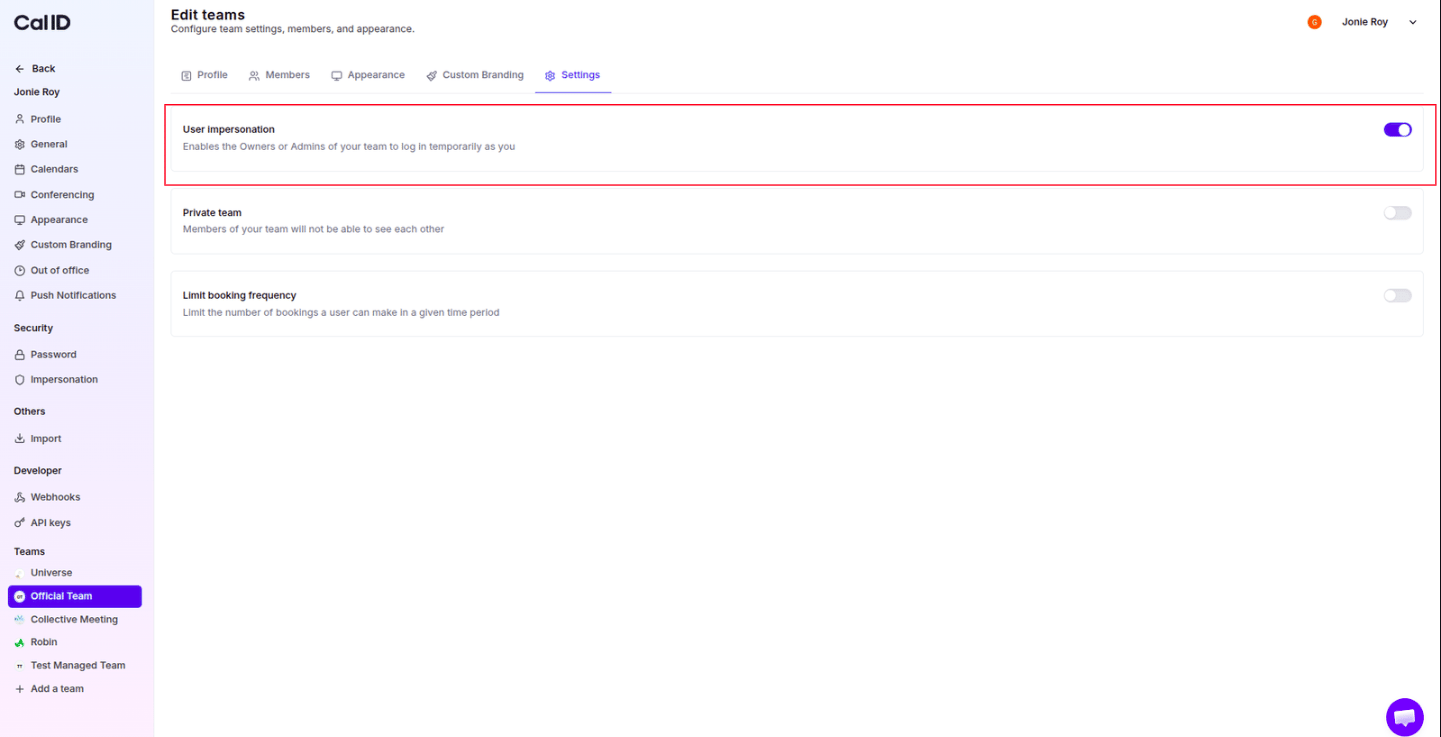
Allows the **Owners** or **Admins** of your team to log in temporarily as another member. When toggled **ON**, administrative roles can access a member's Cal ID interface to view their configuration or make necessary changes on their behalf.
Click the **Settings** tab at the top.
## Available settings
| Setting | What it does | When toggled ON |
| --------------------------- | ----------------------------------------------------------- | ------------------------------------------------------------------------------------- |
| **User impersonation** | Lets Owners/Admins log in temporarily as another member | Admins can access a member's interface to view config or make changes on their behalf |
| **Private team** | Hides the team roster from non-admin members | Members can't see each other; they see "Only admins can see members of this team." |
| **Limit booking frequency** | Caps how many appointments a member can take in a timeframe | Enter a count and interval to enforce the restriction |
## Feature breakdown
### User impersonation
Allows the **Owners** or **Admins** of your team to log in temporarily as another member. When toggled **ON**, administrative roles can access a member's Cal ID interface to view their configuration or make necessary changes on their behalf.
 ### Private team
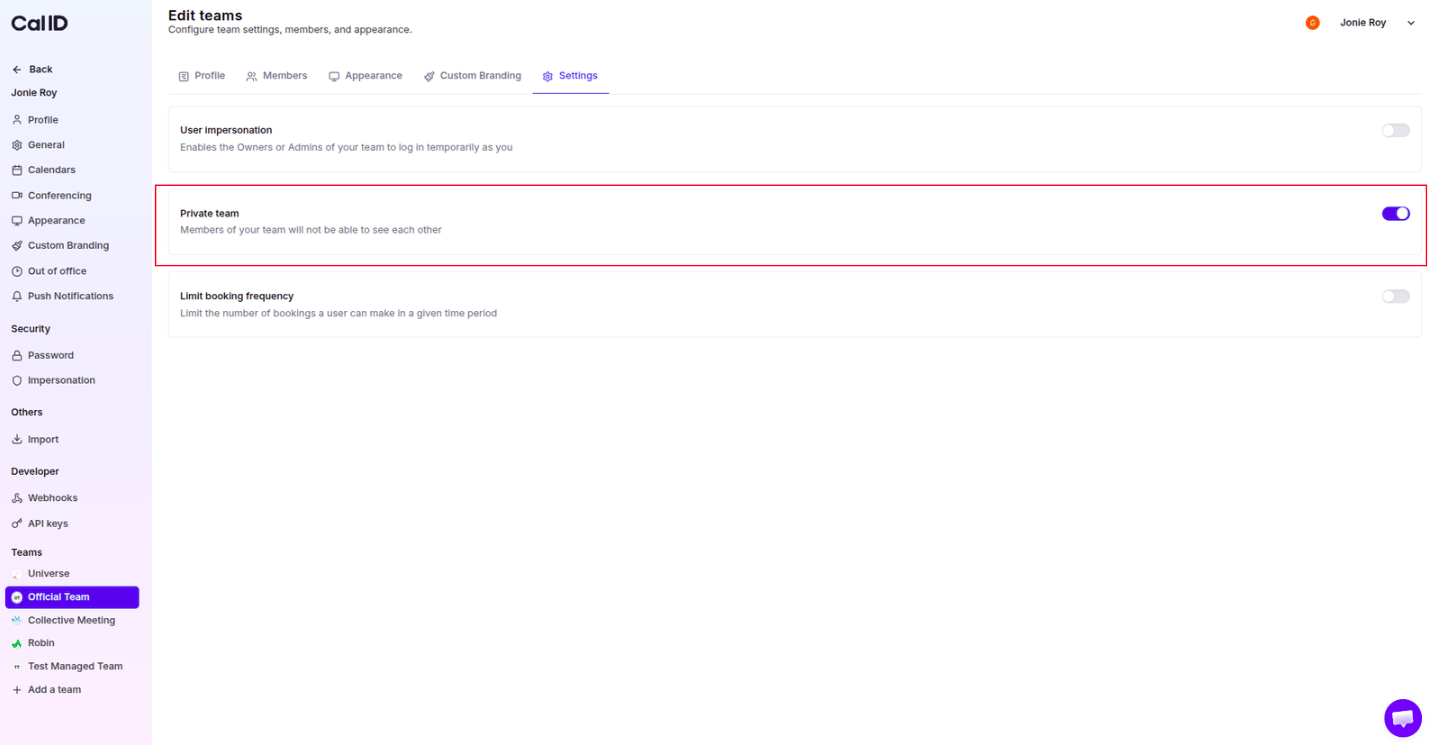
Hides the team roster from non-administrative members. When toggled **ON**:
* Team members will not be able to see each other.
* Members who attempt to view the roster will see a message stating: **"Only admins can see members of this team."**
### Private team
Hides the team roster from non-administrative members. When toggled **ON**:
* Team members will not be able to see each other.
* Members who attempt to view the roster will see a message stating: **"Only admins can see members of this team."**
 ### Limit booking frequency
Prevents your team from being overbooked by limiting how many appointments a user can schedule within a specific timeframe. Toggle the switch to **ON** to activate the restriction.
### Limit booking frequency
Prevents your team from being overbooked by limiting how many appointments a user can schedule within a specific timeframe. Toggle the switch to **ON** to activate the restriction.
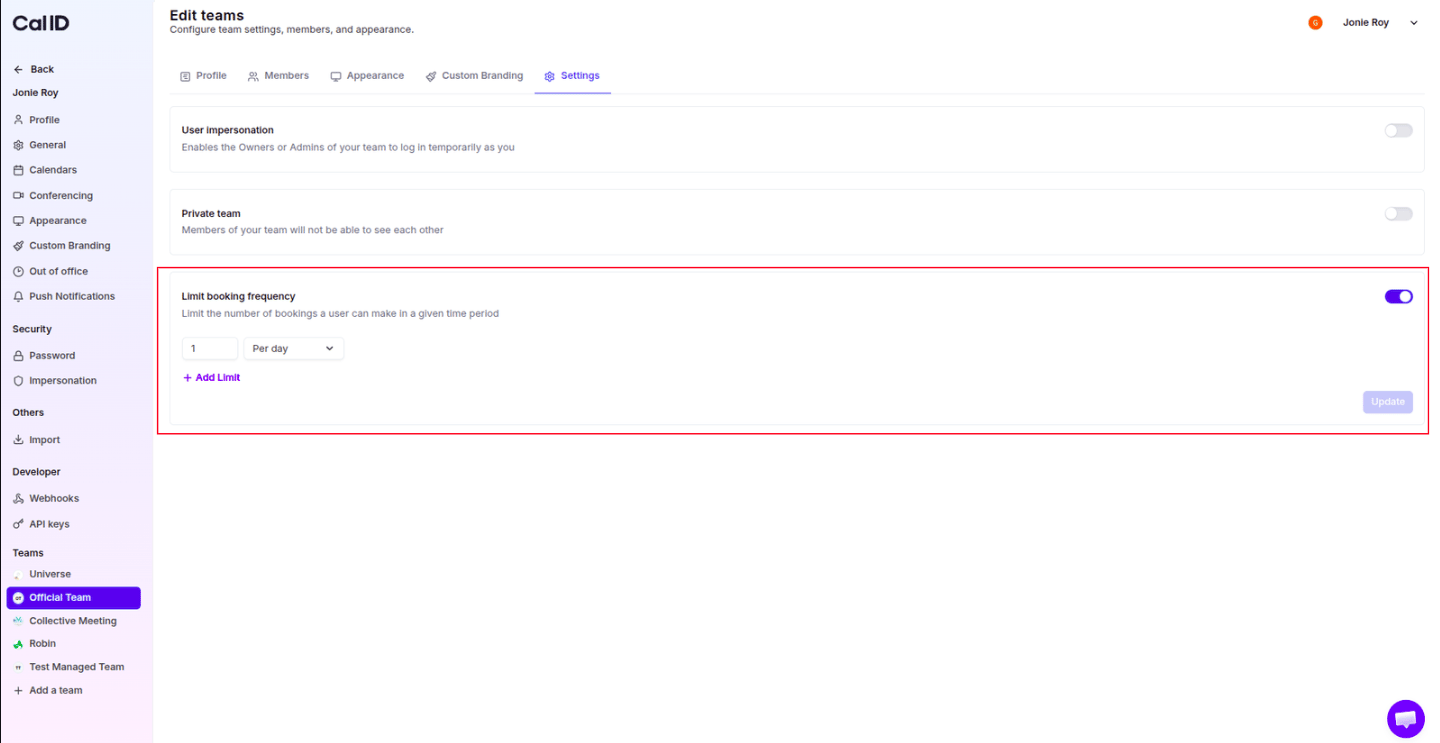 * **Set the Count**: Enter a number (e.g., **1**) to define the maximum bookings allowed.
* **Set the Interval**: Choose the timeframe from the dropdown menu (e.g., **Per day**, **Per week**, or **Per month**).
* **Multiple Limits**: Click **+ Add Limit** to set tiered restrictions (for example, 1 booking per day AND 3 bookings per week).
Combine multiple limits to protect both daily focus time and weekly capacity at once.
## Related topics
- [Managing Team Settings and Profile](/docs/teams/settings.md)
- [Teams in Cal ID](/docs/teams/overview.md)
- [Managed Events](/docs/teams/managed.md)
- [Inviting Members to an Existing Team](/docs/teams/invite-members.md)
- [How to Remove a Member from the Team](/docs/teams/remove-member.md)
* **Set the Count**: Enter a number (e.g., **1**) to define the maximum bookings allowed.
* **Set the Interval**: Choose the timeframe from the dropdown menu (e.g., **Per day**, **Per week**, or **Per month**).
* **Multiple Limits**: Click **+ Add Limit** to set tiered restrictions (for example, 1 booking per day AND 3 bookings per week).
Combine multiple limits to protect both daily focus time and weekly capacity at once.
## Related topics
- [Managing Team Settings and Profile](/docs/teams/settings.md)
- [Teams in Cal ID](/docs/teams/overview.md)
- [Managed Events](/docs/teams/managed.md)
- [Inviting Members to an Existing Team](/docs/teams/invite-members.md)
- [How to Remove a Member from the Team](/docs/teams/remove-member.md)