> ## Documentation Index
> Fetch the complete documentation index at: https://cal.id/docs/llms.txt
> Use this file to discover all available pages before exploring further.
# Internal Team Meeting
> Find common free time among team members and book an internal meeting directly from your Cal ID dashboard without leaving the scheduling interface.
In **Cal ID**, the **Internal Team Meeting** feature lets you quickly find common free time among your colleagues and book a meeting without ever leaving your dashboard.
Unlike a public booking link where others book you, this feature is designed for you to proactively schedule a meeting with your own team members based on their real-time availability.
## Schedule an internal team meeting
Log in to your Cal ID account, navigate to the **Availability** page in the sidebar, and click the **Team Availability** tab.
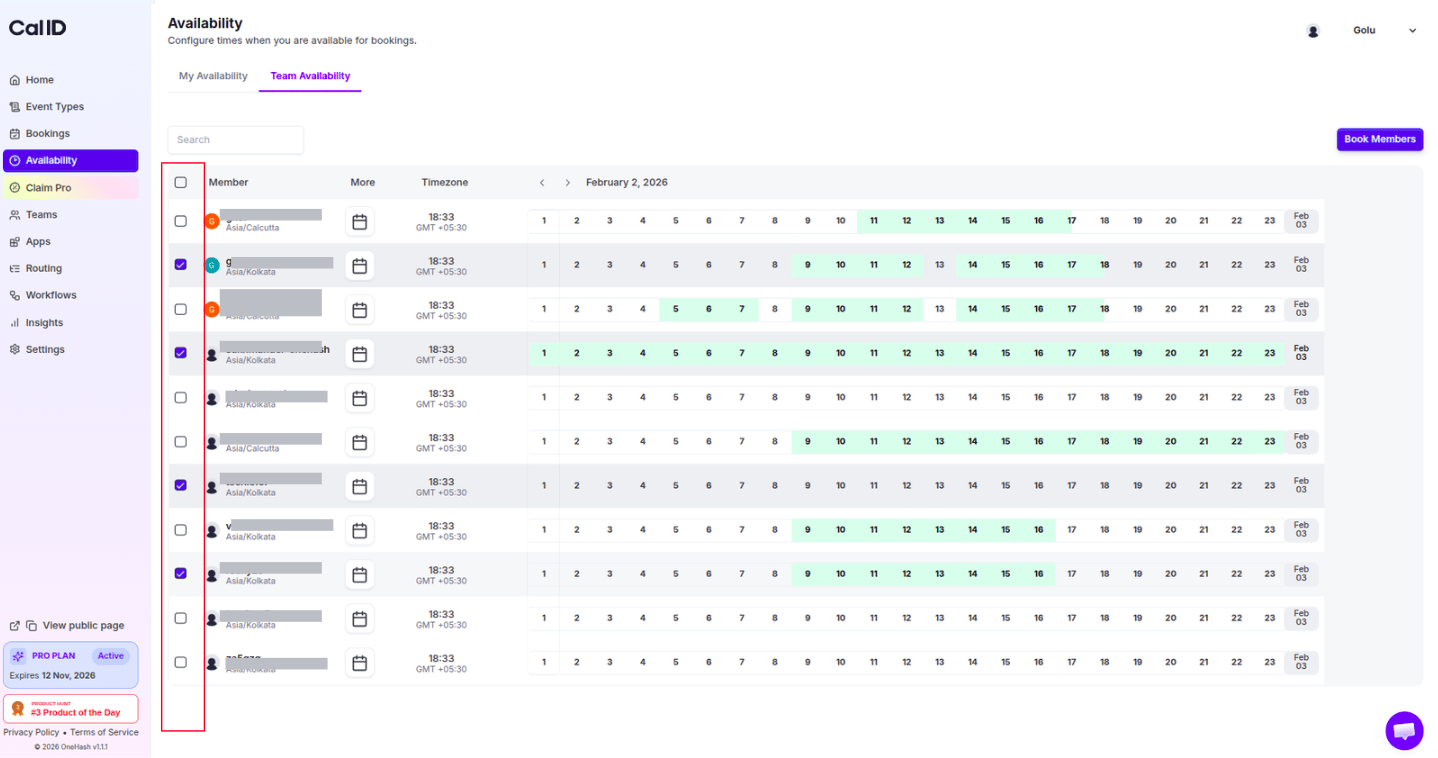
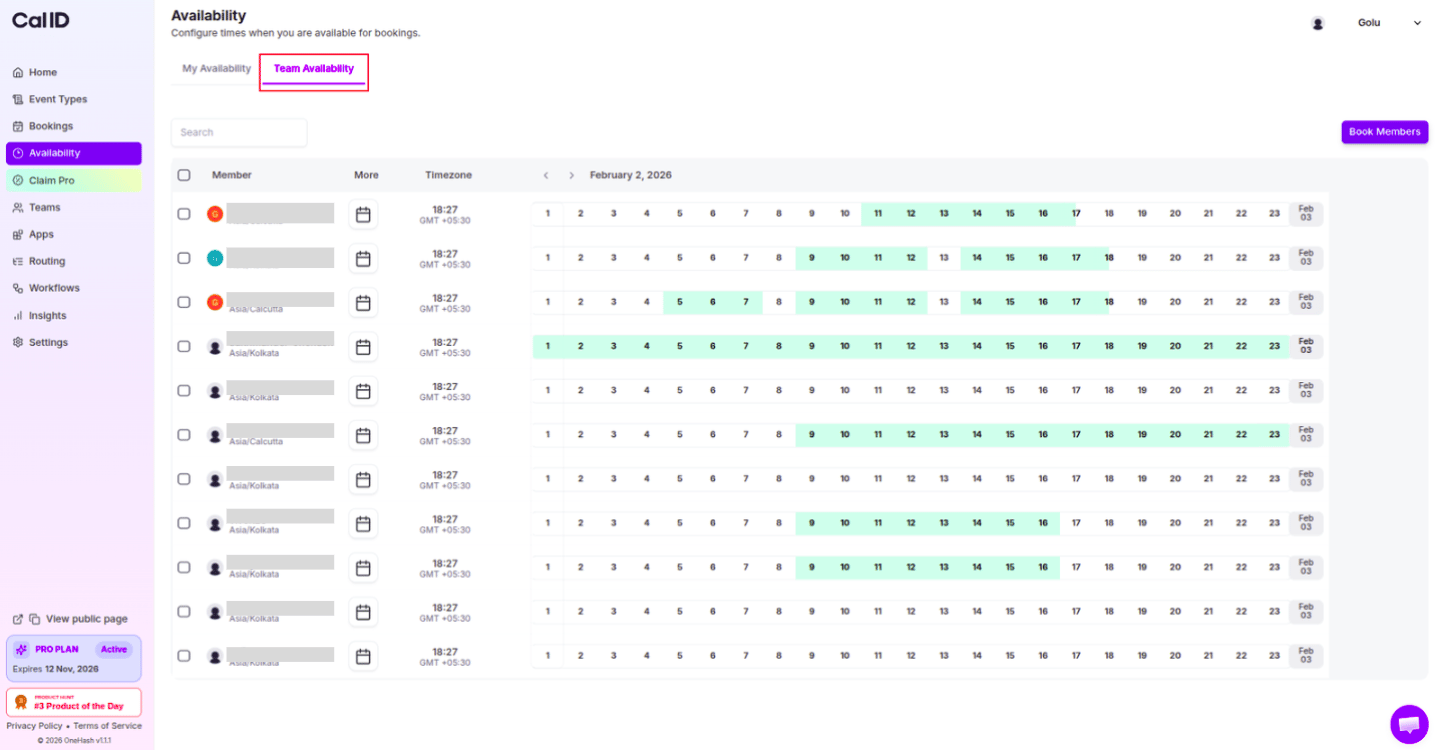 You'll see a list of your team members. Check the boxes next to the specific members you want to include in the meeting.
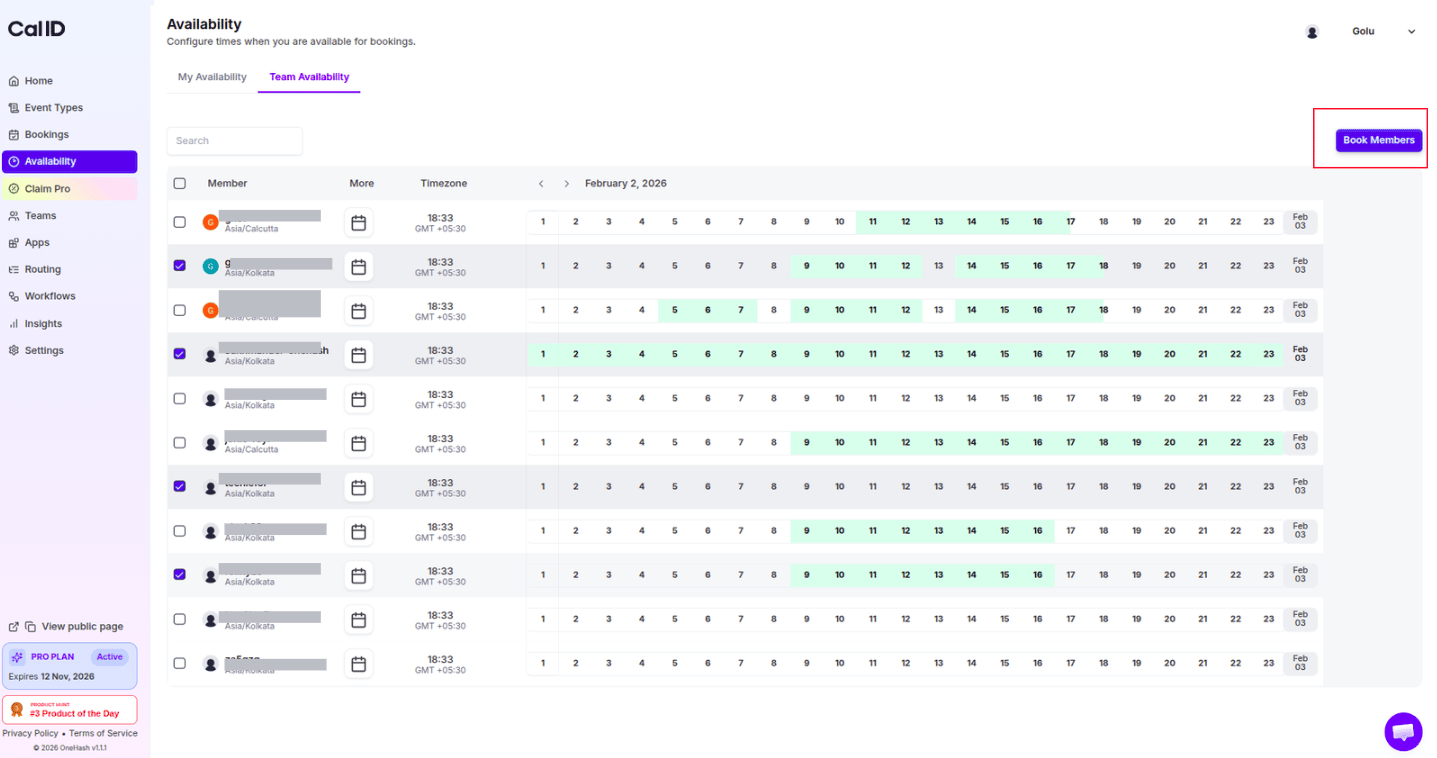
 After selecting the members, click the **Book Members** button.
 A popup window appears showing a calendar. It **only** shows the time slots where **all** selected members are simultaneously free (common availability).
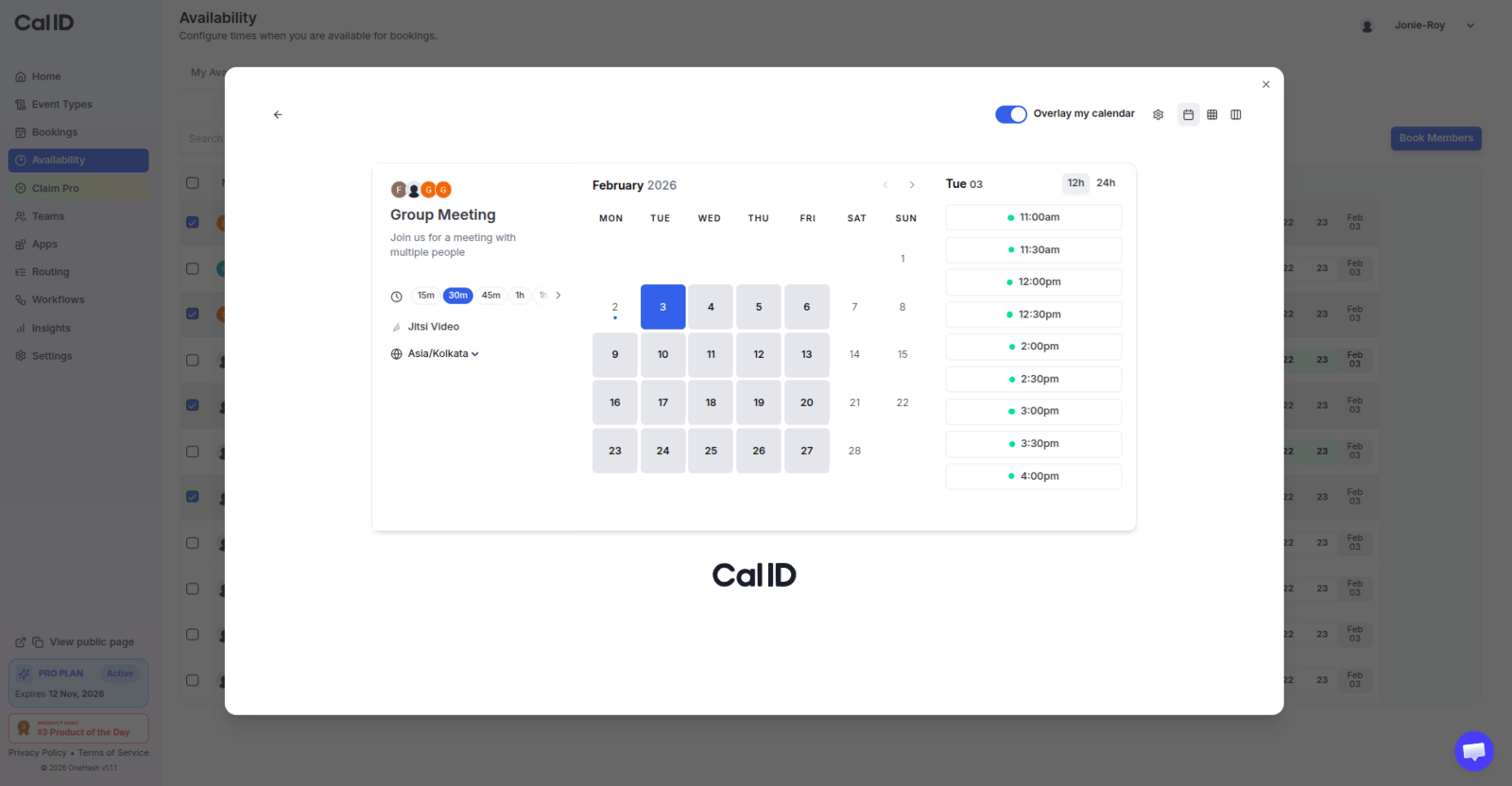 Select the date and specific time slot that works for everyone, fill out the booking questions (meeting title, description, etc.), and click **Confirm**.
## What happens next?
Once you click **Confirm**, the system handles the rest of the communication:
* **Calendar sync**: The meeting is automatically added to the personal calendars of every selected team member.
* **Email notifications**: All selected members immediately receive an email invitation with the meeting details, location link, and time.
* **Centralized record**: The meeting also appears in your **Bookings** tab within Cal ID for easy management.
**Quick syncs:** This is the fastest way to schedule emergency meetings or internal reviews. Instead of messaging everyone asking "Are you free at 2 PM?", the **Team Availability** tab gives you the answer instantly.
## Related topics
- [Collective Events](/docs/teams/collective.md)
- [Round-Robin Scheduling](/docs/teams/round-robin.md)
- [Team Availability](/docs/availability/team-availability.md)
- [Teams in Cal ID](/docs/teams/overview.md)
- [Managed Events](/docs/teams/managed.md)
Select the date and specific time slot that works for everyone, fill out the booking questions (meeting title, description, etc.), and click **Confirm**.
## What happens next?
Once you click **Confirm**, the system handles the rest of the communication:
* **Calendar sync**: The meeting is automatically added to the personal calendars of every selected team member.
* **Email notifications**: All selected members immediately receive an email invitation with the meeting details, location link, and time.
* **Centralized record**: The meeting also appears in your **Bookings** tab within Cal ID for easy management.
**Quick syncs:** This is the fastest way to schedule emergency meetings or internal reviews. Instead of messaging everyone asking "Are you free at 2 PM?", the **Team Availability** tab gives you the answer instantly.
## Related topics
- [Collective Events](/docs/teams/collective.md)
- [Round-Robin Scheduling](/docs/teams/round-robin.md)
- [Team Availability](/docs/availability/team-availability.md)
- [Teams in Cal ID](/docs/teams/overview.md)
- [Managed Events](/docs/teams/managed.md)