> ## Documentation Index
> Fetch the complete documentation index at: https://cal.id/docs/llms.txt
> Use this file to discover all available pages before exploring further.
# Managed Events
> Create and manage shared Cal ID event types for all team members from one place, with locked and editable fields to enforce consistent booking rules.
Managed events let team admins create a common event type once and push it to every member, keeping booking rules consistent while still leaving room for individual customization. A managed event type comes with certain fields locked by the admin and others left open for members to modify.
A managed event type acts as a **centrally-managed template**. Once you assign it, each member receives their own regular event type generated from it — and any change you make to a locked field is pushed to every assigned member automatically.
Managed Events v2 do not support Webhooks and Apps. Subsequent releases of this feature will tackle them.
## Creation
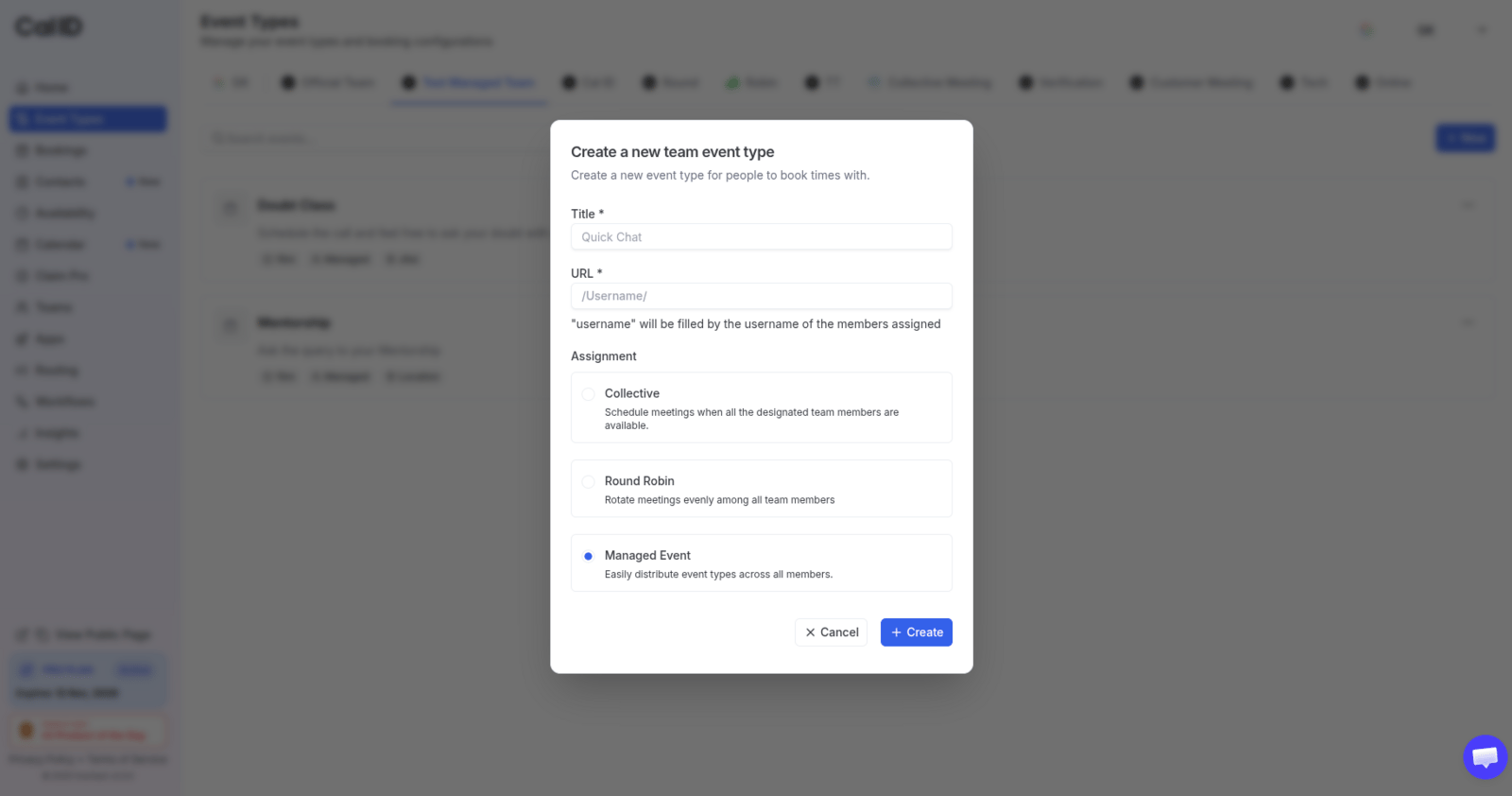
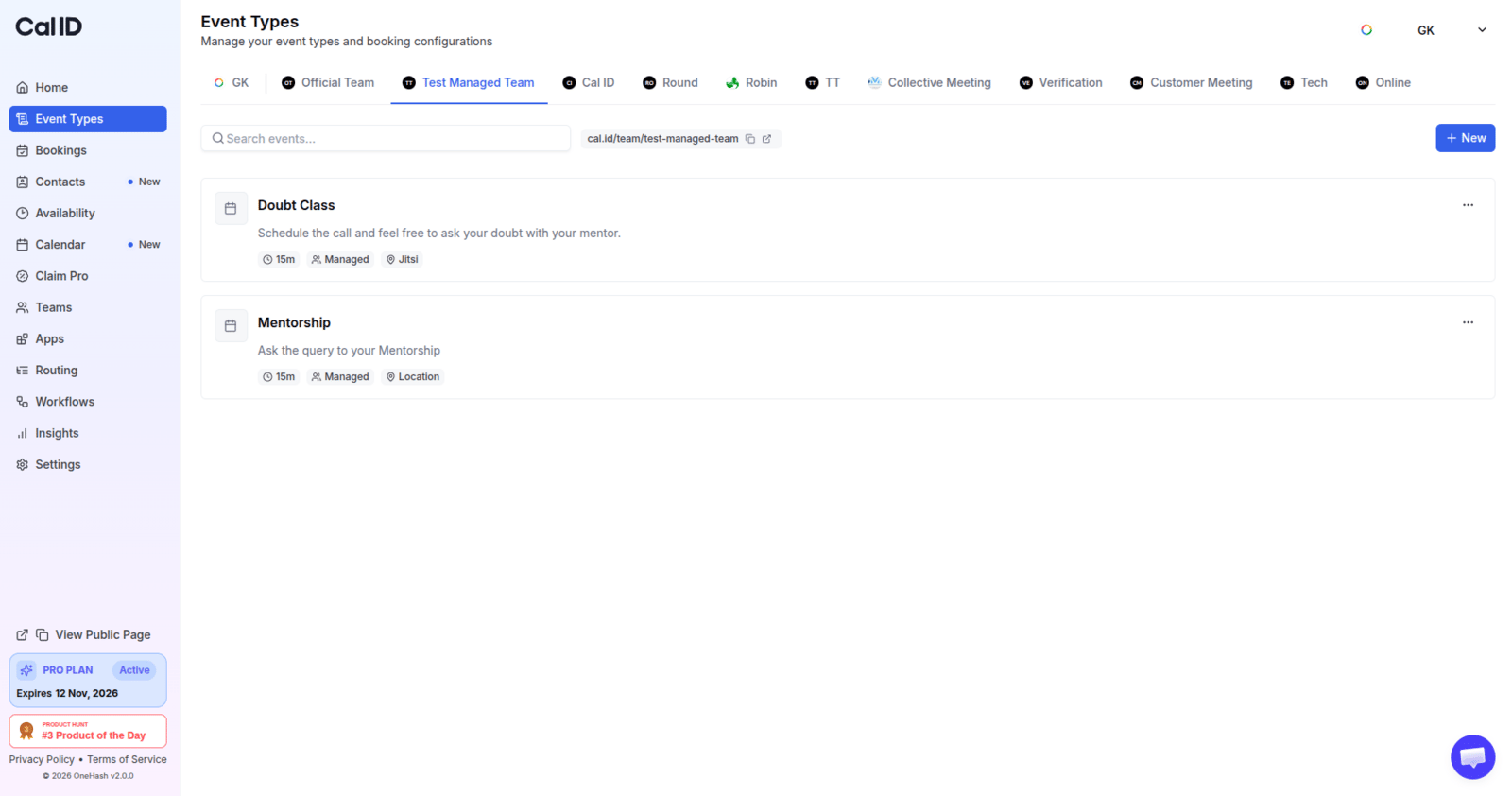
Before you start, be sure you are a team admin, and if you are self-hosting, have the `managed-event-types` operational feature flag turned on. When creating a team event type, you'll get the option to create a Managed Event:
 ## Management
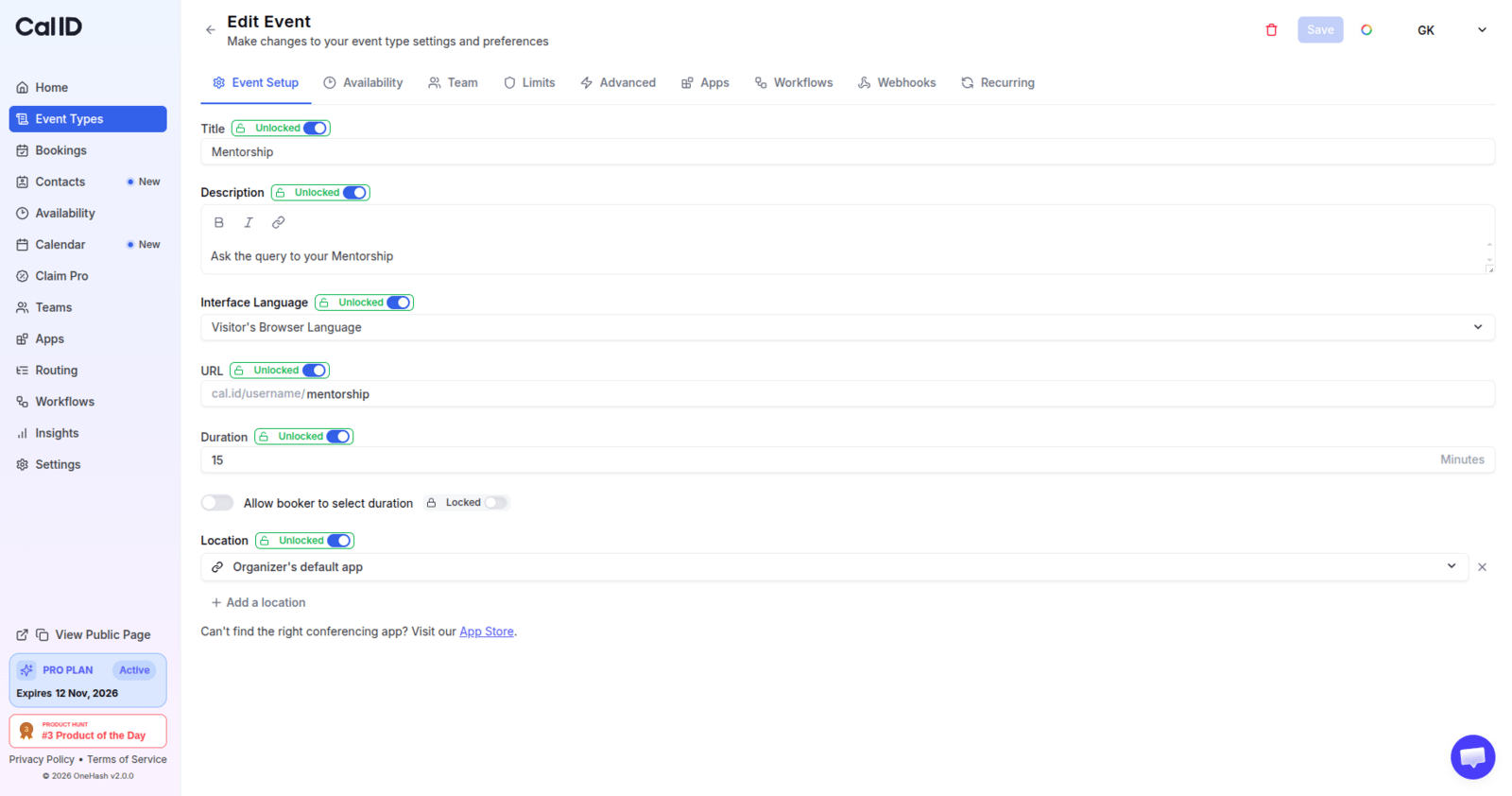
Once the managed event type is created, you can set all the fields you want to manage as a team admin. Fields that will be locked for team members are marked with a **"lock" icon** next to the field label:
## Management
Once the managed event type is created, you can set all the fields you want to manage as a team admin. Fields that will be locked for team members are marked with a **"lock" icon** next to the field label:
 ## Assignment
A crucial part of a managed event type is the assignment of team members, so managed event types can be created on their behalf. Think of the managed event you created as an event template: assigned team members get regular event types generated from it.
* Whenever you make changes to **locked fields**, every team member gets the same change on their regular event type created from this managed event type.
* Changes to **unlocked fields** have no effect on event types already created for assigned members — they apply only to newly assigned members.
If you assign a managed event type to a team member who already has an event type with the same slug, a pop-up asks you to confirm. Confirming **deletes the conflicting event type** from that member (and notifies them) so the managed event type can be created in its place.
Team members who are notified will receive an email notification.
## Next steps
Book several team members into the same meeting at once.
Rotate bookings across a pool of hosts for even distribution.
## Related topics
- [Round-Robin Scheduling](/docs/teams/round-robin.md)
- [Collective Events](/docs/teams/collective.md)
- [Managing Team Settings and Profile](/docs/teams/settings.md)
- [Inviting Members to an Existing Team](/docs/teams/invite-members.md)
- [Teams in Cal ID](/docs/teams/overview.md)
## Assignment
A crucial part of a managed event type is the assignment of team members, so managed event types can be created on their behalf. Think of the managed event you created as an event template: assigned team members get regular event types generated from it.
* Whenever you make changes to **locked fields**, every team member gets the same change on their regular event type created from this managed event type.
* Changes to **unlocked fields** have no effect on event types already created for assigned members — they apply only to newly assigned members.
If you assign a managed event type to a team member who already has an event type with the same slug, a pop-up asks you to confirm. Confirming **deletes the conflicting event type** from that member (and notifies them) so the managed event type can be created in its place.
Team members who are notified will receive an email notification.
## Next steps
Book several team members into the same meeting at once.
Rotate bookings across a pool of hosts for even distribution.
## Related topics
- [Round-Robin Scheduling](/docs/teams/round-robin.md)
- [Collective Events](/docs/teams/collective.md)
- [Managing Team Settings and Profile](/docs/teams/settings.md)
- [Inviting Members to an Existing Team](/docs/teams/invite-members.md)
- [Teams in Cal ID](/docs/teams/overview.md)