> ## Documentation Index
> Fetch the complete documentation index at: https://cal.id/docs/llms.txt
> Use this file to discover all available pages before exploring further.
# How to Remove a Member from the Team
> Steps for team Owners and Admins to remove a member from an existing Cal ID team, revoke access to shared events, and reassign their bookings.
Take a member off a team when they no longer need access. Removing someone revokes their access to the team's shared events and frees up their assignments for reassignment.
Only **Owners** or **Admins** have permission to remove members from a team.
## Remove a member
Access your account dashboard.
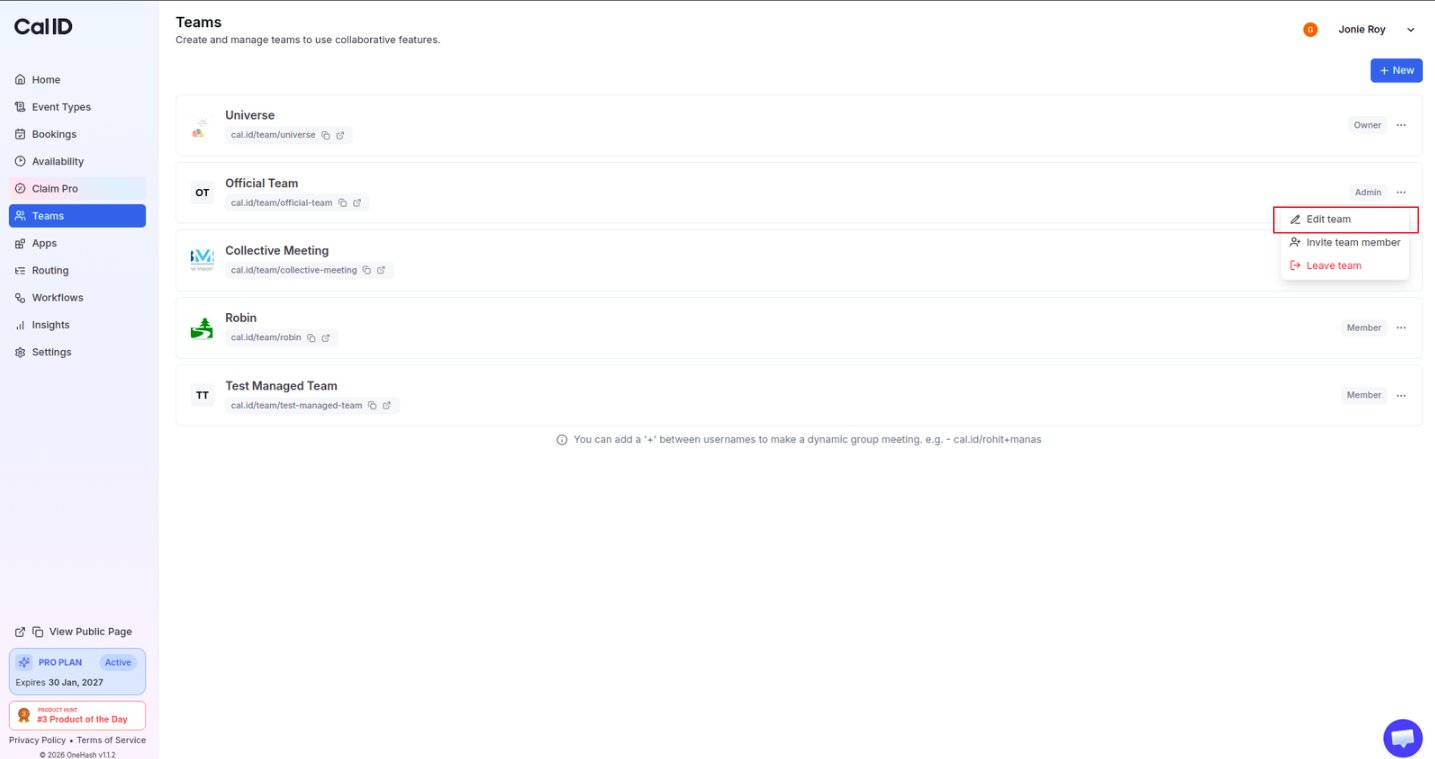
Click on the **Teams** icon in the left-hand sidebar.
Locate the team, click the **three horizontal dots**, and select **Edit team**.
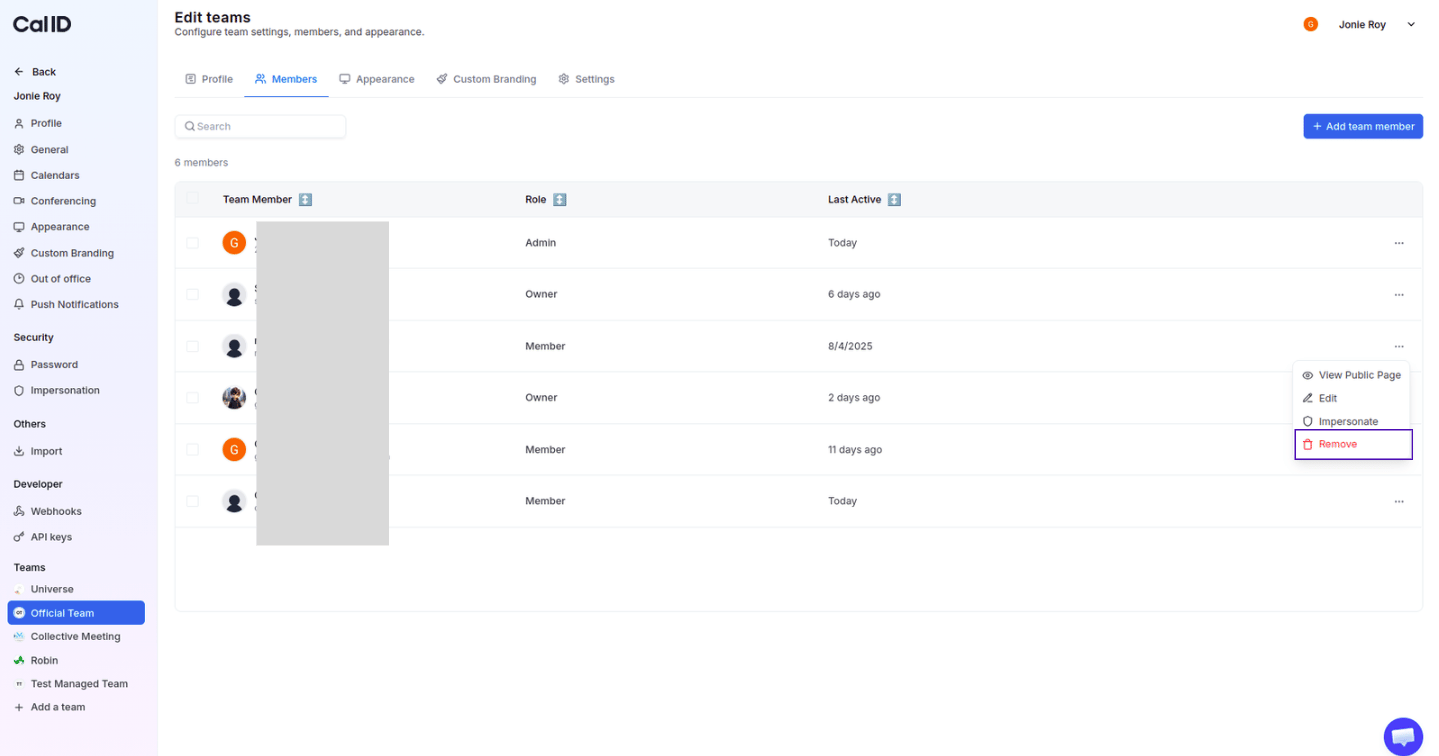
 Click on the **Members** tab at the top of the page.
Locate the member you wish to remove, click the **three horizontal dots** next to their name, and select **Remove**.
Click on the **Members** tab at the top of the page.
Locate the member you wish to remove, click the **three horizontal dots** next to their name, and select **Remove**.
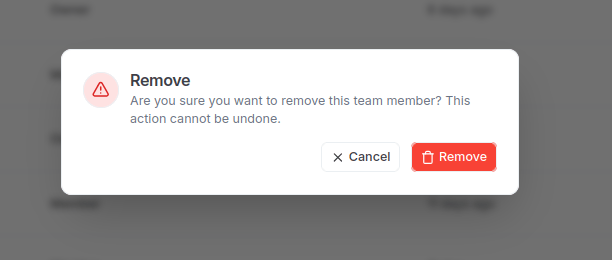
 Follow any on-screen prompts to confirm the removal.
 Removing a member revokes their access to the team's shared event types and booking links. Any bookings assigned to them will need to be reassigned, so review their upcoming meetings before you remove them.
## Related docs
* [Managing Team Settings and Profile](/docs/teams/settings)
* [Inviting Members to an Existing Team](/docs/teams/invite-members)
* [How to Leave a Team in Cal ID?](/docs/teams/leave-team)
## Related topics
- [Inviting Members to an Existing Team](/docs/teams/invite-members.md)
- [How to Leave a Team in Cal ID](/docs/teams/leave-team.md)
- [Teams in Cal ID](/docs/teams/overview.md)
- [Managing Team Settings and Profile](/docs/teams/settings.md)
- [Team Advanced Settings](/docs/teams/advanced-settings.md)
Removing a member revokes their access to the team's shared event types and booking links. Any bookings assigned to them will need to be reassigned, so review their upcoming meetings before you remove them.
## Related docs
* [Managing Team Settings and Profile](/docs/teams/settings)
* [Inviting Members to an Existing Team](/docs/teams/invite-members)
* [How to Leave a Team in Cal ID?](/docs/teams/leave-team)
## Related topics
- [Inviting Members to an Existing Team](/docs/teams/invite-members.md)
- [How to Leave a Team in Cal ID](/docs/teams/leave-team.md)
- [Teams in Cal ID](/docs/teams/overview.md)
- [Managing Team Settings and Profile](/docs/teams/settings.md)
- [Team Advanced Settings](/docs/teams/advanced-settings.md)