> ## Documentation Index
> Fetch the complete documentation index at: https://cal.id/docs/llms.txt
> Use this file to discover all available pages before exploring further.
# Managing Team Settings and Profile
> Edit your team's name, bio, and logo, or disband a Cal ID team entirely from the Edit team page whenever you need to update team information.
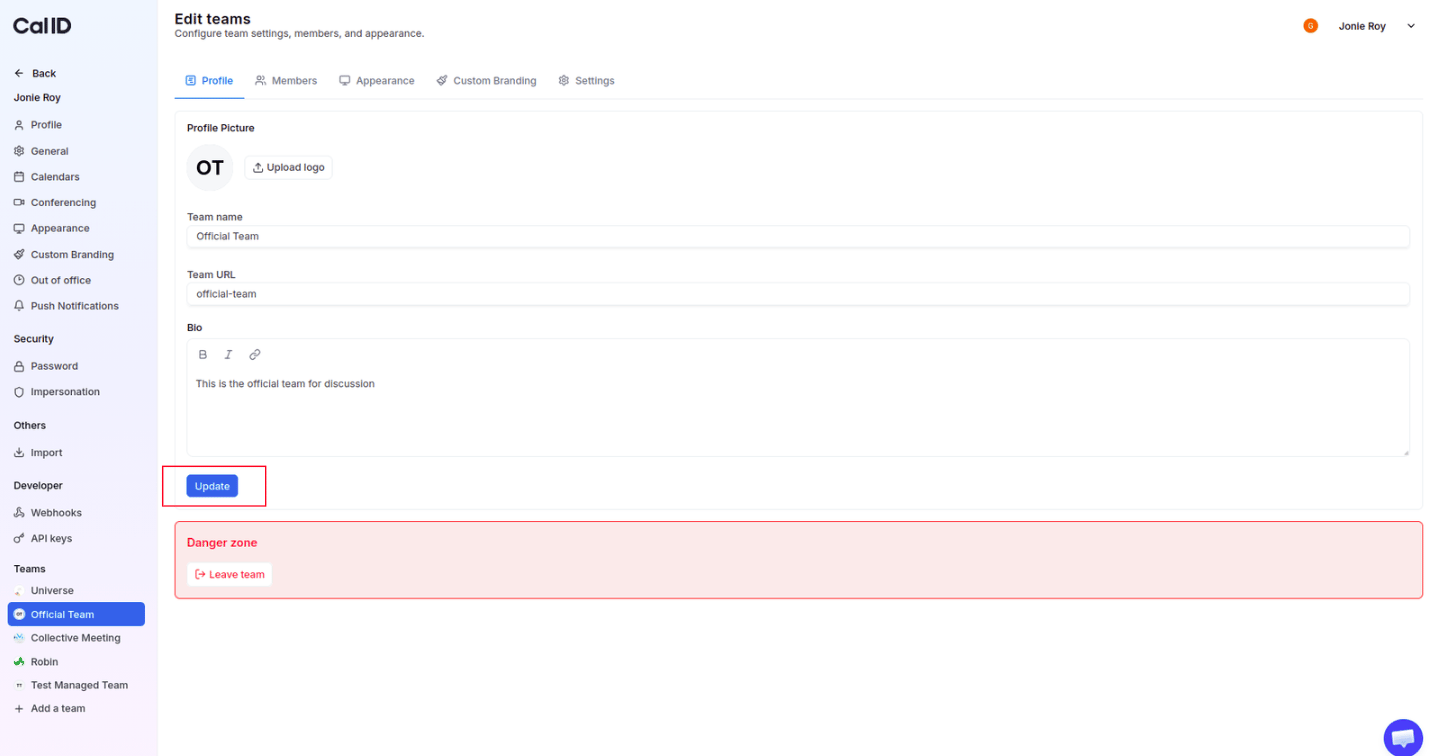
Update your team's profile — name, bio, and logo — or disband a team entirely, all from the **Edit team** page.
Only **Owners** or **Admins** have permission to change these settings or disband a team.
## Edit team settings
Access your account dashboard.
Click on the **Teams** icon in the left-hand sidebar.
Locate the team you wish to edit and click on the **three horizontal dots** next to the team name.
Select **Edit team** from the dropdown menu.
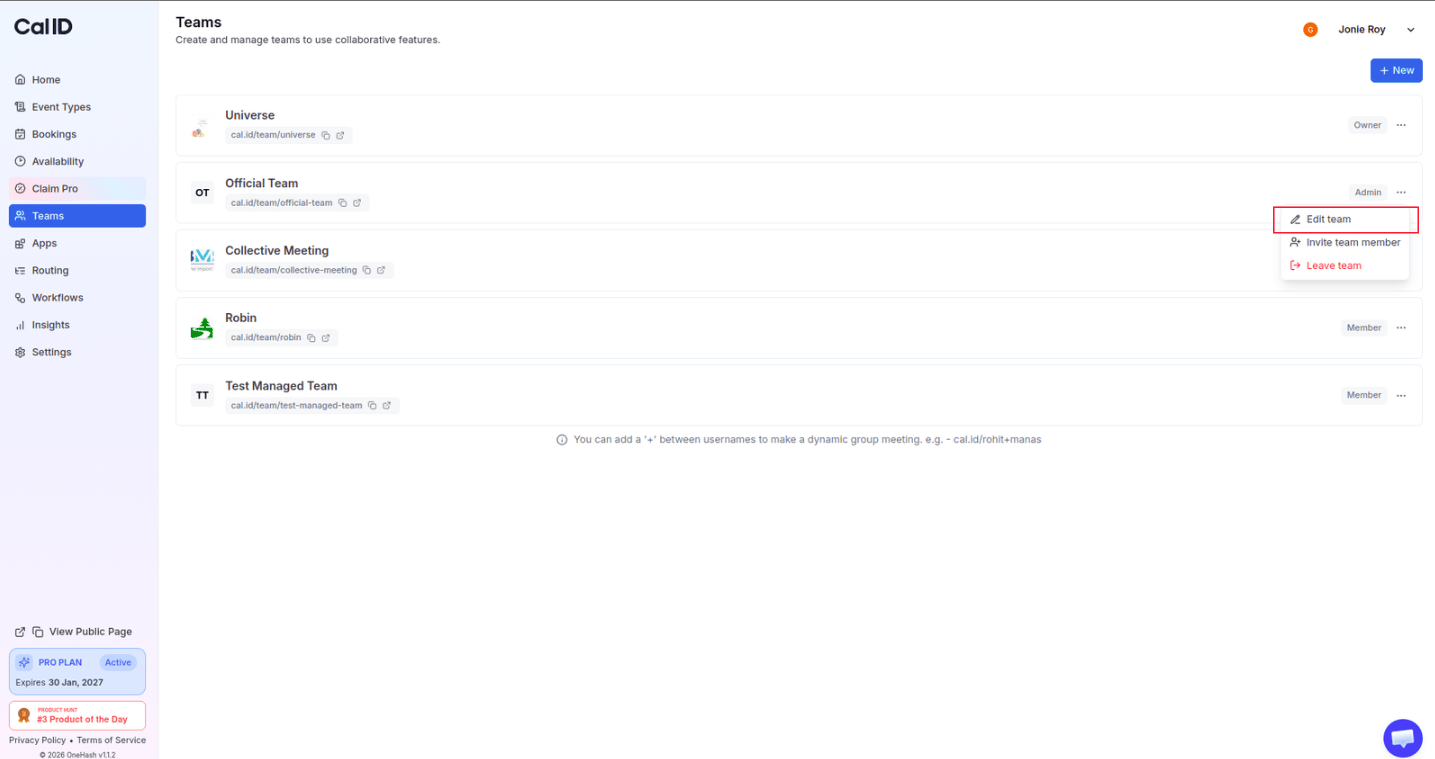 * **Team Name** — modify the name of your team.
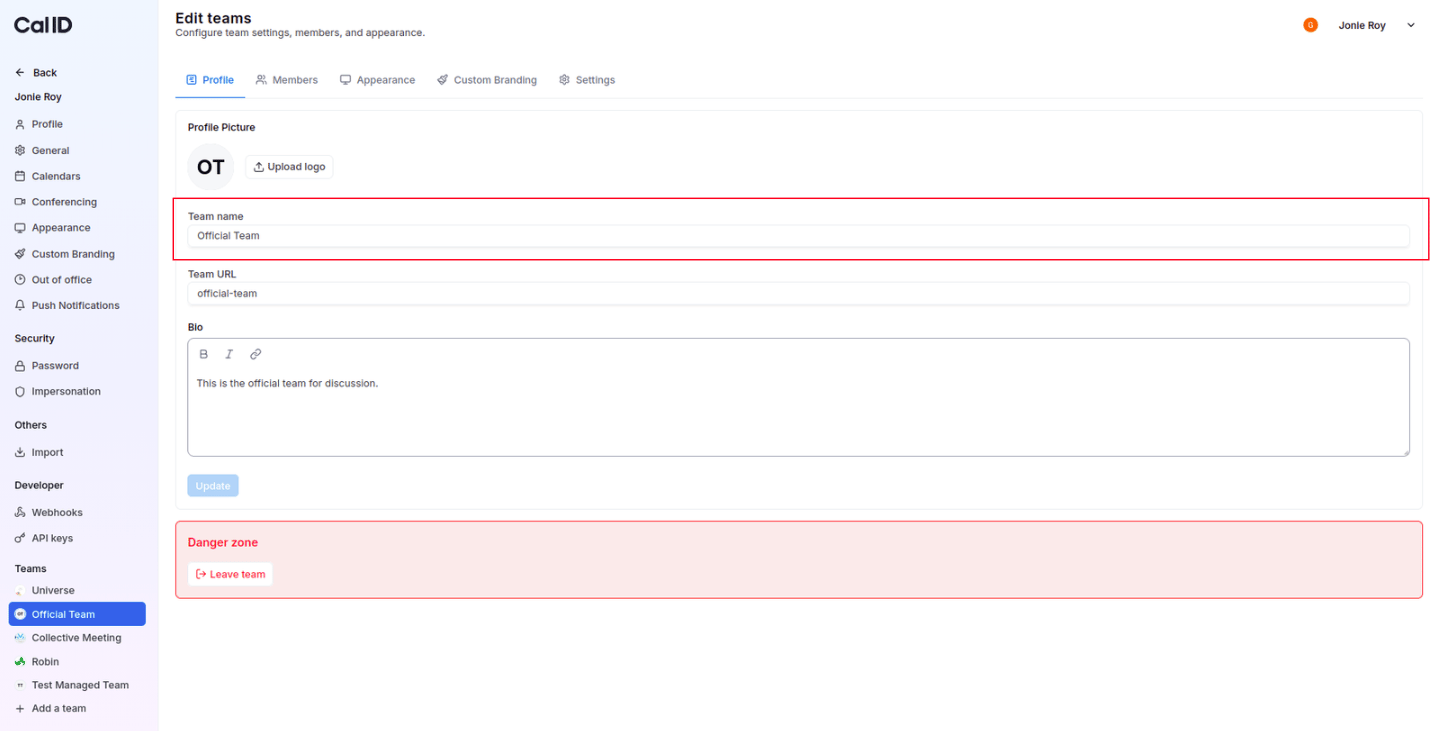 * **Bio** — add or update the description for your team.
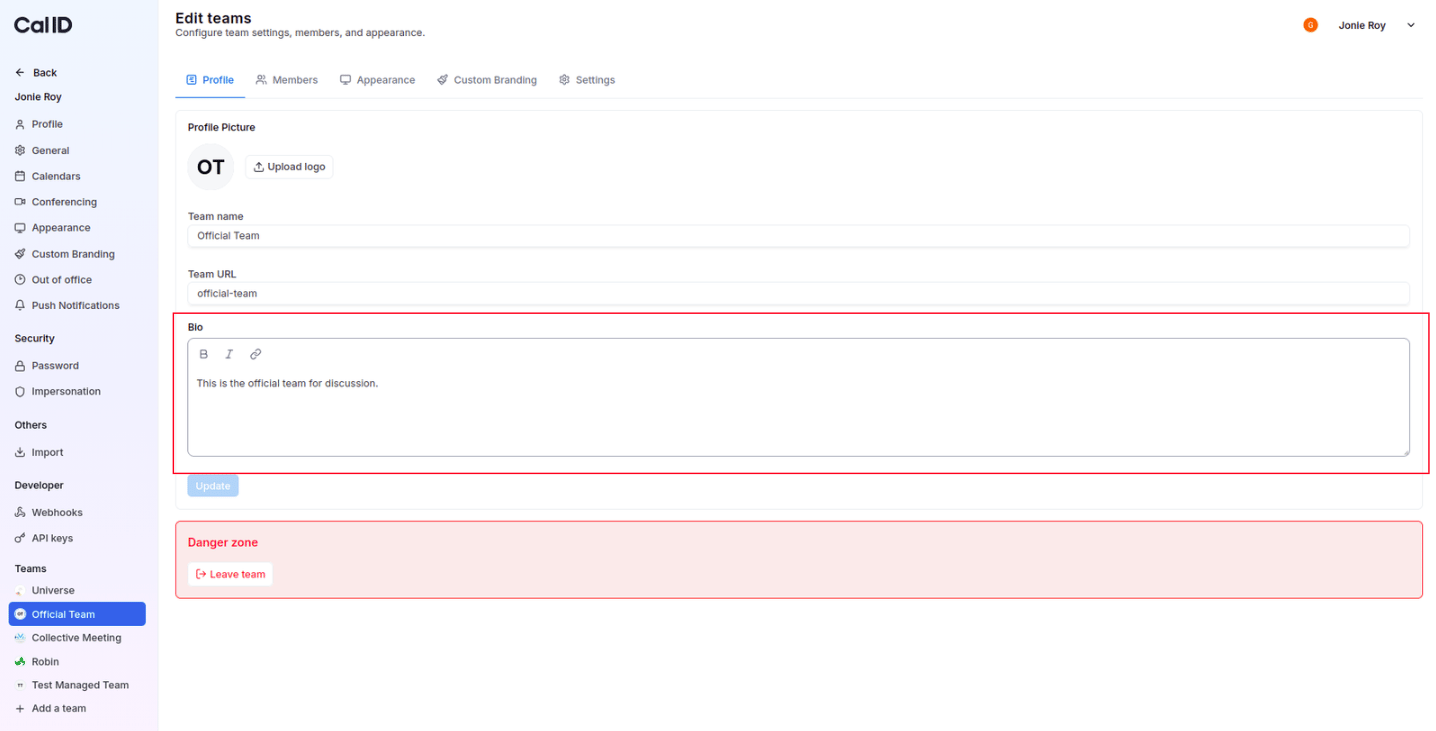 * **Profile Picture (Logo)** — click **Upload logo** to add a branded image for the team. In the modal that appears, click **Choose a file** to select an image from your computer (at most 5MB in size), then click **Save**.
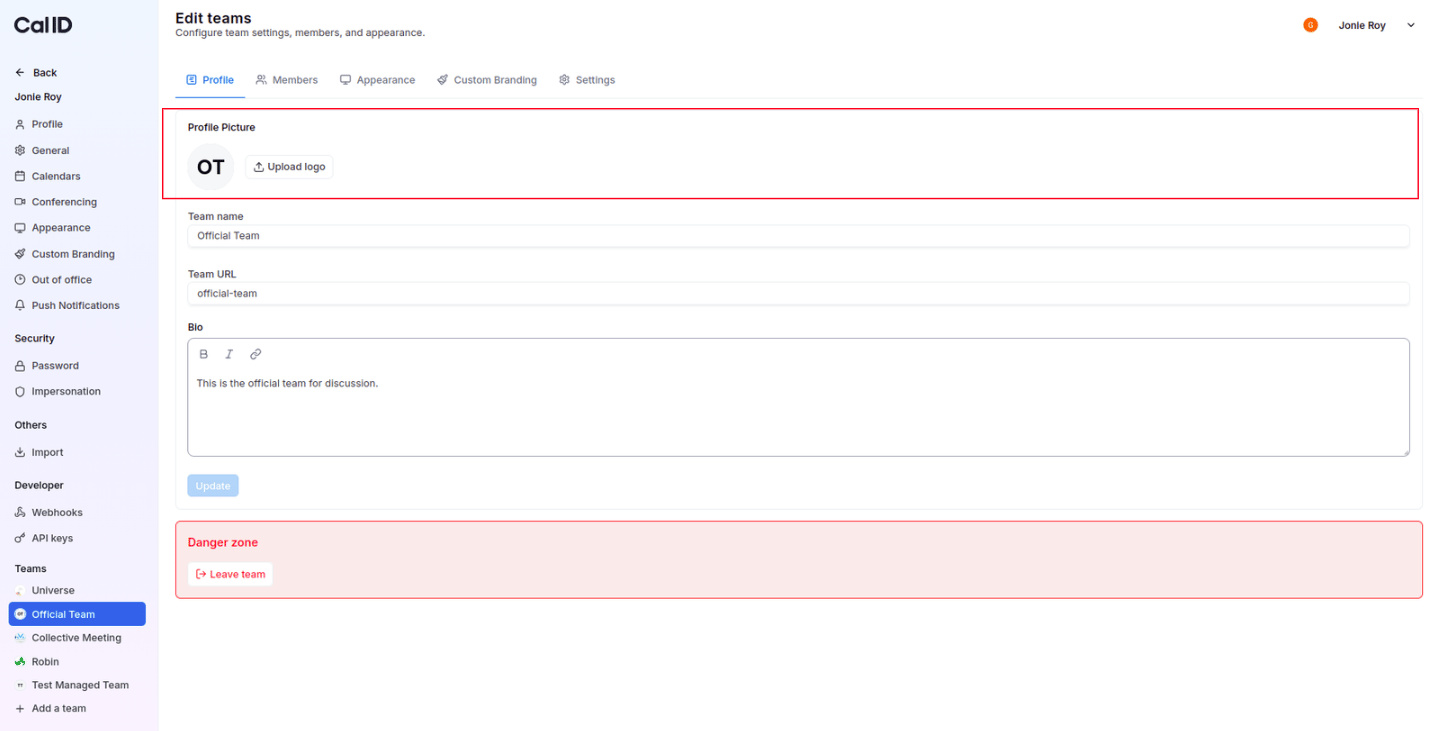 Click the **Update** button to save your new settings.
 ## Disband (delete) a team
Follow steps 1-4 from the section above to reach the **Edit team** page.
Scroll to the bottom of the page to find the **Danger zone** section.
Click the red **Disband team** button.
## Disband (delete) a team
Follow steps 1-4 from the section above to reach the **Edit team** page.
Scroll to the bottom of the page to find the **Danger zone** section.
Click the red **Disband team** button.
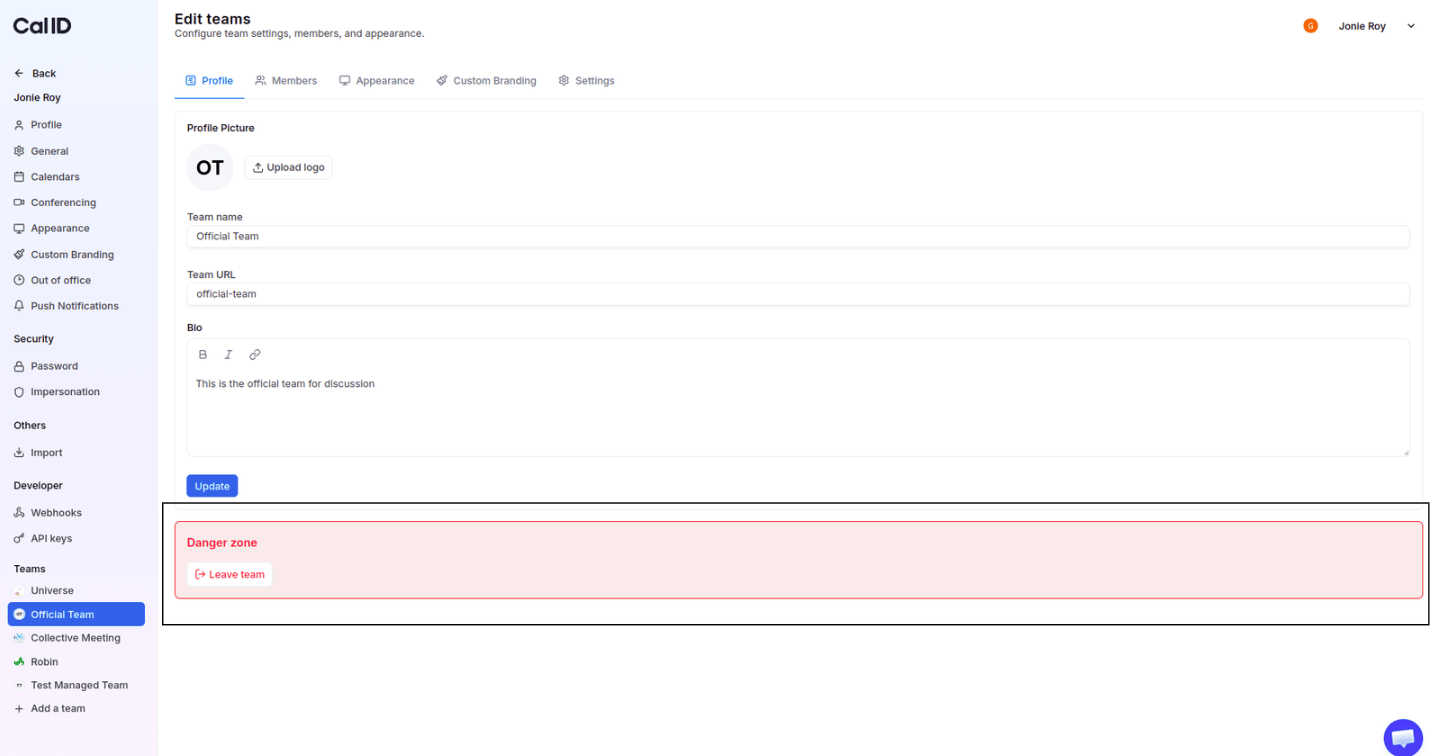 Follow the on-screen prompts to permanently delete the team.
Disbanding a team is permanent. The team, its shared event types, and its booking links are deleted for everyone and cannot be recovered.
## Related docs
* [Inviting Members to an Existing Team](/docs/teams/invite-members)
* [How to Leave a Team in Cal ID](/docs/teams/leave-team)
* [How to Remove a Member from the Team](/docs/teams/remove-member)
## Related topics
- [Team Advanced Settings](/docs/teams/advanced-settings.md)
- [Teams in Cal ID](/docs/teams/overview.md)
- [Inviting Members to an Existing Team](/docs/teams/invite-members.md)
- [Custom Branding For Teams](/docs/branding/teams.md)
- [Team Appearance Settings](/docs/appearance/team-appearance.md)
Follow the on-screen prompts to permanently delete the team.
Disbanding a team is permanent. The team, its shared event types, and its booking links are deleted for everyone and cannot be recovered.
## Related docs
* [Inviting Members to an Existing Team](/docs/teams/invite-members)
* [How to Leave a Team in Cal ID](/docs/teams/leave-team)
* [How to Remove a Member from the Team](/docs/teams/remove-member)
## Related topics
- [Team Advanced Settings](/docs/teams/advanced-settings.md)
- [Teams in Cal ID](/docs/teams/overview.md)
- [Inviting Members to an Existing Team](/docs/teams/invite-members.md)
- [Custom Branding For Teams](/docs/branding/teams.md)
- [Team Appearance Settings](/docs/appearance/team-appearance.md)