> ## Documentation Index
> Fetch the complete documentation index at: https://cal.id/docs/llms.txt
> Use this file to discover all available pages before exploring further.
# Connect with WhatsApp Business App
> Link an existing WhatsApp Business app on your phone to Cal ID using an access code and QR scan so bookings can trigger WhatsApp reminders and follow-ups.
Follow these steps if you already have a **WhatsApp Business app** installed on your mobile device and want to link it to Cal ID.
Your address and Tax ID must be verified to trigger the message.
From the integration screen, click **Connect WhatsApp Business app**. This opens the connection process for your existing app.
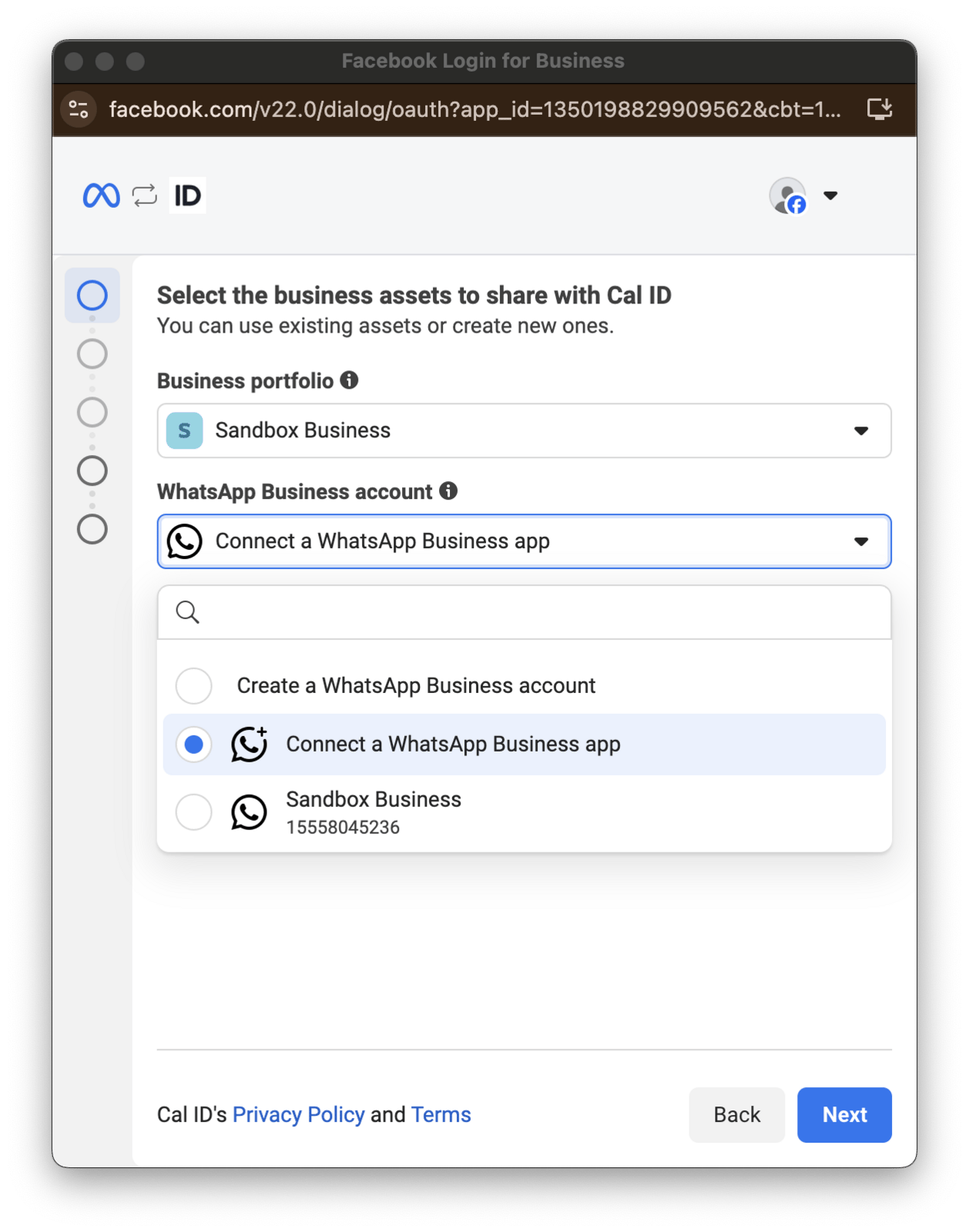 Type the phone number associated with your WhatsApp Business app, then click **Next**. Only **verified phone numbers** are shown here.
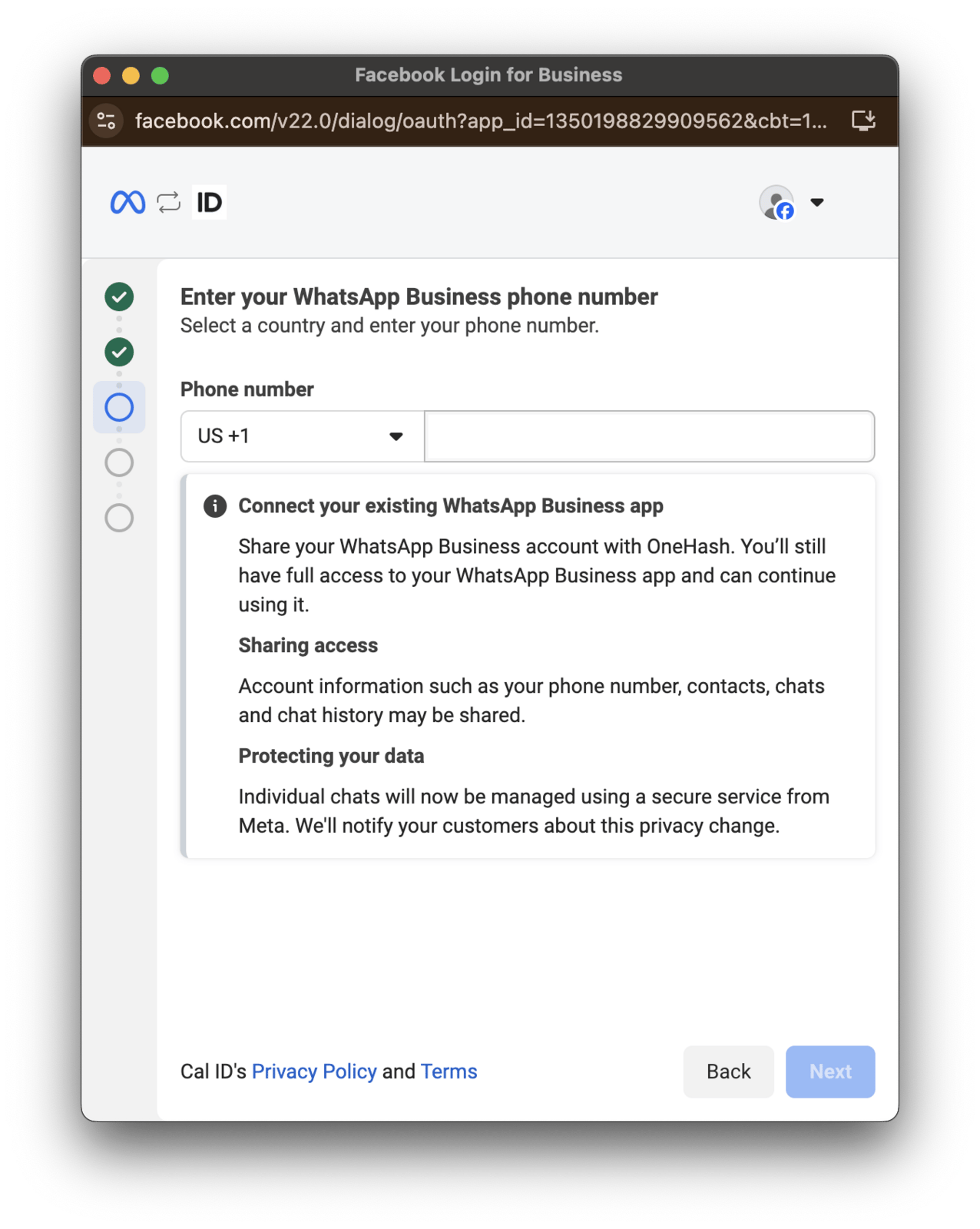 Click **Use an access code instead** to generate a secure access code, and note it down.
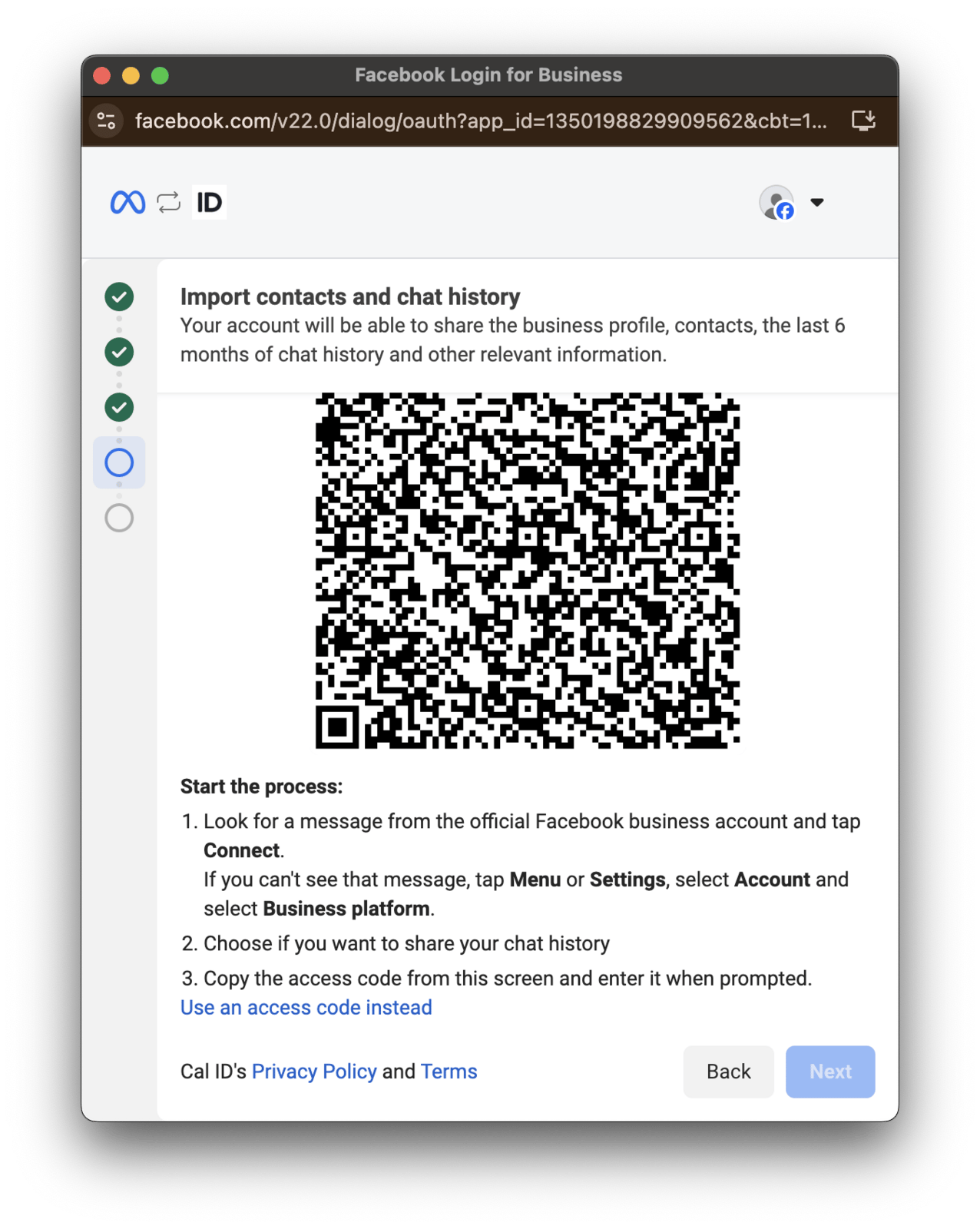 On your phone:
1. Open the **WhatsApp Business app**.
2. Go to **Menu** or **Settings** by tapping the menu icon.
3. Select **Account**.
4. Select **Business platform**.
5. Enter the **access code** you copied earlier.
6. Click **Next**.
7. Paste the generated code.
On your phone:
1. Open the **WhatsApp Business app**.
2. Go to **Menu** or **Settings** by tapping the menu icon.
3. Select **Account**.
4. Select **Business platform**.
5. Enter the **access code** you copied earlier.
6. Click **Next**.
7. Paste the generated code.
 Complete any additional details requested, then click **Next**.
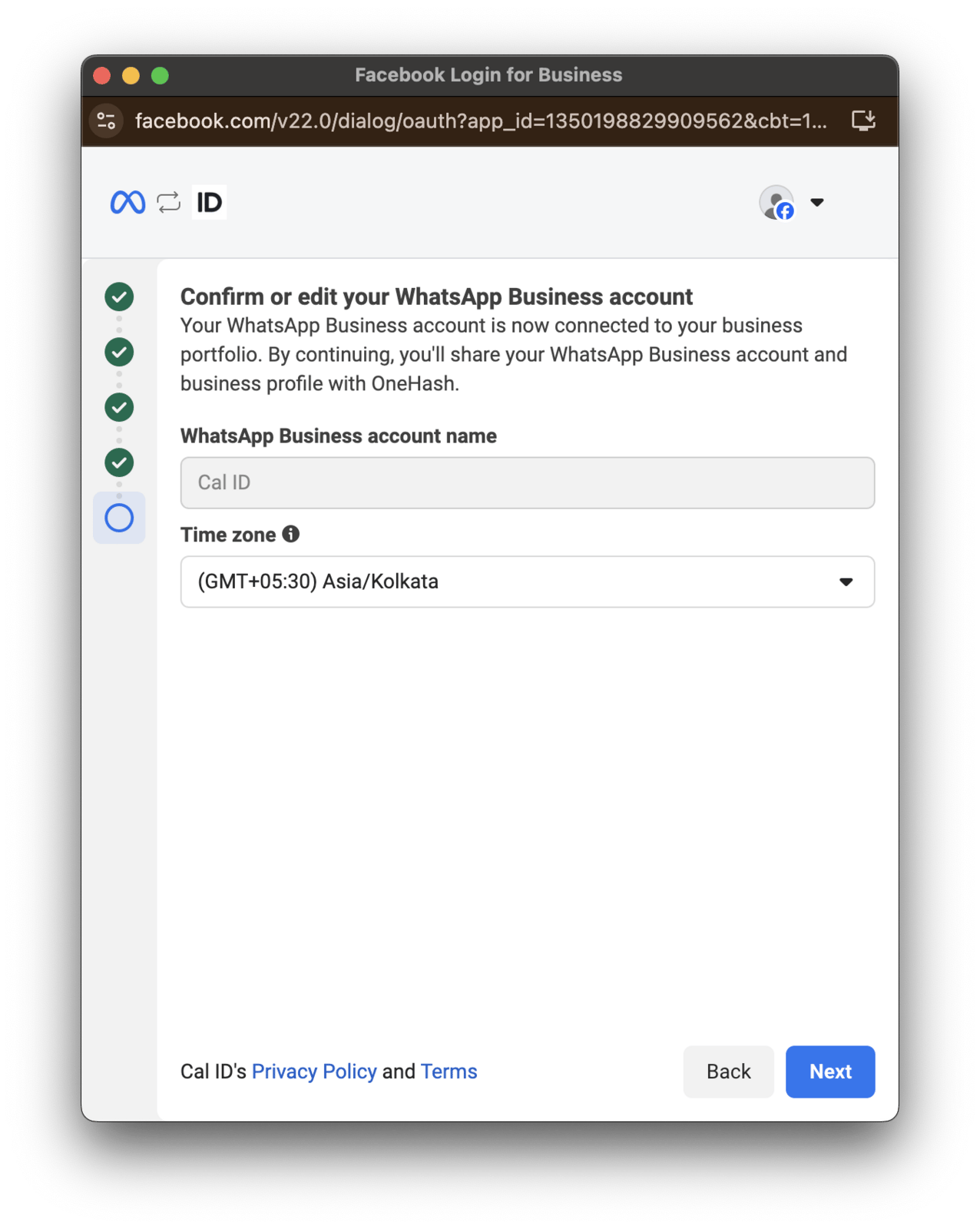 Review all details to check that everything is correct, then click **Confirm**.
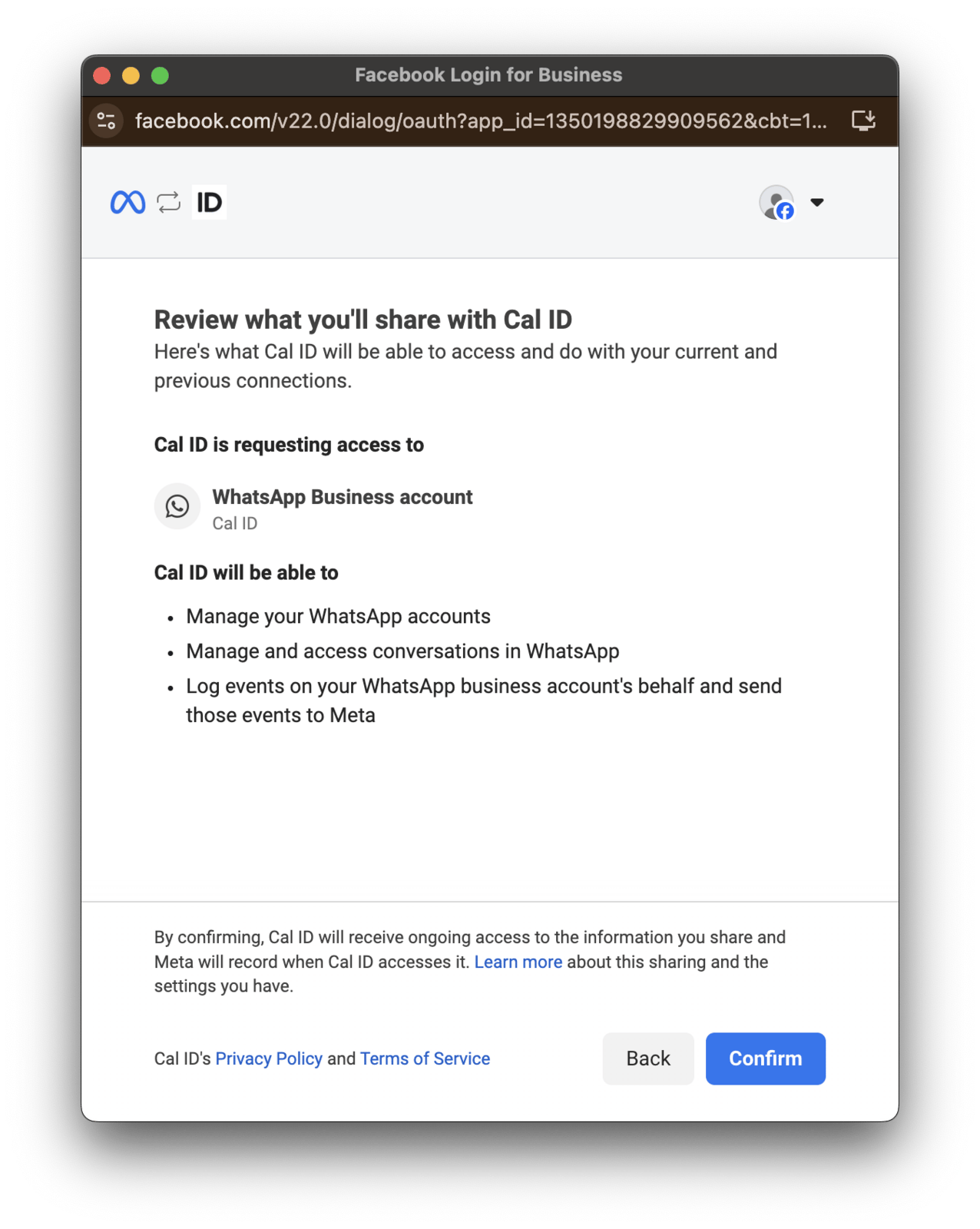 A QR code page appears. Scan the code with your mobile device and follow the on-screen instructions to complete any additional steps.
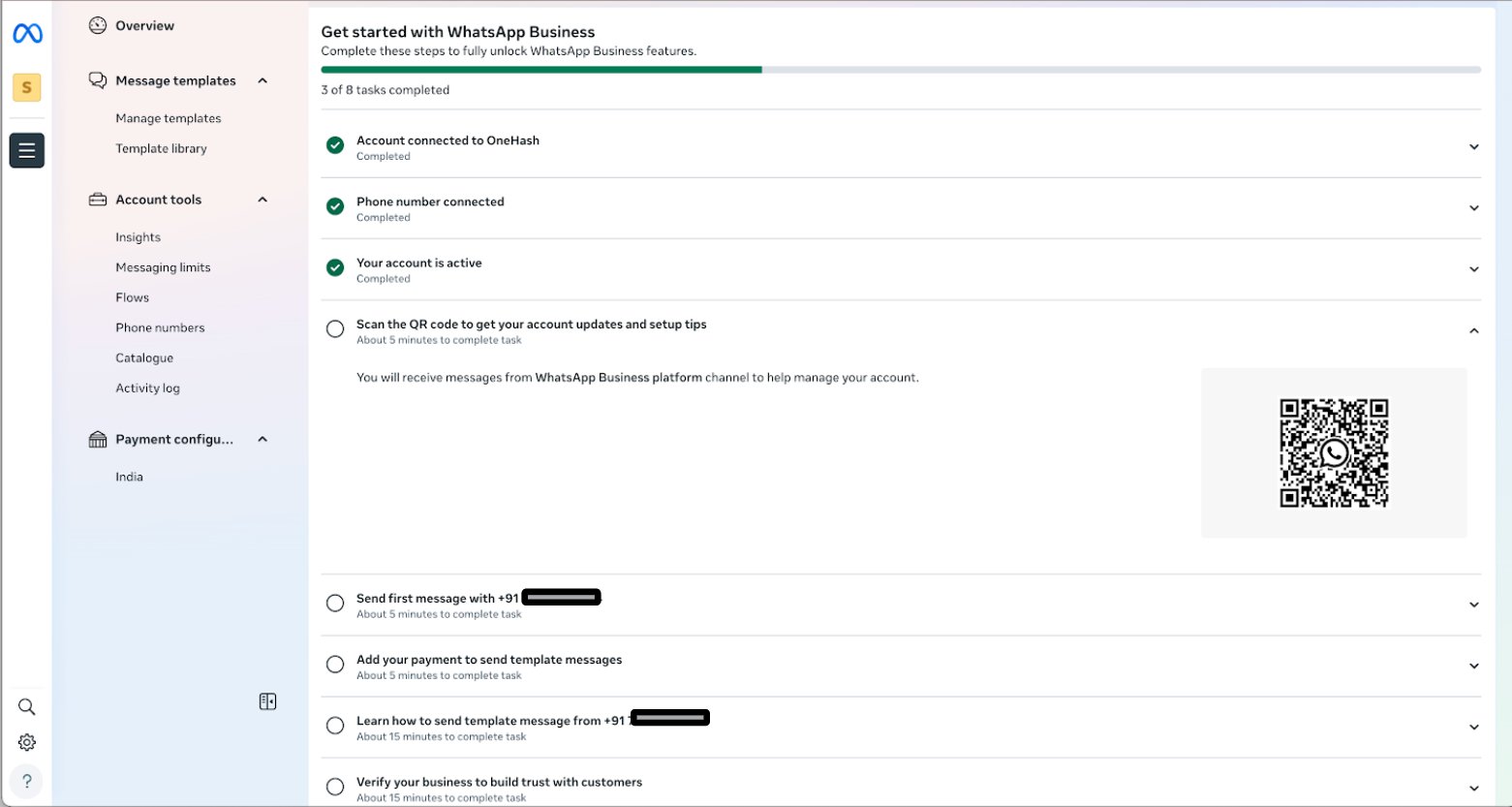 Your WhatsApp Business app is connected to Cal ID and ready to send workflow messages.
## Related topics
- [Integrate WhatsApp Business](/docs/workflows/whatsapp-business.md)
- [Create New WhatsApp Business Account](/docs/workflows/create-whatsapp-account.md)
- [Workflows Setup to Cal ID](/docs/workflows/overview.md)
- [Customizing Your Workflow Messages](/docs/workflows/custom-messages.md)
- [Install New App on Cal ID](/docs/apps/install-app.md)
Your WhatsApp Business app is connected to Cal ID and ready to send workflow messages.
## Related topics
- [Integrate WhatsApp Business](/docs/workflows/whatsapp-business.md)
- [Create New WhatsApp Business Account](/docs/workflows/create-whatsapp-account.md)
- [Workflows Setup to Cal ID](/docs/workflows/overview.md)
- [Customizing Your Workflow Messages](/docs/workflows/custom-messages.md)
- [Install New App on Cal ID](/docs/apps/install-app.md)