> ## Documentation Index
> Fetch the complete documentation index at: https://cal.id/docs/llms.txt
> Use this file to discover all available pages before exploring further.
# Create New WhatsApp Business Account
> Create a new business portfolio and WhatsApp Business account in Meta Business Suite so you can connect it to Cal ID for automated booking messages.
If you don't yet have a WhatsApp Business account, create one in Meta first. This gives you the business portfolio and account you'll connect to Cal ID for automated booking messages.
You must verify your Tax ID on Meta to trigger the templates. Your Meta business and address details need to be verified before templates will send.
## Create a new WhatsApp Business account
In the respective fields, select **Create a business portfolio** and **Create a WhatsApp Business account**.
Fill in all required fields and save.
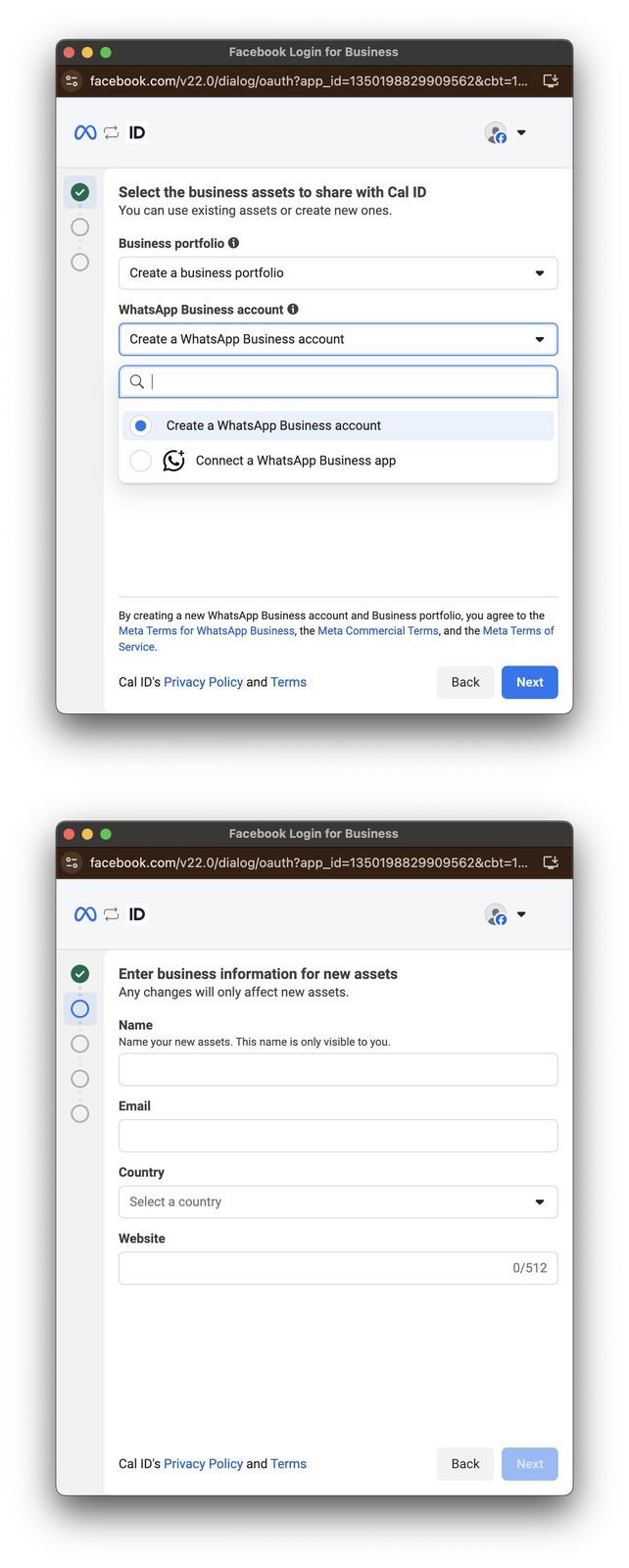 Your WhatsApp Business account is ready. You can now connect it with Cal ID — see [Connect with WhatsApp Business app](/docs/workflows/connect-whatsapp-app).
## Related topics
- [Connect with WhatsApp Business App](/docs/workflows/connect-whatsapp-app.md)
- [Integrate WhatsApp Business](/docs/workflows/whatsapp-business.md)
- [Workflows Setup to Cal ID](/docs/workflows/overview.md)
- [Customizing Your Workflow Messages](/docs/workflows/custom-messages.md)
- [Install New App on Cal ID](/docs/apps/install-app.md)
Your WhatsApp Business account is ready. You can now connect it with Cal ID — see [Connect with WhatsApp Business app](/docs/workflows/connect-whatsapp-app).
## Related topics
- [Connect with WhatsApp Business App](/docs/workflows/connect-whatsapp-app.md)
- [Integrate WhatsApp Business](/docs/workflows/whatsapp-business.md)
- [Workflows Setup to Cal ID](/docs/workflows/overview.md)
- [Customizing Your Workflow Messages](/docs/workflows/custom-messages.md)
- [Install New App on Cal ID](/docs/apps/install-app.md)