
How to Share an Outlook Calendar (Step-by-Step)
Share your Outlook calendar in a few clicks - on desktop, web, or mobile - plus a faster alternative for when people just want to book time with you.


Key takeaways
- You can share an Outlook calendar from the desktop app, Outlook on the web, or mobile in under a minute.
- Pick the permission level carefully: "Can view" hides details, "Can edit" lets others change events.
- People outside your organization get an email invite with a view-only link.
- If they only want to book time with you, a scheduling link is faster than sharing your whole calendar.
Sharing your Outlook calendar lets colleagues see when you are free, coordinate meetings, or manage your schedule for you. It works whether you use the desktop app, Outlook on the web, or your phone.
This guide covers every method step by step, explains the permission levels so you do not over-share, and shows a faster option for when people simply want to book time with you.
What sharing an Outlook calendar actually does
When you share a calendar, you grant another person a chosen level of access to it. They can see your availability and, depending on the permission you pick, your event details or even the ability to edit. Sharing is ongoing access until you remove it, which is different from sending a one-off invite.
How to share your Outlook calendar on desktop
In the classic Outlook desktop app on Windows:
- Open Calendar and select the calendar you want to share in the left pane.
- On the ribbon, click Share Calendar, then choose the calendar name.
- In the Calendar Properties window, click Add and pick the person from your address book.
- Select a permission level next to their name, then click OK.
They receive a sharing invitation by email, and the calendar appears under their list once they accept.
How to share from Outlook on the web
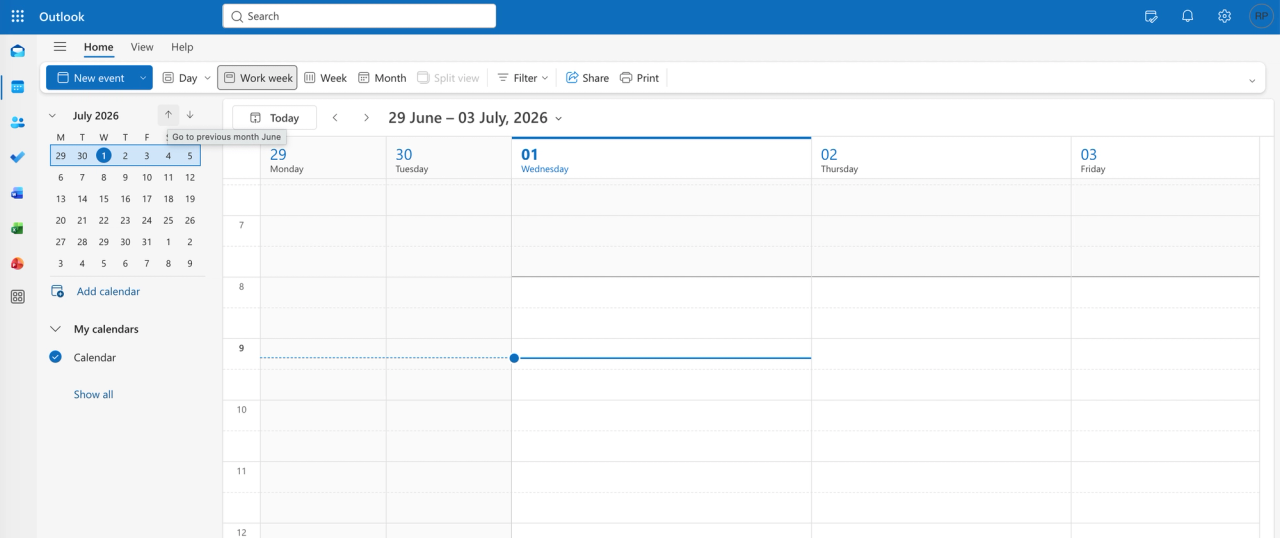
- Go to Outlook on the web and open Calendar.
- At the top right, click Share, then select the calendar to share.
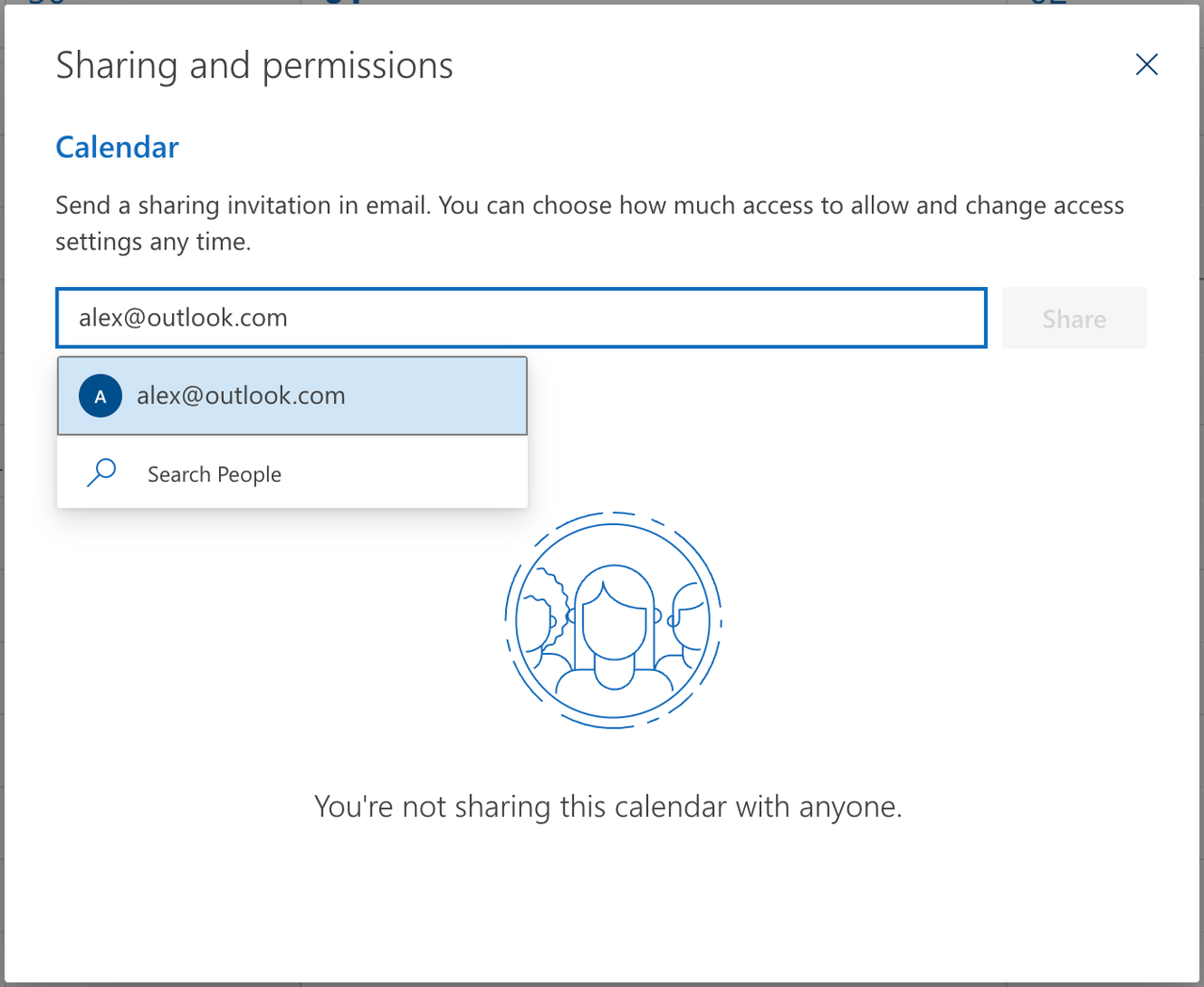
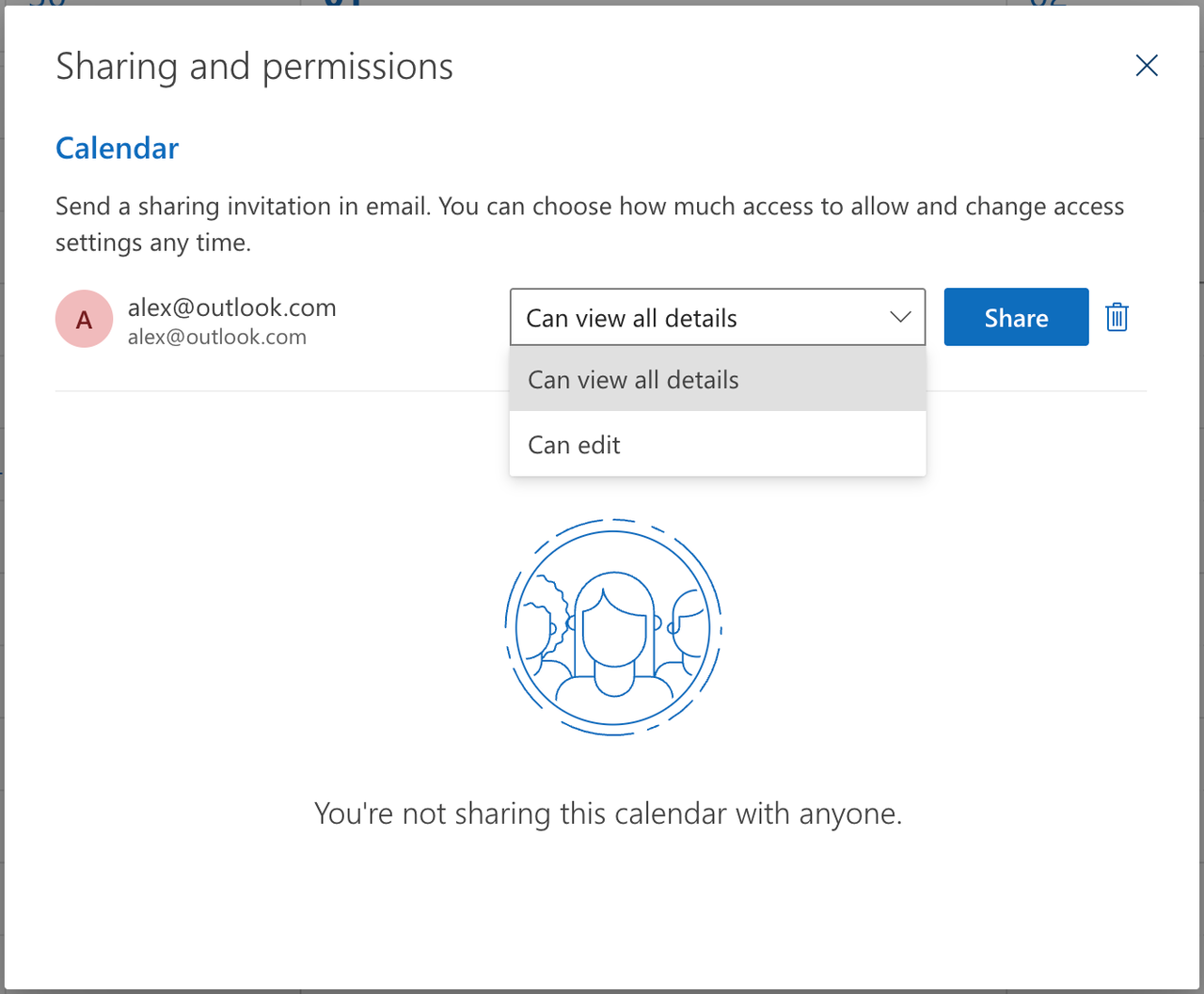
- Enter the person’s email, choose a permission level, and click Share.
For people outside your organization, Outlook sends a view-only link they can open in any calendar app.
Permission levels explained
Pick the level that matches what the person actually needs:
| Permission | What they can see or do |
|---|---|
| Can view free/busy | Only whether you are busy - no titles or details |
| Can view titles and locations | Event titles and locations, not full details |
| Can view all details | Everything on the event, read-only |
| Can edit | View and change events on your behalf |
| Delegate | Edit, plus receive and respond to meeting invites for you |
A faster alternative: share a booking link
Sharing your whole calendar is overkill when someone just wants to grab a slot. Instead of exposing every event, you can share a booking link that shows only your open times - they pick one and it books automatically.
This is where a scheduling tool like Cal ID helps: you get a free, personalized booking page, control exactly which hours are bookable, and skip the back-and-forth entirely. No one sees your private events, and nothing lands on your calendar without your rules.
Common issues when sharing
- They did not get the invite: check their spam folder and confirm the email matches their Outlook account.
- They cannot see details: you likely shared "free/busy" only - re-share with a higher permission level.
- Sharing options are greyed out: your organization admin may have restricted external sharing.
Frequently asked questions
Quick answers to the questions we hear most.
01 Can I share my Outlook calendar with someone outside my company?
Yes. From Outlook on the web, enter their external email and choose a view permission; they receive a link that works in any calendar app. Your admin can disable external sharing.
02 What is the difference between sharing and delegating?
Sharing grants view or edit access. Delegating goes further: the delegate can also receive and respond to meeting invitations on your behalf.
03 How do I stop sharing my Outlook calendar?
Open calendar permissions (Share Calendar then Calendar Properties on desktop, or Share in Outlook on the web), select the person, and remove their access.
04 Why can they only see "busy" and no details?
They were given the "Can view free/busy" permission. Re-share and select "Can view all details" to let them see event information.
05 Is there a way to let people book time without sharing my calendar?
Yes - use a scheduling link. A tool like Cal ID gives you a free booking page that shows only your open slots, so people can book without seeing any private events.