
How to Share an Apple Calendar (Step-by-Step)
Share your Apple Calendar from your iPhone, iCloud.com, or Mac in minutes. Plus a faster way to let people book time with you without sharing everything.


Key takeaways
- You can share an iCloud calendar from your iPhone or iPad, from iCloud.com, or from the Calendar app on a Mac.
- You can only share calendars stored in iCloud, not Google or Exchange calendars added to the Apple Calendar app.
- Pick access carefully: 'Allow editing' lets people change events, while a public 'Read-only' link lets anyone view it.
- If someone just wants to book time with you, a booking link is faster and more private than sharing your whole calendar.
Sharing your Apple Calendar lets family, friends, or colleagues see your schedule, coordinate plans, or manage events with you. It works across your iPhone, iPad, Mac, and iCloud.com, as long as the calendar lives in iCloud.
This guide covers every way to share, from your phone to the web to your Mac, explains the access levels so you do not over-share, and shows a faster option for when people simply want to book time with you.
Using a different calendar? Here is how to share a Google Calendar.
What sharing an Apple Calendar actually does
When you share an iCloud calendar, you invite specific people to see it, and you choose whether they can only view it or also add and edit events. You can also publish a read-only public link that anyone can subscribe to. Sharing is ongoing access until you remove it, which is different from inviting someone to a single event.
How to share an Apple Calendar on iPhone or iPad
In the Calendar app on iOS or iPadOS:
- Open the Calendar app and tap Calendars at the bottom of the screen.
- Tap the info button next to the iCloud calendar you want to share.
- Tap Add Person, then enter a name or email address, or pick someone from your contacts.
- Tap Add. They receive an invitation to join the shared calendar.
Your contact needs an email address linked to an Apple Account to accept. Once they join, tap their name to allow or turn off editing.
How to share an Apple Calendar on iCloud.com
From any web browser:
- Go to icloud.com/calendar and sign in with your Apple Account.
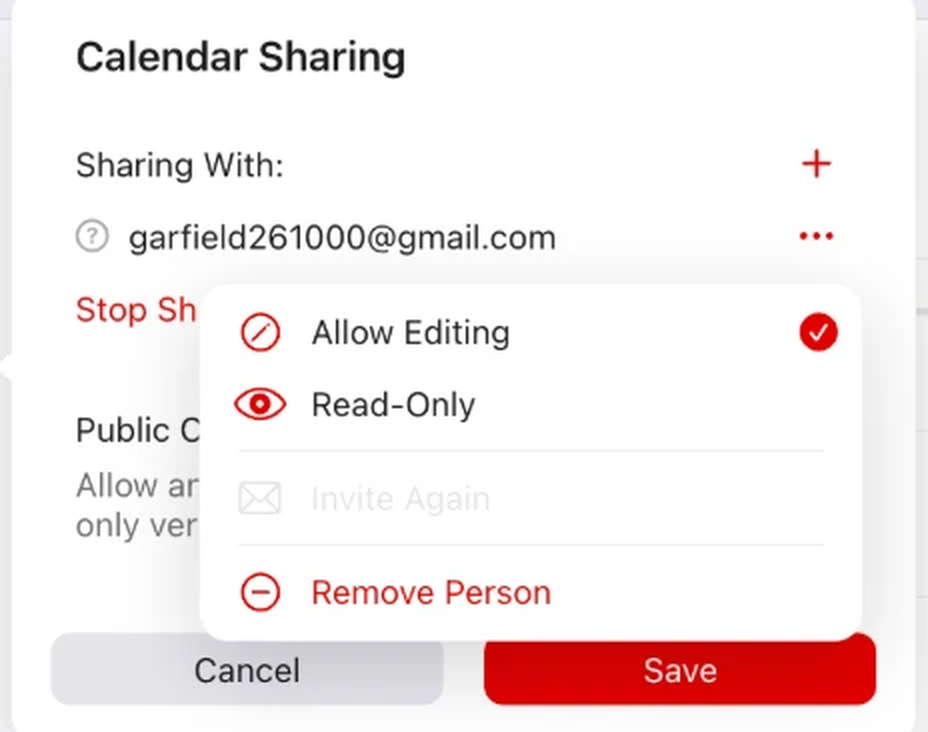
- Hover over the calendar in the sidebar and click the share button.
- Under Shared With, click Add Person, type the person's email, and press Return.
- Set their access to Allow Editing or Read-Only, then click Done and Save.
To share with anyone, turn on Public Calendar to create a read-only link you can send or post.
How to share an Apple Calendar on Mac
In the Calendar app on macOS:
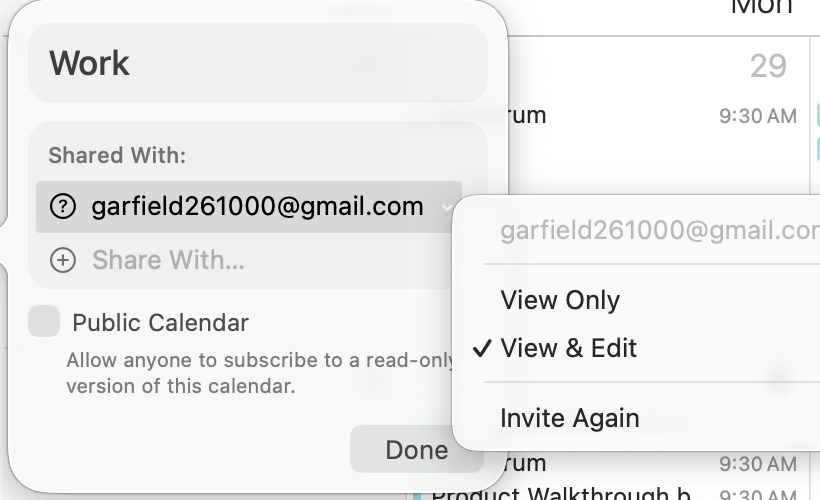
- Open Calendar and hover over the calendar's name in the sidebar.
- Click the share button that appears next to it.
- Under Share With, enter the names or email addresses of the people you want to invite.
- Click a person's name to set Allow Editing or View Only, then close the popover.
You can also check Public Calendar to publish a read-only link anyone can subscribe to.
Access levels explained
Apple keeps sharing access simple:
| Access | What they can do |
|---|---|
| View only (private share) | See your events and details, but not change them |
| Allow editing | View, add, edit, and delete events on the calendar |
| Public calendar (read-only link) | Anyone with the link can view the calendar, but not edit it |
A faster alternative: share a booking link
Sharing your whole calendar is overkill when someone just wants to grab a slot. Instead of exposing every event, you can share a booking link that shows only your open times, so they pick one and it books automatically.
This is where a scheduling tool like Cal ID helps: you get a free, personalized booking page, control exactly which hours are bookable, and skip the back-and-forth entirely. No one sees your private events, and nothing lands on your calendar without your rules.
Common issues when sharing
- The calendar cannot be shared: only iCloud calendars can be shared. Google, Outlook, and Exchange calendars must be shared from their own service.
- They did not get the invite: confirm the email is linked to their Apple Account and check their spam folder.
- They can view but not edit: open the shared calendar settings and turn on Allow Editing for that person.
- Changes are not syncing: make sure iCloud Calendar is turned on in Settings on every device.
Frequently asked questions
Quick answers to the questions we hear most.
01 Can I share an Apple Calendar with someone who does not have an Apple device?
For a private shared calendar they need an Apple Account. To share with anyone, turn on the public calendar option, which creates a read-only link that works in any calendar app or browser.
02 Why can I only view a shared calendar and not edit it?
You were given view-only access, or it is a public read-only calendar. The owner can turn on Allow Editing for you from the calendar sharing settings.
03 Can I share a Google or Outlook calendar from the Apple Calendar app?
No. You can only share calendars stored in iCloud. Share Google or Outlook calendars from their own service instead.
04 How do I stop sharing my Apple Calendar?
Open the calendar sharing settings on your iPhone, iCloud.com, or Mac, select the person, and remove them, or turn off the public calendar link.
05 Is there a way to let people book time without sharing my calendar?
Yes, use a scheduling link. A tool like Cal ID gives you a free booking page that shows only your open slots, so people can book without seeing any private events.