
How to Share a Google Calendar (Step-by-Step)
Share your Google Calendar with specific people, a group, or the public in minutes. Plus a faster way to let people book time with you without sharing everything.


Key takeaways
- You can share a Google Calendar with specific people, a group, or the public from any web browser in under a minute.
- Sharing works only from Google Calendar on the web, not the iOS or Android app.
- Pick the permission level carefully: 'See only free/busy' hides details, while 'Make changes' lets others edit your events.
- If someone just wants to book time with you, a booking link is faster and more private than sharing your whole calendar.
Sharing your Google Calendar lets colleagues, family, or clients see when you are free, coordinate schedules, or manage your calendar for you. It works from any web browser, whether you use a personal Gmail account or Google Workspace.
This guide covers every way to share, from a single person to a whole team to a public link, explains the permission levels so you do not over-share, and shows a faster option for when people simply want to book time with you.
Using a different calendar? Here is how to share an Outlook calendar.
What sharing a Google Calendar actually does
When you share a calendar, you grant another person a chosen level of access to it. Depending on the permission you pick, they can see only whether you are busy, view full event details, or even edit events. Sharing is ongoing access until you remove it, which is different from sending a one-off event invite.
How to share your Google Calendar with specific people
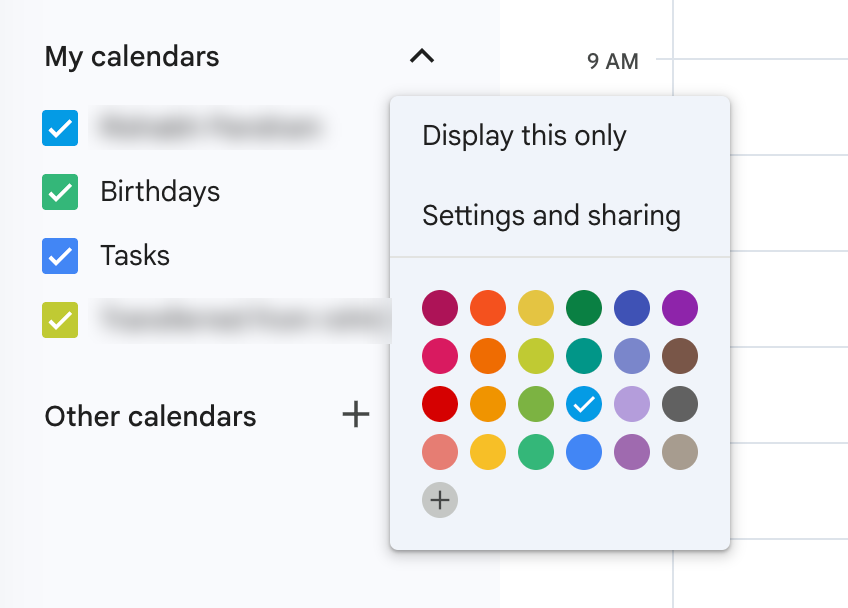
On a computer, in any web browser:
- Open Google Calendar and hover over the calendar you want to share under 'My calendars' on the left.
- Click the three dots that appear, then choose 'Settings and sharing'.
- Scroll to 'Share with specific people or groups' and click 'Add people and groups'.
- Enter the person's email, choose a permission level from the dropdown, and click 'Send'.
They receive an email with a link to add your calendar. It appears under 'Other calendars' once they accept.
How to share a Google Calendar with a group or team
To share with everyone in a Google Group or your whole organization:
- Open 'Settings and sharing' for the calendar.
- Under 'Share with specific people or groups', add the Google Group's email address instead of an individual.
- Pick a permission level that fits the group, then click 'Send'.
Google Workspace admins can also set default sharing for the whole organization under 'Access permissions for events'.
How to make a Google Calendar public
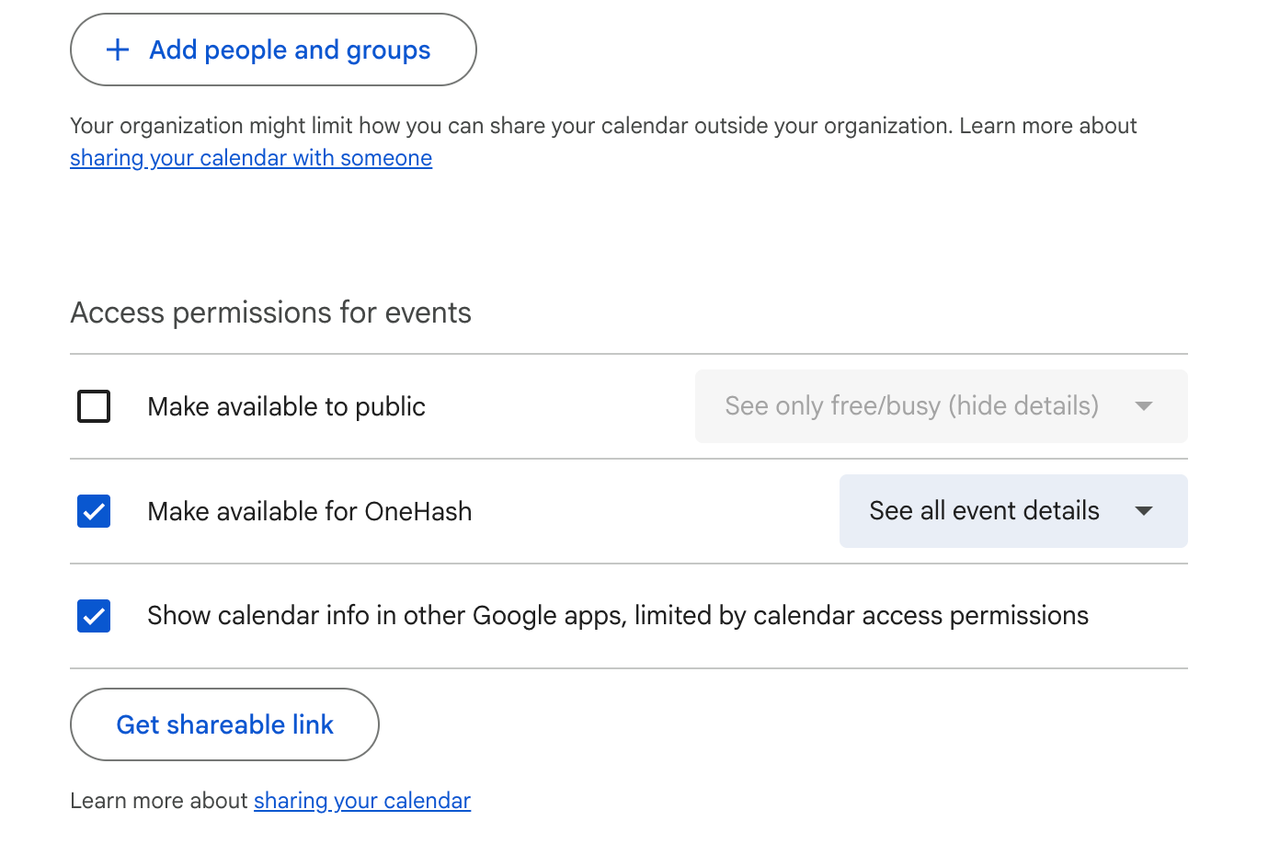
If you want anyone to see your schedule, such as a public events calendar:
- Open 'Settings and sharing' for the calendar.
- Under 'Access permissions for events', check 'Make available to public'.
- Choose whether the public sees full details or only free/busy, then confirm.
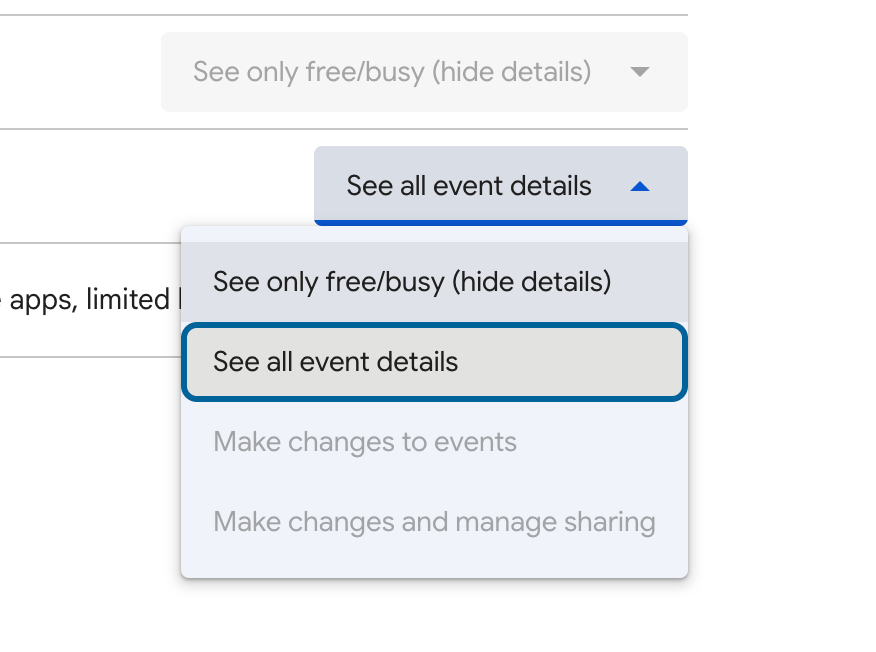
Permission levels explained
Pick the level that matches what the person actually needs:
| Permission | What they can see or do |
|---|---|
| See only free/busy (hide details) | Only whether you are busy, no titles or details |
| See all event details | Every event and its details, read-only |
| Make changes to events | View and edit events on your behalf |
| Make changes and manage sharing | Full control, including who else the calendar is shared with |
A faster alternative: share a booking link
Sharing your whole calendar is overkill when someone just wants to grab a slot. Instead of exposing every event, you can share a booking link that shows only your open times, so they pick one and it books automatically.
Google Calendar now has native booking pages for this, but the free version is limited to one booking page with no reminders, no payments, and no team scheduling. A free tool like Cal ID gives you all of that: unlimited event types, automatic WhatsApp, SMS, and email reminders, payments at booking, and round-robin for teams, without exposing any of your private events.
Common issues when sharing
- They did not get the invite: check their spam folder and confirm the email matches their Google account.
- They cannot see details: you likely shared 'free/busy' only, so re-share with a higher permission level.
- Sharing options are missing: on Google Workspace, your admin may have restricted external sharing.
- You are on mobile: calendar sharing is not available in the app, so open calendar.google.com in a browser.
Frequently asked questions
Quick answers to the questions we hear most.
01 Can I share my Google Calendar with someone who does not use Gmail?
Yes. You can share with any email address. Non-Google users get a link to view your calendar, though some editing features work best with a Google account.
02 Why can I only see 'busy' and no event details?
You were given the 'See only free/busy' permission. Ask the calendar owner to re-share with 'See all event details' to view event information.
03 How do I stop sharing my Google Calendar?
Open 'Settings and sharing' for the calendar, find the person under 'Share with specific people or groups', and click the remove icon next to their name.
04 Can I share my Google Calendar from the mobile app?
No. Google Calendar sharing is only available on the web. Open calendar.google.com in a browser to change sharing settings.
05 Is there a way to let people book time without sharing my calendar?
Yes, use a scheduling link. A tool like Cal ID gives you a free booking page that shows only your open slots, so people can book without seeing any private events.