
How to Use Google Calendar for Appointment Scheduling (2026 Guide)
Google Calendar can publish your availability as a booking page for free. Here is the full setup, exactly which plans unlock reminders, payments and co-hosts, and the point where it stops being enough.


Key takeaways
- Google Calendar appointment scheduling is free, but a free personal account gets exactly one booking page. Google Workspace Business Starter is capped at one too, so paying does not automatically lift it.
- Automatic email reminders, multi-calendar conflict checks, Stripe payments and co-hosts are all premium, and each is gated to a different set of plans. Check your own plan rather than assuming.
- Google added co-hosts, up to 20 per schedule. It still has no way to rotate bookings between hosts, so round robin remains the clearest reason to look elsewhere.
- Appointment slots was retired in August 2024 and existing slots were not migrated, which is why old booking links stopped working and were never replaced.
- Booking pages can only be created on a computer. The mobile apps can view and manage bookings, but not set a schedule up.
If you want people to book time with you without the back and forth, you do not always need a separate app. Google Calendar can publish your availability as a public booking page, using a feature called appointment schedules, and every confirmed booking lands straight on your calendar.
This guide covers the full setup on the current interface, exactly which features your plan unlocks, the problems people hit most often, and the point where Google Calendar alone stops being enough. Every plan and feature claim here is checked against Google's own documentation, which is linked throughout.
What Google Calendar appointment scheduling is
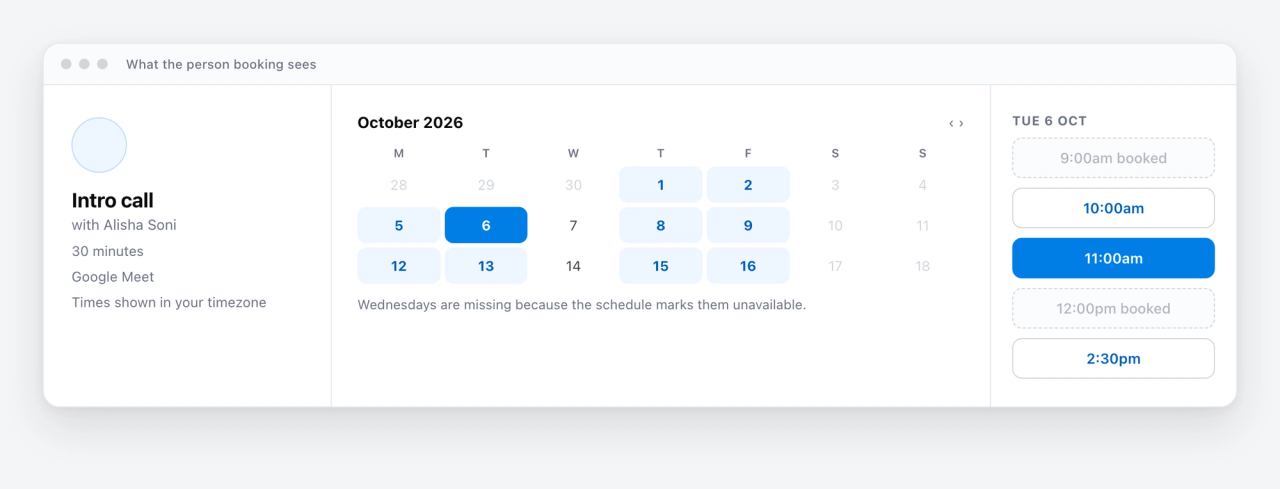
An appointment schedule is a bookable block of availability that Google publishes as its own page. You set the rules once: which hours you are open, how long each meeting runs, how much notice you need, and how far ahead people can book. Google generates a link, and anyone who opens it sees only the slots you are genuinely free for.
The part that matters is that it reads your real calendar. If an event already occupies a slot, that slot disappears from the booking page, so you are not double booked. Google calls the published result a booking page, and you will see that term throughout the Calendar interface.
Appointment slots vs appointment schedules: what changed
If you are following an older tutorial that tells you to click an Appointment slots tab, that interface no longer exists. Appointment slots was the previous feature, and Google retired it: new slots could not be created after 18 July 2024, and the existing slots booking pages stopped working on 8 August 2024.
One detail catches people out. Existing appointment slots were not automatically converted into appointment schedules. Anyone who had slots set up had to recreate them by hand, so if your old booking link died and nothing replaced it, that is why.
Everything below refers to appointment schedules, which is the only version Google supports now.
Booking page, booking system or online scheduling: the same thing
Google calls the published result a booking page. People searching for it call it half a dozen other things, and the words get used interchangeably enough to be confusing, so here is the plain mapping.
- A Google Calendar booking page is the page guests land on. This is Google's own term and the one you will see in the interface.
- A Google Calendar booking system usually means the same feature, described by what it does rather than what Google named it.
- Online scheduling with Google Calendar is the broader category: any setup where people pick a time themselves instead of emailing you about it.
- Google Calendar reservations is what people tend to search when they are thinking about classes, tables or equipment rather than meetings. Appointment schedules can hold a slot for one person at a time, but they cannot cap a group at a number of seats, so genuine reservations need a different tool.
Whichever phrase brought you here, the feature is appointment schedules and the setup is the same.
What you need before you start
- A Google account. Personal accounts work, with the limits set out further down.
- A computer with a web browser. You cannot create an appointment schedule in the Google Calendar app for Android, iPhone or iPad, though you can view and manage your booking pages there once they exist.
- A Google Workspace plan that supports the feature, if you are on a work account. Frontline, Essentials and older discontinued Workspace subscriptions cannot create appointment schedules at all, and on a managed account your administrator can switch the feature off.
- Your working hours set, ideally. Not required, but it saves configuring availability twice.
How to create an appointment schedule in Google Calendar
The whole thing takes about three minutes. Setting names below match the current interface.
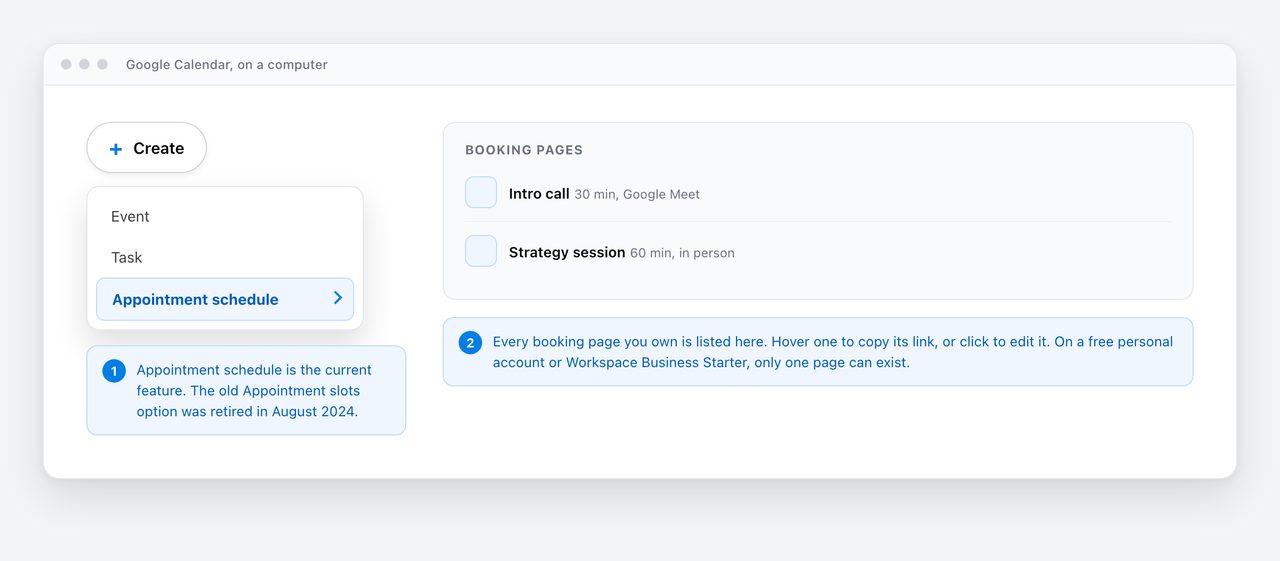
- Open Google Calendar on a computer, click Create in the top left, then choose Appointment schedule. You can also click Create appointment schedule in the Booking pages section of the sidebar. The editor that opens is titled Bookable appointment schedule.
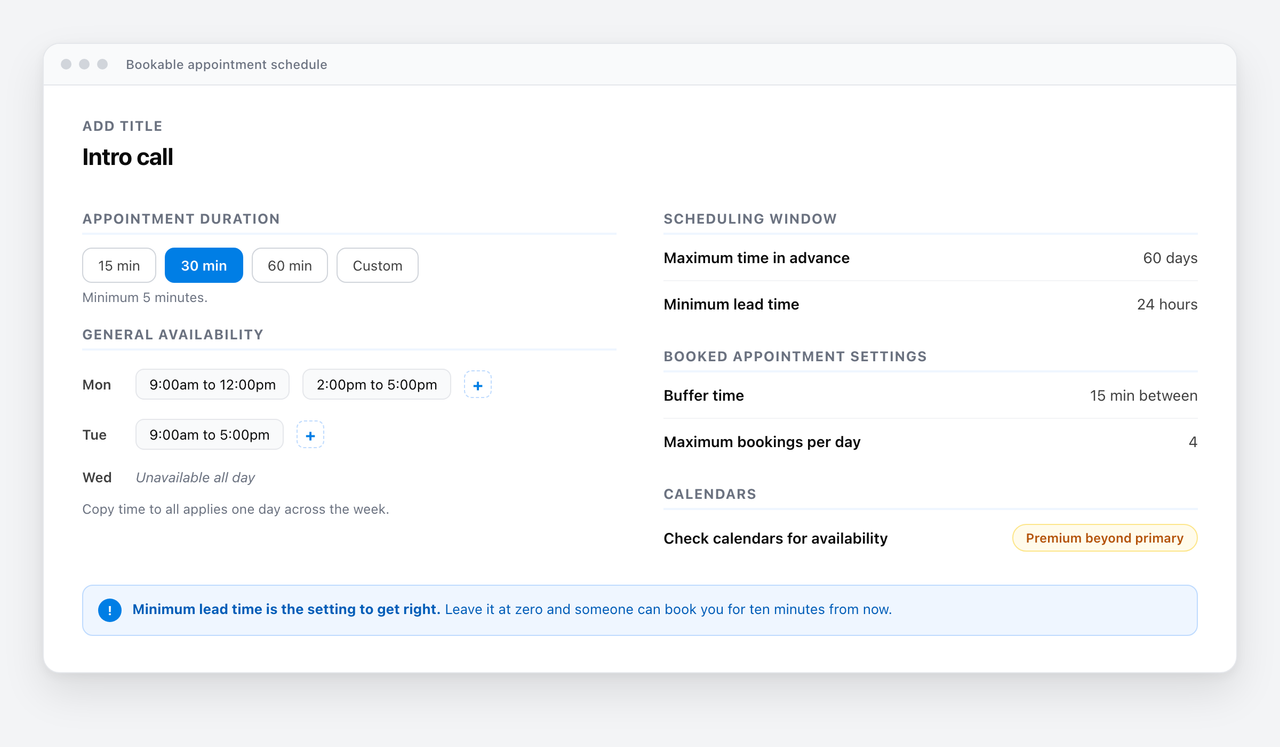
- Add a title. This is public, so name it something a guest will recognise, such as Intro call or 30 minute consultation, rather than an internal label.
- Set the appointment duration. Google offers common lengths plus a Custom option, and the minimum is 5 minutes.
- Set your General availability: the days you are open and the hours for each. Use Add another period to this day to split a day around lunch, and Copy time to all to apply one day's hours across the week. Unavailable all day removes a day entirely.
- Open Scheduling window to control how far ahead people can book and the minimum lead time you require. Lead time is the single most useful setting here: without it, someone can book you for ten minutes from now.
- Use Adjusted availability for one-off changes, such as a week you are away, without disturbing your normal hours.
- Under Booked appointment settings, add buffer time between appointments, cap the maximum bookings per day, and decide guest permissions.
- Under Calendars, tick Check calendars for availability so Google blocks out slots against your other calendars. Checking calendars beyond your primary one is a premium feature, so on a free account expect only your main calendar to be consulted.
- Click Save. Google creates the booking page and returns a shareable link.
Booking page settings worth changing
Saving the schedule creates the page, but the settings that decide how professional it feels sit one level in. Open the schedule again to reach them.
Location and conferencing
Select how and where to meet lets you pick Google Meet video conferencing, an in-person meeting, a phone call, or nothing at all if you would rather specify later. One known limitation: you cannot set a third-party tool such as Zoom as the default here, which is the most common complaint about the feature.
Booking form and email verification
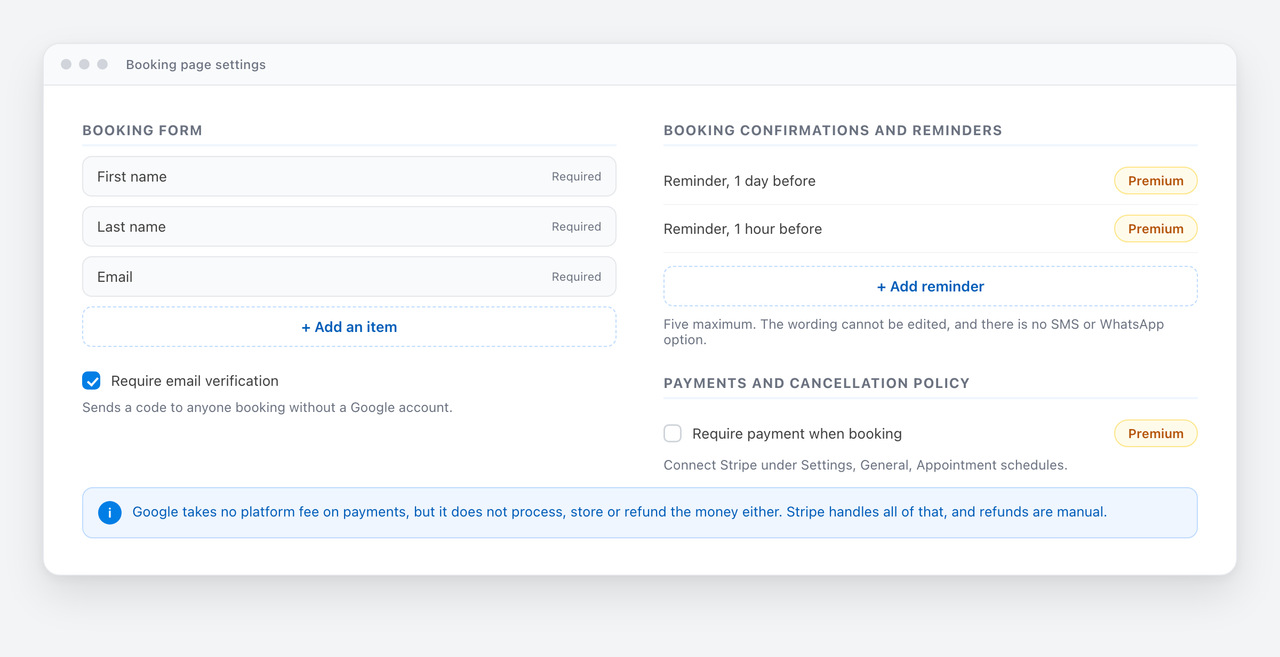
The booking form collects first name, last name and email by default, and Add an item lets you ask for more. This is worth doing: one question about what the person wants to cover turns a cold booking into a prepared one. There is also a Require email verification option, which sends a code to anyone booking without a Google account and cuts out junk bookings.
Reminders
Under Booking confirmations and reminders you can add up to five reminders per schedule. Two things to know: automatic email reminders are a premium feature rather than something every account gets, and the reminder text itself cannot be edited. If you need a reminder that says something specific, or an SMS or WhatsApp reminder, Google Calendar cannot do it.
Payments
Google Calendar can take payment at the point of booking through Stripe. Connect it under Settings, then General, then Appointment schedules, then Connect Stripe, and tick Require payment when booking on the schedule. Google charges no platform fee, but it does not process, store or refund the money either: Stripe handles all of that, and refunds are manual. This is a premium feature on specific plans, listed below.
How to edit an appointment schedule in Google Calendar
Open Google Calendar on a computer, find the schedule under Booking pages in the sidebar, and click it to reopen the Bookable appointment schedule editor. Change the hours, duration, scheduling window or booking form, then save. The booking link does not change, so anything you have already shared keeps working.
Bookings that already exist are ordinary calendar events. Open one to reschedule or cancel it, and the person who booked is notified in the usual way.
How to delete an appointment schedule
Open the schedule and use the delete control. Google asks whether you want to remove only that week's availability or the entire appointment schedule, which is a useful distinction: clearing one week is how you handle a holiday, while deleting the schedule kills the booking link for good. Anyone who has already booked keeps their event; only future booking is stopped.
How to share your booking page
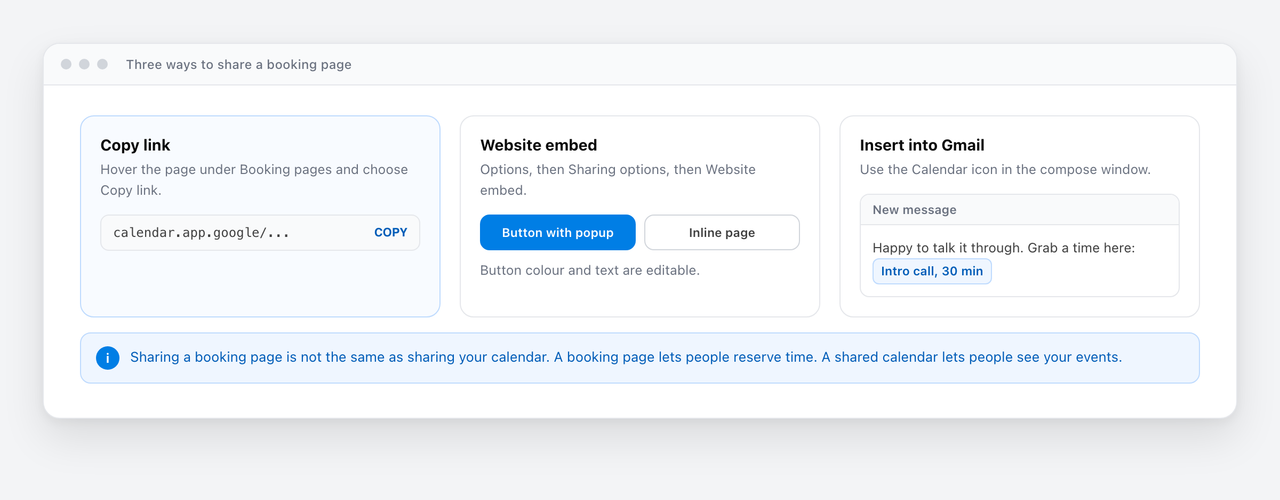
There are three ways to get the page in front of people.
Copy the link
Hover the page under Booking pages and choose Copy link. This is the one most people want. Drop it in your email signature, your LinkedIn profile or a calendar invite. Note that sharing a booking page is not the same as sharing your calendar: a booking page lets people reserve time, while sharing a calendar lets people see your events. If you want the second one, see our guide on how to share a Google Calendar.
Embed it on your website
Under Options, then Sharing options, then Website embed, you can publish either all your booking pages or a single one, as a Button with popup or an Inline booking page, and edit the button colour and text. Google documents support for Google Sites, Shopify, Squarespace, Unbounce, Weebly, Wix, Wordpress.com and Wordpress.org.
Insert it into a Gmail draft
Since July 2025 you can drop a booking page straight into an email from the Calendar icon in the Gmail compose window, which saves hunting for the link every time someone asks when you are free.
Free versus paid: what each plan actually unlocks
This is the question behind most searches for Google Calendar appointment scheduling, and most guides dodge it. Here it is plainly.
The core feature is free. Any personal Google account can create one booking page and take bookings on it forever without paying. What sits behind the paywall is everything that makes it work for a business: more than one page, reminders, checking several calendars, payments and co-hosts.
The split is not simply free versus paid. Google Workspace Business Starter is a paid plan and is still capped at one booking page, while paid consumer plans such as Google One Premium lift that cap. Check your own plan against this list rather than assuming.
| Premium feature | Plans that include it |
|---|---|
| More than one booking page | Google One Premium, Google AI Pro and AI Ultra, plus eligible Workspace plans. Not on a free personal account or Business Starter. |
| Automatic email reminders | Google One Premium, Google AI Pro and AI Ultra, Business Standard and Plus. Not on a free account or Business Starter. |
| Check availability across multiple calendars | Paid plans only. A free account checks your primary calendar. |
| Accept payments through Stripe | Workspace Individual, Business Standard and Plus, Enterprise Standard and Plus, Education and Nonprofits. |
| Up to 20 co-hosts | Business Standard and Plus, Enterprise Standard and Plus, Education and Nonprofits. |
| Appointment schedules at all | Not available on Workspace Frontline, Essentials, or older subscriptions Google no longer offers. |
Co-hosts: what they do and do not do
Google added co-hosts to appointment schedules, and a lot of older articles have not caught up. On a qualifying plan you can add up to 20 co-hosts by name, email address or Google Group, and they join the appointments people book.
Two limits are worth knowing before you rely on it. Co-host availability is not checked by default, so you have to include their calendars in the availability check yourself or you will book people who are busy. And you cannot add groups or users outside your own domain.
Where Google Calendar appointment scheduling runs out
For one person booking one kind of meeting, it is genuinely good and genuinely free. The limits show up the moment the process gets slightly more real.
- No booking distribution across a team. There is no way to rotate inbound bookings between several people, weighted or otherwise.
- No routing. You cannot ask a qualifying question and send the booker to a different person or meeting type based on the answer.
- Reminders are limited and fixed. Five per schedule at most, premium only, text not editable, and no SMS or WhatsApp at all.
- One booking page on free accounts and Business Starter, as above.
- Conflict checking beyond your primary calendar is a paid feature, and Google does not document checking calendars that live outside Google.
- Little control over how the page looks. Google documents the profile photo and account name, and a colour setting for the embed button, but no logo upload, page theming or custom domain.
- No third-party conferencing default. You cannot make Zoom the automatic location.
- No seat limits. An appointment schedule holds a slot for one booking, so it cannot run a class of twelve or take reservations against a fixed capacity.
Google Calendar also cannot take more than one booking in a single visit. One appointment schedule books one slot at a time, so a client who wants four sessions has to return to the booking page four times. If that is your normal case rather than the exception, see how to let clients book multiple appointments at once.
Worth being precise on the calendar point, because other guides are not: Google says availability checks cover your primary calendar and calendars you own, manage or subscribe to. It says nothing either way about conflict checking against an Outlook or iCloud calendar, so treat any confident claim in either direction with suspicion, including ours. If a clash across two different calendar providers would cost you money, test it before you trust it.
Troubleshooting the problems people actually hit
Appointment schedule is missing from the Create menu
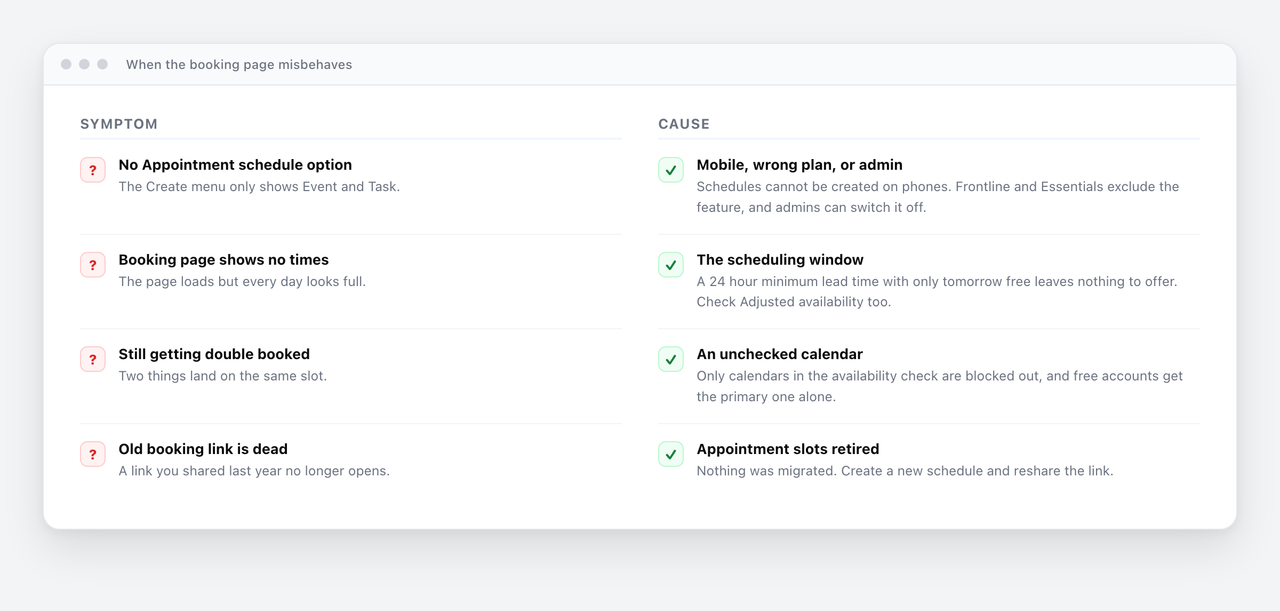
Three usual causes. You are on mobile, where schedules cannot be created. You are on a Workspace plan that excludes the feature, such as Frontline or Essentials. Or your administrator has turned it off on a managed account. Try the same steps in a browser on a computer first, then ask your admin.
The booking page shows no available times
Usually the scheduling window. If your minimum lead time is 24 hours and your only availability is tomorrow morning, there is nothing left to offer. Check the lead time, then check whether existing calendar events have eaten the window, then check Adjusted availability for a block you set and forgot.
You are still getting double booked
Appointment schedules only block out slots on calendars included in the availability check, and on a free account that is your primary calendar alone. If the clashing event lives on a second calendar, Google never saw it.
Your old appointment slots link stopped working
It was retired in August 2024 and nothing was migrated automatically. Create a new appointment schedule and reshare the new link.
You cannot change the reminder wording
You cannot. The reminder text is fixed. This is the most common reason people move to a dedicated tool.
When to add a dedicated scheduling tool
The honest rule: if you are one person, booking one kind of meeting, on a plan that gives you reminders, Google Calendar alone is fine. Do not add a tool you do not need.
Add one when any of these become true:
- More than one person can take the meeting and you want them rotated fairly.
- You need reminders that say something specific, or reminders over SMS or WhatsApp, because no-shows are costing you money.
- You need more than one meeting type and your plan caps you at one.
- You want to qualify or route bookers before they land on someone's calendar.
- You want the page to carry your brand rather than Google's.
- You need conflict checking across calendars from different providers.
Doing the same thing with Cal ID
Cal ID connects to the same Google Calendar and reads the same busy times, so the double booking protection is the same. The difference is what happens around the booking. It sits on top of Google Calendar rather than replacing it.
On the free Startup plan you get:
- Unlimited event types, so a 15 minute intro call and a 60 minute deep dive can both exist.
- The Unified Calendar, bringing your Google and Outlook events into one view.
- Unlimited email reminders and workflows, with 10 SMS and 10 WhatsApp workflows included.
- Payments at the point of booking through Stripe or Razorpay.
- Multi-slot booking, where someone picks several times on one page, fills in their details once and pays once.
On the paid Business plan, at $5 per user per month billed annually, you add the team features Google has no answer for:
- Round-robin scheduling, so bookings rotate across a team, with weighting if some people should take more.
- Routing forms that ask qualifying questions and send each booker to the right person.
- Unlimited SMS and WhatsApp workflows.
- Your own logo, colours and favicon on the booking page, with Cal ID branding removed.
Google Calendar and Cal ID, side by side
| Google Calendar appointment schedules | Cal ID | |
|---|---|---|
| Booking pages / event types | One on free accounts and Business Starter | Unlimited on the free plan |
| Email reminders | Premium plans only, wording fixed, five maximum | Unlimited on the free plan, wording yours |
| SMS and WhatsApp reminders | Not available | 10 each on free, unlimited on Business |
| Team rotation (round robin) | Not available | On the Business plan |
| Routing by qualifying question | Not available | On the Business plan |
| Payments at booking | Stripe, on specific paid plans | Stripe and Razorpay, on the free plan |
| Multi-slot booking | Not available | On the Business plan |
| Branding | Google branded | Your logo and colours on the Business plan |
| Price to start | Free | Free |
Full plan detail is on the pricing page.
The practical recommendation
Start with Google Calendar appointment schedules. It costs nothing, it takes three minutes, and for one person taking one kind of meeting it does the job properly. Set a minimum lead time and add a question to the booking form, and you have removed most of the friction that makes scheduling annoying.
Move to a dedicated tool at the point where you hit one of the walls above, most commonly the moment a second person needs to take the same meeting, or the moment no-shows start costing real money. Neither requires leaving Google Calendar behind: the scheduling tool reads the same calendar and writes back to it.
Frequently asked questions
Quick answers to the questions we hear most.
01 Does Google Calendar have appointment scheduling?
Yes. It is called appointment schedules, and it turns your availability into a public booking page that anyone with the link can book. It is built in, so there is nothing to install, and the core feature is free on a personal Google account.
02 Is Google Calendar appointment scheduling free?
The feature is free. A free personal Google account can create one booking page and take unlimited bookings on it. What costs money is everything around it: more than one booking page, automatic email reminders, checking more than one calendar for conflicts, Stripe payments and co-hosts are all premium features tied to specific plans.
03 How do I create bookable appointment slots in Google Calendar?
On a computer, click Create in the top left and choose Appointment schedule. Set a title, a duration and your general availability, then use Scheduling window to set how much notice you need. Click Save and Google gives you a booking link. The old Appointment slots tab no longer exists.
04 How do I find my Google appointment schedule?
Look under Booking pages in the Google Calendar sidebar on the web, where every schedule you own is listed. Hover one to copy its link or open it to edit. Since August 2025 your booking pages also appear in the sidebar of the mobile Calendar apps, though you still cannot create one there.
05 What happened to Google Calendar appointment slots?
Google retired it. New appointment slots could not be created after 18 July 2024 and the existing booking pages stopped working on 8 August 2024. Existing slots were not converted automatically, so anyone who had them had to recreate them as appointment schedules.
06 Can two people share one Google Calendar booking page?
Partly. On a qualifying plan you can add up to 20 co-hosts, who join the appointments people book. But co-host availability is not checked by default, and Google cannot share bookings out between hosts in rotation. If you need three people taking turns on inbound calls, appointment schedules cannot do it.
07 Can I take payments through a Google Calendar booking page?
Yes, through Stripe, on Workspace Individual, Business Standard and Plus, Enterprise Standard and Plus, Education and Nonprofits. Connect Stripe under Settings, then General, then Appointment schedules. Google takes no platform fee but does not process or refund the money either, so refunds are manual in Stripe.
08 Can I send reminders with Google Calendar appointment scheduling?
You can add up to five reminders per schedule, but automatic email reminders are a premium feature and the reminder wording cannot be changed. There is no SMS or WhatsApp option at all. If you need a reminder that says something specific, you need a scheduling tool on top.
09 Can Google Calendar check my Outlook calendar for conflicts?
Google does not document this either way. Its help pages say availability checks cover your primary calendar plus calendars you own, manage or subscribe to, and never mention Outlook or iCloud. Checking anything beyond your primary calendar is also a paid feature. If a clash between two providers would cost you money, test it before relying on it.
10 Can you use Google Forms as a booking system?
Not really. A form collects answers, it does not hold a slot, check your calendar or stop two people picking the same time. You would be back to reconciling responses by hand. Appointment schedules exist precisely so you do not have to, and any dedicated scheduling tool does the same job properly.
11 How do I stop people booking me at the last minute?
Open Scheduling window on the schedule and set a minimum lead time. Twelve to twenty four hours is the usual choice. Without it, someone can book you for ten minutes from now. The same panel caps how far ahead people can book.