

Steps to customize team appearance
1
Log in to Cal ID
Sign in to your account.
2
Go to Teams
Click on the Teams icon in the left-hand sidebar.
3
Access the team menu
Locate the team you want to edit, click the three horizontal dots next to its name, and select Edit team.
4
Navigate to Appearance
Click on the Appearance tab at the top of the settings page.
5
Configure visual settings
Configure the options described below.
Booking page theme
Select the theme bookers see when they open your team’s booking page: System default, Light, or Dark. The theme selection determines the background and text colors a booker interacts with when they view your team’s booking page. Choosing a specific theme ensures a consistent experience regardless of the booker’s own browser settings.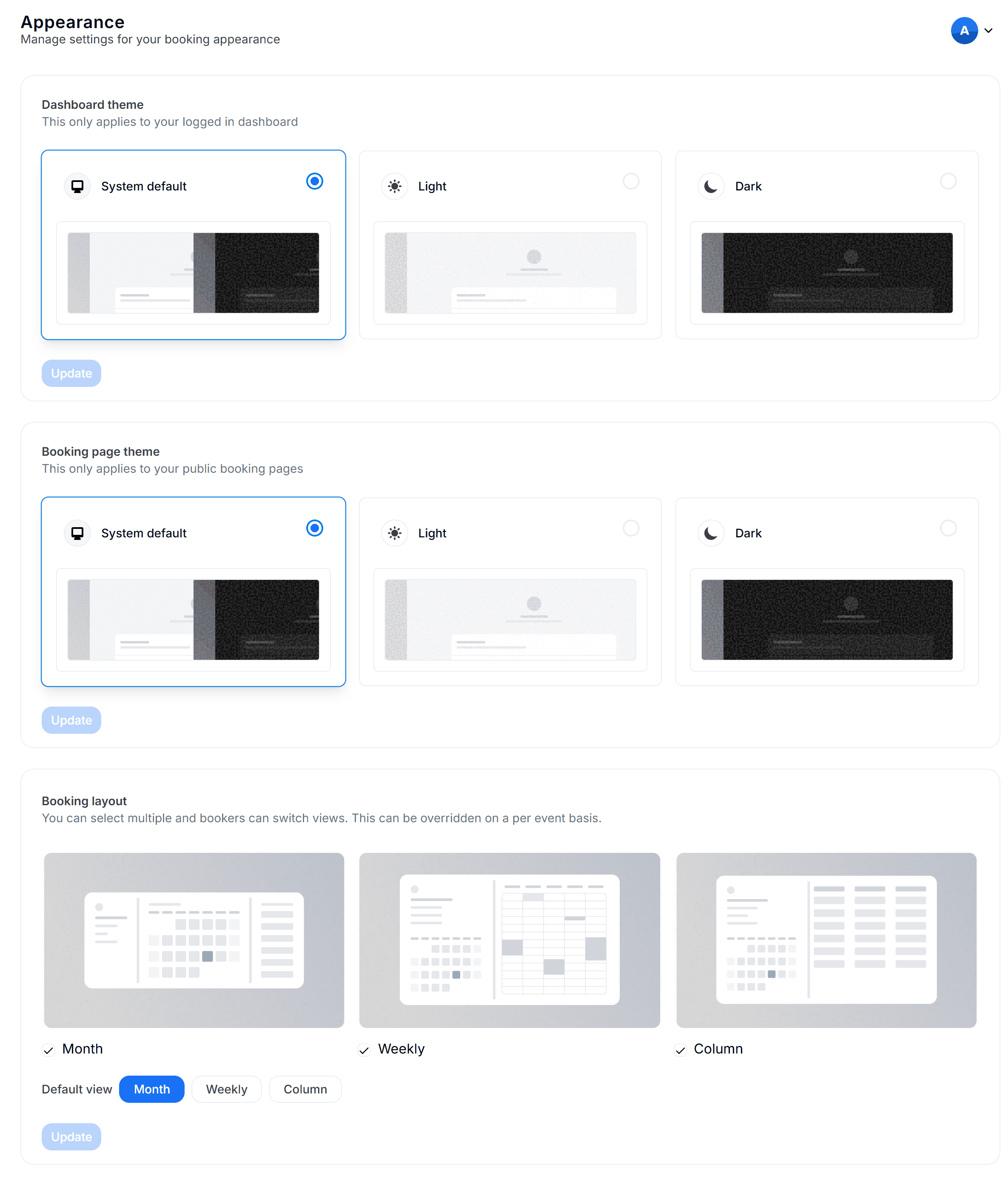
Choosing light or dark for the team
Hide book a team member button
Switch Hide book a team member to ON to remove the shortcut button from your team’s booking page. By default, when a booker opens your team’s booking page, they see a button labeled Book a team member instead at the very bottom of the page, following the list of available event types.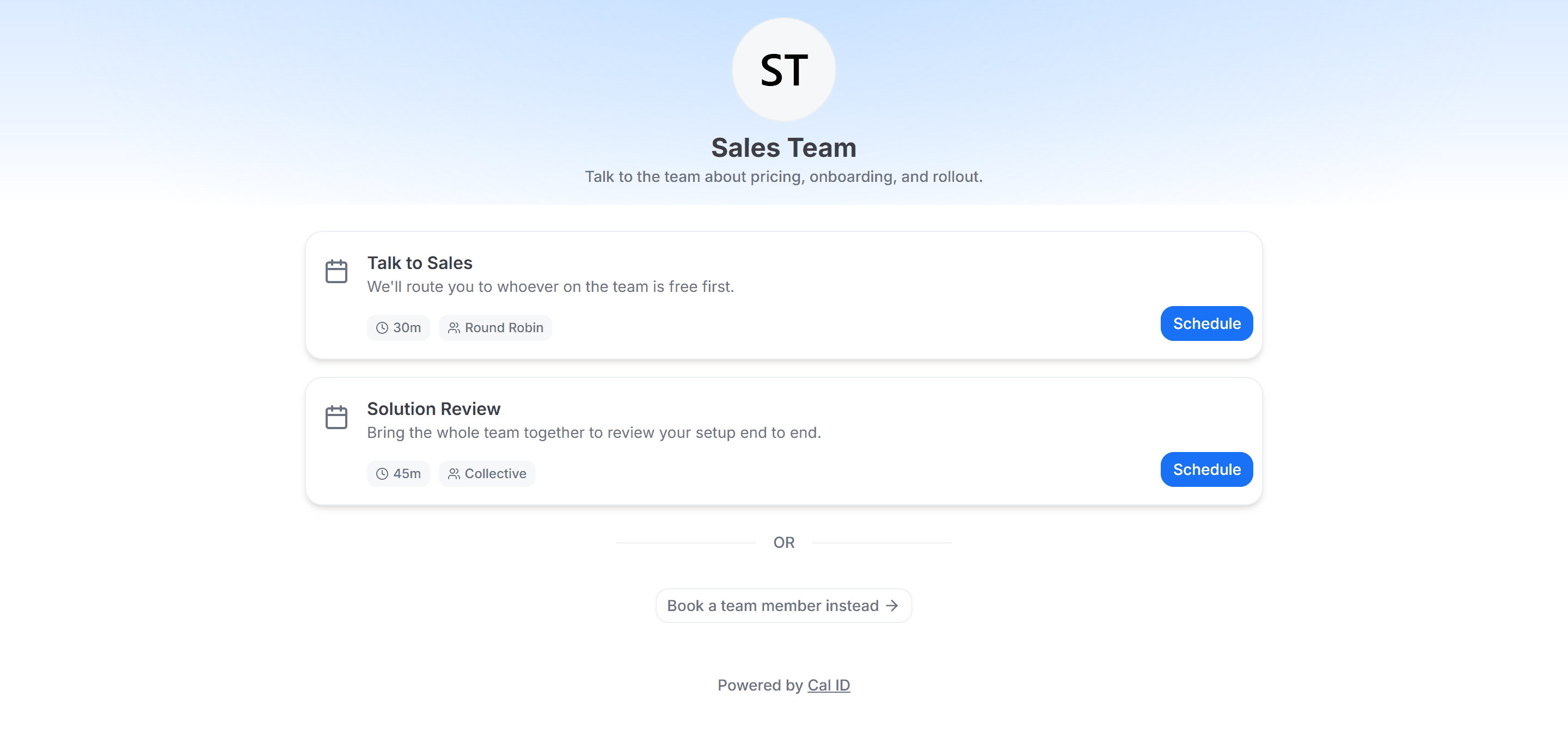
What bookers see with the button on
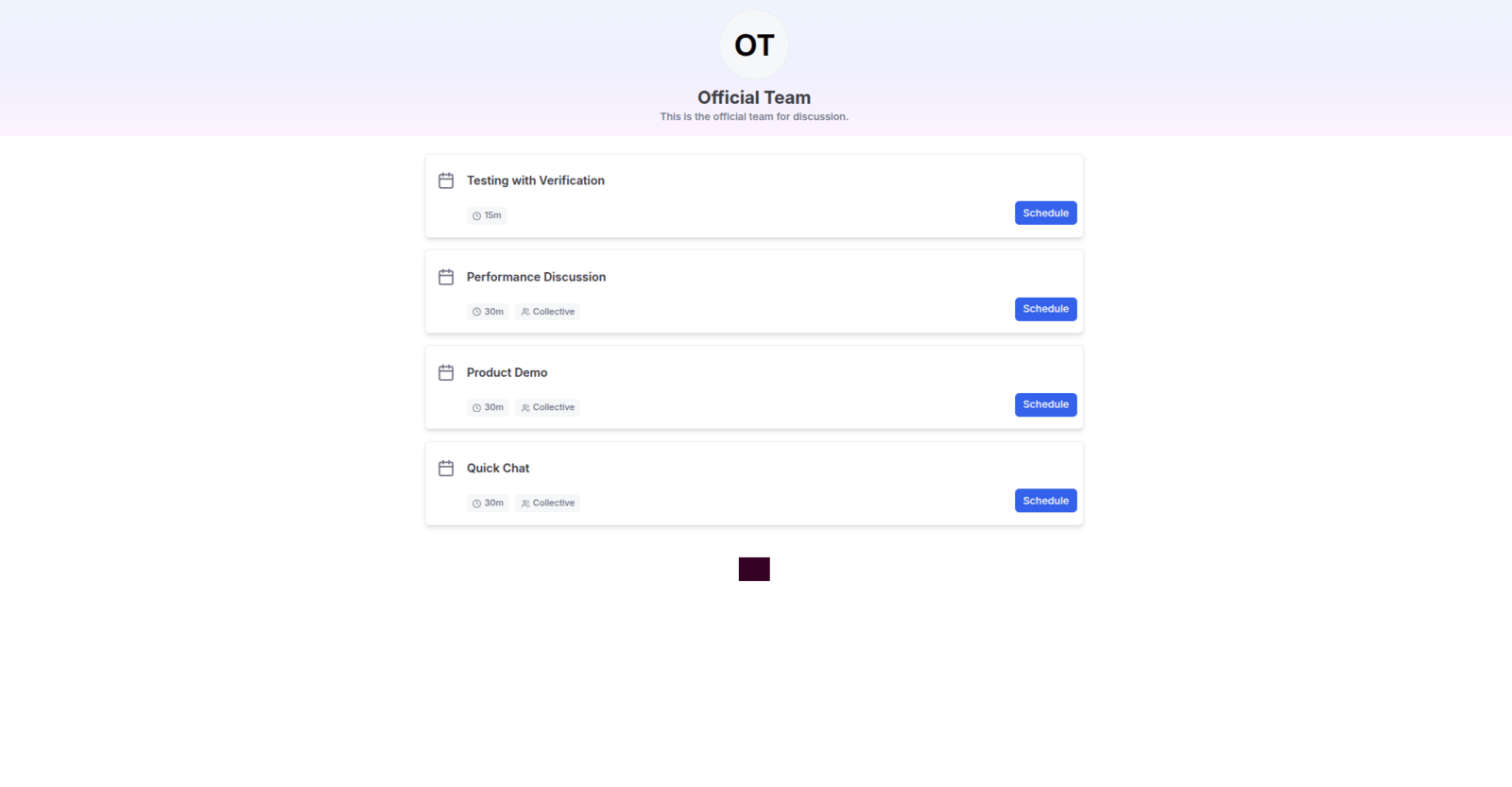
The same page with it hidden
Hide team profile link
Switch Hide team profile link to ON to hide the link to your team’s profile on all booking pages.Related team styling
Personal appearance
Set the theme and booking layout for your own personal booking page.
Team branding
Add your team’s logo, banner, and brand colors.