

Brand colors are available on every plan, including Startup. The rest of custom branding — the banner, social profiles, your own logo and favicon, and removing Cal ID branding — needs the Business or Enterprise plan. On Startup your booking page keeps Cal ID’s branding, which is what makes the free plan free. See Subscription and pricing.
These settings apply to your personal booking page. To brand a team’s page instead, see Custom Branding for Teams.
Open Custom Branding
1
Log in to Cal ID
Sign in to your account.
2
Navigate to Settings
Click the Settings icon in the sidebar.
3
Go to Custom Branding
Select the Custom Branding tab, then configure the features below.
Public page banner
Upload a professional header image with exact 3200 x 320 px dimensions. For more detail, visit: Public Page Banner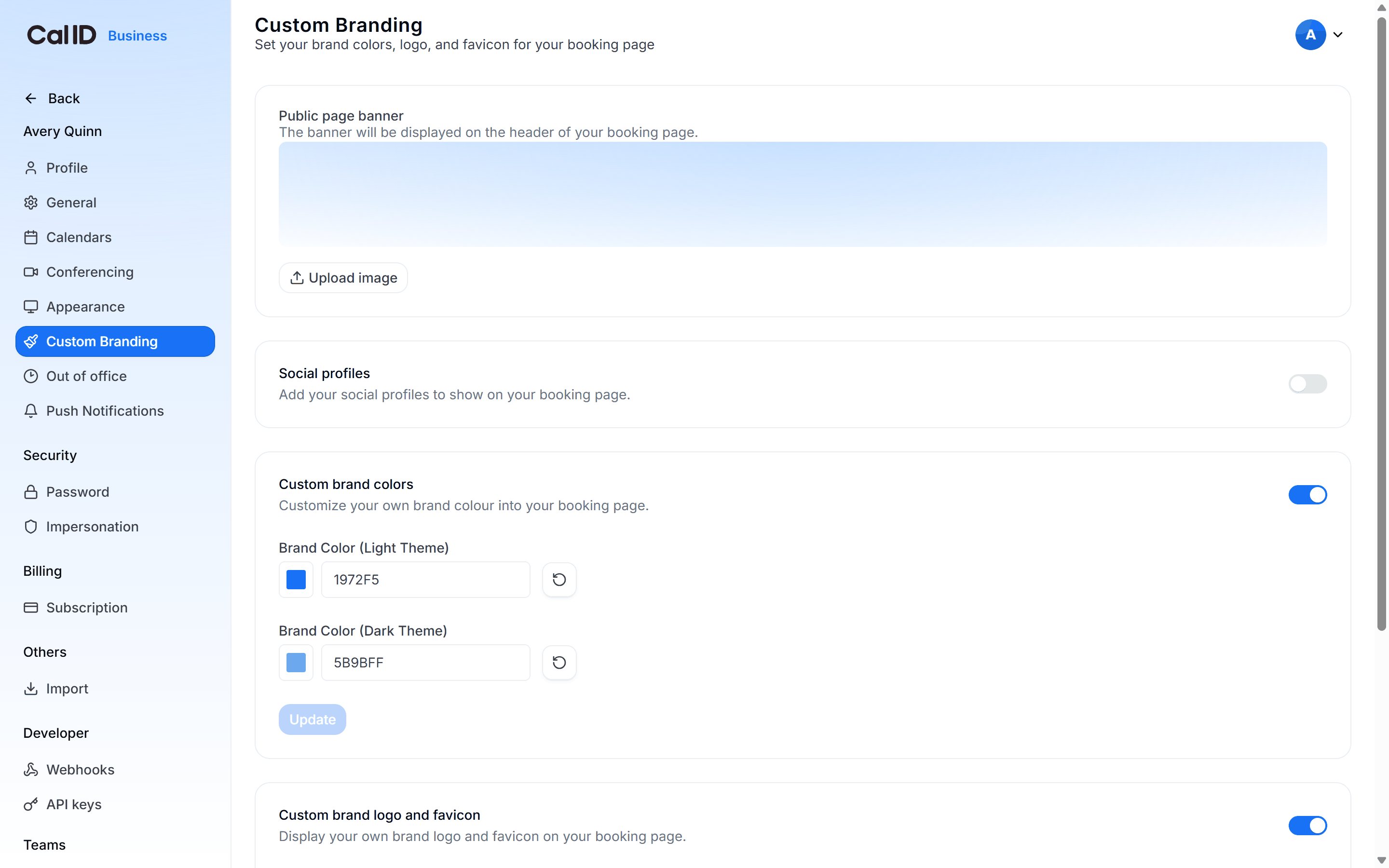
Where the header image lives
Social profiles
Enable and link your LinkedIn, X, Facebook, Instagram, YouTube, and GitHub profiles. For more detail, visit: Social Profiles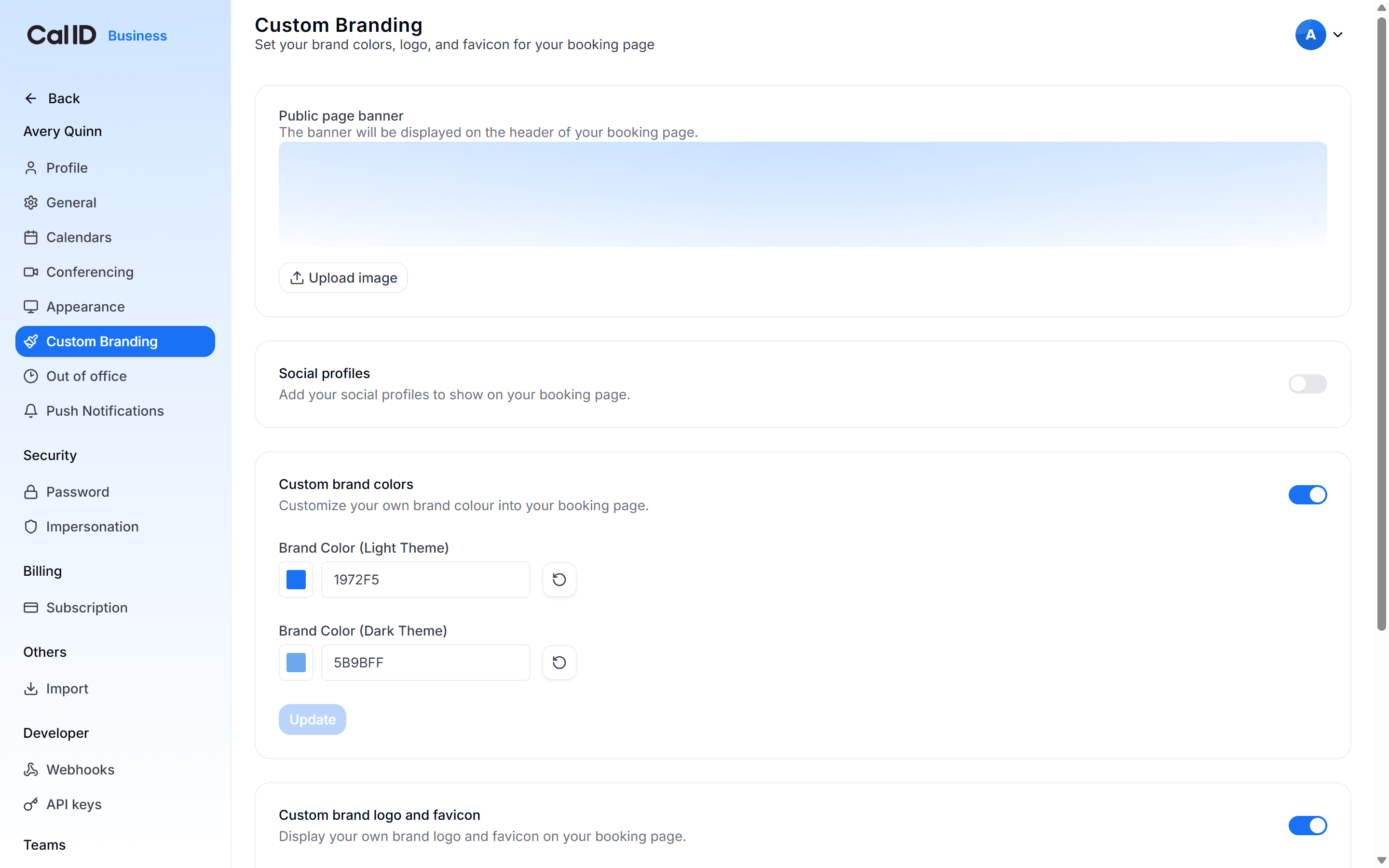
Linking bookers to your profiles
Custom brand colors
Set specific Hex codes for both light and dark themes to match your brand palette. For more detail, visit: Custom Brand Colors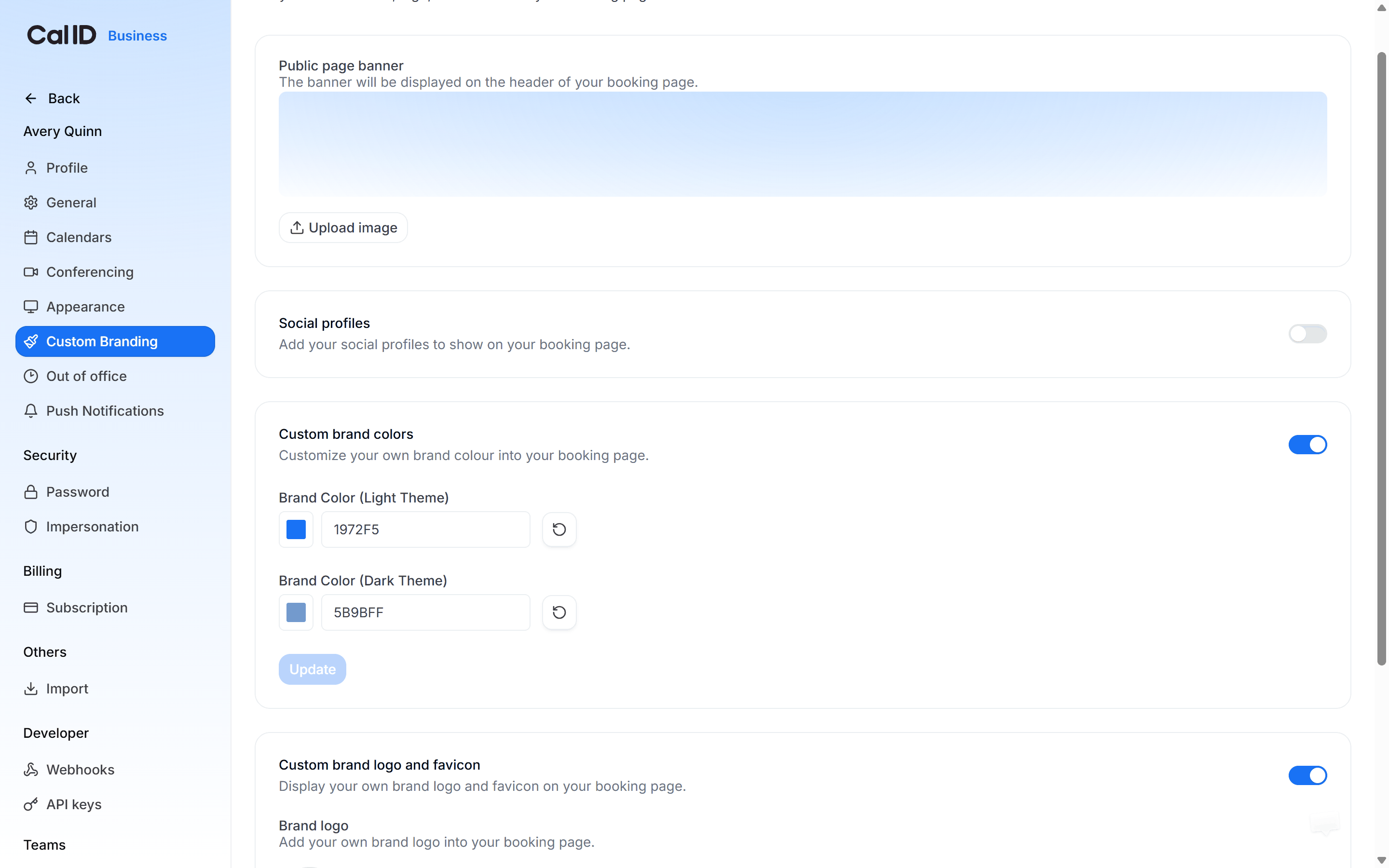
Matching the page to your palette
Custom brand logo and favicon
Upload your 600 x 400 px logo and browser tab icon to fully customize your page. For more detail, visit: Custom Brand Logo and Favicon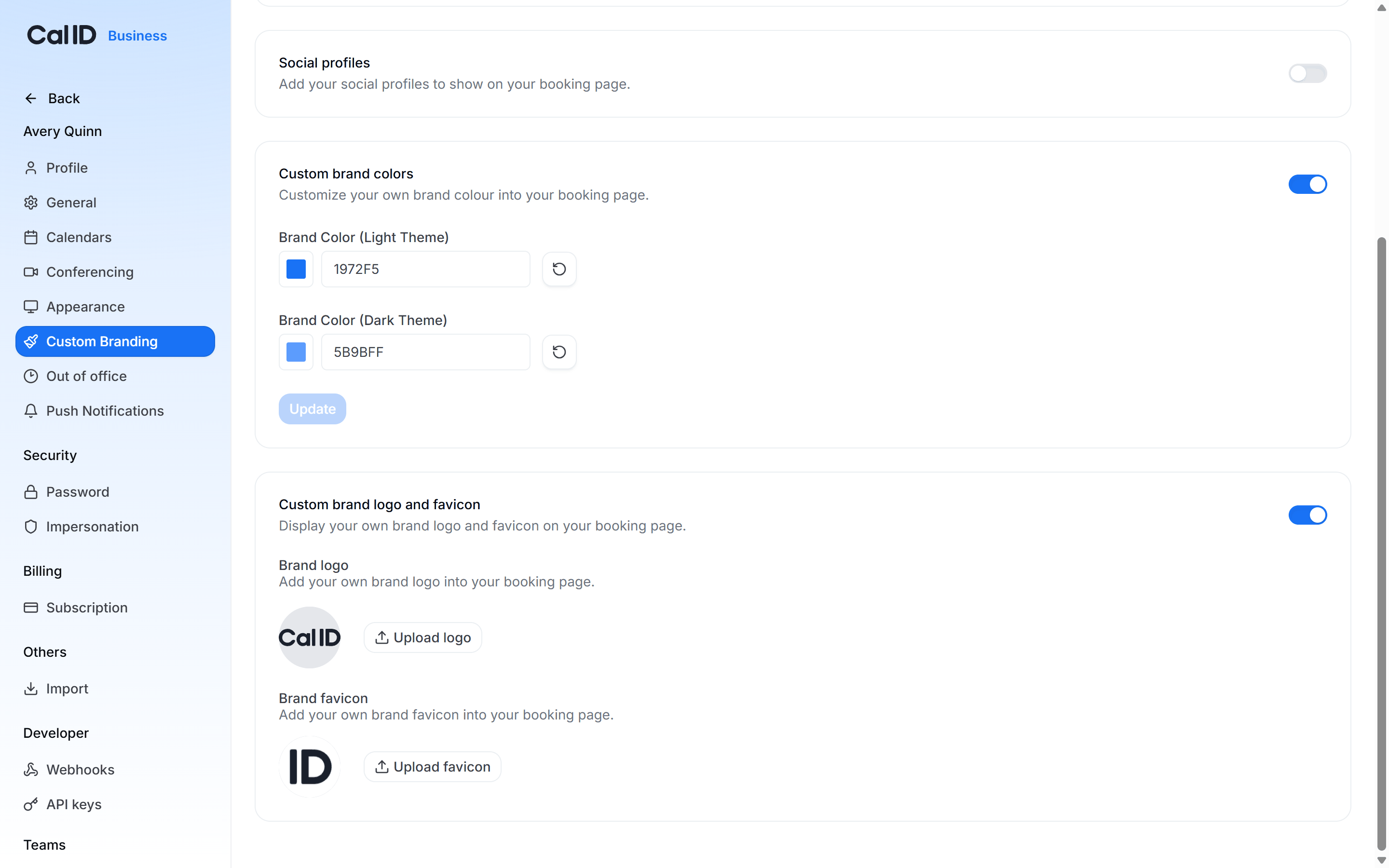
Swapping in your own marks
Related branding pages
Custom Branding for Teams
Apply logos, colors, and banners to a team’s booking page.
Appearance
Set the theme and booking layout for your personal page.