

How to access profile settings
1
Log in to Cal ID
Sign in to your account.
2
Open Settings
Click the Settings icon in the bottom left of your sidebar menu.
3
Select Profile
Ensure you are on the Profile tab under the personal settings section.
Key profile features
Profile picture
- Update avatar — click Upload Avatar (at most 5 MB in size) to choose a professional photo from your computer.
- Remove — if you want to delete your current photo, click the Remove button.
Username and booking link
Your username directly controls your booking link (for example,cal.id/your-username). Edit it in the Username field.
Personal information
- Full name — enter the name you want displayed on your booking page and in calendar invitations.
- About (bio) — use the text editor to write a brief bio. You can use bold, italics, or add links to give bookers more context about who you are.
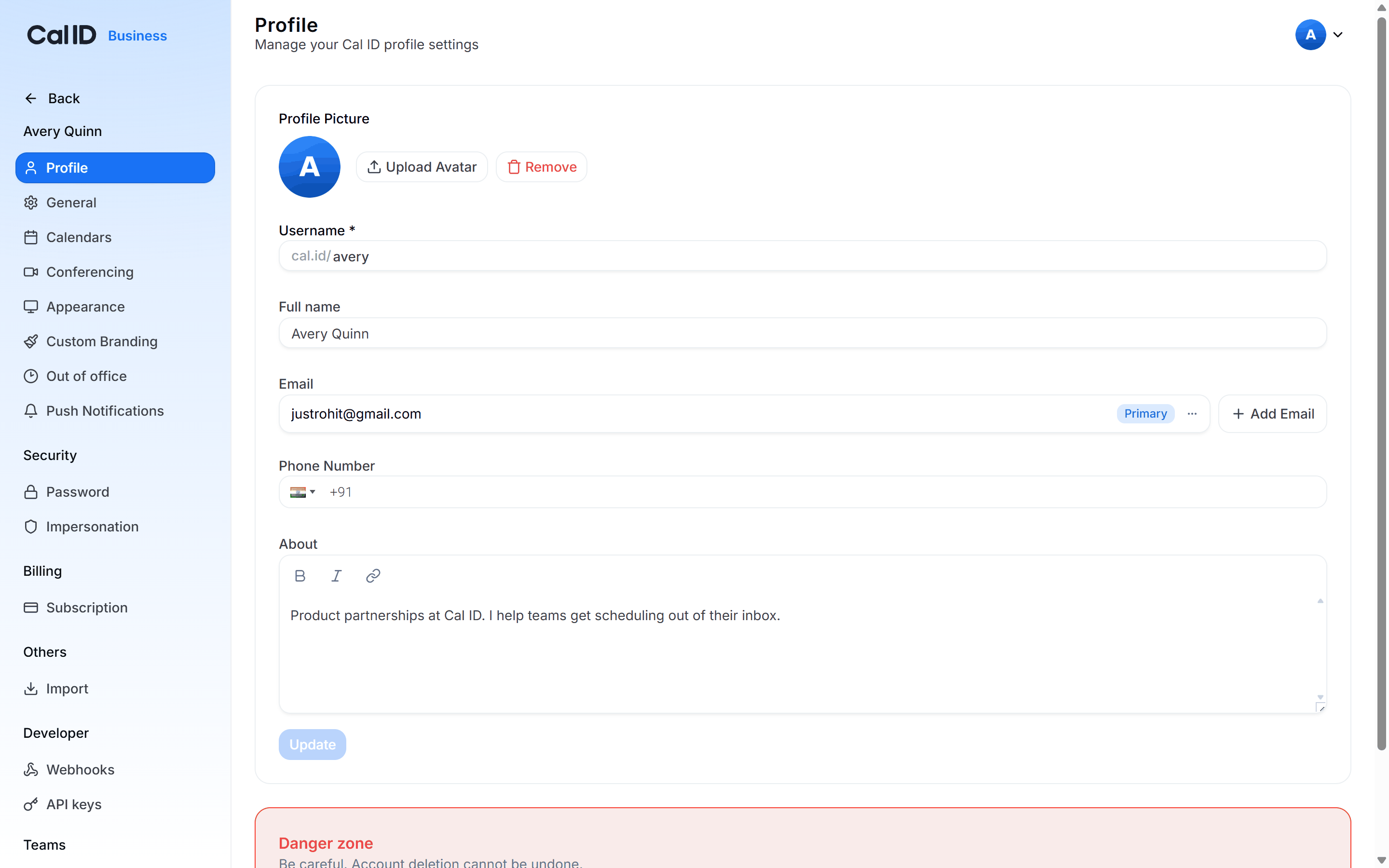
Shaping how bookers see you
Email management
- Primary email — your main email address is marked with a “Primary” tag.
- Add new email — click the + Add Email button to link additional email addresses to your account.
- Manage emails — click the three dots next to any secondary email to make it primary or remove it.
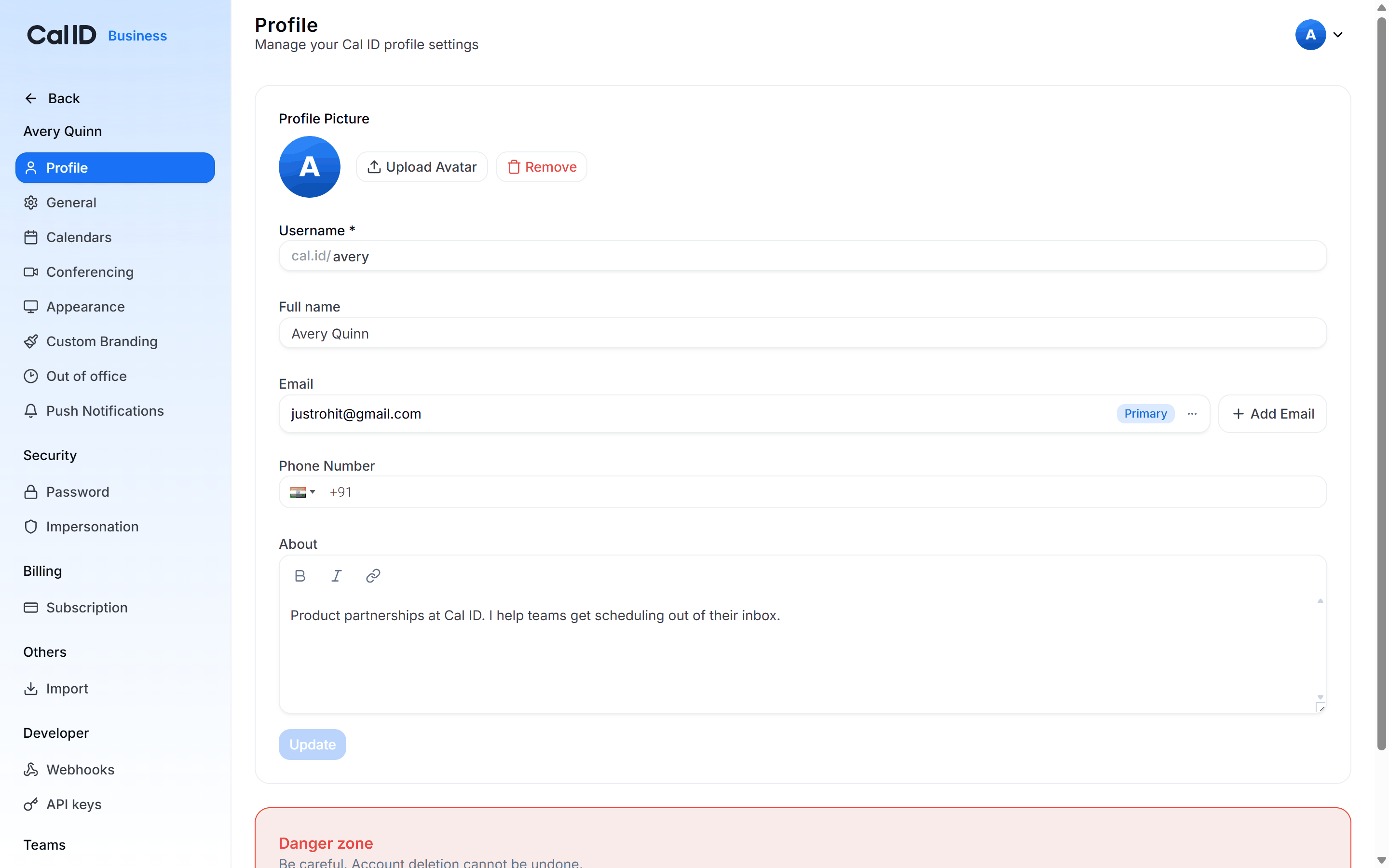
Keeping several addresses on one account
Phone number and WhatsApp
- Add/change number — select your country code from the dropdown and enter your mobile number.
- Validation — the system displays a “Number is valid” badge once it confirms the format is correct.
- WhatsApp integration — check the box “Allow bookers to reach you on WhatsApp via this phone number” if you want to enable direct messaging for your clients.
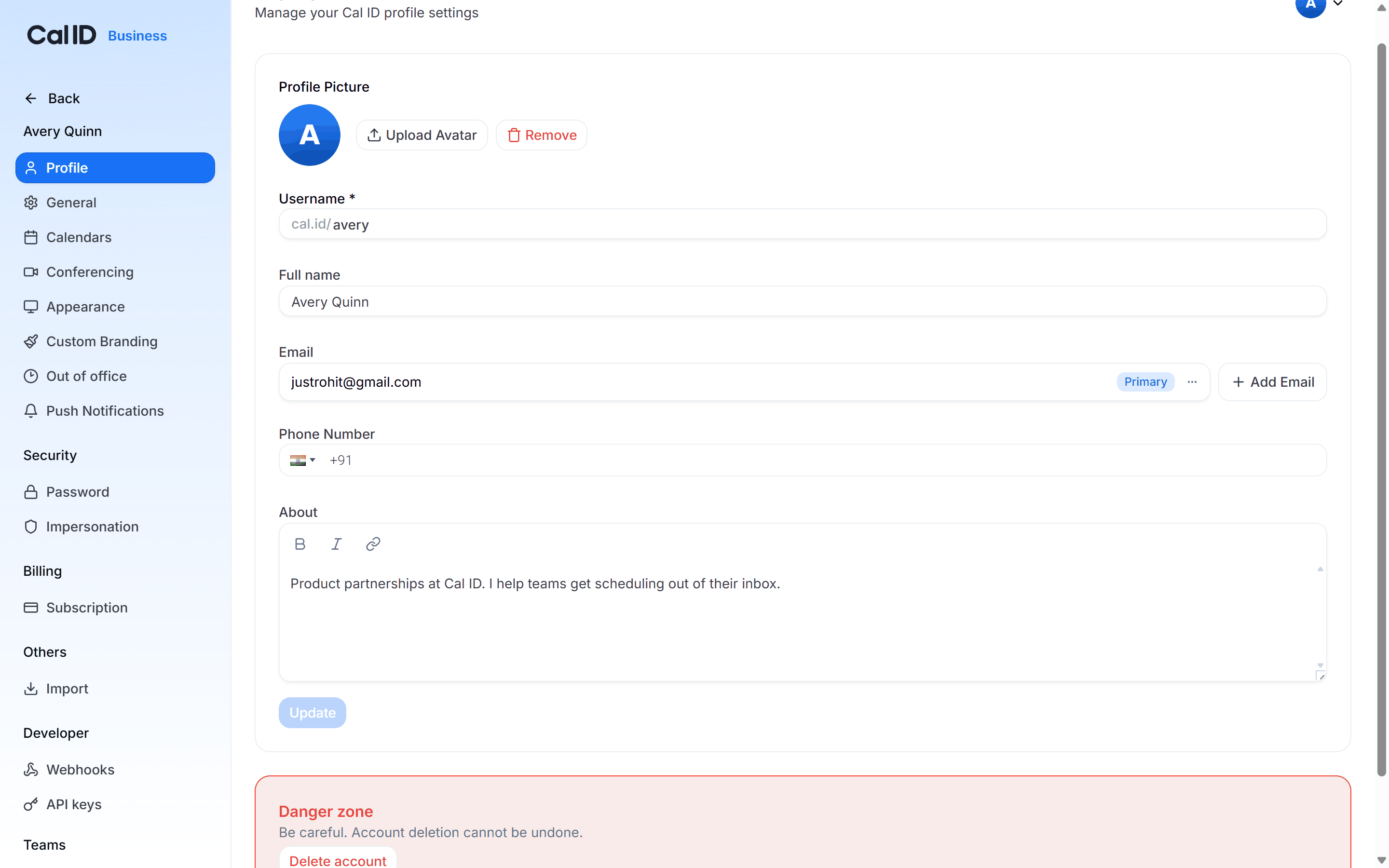
Opening a WhatsApp channel for bookers
Connected accounts
This section only appears once you have at least one external account connected. If you have never linked a Google or Microsoft account, you will not see it on your Profile page.
- This section shows which external accounts (like Google) are currently connected for login or calendar syncing.
- Click Disconnect if you want to remove an account’s access.
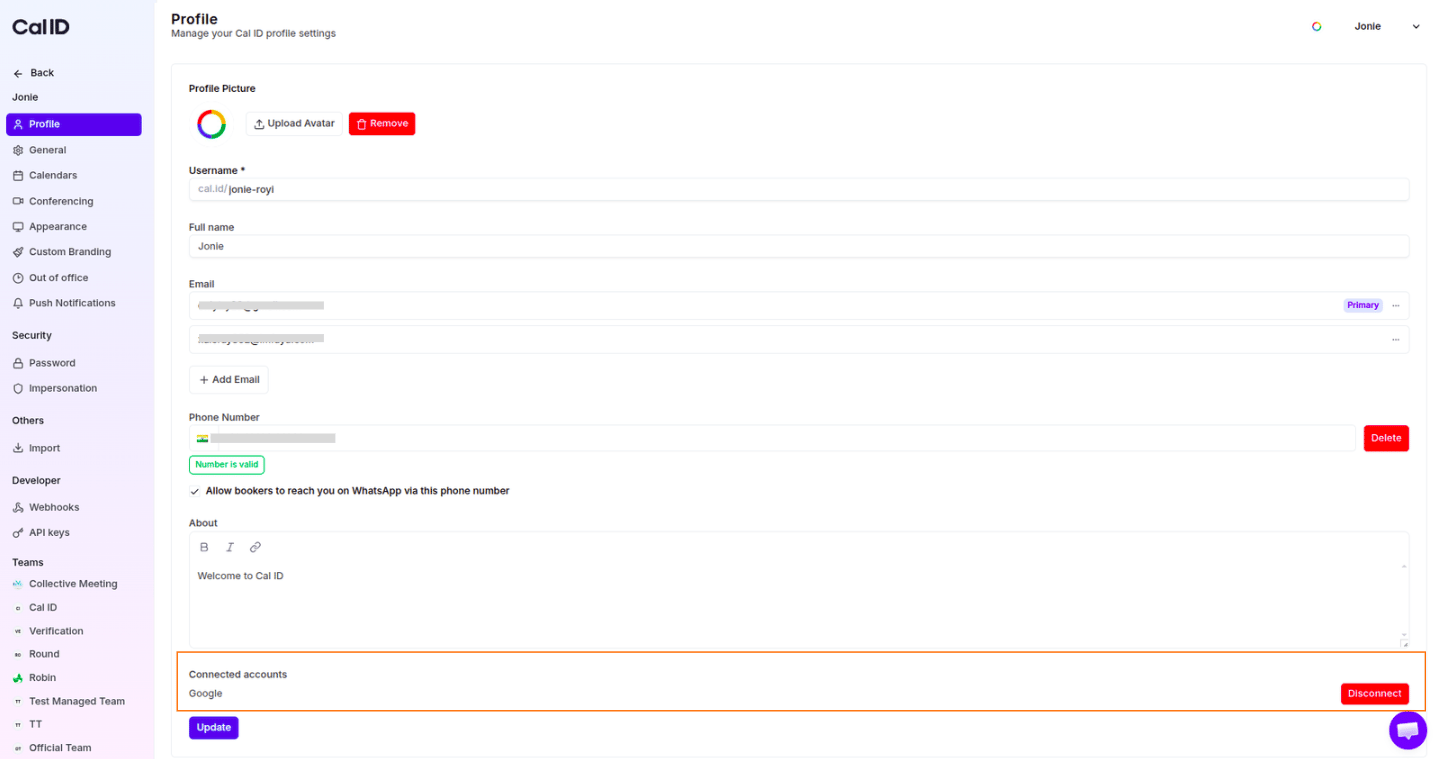
Reviewing which logins are linked
Saving your changes
After making any updates to your profile, click the Update button at the bottom of the page to synchronize your public profile and settings.Danger zone: delete account
If you want to permanently close your Cal ID account, you can do so from the bottom of the Profile page.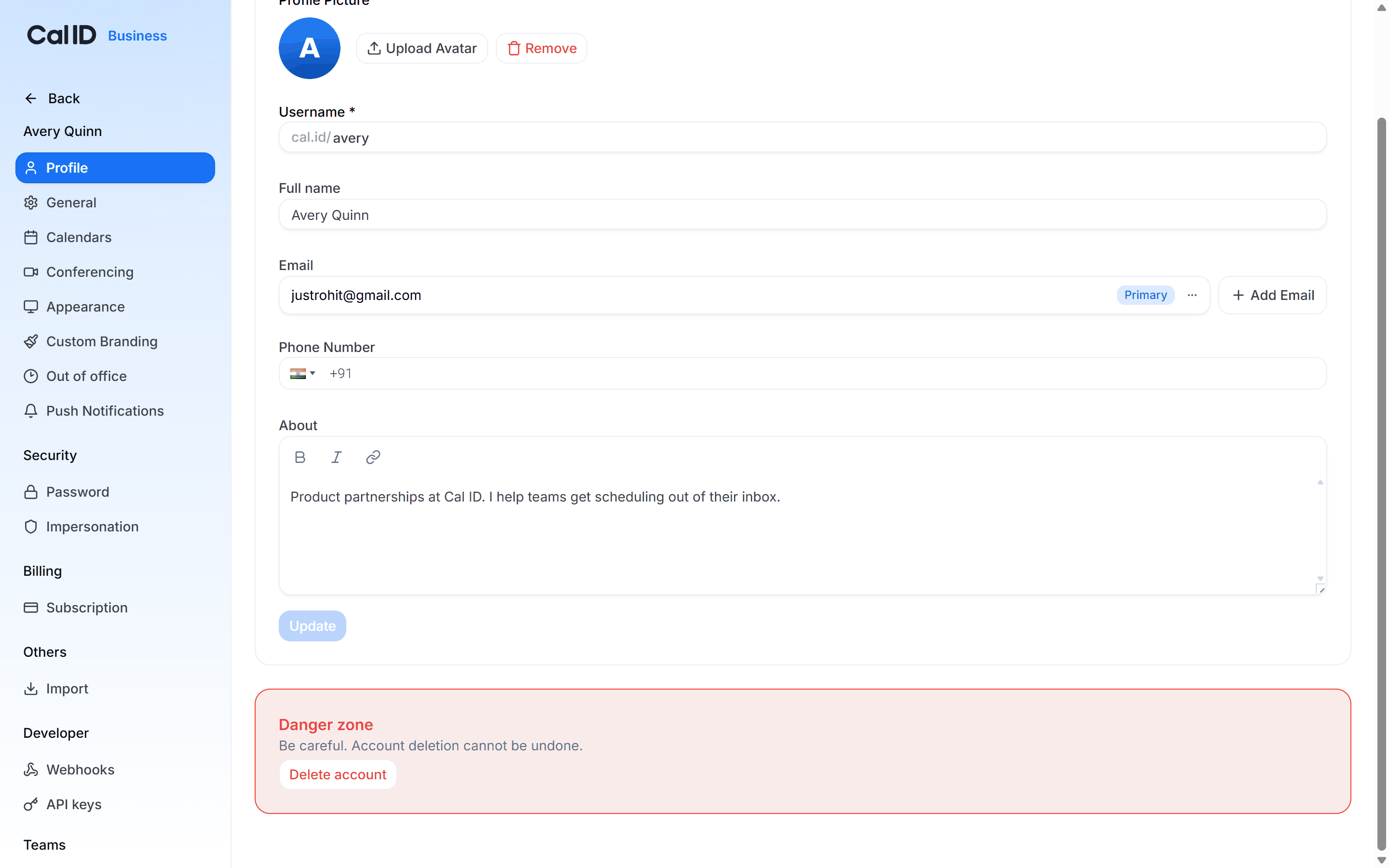
Where closing your account lives
More account settings
General settings
Set your language, timezone, and travel schedule.
Account password
Set or change your sign-in password.