

What this setting affects
This is an internal display preference only. It does not move your meetings or change your availability.
- Internal setting only — applies only to your internal view, such as your Bookings list, Availability settings, and Dashboard.
- Booking page — does not change how times are listed for bookers. Bookers always see times based on their own browser’s local standards to avoid confusion.
- Visual preference — purely for your convenience; it does not shift your meeting times or availability slots.
Update your time format
1
Access Settings
Click the Settings option in the left-hand sidebar.
2
Open the General tab
Select the General sub-tab to see your account preferences.
3
Locate Time format
Find the dropdown menu labeled Time format.
4
Choose your format
Select 12 hour (e.g., 2:15 PM) or 24 hour (e.g., 14:15).
5
Save your changes
Click the blue Update button at the bottom to apply the setting.
Choosing the right format
- 12-hour (AM/PM) — best if you prefer seeing a distinction between morning and afternoon (e.g., 9:00 AM vs. 4:00 PM).
- 24-hour (military time) — best for professionals working across global timezones who want to eliminate any “AM vs. PM” ambiguity in their internal planning.
Visible changes in your Cal ID dashboard
Once you update your time format and click Update, the change is reflected across your entire account:- Bookings tab — the start and end times for all your scheduled meetings (Upcoming, Past, etc.) automatically update to your selected format (e.g., changing from 2:15 PM to 14:15).
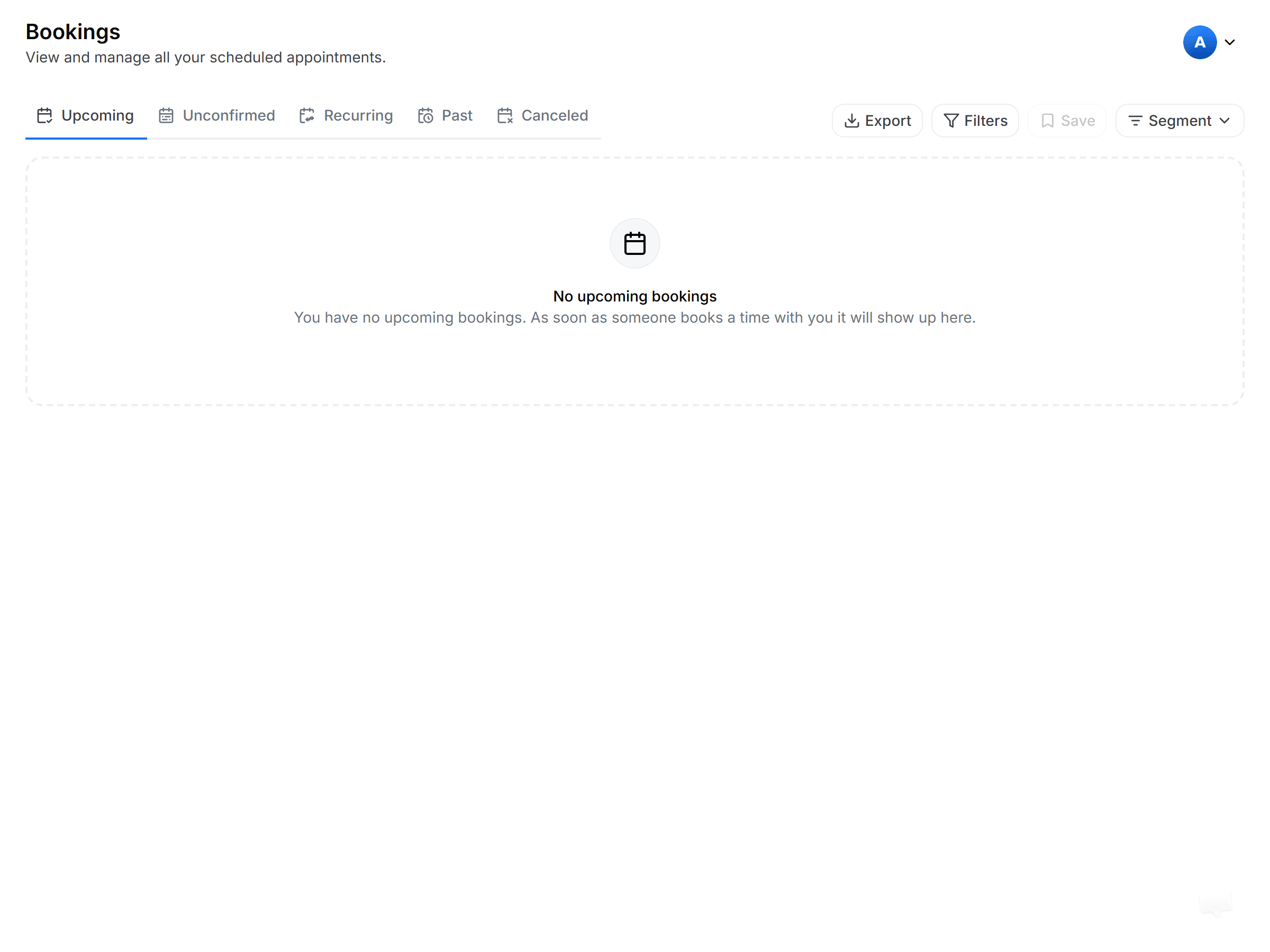
Checking your meeting times updated
- Availability tab — your working hours and time slots now appear in the 12-hour or 24-hour format you chose, so your schedule reads the way you prefer.
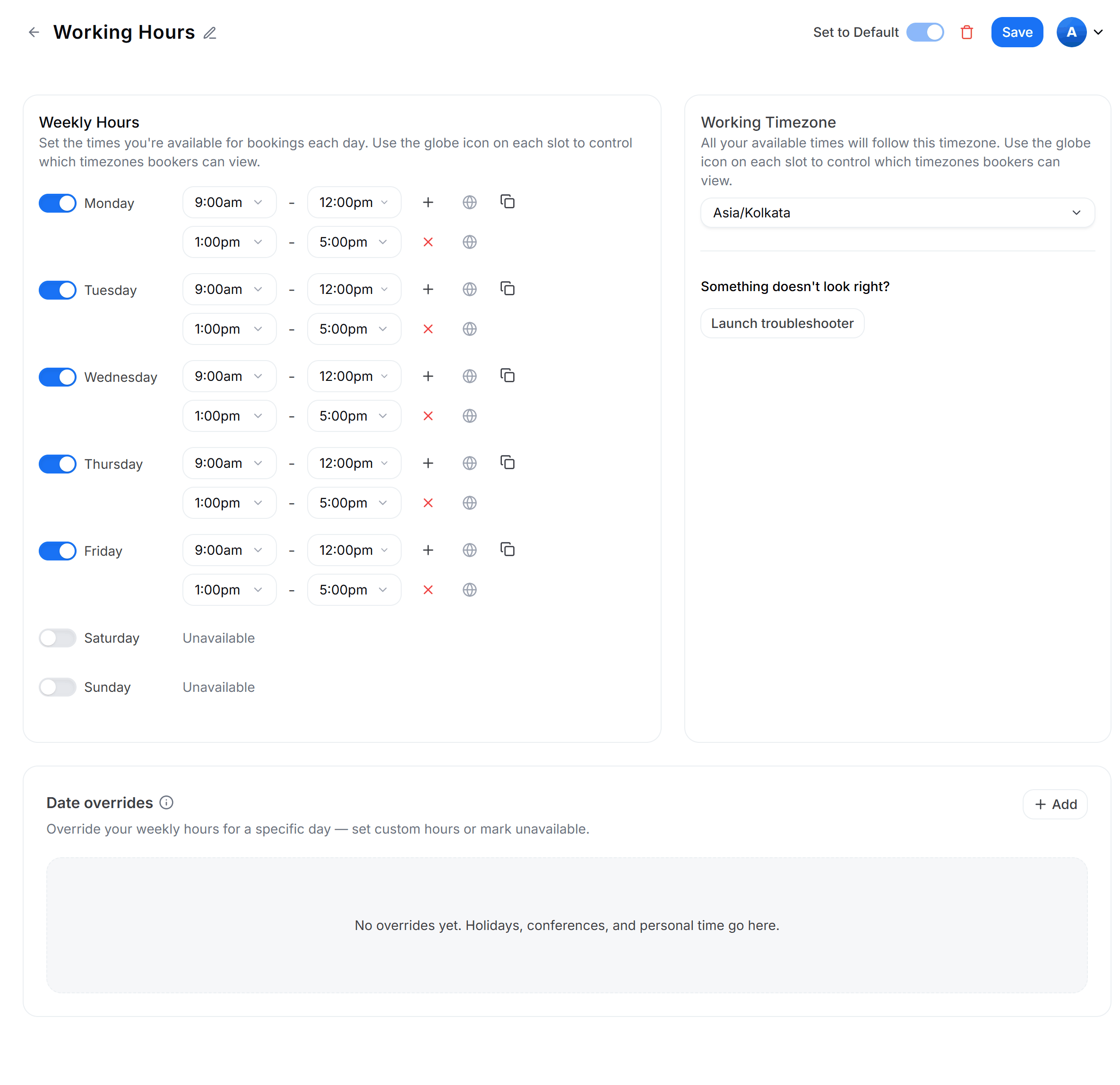
The same clock across your schedule
Other display preferences
Start of week
Choose which day appears first on your calendar.
General settings
Set your language, timezone, and travel schedule.