

Why change the start of the week?
The day you select becomes the “anchor” for your calendar grid.- Standard business view — many professionals prefer a Monday start so the work week (Monday–Friday) is grouped together.
- Traditional view — selecting Sunday places the weekend at the start of the calendar grid.
- Visual only — this change only moves the columns; it does not change your available hours or existing meetings.
Update your calendar layout
1
Go to Settings
Locate the sidebar on the left side of your dashboard and click Settings.
2
Open the General tab
Inside the settings menu, click the General sub-tab.
3
Find Start of week
Scroll down the page until you see the dropdown menu labeled Start of week.
4
Choose your day
Click the menu and select your preferred day (for example, Monday).
5
Save the change
Click the blue Update button at the bottom of the screen to save your new layout.
What bookers will see
Once you click Update, your booking page immediately reflects the new layout.- New column order — if you selected Monday, the first column on the far left is MON, followed by TUE, and ending with SUN on the far right.
- Correct dates — all your dates automatically shift to stay under the correct day (e.g., if February 5th is a Thursday, it stays under the THU column regardless of which day the week starts).
- Clearer navigation — clients can read your availability against the work week they already use.
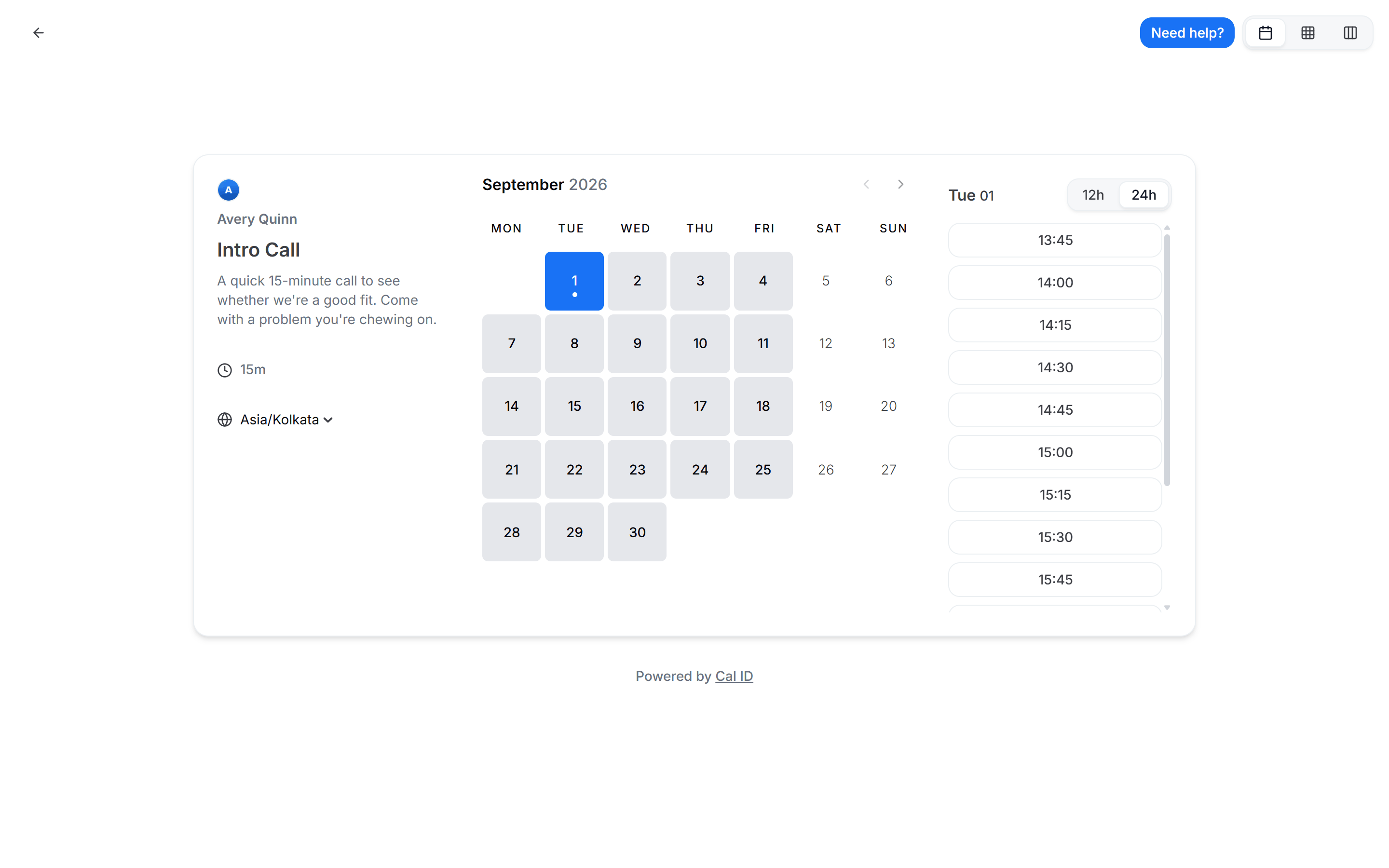
How bookers read your week
Related calendar display settings
Time format
Switch your dashboard between 12-hour and 24-hour time.
General settings
Set your language, timezone, and travel schedule.