Add new integrations to your Cal ID account from the App Store, authenticate them where required, and enable them for individual event types.
Add a new integration to your account in a few clicks from the Cal ID App Store. We suggest firstly adding a calendar integration, then optionally a video conferencing platform, and then try out the other apps.
1
Open the Apps page
Head over to the Apps page, where you’ll find our App Store, and find the app you’d like to install.
2
Install the app
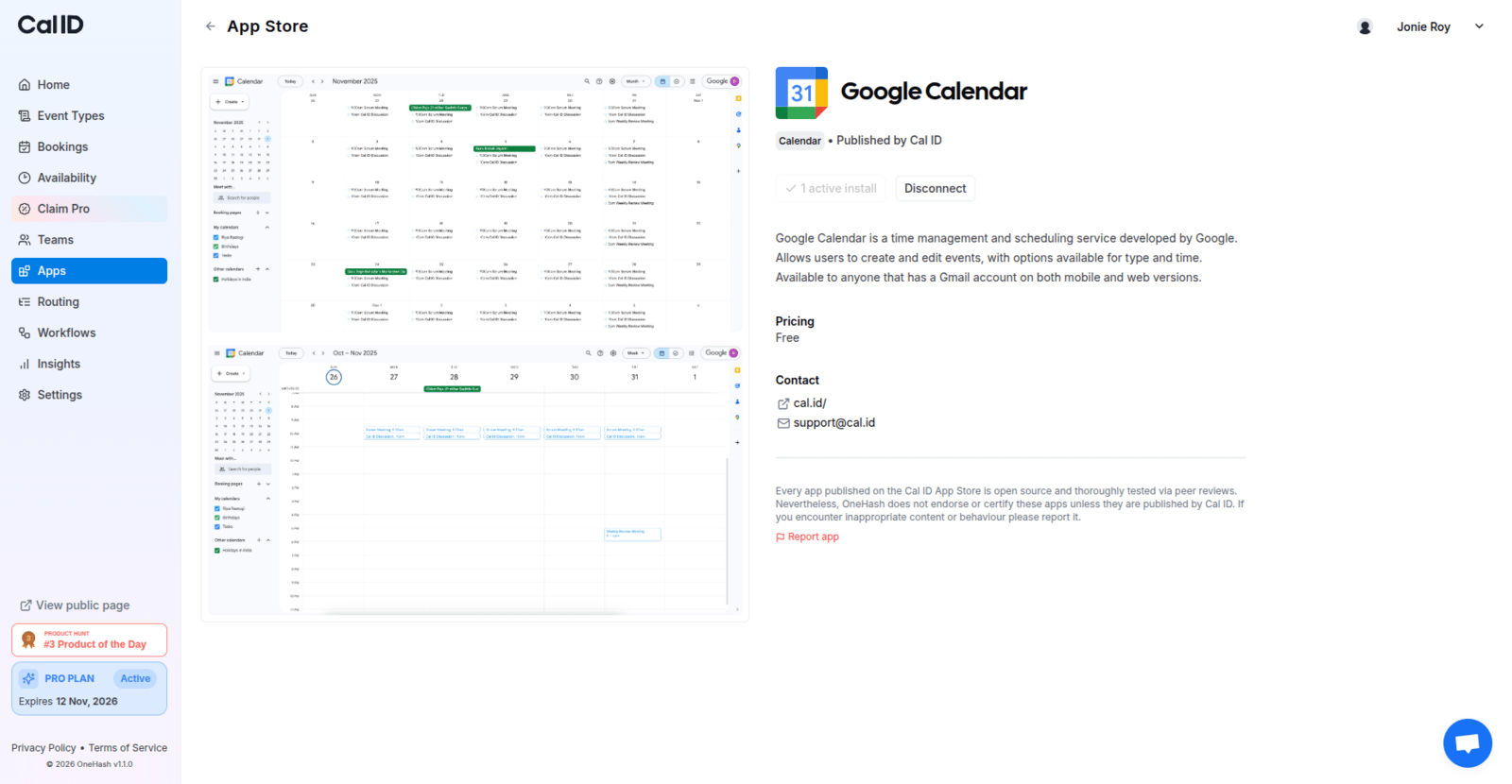
Click Install on the right of the app’s card to add it right away, or click the card to view more details. In the details page you can read more about each app, then click Install to add it to your account.
Reading up before you install
3
Authenticate if prompted
If the app requires authentication, for instance to connect your Google Account, a dialog will be opened prompting you to authenticate. Once complete, the app will be successfully installed to your account.
After installing, enable the app on the specific event types where you want to use it from each event’s Apps tab.
{"docsConfig":{"theme":"mint","$schema":"https://mintlify.com/docs.json","name":"Cal ID","description":"Cal ID help center — scheduling, event types, availability, teams, apps, workflows, and developer tools for the Cal ID meeting scheduler.","colors":{"primary":"#1972F5","light":"#5B9BFF","dark":"#0B4FB8"},"logo":{"light":"https://mintcdn.com/cal-id-docs/k1VHQ7P5ONAHeLvP/logo/light.svg?fit=max\u0026auto=format\u0026n=k1VHQ7P5ONAHeLvP\u0026q=85\u0026s=589c4a9c69ea7387516e6452f592553e","dark":"https://mintcdn.com/cal-id-docs/tkghSGJWVIrQX7X0/logo/dark.svg?fit=max\u0026auto=format\u0026n=tkghSGJWVIrQX7X0\u0026q=85\u0026s=3215902115e27959cb7782b1af38e9fe"},"favicon":"https://mintcdn.com/cal-id-docs/NUrc1nmEeHvCjwEV/favicon.svg?fit=max\u0026auto=format\u0026n=NUrc1nmEeHvCjwEV\u0026q=85\u0026s=3247c427392ba77a41b08a807c322bfb","navbar":{"links":[{"href":"mailto:support@cal.id","label":"Email Us"}],"primary":{"type":"button","label":"Go to Cal ID","href":"https://cal.id"}},"footer":{"socials":{"x":"https://x.com/OneHash","linkedin":"https://www.linkedin.com/company/onehash"}},"errors":{"404":{"redirect":false,"title":"We couldn't find that page","description":"The page you're looking for doesn't exist or may have moved. Head back to the [Help Center home](/), or jump to [Event Types](/event-types/overview), [Availability](/availability/create), [Teams](/teams/overview), or the [API Reference](/api-reference) — or use the search bar above. Still stuck? Email us at [support@cal.id](mailto:support@cal.id)."}},"contextual":{"options":["copy","view","chatgpt","claude","perplexity","mcp","cursor","vscode","download-spec"],"display":"header"},"styling":{"latex":true},"navigation":{"pages":[]}},"deployment":{"deploymentMetadataValue":{"subdomain":"cal-id-docs","hasAudioNarration":false,"actualSubdomain":"cal-id-docs","customDomains":["cal.id"],"gitSource":{"type":"github","owner":"onehashai","repo":"mintlify-docs","deployBranch":"main","contentDirectory":"","isPrivate":true,"mountPath":"","label":""},"chroma":{"latestBuiltDeploymentHistoryId":"6ab916db4c0abff9c16e8c99","collectionId":"a1537af2-6a4a-409a-a4fe-70a6408ebcf7","liveDeploymentHistoryId":"6ab916db4c0abff9c16e8c99","schemaVersion":"v3"},"feedback":{"thumbs":true,"agentFeedback":false},"entitlements":{"AI_CHAT":{"status":"ENABLED"},"WEB_MCP":{"status":"ENABLED"},"NARRATION":{"status":"ENABLED"}},"buildId":"6ab916db4c0abff9c16e8c99","clientVersion":"0.0.4044","searchFilterCounts":[{"language":"default","tag":"API Reference","count":60},{"language":"default","tag":"Endpoints","count":58},{"language":"default","tag":"Event Types","count":57},{"language":"default","tag":"Scheduling \u0026 Teams","count":31},{"language":"default","tag":"Get Started","count":31},{"language":"default","tag":"Customization \u0026 Settings","count":23},{"language":"default","tag":"Apps \u0026 Integrations","count":22},{"language":"default","tag":"Advanced","count":18},{"language":"default","tag":"Developers","count":17},{"language":"default","tag":"Teams","count":16}],"searchSettings":{"isFiltersEnabled":false}},"assistantConfig":{"enableAskAiButton":false,"enableStarterQuestions":true,"enableContextualStarterQuestions":true,"enableAskAiSearchBar":true,"deflection":{"enabled":true,"email":"support@cal.id"}},"basePath":"/docs","hasChatPermissions":true,"hasWebMcpPermissions":true,"toggles":[{"name":"kill-isr","enabled":true,"variant":{"name":"disabled","enabled":false,"feature_enabled":true},"impressionData":false},{"name":"agent-mintlify-slack","enabled":true,"variant":{"name":"disabled","enabled":false,"feature_enabled":true},"impressionData":false},{"name":"agent-integrations-settings","enabled":true,"variant":{"name":"disabled","enabled":false,"feature_enabled":true},"impressionData":false},{"name":"automations-pr-grouping","enabled":true,"variant":{"name":"disabled","enabled":false,"feature_enabled":true},"impressionData":false},{"name":"custom-prefix","enabled":true,"variant":{"name":"disabled","enabled":false,"feature_enabled":true},"impressionData":false},{"name":"analytics-v7","enabled":true,"variant":{"name":"disabled","enabled":false,"feature_enabled":true},"impressionData":false},{"name":"user-flows-analytics","enabled":true,"variant":{"name":"disabled","enabled":false,"feature_enabled":true},"impressionData":false},{"name":"no-publish-flow","enabled":true,"variant":{"name":"disabled","enabled":false,"feature_enabled":true},"impressionData":false},{"name":"workos-onboarding","enabled":true,"variant":{"name":"disabled","enabled":false,"feature_enabled":true},"impressionData":false},{"name":"llms-txt-v2","enabled":true,"variant":{"name":"disabled","enabled":false,"feature_enabled":true},"impressionData":false},{"name":"snapshot-serving-live","enabled":true,"variant":{"name":"disabled","enabled":false,"feature_enabled":true},"impressionData":false},{"name":"stripTemperatureMiddleware","enabled":true,"variant":{"name":"disabled","enabled":false,"feature_enabled":true},"impressionData":false},{"name":"support-platform-pylon-zendesk","enabled":true,"variant":{"name":"disabled","enabled":false,"feature_enabled":true},"impressionData":false},{"name":"snapshot-serving","enabled":true,"variant":{"name":"disabled","enabled":false,"feature_enabled":true},"impressionData":false},{"name":"instant-rollback","enabled":true,"variant":{"name":"disabled","enabled":false,"feature_enabled":true},"impressionData":false},{"name":"granular-notifications-server","enabled":true,"variant":{"name":"disabled","enabled":false,"feature_enabled":true},"impressionData":false},{"name":"granular-notifications","enabled":true,"variant":{"name":"disabled","enabled":false,"feature_enabled":true},"impressionData":false},{"name":"automations-fable","enabled":true,"variant":{"name":"disabled","enabled":false,"feature_enabled":true},"impressionData":false},{"name":"fixed-ai-action-pricing","enabled":true,"variant":{"name":"disabled","enabled":false,"feature_enabled":true},"impressionData":false},{"name":"automation-resolve-merge-conflict","enabled":true,"variant":{"name":"disabled","enabled":false,"feature_enabled":true},"impressionData":false},{"name":"scoped-publishing","enabled":true,"variant":{"name":"disabled","enabled":false,"feature_enabled":true},"impressionData":false},{"name":"mintql","enabled":true,"variant":{"name":"disabled","enabled":false,"feature_enabled":true},"impressionData":false},{"name":"page-level-analytics","enabled":true,"variant":{"name":"disabled","enabled":false,"feature_enabled":true},"impressionData":false},{"name":"editor-version-history-v2","enabled":true,"variant":{"name":"disabled","enabled":false,"feature_enabled":true},"impressionData":false},{"name":"billing-page-v2","enabled":true,"variant":{"name":"disabled","enabled":false,"feature_enabled":true},"impressionData":false},{"name":"full-page-search","enabled":true,"variant":{"name":"disabled","enabled":false,"feature_enabled":true},"impressionData":false},{"name":"workspace-projects","enabled":true,"variant":{"name":"disabled","enabled":false,"feature_enabled":true},"impressionData":false},{"name":"assistant-v5","enabled":true,"variant":{"name":"disabled","enabled":false,"feature_enabled":true},"impressionData":false},{"name":"byok-sep-25","enabled":true,"variant":{"name":"disabled","enabled":false,"feature_enabled":true},"impressionData":false},{"name":"fork-pr-previews","enabled":true,"variant":{"name":"disabled","enabled":false,"feature_enabled":true},"impressionData":false},{"name":"revalidation-jwt","enabled":true,"variant":{"name":"disabled","enabled":false,"feature_enabled":true},"impressionData":false},{"name":"vite-origin","enabled":true,"variant":{"name":"disabled","enabled":false,"feature_enabled":true},"impressionData":false},{"name":"billing-updated-9-15","enabled":true,"variant":{"name":"disabled","enabled":false,"feature_enabled":true},"impressionData":false},{"name":"workos-sso-scim","enabled":true,"variant":{"name":"disabled","enabled":false,"feature_enabled":true},"impressionData":false},{"name":"hobby-abuse-scan","enabled":true,"variant":{"name":"disabled","enabled":false,"feature_enabled":true},"impressionData":false},{"name":"dashboard-inbox","enabled":true,"variant":{"name":"disabled","enabled":false,"feature_enabled":true},"impressionData":false},{"name":"workos-signup","enabled":true,"variant":{"name":"disabled","enabled":false,"feature_enabled":true},"impressionData":false},{"name":"turbopuffer-dual-write","enabled":true,"variant":{"name":"disabled","enabled":false,"feature_enabled":true},"impressionData":false},{"name":"workos-enabled","enabled":true,"variant":{"name":"disabled","enabled":false,"feature_enabled":true},"impressionData":false},{"name":"approve-review-flow","enabled":true,"variant":{"name":"disabled","enabled":false,"feature_enabled":true},"impressionData":false},{"name":"sso-setup-deadline-banner","enabled":true,"variant":{"name":"disabled","enabled":false,"feature_enabled":true},"impressionData":false}],"privacy":{"consentBanner":{"enabled":false}},"googleFontsInlined":false},"customCss":[],"page":{"pagePath":"apps/install-app","slug":"/apps/install-app","pageMetadata":{"title":"Install New App on Cal ID","description":"Add new integrations to your Cal ID account from the App Store, authenticate them where required, and enable them for individual event types.","icon":"download","keywords":["install app","add integration","connect app","enable app","set up app","add to account"],"related":["/apps/app-store","/apps/manage-installed","/apps/google-calendar","/apps/zoom","/event-types/enable-apps"],"href":"/apps/install-app"},"description":{"compiledSource":"\"use strict\";\nconst {jsx: _jsx} = arguments[0];\nconst {useMDXComponents: _provideComponents} = arguments[0];\nfunction _createMdxContent(props) {\n const _components = {\n p: \"p\",\n ..._provideComponents(),\n ...props.components\n };\n return _jsx(_components.p, {\n children: \"Add new integrations to your Cal ID account from the App Store, authenticate them where required, and enable them for individual event types.\"\n });\n}\nfunction MDXContent(props = {}) {\n const {wrapper: MDXLayout} = {\n ..._provideComponents(),\n ...props.components\n };\n return MDXLayout ? _jsx(MDXLayout, {\n ...props,\n children: _jsx(_createMdxContent, {\n ...props\n })\n }) : _createMdxContent(props);\n}\nreturn {\n default: MDXContent\n};\n","frontmatter":{},"scope":{}},"pageType":"default","mdx":{"mdxSource":{"compiledSource":"\"use strict\";const{Fragment:_Fragment,jsx:_jsx,jsxs:_jsxs}=arguments[0];const{useMDXComponents:_provideComponents}=arguments[0];function _createMdxContent(props){const _components={p:`p`,strong:`strong`,..._provideComponents(),...props.components},{Card,CardGroup,Frame,Heading,OptimizedImage,Step,Steps,Tip}=_components;if(!Card)_missingMdxReference(`Card`,true);if(!CardGroup)_missingMdxReference(`CardGroup`,true);if(!Frame)_missingMdxReference(`Frame`,true);if(!Heading)_missingMdxReference(`Heading`,true);if(!OptimizedImage)_missingMdxReference(`OptimizedImage`,true);if(!Step)_missingMdxReference(`Step`,true);if(!Steps)_missingMdxReference(`Steps`,true);if(!Tip)_missingMdxReference(`Tip`,true);return _jsxs(_Fragment,{children:[_jsx(_components.p,{children:`Add a new integration to your account in a few clicks from the Cal ID App Store. We suggest firstly adding a calendar integration, then optionally a video conferencing platform, and then try out the other apps.`}),`\n`,_jsxs(Steps,{children:[_jsx(Step,{title:`Open the Apps page`,children:_jsxs(_components.p,{children:[`Head over to the `,_jsx(_components.strong,{children:`Apps`}),` page, where you’ll find our App Store, and find the app you’d like to install.`]})}),_jsxs(Step,{title:`Install the app`,children:[_jsxs(_components.p,{children:[`Click `,_jsx(_components.strong,{children:`Install`}),` on the right of the app’s card to add it right away, or click the card to view more details. In the details page you can read more about each app, then click `,_jsx(_components.strong,{children:`Install`}),` to add it to your account.`]}),_jsx(Frame,{caption:`Reading up before you install`,children:_jsx(OptimizedImage,{src:`https://mintcdn.com/cal-id-docs/NUrc1nmEeHvCjwEV/images/apps/install-app-1.png?fit=max\u0026auto=format\u0026n=NUrc1nmEeHvCjwEV\u0026q=85\u0026s=99990f067a12194d3fc9a36885db0e9b`,alt:`App details page describing what the integration does, with the Install button at the top of the page`,\"data-og-width\":`1600`,width:`1600`,\"data-og-height\":`830`,height:`830`,\"data-path\":`images/apps/install-app-1.png`,\"data-optimize\":`true`,\"data-opv\":`3`,srcset:`https://mintcdn.com/cal-id-docs/NUrc1nmEeHvCjwEV/images/apps/install-app-1.png?w=280\u0026fit=max\u0026auto=format\u0026n=NUrc1nmEeHvCjwEV\u0026q=85\u0026s=45e1efaa02adb04af34f7cda64ec07ff 280w, https://mintcdn.com/cal-id-docs/NUrc1nmEeHvCjwEV/images/apps/install-app-1.png?w=560\u0026fit=max\u0026auto=format\u0026n=NUrc1nmEeHvCjwEV\u0026q=85\u0026s=60789df95cb9193d6f3b228c80ca182a 560w, https://mintcdn.com/cal-id-docs/NUrc1nmEeHvCjwEV/images/apps/install-app-1.png?w=840\u0026fit=max\u0026auto=format\u0026n=NUrc1nmEeHvCjwEV\u0026q=85\u0026s=a6e0f40ea7073e7bb6548a5b30fa3190 840w, https://mintcdn.com/cal-id-docs/NUrc1nmEeHvCjwEV/images/apps/install-app-1.png?w=1100\u0026fit=max\u0026auto=format\u0026n=NUrc1nmEeHvCjwEV\u0026q=85\u0026s=93566a8afb33675097deca259d1e693f 1100w, https://mintcdn.com/cal-id-docs/NUrc1nmEeHvCjwEV/images/apps/install-app-1.png?w=1650\u0026fit=max\u0026auto=format\u0026n=NUrc1nmEeHvCjwEV\u0026q=85\u0026s=da19aa3b12be04d2270ad045c94ce2a4 1650w, https://mintcdn.com/cal-id-docs/NUrc1nmEeHvCjwEV/images/apps/install-app-1.png?w=2500\u0026fit=max\u0026auto=format\u0026n=NUrc1nmEeHvCjwEV\u0026q=85\u0026s=5921d7ec030bda484686d48baebe5e4a 2500w`})})]}),_jsx(Step,{title:`Authenticate if prompted`,children:_jsx(_components.p,{children:`If the app requires authentication, for instance to connect your Google Account, a dialog will be opened prompting you to authenticate. Once complete, the app will be successfully installed to your account.`})})]}),`\n`,_jsx(Tip,{children:_jsxs(_components.p,{children:[`After installing, enable the app on the specific event types where you want to use it from each event’s `,_jsx(_components.strong,{children:`Apps`}),` tab.`]})}),`\n`,_jsx(Heading,{level:`2`,id:`after-installing`,children:`After installing`}),`\n`,_jsxs(CardGroup,{cols:2,children:[_jsx(Card,{title:`Manage installed apps`,icon:`gear`,href:`/apps/manage-installed`,children:_jsx(_components.p,{children:`View, configure, or disconnect the apps you’ve already added.`})}),_jsx(Card,{title:`Browse the App Store`,icon:`grid-2`,href:`/apps/app-store`,children:_jsx(_components.p,{children:`Explore the full catalog of integrations you can connect.`})}),_jsx(Card,{title:`Connect Google Calendar`,icon:`calendar`,href:`/apps/google-calendar`,children:_jsx(_components.p,{children:`Sync your calendar so bookings avoid conflicts automatically.`})}),_jsx(Card,{title:`Add Zoom to events`,icon:`video`,href:`/apps/zoom`,children:_jsx(_components.p,{children:`Set Zoom as the meeting location for your event types.`})})]})]})}function MDXContent(props={}){const{wrapper:MDXLayout}={..._provideComponents(),...props.components};return MDXLayout?_jsx(MDXLayout,{...props,children:_jsx(_createMdxContent,{...props})}):_createMdxContent(props)}return{default:MDXContent};function _missingMdxReference(id,component){throw new Error(`Expected `+(component?`component`:`object`)+\" `\"+id+\"` to be defined: you likely forgot to import, pass, or provide it.\")}","frontmatter":{},"scope":{"config":{},"pageMetadata":{"title":"Install New App on Cal ID","description":"Add new integrations to your Cal ID account from the App Store, authenticate them where required, and enable them for individual event types.","icon":"download","keywords":["install app","add integration","connect app","enable app","set up app","add to account"],"related":["/apps/app-store","/apps/manage-installed","/apps/google-calendar","/apps/zoom","/event-types/enable-apps"],"href":"/apps/install-app"}}},"mdxSourceWithNoJs":null},"mdxExtracts":{"tableOfContents":[{"title":"After installing","slug":"after-installing","depth":2,"children":[]}],"codeExamples":{}},"jsLinks":["/docs/_mintlify/custom/cal-id-docs/09b4d95490dd9c71/support-crisp.js"],"subdomain":"cal-id-docs","siteName":"Cal ID","title":"Install New App on Cal ID - Cal ID","relatedPages":[{"title":"Cal ID App Store","link":"/apps/app-store","icon":"grid-2"},{"title":"Managing Installed Apps","link":"/apps/manage-installed","icon":"gear"},{"title":"Connect Google Calendar","link":"/apps/google-calendar","icon":"calendar"},{"title":"Integrate Cal ID with Zoom","link":"/apps/zoom","icon":"video"},{"title":"Enable Apps per Event Type","link":"/event-types/enable-apps","icon":"grid-2"}],"relatedPagesConfig":{"enabled":true,"limit":5,"mode":"automatic"},"contextualStarterQuestions":[{"_id":"6a9862aacabf01e77694ff5e","deploymentId":"6a6c20ecc3064aa95c02d1fd","questionText":"How do I install a new app?","status":"active","generatedBy":"contextual","path":"apps/install-app","createdAt":"2026-09-02T17:53:46.125Z","updatedAt":"2026-09-02T17:53:46.125Z","__v":0},{"_id":"6a9862aacabf01e77694ff5f","deploymentId":"6a6c20ecc3064aa95c02d1fd","questionText":"Where is the App Store located?","status":"active","generatedBy":"contextual","path":"apps/install-app","createdAt":"2026-09-02T17:53:46.125Z","updatedAt":"2026-09-02T17:53:46.125Z","__v":0},{"_id":"6a9862aacabf01e77694ff60","deploymentId":"6a6c20ecc3064aa95c02d1fd","questionText":"Can I enable apps per event type?","status":"active","generatedBy":"contextual","path":"apps/install-app","createdAt":"2026-09-02T17:53:46.125Z","updatedAt":"2026-09-02T17:53:46.125Z","__v":0}],"navMaps":{"firstHrefInVersion":{},"firstHrefInLanguage":{}},"lastModified":"2026-09-02T17:53:02.559Z","originalFileLocation":"apps/install-app.mdx"},"headHtml":"\u003cscript data-mint-head>(function(){var d=document.documentElement,p=null;if(!p){try{p=localStorage.getItem(\"isDarkMode\")}catch(e){}if(p==='true')p='dark';else if(p==='false')p='light';if(p!=='light'\u0026\u0026p!=='dark'\u0026\u0026p!=='system')p=\"system\"}var r=p==='system'?(matchMedia(\"(prefers-color-scheme: dark)\").matches?'dark':'light'):p;d.classList.remove(r==='dark'?'light':'dark');d.classList.add(r);d.setAttribute(\"data-theme-preference\",p)})();\u003c/script>\u003cmeta data-mint-head name=\"description\" content=\"Add new integrations to your Cal ID account from the App Store, authenticate them where required, and enable them for individual event types.\">\u003cmeta data-mint-head name=\"application-name\" content=\"Cal ID\">\u003cmeta data-mint-head name=\"generator\" content=\"Mintlify\">\u003clink data-mint-head rel=\"icon\" type=\"image/png\" sizes=\"192x192\" href=\"/docs/mintlify-assets/_mintlify/favicons/cal-id-docs/Ah-PiVKdxwxdJ_gr/_generated/favicon/android-chrome-192x192.png\" media=\"(prefers-color-scheme: light)\">\u003clink data-mint-head rel=\"apple-touch-icon\" type=\"image/png\" sizes=\"180x180\" href=\"/docs/mintlify-assets/_mintlify/favicons/cal-id-docs/Ah-PiVKdxwxdJ_gr/_generated/favicon/apple-touch-icon.png\">\u003clink data-mint-head rel=\"icon\" type=\"image/png\" sizes=\"16x16\" href=\"/docs/mintlify-assets/_mintlify/favicons/cal-id-docs/Ah-PiVKdxwxdJ_gr/_generated/favicon/favicon-16x16.png\" media=\"(prefers-color-scheme: light)\">\u003clink data-mint-head rel=\"icon\" type=\"image/png\" sizes=\"32x32\" href=\"/docs/mintlify-assets/_mintlify/favicons/cal-id-docs/Ah-PiVKdxwxdJ_gr/_generated/favicon/favicon-32x32.png\" media=\"(prefers-color-scheme: light)\">\u003clink data-mint-head rel=\"shortcut icon\" type=\"image/x-icon\" href=\"/docs/mintlify-assets/_mintlify/favicons/cal-id-docs/Ah-PiVKdxwxdJ_gr/_generated/favicon/favicon.ico\" media=\"(prefers-color-scheme: light)\">\u003clink data-mint-head rel=\"icon\" type=\"image/png\" sizes=\"192x192\" href=\"/docs/mintlify-assets/_mintlify/favicons/cal-id-docs/Ah-PiVKdxwxdJ_gr/_generated/favicon-dark/android-chrome-192x192.png\" media=\"(prefers-color-scheme: dark)\">\u003clink data-mint-head rel=\"icon\" type=\"image/png\" sizes=\"16x16\" href=\"/docs/mintlify-assets/_mintlify/favicons/cal-id-docs/Ah-PiVKdxwxdJ_gr/_generated/favicon-dark/favicon-16x16.png\" media=\"(prefers-color-scheme: dark)\">\u003clink data-mint-head rel=\"icon\" type=\"image/png\" sizes=\"32x32\" href=\"/docs/mintlify-assets/_mintlify/favicons/cal-id-docs/Ah-PiVKdxwxdJ_gr/_generated/favicon-dark/favicon-32x32.png\" media=\"(prefers-color-scheme: dark)\">\u003clink data-mint-head rel=\"shortcut icon\" type=\"image/x-icon\" href=\"/docs/mintlify-assets/_mintlify/favicons/cal-id-docs/Ah-PiVKdxwxdJ_gr/_generated/favicon-dark/favicon.ico\" media=\"(prefers-color-scheme: dark)\">\u003cmeta data-mint-head property=\"og:title\" content=\"Install New App on Cal ID - Cal ID\">\u003cmeta data-mint-head property=\"og:description\" content=\"Add new integrations to your Cal ID account from the App Store, authenticate them where required, and enable them for individual event types.\">\u003cmeta data-mint-head property=\"og:site_name\" content=\"Cal ID\">\u003cmeta data-mint-head property=\"og:url\" content=\"https://cal.id/docs/apps/install-app\">\u003cmeta data-mint-head property=\"og:type\" content=\"website\">\u003cmeta data-mint-head property=\"og:image\" content=\"https://cal-id-docs.mintlify.app/_mintlify/api/og/v2?division=Managing+Apps\u0026amp;title=Install+New+App+on+Cal+ID\u0026amp;description=Add+new+integrations+to+your+Cal+ID+account+from+the+App+Store%2C+authenticate+them+where+required%2C+and+enable+them+for+individual+event+types.\u0026amp;theme=1ce1fba1bcc16a5579de1fe3\u0026amp;signature=879df300a6ac9518520d540ac4b3aa32fbdab3b637f146ef6d8185f4281e645d\">\u003cmeta data-mint-head property=\"og:image:width\" content=\"1200\">\u003cmeta data-mint-head property=\"og:image:height\" content=\"630\">\u003cmeta data-mint-head name=\"twitter:card\" content=\"summary_large_image\">\u003cmeta data-mint-head name=\"twitter:title\" content=\"Install New App on Cal ID - Cal ID\">\u003cmeta data-mint-head name=\"twitter:description\" content=\"Add new integrations to your Cal ID account from the App Store, authenticate them where required, and enable them for individual event types.\">\u003cmeta data-mint-head name=\"twitter:image\" content=\"https://cal-id-docs.mintlify.app/_mintlify/api/og/v2?division=Managing+Apps\u0026amp;title=Install+New+App+on+Cal+ID\u0026amp;description=Add+new+integrations+to+your+Cal+ID+account+from+the+App+Store%2C+authenticate+them+where+required%2C+and+enable+them+for+individual+event+types.\u0026amp;theme=1ce1fba1bcc16a5579de1fe3\u0026amp;signature=879df300a6ac9518520d540ac4b3aa32fbdab3b637f146ef6d8185f4281e645d\">\u003cmeta data-mint-head name=\"twitter:image:width\" content=\"1200\">\u003cmeta data-mint-head name=\"twitter:image:height\" content=\"630\">\u003cmeta data-mint-head name=\"msapplication-config\" content=\"/docs/mintlify-assets/_mintlify/favicons/cal-id-docs/Ah-PiVKdxwxdJ_gr/_generated/favicon/browserconfig.xml\">\u003cmeta data-mint-head name=\"apple-mobile-web-app-title\" content=\"Cal ID\">\u003cmeta data-mint-head name=\"msapplication-TileColor\" content=\"#1972F5\">\u003clink data-mint-head rel=\"canonical\" href=\"https://cal.id/docs/apps/install-app\">\u003clink data-mint-head rel=\"alternate\" type=\"application/xml\" href=\"/docs/sitemap.xml\">\u003clink data-mint-head rel=\"alternate\" type=\"text/markdown\" href=\"/docs/apps/install-app.md\">\u003cscript data-mint-head type=\"application/ld+json\">{\"@context\":\"https://schema.org\",\"@graph\":[{\"@type\":\"Organization\",\"@id\":\"https://cal.id/#organization\",\"name\":\"Cal ID\",\"url\":\"https://cal.id\",\"logo\":{\"@type\":\"ImageObject\",\"url\":\"https://mintcdn.com/cal-id-docs/k1VHQ7P5ONAHeLvP/logo/light.svg?fit=max\u0026auto=format\u0026n=k1VHQ7P5ONAHeLvP\u0026q=85\u0026s=589c4a9c69ea7387516e6452f592553e\"}},{\"@type\":\"WebSite\",\"@id\":\"https://cal.id/docs#website\",\"name\":\"Cal ID\",\"url\":\"https://cal.id/docs\",\"publisher\":{\"@id\":\"https://cal.id/#organization\"}},{\"@type\":\"WebPage\",\"@id\":\"https://cal.id/docs/apps/install-app#webpage\",\"url\":\"https://cal.id/docs/apps/install-app\",\"name\":\"Install New App on Cal ID\",\"description\":\"Add new integrations to your Cal ID account from the App Store, authenticate them where required, and enable them for individual event types.\",\"dateModified\":\"2026-09-02T17:53:02.559Z\",\"isPartOf\":{\"@id\":\"https://cal.id/docs#website\"},\"breadcrumb\":{\"@id\":\"https://cal.id/docs/apps/install-app#breadcrumb\"}},{\"@type\":\"BreadcrumbList\",\"@id\":\"https://cal.id/docs/apps/install-app#breadcrumb\",\"itemListElement\":[{\"@type\":\"ListItem\",\"position\":1,\"name\":\"Managing Apps\",\"item\":\"https://cal.id/docs/apps/app-store\"},{\"@type\":\"ListItem\",\"position\":2,\"name\":\"Install New App on Cal ID\",\"item\":\"https://cal.id/docs/apps/install-app\"}]},{\"@type\":[\"Article\",\"TechArticle\"],\"@id\":\"https://cal.id/docs/apps/install-app#article\",\"headline\":\"Install New App on Cal ID\",\"name\":\"Install New App on Cal ID\",\"description\":\"Add new integrations to your Cal ID account from the App Store, authenticate them where required, and enable them for individual event types.\",\"url\":\"https://cal.id/docs/apps/install-app\",\"mainEntityOfPage\":{\"@id\":\"https://cal.id/docs/apps/install-app#webpage\"},\"dateModified\":\"2026-09-02T17:53:02.559Z\",\"keywords\":\"install app, add integration, connect app, enable app, set up app, add to account\",\"publisher\":{\"@id\":\"https://cal.id/#organization\"},\"isPartOf\":{\"@id\":\"https://cal.id/docs#website\"}}]}\u003c/script>\u003cscript data-mint-head type=\"application/ld+json\">{\"@context\":\"https://schema.org\",\"@type\":\"WebSite\",\"name\":\"Cal ID\",\"creator\":{\"@type\":\"Organization\",\"name\":\"Mintlify\",\"url\":\"https://mintlify.com\"}}\u003c/script>","siteName":"Cal ID","nav":{"global":null,"tabs":[{"tab":"Get Started","pages":[{"title":"Get Started","href":""}]},{"tab":"Event Types","pages":[{"title":"Event Types","href":"/event-types/overview"}]},{"tab":"Scheduling \u0026 Teams","pages":[{"title":"Scheduling \u0026 Teams","href":"/scheduling/overview"}]},{"tab":"Apps \u0026 Integrations","groups":[{"group":"Overview","pages":[{"title":"Apps \u0026 Integrations","icon":"puzzle-piece","sidebarTitle":"Overview","href":"/apps/overview"}]},{"group":"Calendars \u0026 Conferencing","pages":[{"title":"Connect Google Calendar","icon":"calendar","href":"/apps/google-calendar"},{"title":"Connect Apple Calendar with Cal ID","icon":"calendar","href":"/apps/apple-calendar"},{"title":"Integrate Cal ID with Zoom","icon":"video","href":"/apps/zoom"},{"title":"Host Meetings with Cal ID Rooms","sidebarTitle":"Cal ID Rooms","icon":"video","href":"/apps/cal-id-rooms"}]},{"group":"Payments","pages":[{"title":"Charge for Bookings in Cal ID","sidebarTitle":"Paid Bookings","icon":"credit-card","href":"/apps/paid-bookings"},{"title":"Integrate Cal ID with Stripe","icon":"credit-card","href":"/apps/stripe"},{"title":"Integrate Cal ID with Razorpay","icon":"credit-card","href":"/apps/razorpay"},{"title":"Integrate Cal ID with PayPal","icon":"credit-card","href":"/apps/paypal"}]},{"group":"Automation \u0026 Analytics","pages":[{"title":"Integrate Cal ID with Make","icon":"plug","href":"/apps/make"},{"title":"Integrate Cal ID with Zapier","sidebarTitle":"Zapier","icon":"bolt","href":"/apps/zapier"},{"title":"Integrate Cal ID with Pabbly","icon":"plug","href":"/apps/pabbly"},{"title":"Get Slack Notifications for New Bookings","icon":"slack","href":"/apps/slack"},{"title":"Set Up Google Analytics and Tag Manager","icon":"chart-line","href":"/apps/google-analytics"},{"title":"Track Bookings with Meta Pixel","sidebarTitle":"Meta Pixel","icon":"bullseye","href":"/apps/meta-pixel"}]},{"group":"CRM","pages":[{"title":"Integrate Cal ID with HubSpot CRM","sidebarTitle":"HubSpot CRM","icon":"hubspot","href":"/apps/hubspot"},{"title":"Integrate Cal ID with Zoho CRM","sidebarTitle":"Zoho CRM","icon":"building","href":"/apps/zoho-crm"},{"title":"Integrate Cal ID with Zoho Bigin","sidebarTitle":"Zoho Bigin","icon":"briefcase","href":"/apps/zoho-bigin"}]},{"group":"Managing Apps","pages":[{"title":"Cal ID App Store","sidebarTitle":"App Store","icon":"grid-2","href":"/apps/app-store"},{"title":"AI Notetaker","description":"Record meetings automatically with the Cal ID AI Notetaker — join calls, generate transcripts and AI summaries, send the bot to any meeting, and configure recording, language, and retention.","icon":"microphone-lines","href":"/apps/ai-notetaker"},{"title":"Install New App on Cal ID","icon":"download","href":"/apps/install-app"},{"title":"Managing Installed Apps","description":"View, filter, disconnect, and manage the calendar, video, payment, and automation integrations you have already installed in your Cal ID account.","icon":"gear","href":"/apps/manage-installed"}]}]},{"tab":"Customization \u0026 Settings","pages":[{"title":"Customization \u0026 Settings","href":"/customization/overview"}]},{"tab":"Developers","pages":[{"title":"Developers","href":"/developers/overview"}]},{"tab":"MCP","icon":"plug","pages":[{"title":"MCP","href":"/mcp/overview"}]},{"tab":"API Reference","pages":[{"title":"API Reference","href":"/api-reference/introduction"}]}]},"basePath":"","title":"Install New App on Cal ID - Cal ID","buildId":"dpl_6cCEiK8XNNvaLBBkWzcBhdE9QfLC","deploymentId":"dpl_6cCEiK8XNNvaLBBkWzcBhdE9QfLC","dynamics":["07c022d89b","a74be98ba7"],"chunks":["Frame-Bj1PpgeO.js","DynamicMarkdown-Bas9A7wq.js","zoom-image-lightbox-B-WKhCOL.js","lightbox-handle-r17bVUz3.js"]}