Track visitor behavior and booking conversions on your Cal ID pages by connecting Google Analytics 4 and Google Tag Manager to your account.
Connect Google Analytics (GA) and Google Tag Manager (GTM) to track visitor behavior on your booking pages, measure conversion rates, and analyze the effectiveness of your marketing campaigns.
Before you start, have your tracking ID ready — a Google Analytics Measurement ID (G-XXXXXXX, or a legacy UA-XXXXXX-Y) or a Google Tag Manager container ID (GTM-XXXXXX). You’ll paste it into Cal ID during setup.
Google Analytics helps you understand how visitors find and interact with your booking page.
1
Locate and install Google Analytics
Find the Google Analytics card within the Analytics category and click Install on the card.
2
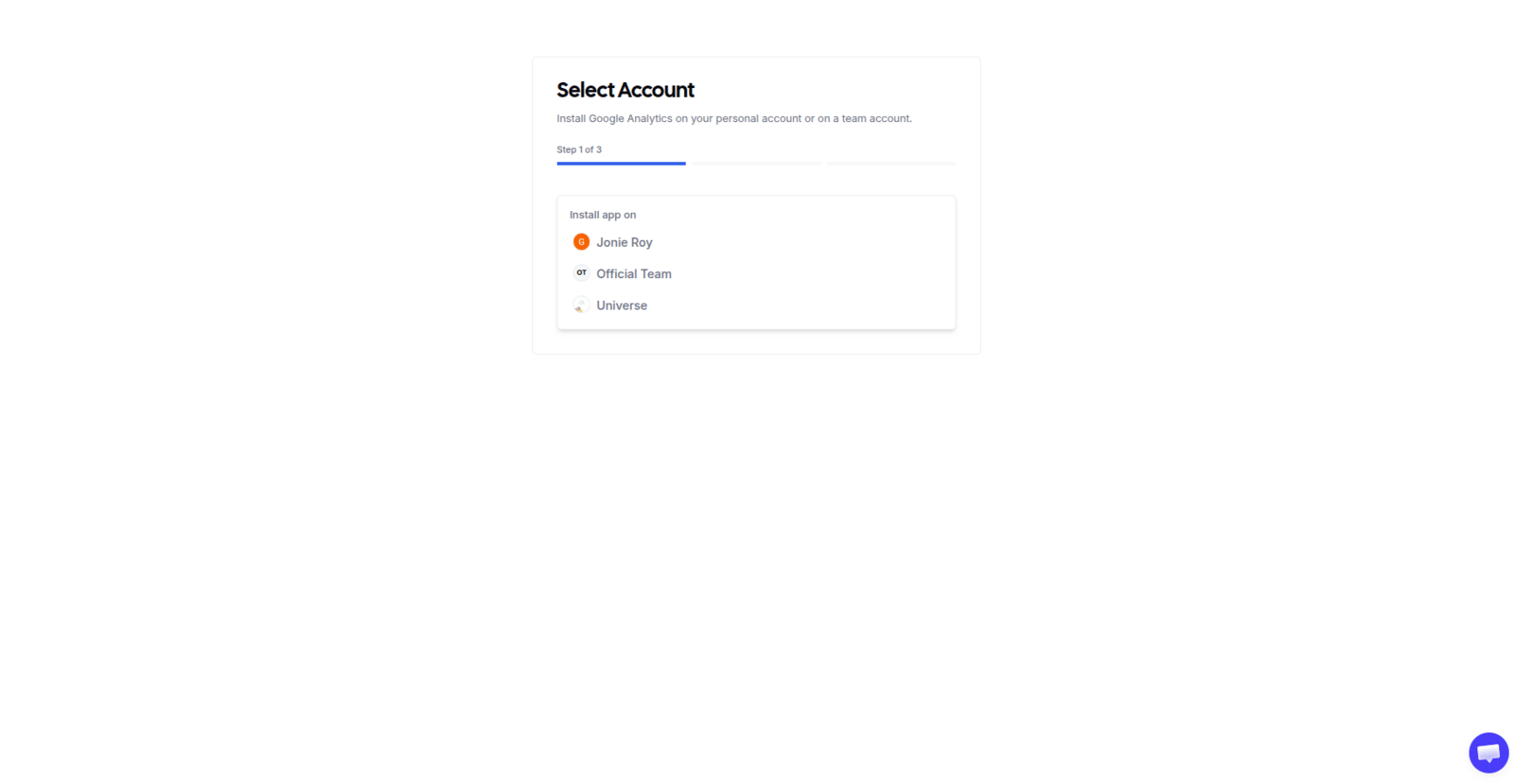
Choose account
Select the specific account where you want to install the integration.
Picking which account tracks bookings
3
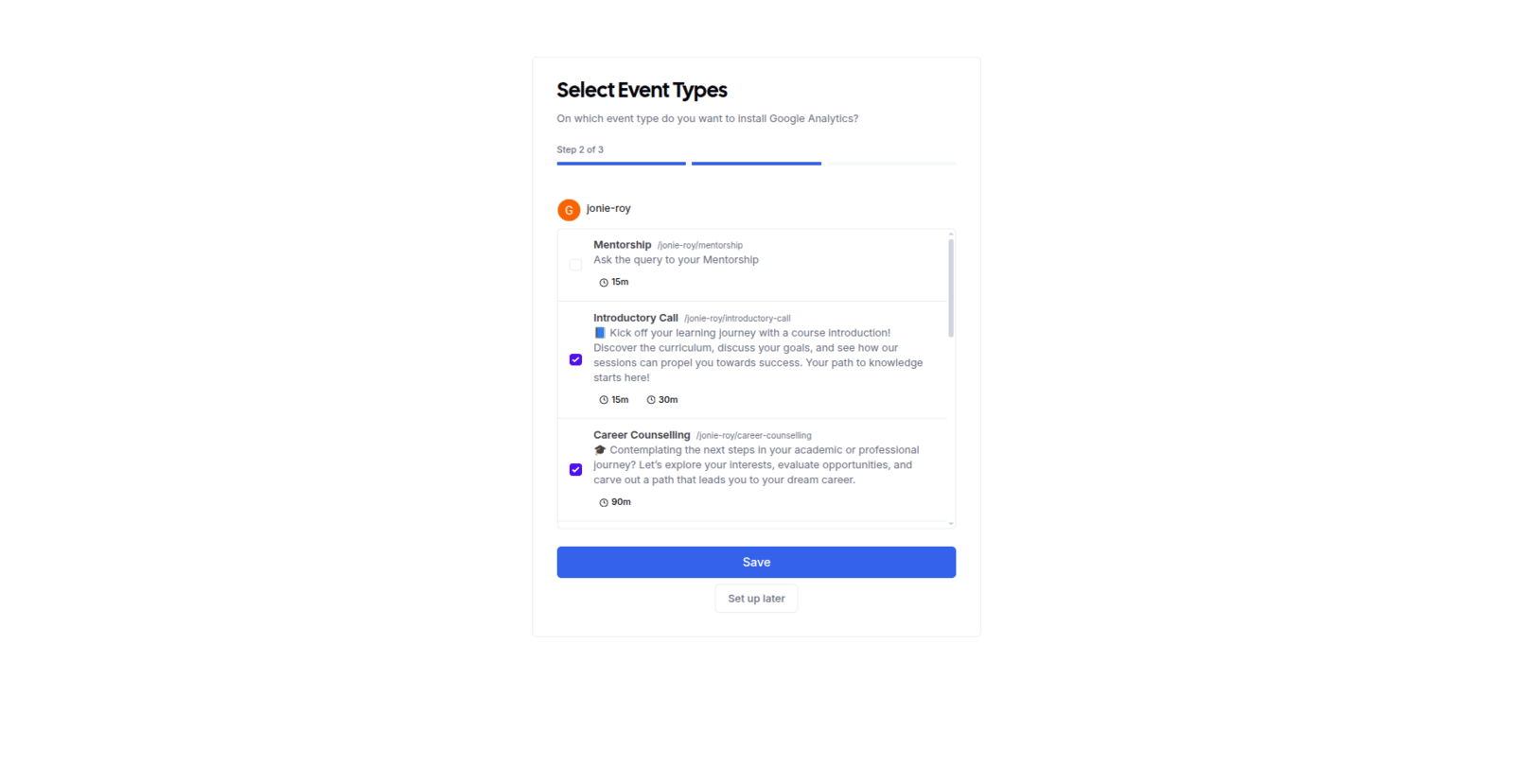
Select event types
Choose the specific event types you want to track, or select Set up later if you prefer to configure this at a different time.
Limiting tracking to certain events
4
Enter Tracking ID
If you selected event types, a pop-up will appear asking for your Tracking ID (formatted as UA-XXXXXX-Y or G-XXXXXXX). Paste your ID into the Tracking ID field.
From your main dashboard, click on the Event Types tab in the left-hand sidebar.
2
Select and edit
Find the specific event you want to configure and click Edit to open its settings.
3
Navigate to Apps
In the top navigation bar of the event editor, click on the Apps tab.
4
Toggle tracking tools
Locate Google Analytics and/or Google Tag Manager in the list. Switch the toggle to ON for the tool you want to use for this specific event.
5
Enter Tracking ID
For Google Analytics, paste your specific G-XXXXXXX or UA-XXXXXX-Y ID into the input field. For Google Tag Manager, paste your specific GTM-XXXXXX container ID into the input field.
6
Save changes
Click the Save button in the top right corner to apply these unique tracking IDs to this event type.
{"docsConfig":{"theme":"mint","$schema":"https://mintlify.com/docs.json","name":"Cal ID","description":"Cal ID help center — scheduling, event types, availability, teams, apps, workflows, and developer tools for the Cal ID meeting scheduler.","colors":{"primary":"#1972F5","light":"#5B9BFF","dark":"#0B4FB8"},"logo":{"light":"https://mintcdn.com/cal-id-docs/k1VHQ7P5ONAHeLvP/logo/light.svg?fit=max\u0026auto=format\u0026n=k1VHQ7P5ONAHeLvP\u0026q=85\u0026s=589c4a9c69ea7387516e6452f592553e","dark":"https://mintcdn.com/cal-id-docs/tkghSGJWVIrQX7X0/logo/dark.svg?fit=max\u0026auto=format\u0026n=tkghSGJWVIrQX7X0\u0026q=85\u0026s=3215902115e27959cb7782b1af38e9fe"},"favicon":"https://mintcdn.com/cal-id-docs/NUrc1nmEeHvCjwEV/favicon.svg?fit=max\u0026auto=format\u0026n=NUrc1nmEeHvCjwEV\u0026q=85\u0026s=3247c427392ba77a41b08a807c322bfb","navbar":{"links":[{"href":"mailto:support@cal.id","label":"Email Us"}],"primary":{"type":"button","label":"Go to Cal ID","href":"https://cal.id"}},"footer":{"socials":{"x":"https://x.com/OneHash","linkedin":"https://www.linkedin.com/company/onehash"}},"errors":{"404":{"redirect":false,"title":"We couldn't find that page","description":"The page you're looking for doesn't exist or may have moved. Head back to the [Help Center home](/), or jump to [Event Types](/event-types/overview), [Availability](/availability/create), [Teams](/teams/overview), or the [API Reference](/api-reference) — or use the search bar above. Still stuck? Email us at [support@cal.id](mailto:support@cal.id)."}},"contextual":{"options":["copy","view","chatgpt","claude","perplexity","mcp","cursor","vscode","download-spec"],"display":"header"},"styling":{"latex":true},"navigation":{"pages":[]}},"deployment":{"deploymentMetadataValue":{"subdomain":"cal-id-docs","hasAudioNarration":false,"actualSubdomain":"cal-id-docs","customDomains":["cal.id"],"gitSource":{"type":"github","owner":"onehashai","repo":"mintlify-docs","deployBranch":"main","contentDirectory":"","isPrivate":true,"mountPath":"","label":""},"chroma":{"latestBuiltDeploymentHistoryId":"6ab916db4c0abff9c16e8c99","collectionId":"a1537af2-6a4a-409a-a4fe-70a6408ebcf7","liveDeploymentHistoryId":"6ab916db4c0abff9c16e8c99","schemaVersion":"v3"},"feedback":{"thumbs":true,"agentFeedback":false},"entitlements":{"AI_CHAT":{"status":"ENABLED"},"WEB_MCP":{"status":"ENABLED"},"NARRATION":{"status":"ENABLED"}},"buildId":"6ab916db4c0abff9c16e8c99","clientVersion":"0.0.4044","searchFilterCounts":[{"language":"default","tag":"API Reference","count":60},{"language":"default","tag":"Endpoints","count":58},{"language":"default","tag":"Event Types","count":57},{"language":"default","tag":"Scheduling \u0026 Teams","count":31},{"language":"default","tag":"Get Started","count":31},{"language":"default","tag":"Customization \u0026 Settings","count":23},{"language":"default","tag":"Apps \u0026 Integrations","count":22},{"language":"default","tag":"Advanced","count":18},{"language":"default","tag":"Developers","count":17},{"language":"default","tag":"Teams","count":16}],"searchSettings":{"isFiltersEnabled":false}},"assistantConfig":{"enableAskAiButton":false,"enableStarterQuestions":true,"enableContextualStarterQuestions":true,"enableAskAiSearchBar":true,"deflection":{"enabled":true,"email":"support@cal.id"}},"basePath":"/docs","hasChatPermissions":true,"hasWebMcpPermissions":true,"toggles":[{"name":"kill-isr","enabled":true,"variant":{"name":"disabled","enabled":false,"feature_enabled":true},"impressionData":false},{"name":"agent-mintlify-slack","enabled":true,"variant":{"name":"disabled","enabled":false,"feature_enabled":true},"impressionData":false},{"name":"agent-integrations-settings","enabled":true,"variant":{"name":"disabled","enabled":false,"feature_enabled":true},"impressionData":false},{"name":"automations-pr-grouping","enabled":true,"variant":{"name":"disabled","enabled":false,"feature_enabled":true},"impressionData":false},{"name":"custom-prefix","enabled":true,"variant":{"name":"disabled","enabled":false,"feature_enabled":true},"impressionData":false},{"name":"analytics-v7","enabled":true,"variant":{"name":"disabled","enabled":false,"feature_enabled":true},"impressionData":false},{"name":"user-flows-analytics","enabled":true,"variant":{"name":"disabled","enabled":false,"feature_enabled":true},"impressionData":false},{"name":"no-publish-flow","enabled":true,"variant":{"name":"disabled","enabled":false,"feature_enabled":true},"impressionData":false},{"name":"workos-onboarding","enabled":true,"variant":{"name":"disabled","enabled":false,"feature_enabled":true},"impressionData":false},{"name":"llms-txt-v2","enabled":true,"variant":{"name":"disabled","enabled":false,"feature_enabled":true},"impressionData":false},{"name":"snapshot-serving-live","enabled":true,"variant":{"name":"disabled","enabled":false,"feature_enabled":true},"impressionData":false},{"name":"stripTemperatureMiddleware","enabled":true,"variant":{"name":"disabled","enabled":false,"feature_enabled":true},"impressionData":false},{"name":"support-platform-pylon-zendesk","enabled":true,"variant":{"name":"disabled","enabled":false,"feature_enabled":true},"impressionData":false},{"name":"snapshot-serving","enabled":true,"variant":{"name":"disabled","enabled":false,"feature_enabled":true},"impressionData":false},{"name":"instant-rollback","enabled":true,"variant":{"name":"disabled","enabled":false,"feature_enabled":true},"impressionData":false},{"name":"granular-notifications-server","enabled":true,"variant":{"name":"disabled","enabled":false,"feature_enabled":true},"impressionData":false},{"name":"granular-notifications","enabled":true,"variant":{"name":"disabled","enabled":false,"feature_enabled":true},"impressionData":false},{"name":"automations-fable","enabled":true,"variant":{"name":"disabled","enabled":false,"feature_enabled":true},"impressionData":false},{"name":"fixed-ai-action-pricing","enabled":true,"variant":{"name":"disabled","enabled":false,"feature_enabled":true},"impressionData":false},{"name":"automation-resolve-merge-conflict","enabled":true,"variant":{"name":"disabled","enabled":false,"feature_enabled":true},"impressionData":false},{"name":"scoped-publishing","enabled":true,"variant":{"name":"disabled","enabled":false,"feature_enabled":true},"impressionData":false},{"name":"mintql","enabled":true,"variant":{"name":"disabled","enabled":false,"feature_enabled":true},"impressionData":false},{"name":"page-level-analytics","enabled":true,"variant":{"name":"disabled","enabled":false,"feature_enabled":true},"impressionData":false},{"name":"editor-version-history-v2","enabled":true,"variant":{"name":"disabled","enabled":false,"feature_enabled":true},"impressionData":false},{"name":"billing-page-v2","enabled":true,"variant":{"name":"disabled","enabled":false,"feature_enabled":true},"impressionData":false},{"name":"full-page-search","enabled":true,"variant":{"name":"disabled","enabled":false,"feature_enabled":true},"impressionData":false},{"name":"workspace-projects","enabled":true,"variant":{"name":"disabled","enabled":false,"feature_enabled":true},"impressionData":false},{"name":"assistant-v5","enabled":true,"variant":{"name":"disabled","enabled":false,"feature_enabled":true},"impressionData":false},{"name":"byok-sep-25","enabled":true,"variant":{"name":"disabled","enabled":false,"feature_enabled":true},"impressionData":false},{"name":"fork-pr-previews","enabled":true,"variant":{"name":"disabled","enabled":false,"feature_enabled":true},"impressionData":false},{"name":"revalidation-jwt","enabled":true,"variant":{"name":"disabled","enabled":false,"feature_enabled":true},"impressionData":false},{"name":"vite-origin","enabled":true,"variant":{"name":"disabled","enabled":false,"feature_enabled":true},"impressionData":false},{"name":"billing-updated-9-15","enabled":true,"variant":{"name":"disabled","enabled":false,"feature_enabled":true},"impressionData":false},{"name":"workos-sso-scim","enabled":true,"variant":{"name":"disabled","enabled":false,"feature_enabled":true},"impressionData":false},{"name":"hobby-abuse-scan","enabled":true,"variant":{"name":"disabled","enabled":false,"feature_enabled":true},"impressionData":false},{"name":"dashboard-inbox","enabled":true,"variant":{"name":"disabled","enabled":false,"feature_enabled":true},"impressionData":false},{"name":"workos-signup","enabled":true,"variant":{"name":"disabled","enabled":false,"feature_enabled":true},"impressionData":false},{"name":"turbopuffer-dual-write","enabled":true,"variant":{"name":"disabled","enabled":false,"feature_enabled":true},"impressionData":false},{"name":"workos-enabled","enabled":true,"variant":{"name":"disabled","enabled":false,"feature_enabled":true},"impressionData":false},{"name":"approve-review-flow","enabled":true,"variant":{"name":"disabled","enabled":false,"feature_enabled":true},"impressionData":false},{"name":"sso-setup-deadline-banner","enabled":true,"variant":{"name":"disabled","enabled":false,"feature_enabled":true},"impressionData":false}],"privacy":{"consentBanner":{"enabled":false}},"googleFontsInlined":false},"customCss":[],"page":{"pagePath":"apps/google-analytics","slug":"/apps/google-analytics","pageMetadata":{"title":"Set Up Google Analytics and Tag Manager","description":"Track visitor behavior and booking conversions on your Cal ID pages by connecting Google Analytics 4 and Google Tag Manager to your account.","icon":"chart-line","keywords":["google analytics","tracking","booking page analytics","conversion tracking","ga4","measure traffic"],"related":["/apps/app-store","/apps/make","/apps/pabbly","/insights/booking-performance","/apps/manage-installed"],"href":"/apps/google-analytics"},"description":{"compiledSource":"\"use strict\";\nconst {jsx: _jsx} = arguments[0];\nconst {useMDXComponents: _provideComponents} = arguments[0];\nfunction _createMdxContent(props) {\n const _components = {\n p: \"p\",\n ..._provideComponents(),\n ...props.components\n };\n return _jsx(_components.p, {\n children: \"Track visitor behavior and booking conversions on your Cal ID pages by connecting Google Analytics 4 and Google Tag Manager to your account.\"\n });\n}\nfunction MDXContent(props = {}) {\n const {wrapper: MDXLayout} = {\n ..._provideComponents(),\n ...props.components\n };\n return MDXLayout ? _jsx(MDXLayout, {\n ...props,\n children: _jsx(_createMdxContent, {\n ...props\n })\n }) : _createMdxContent(props);\n}\nreturn {\n default: MDXContent\n};\n","frontmatter":{},"scope":{}},"pageType":"default","mdx":{"mdxSource":{"compiledSource":"\"use strict\";const{Fragment:_Fragment,jsx:_jsx,jsxs:_jsxs}=arguments[0];const{useMDXComponents:_provideComponents}=arguments[0];function _createMdxContent(props){const _components={a:`a`,code:`code`,li:`li`,p:`p`,strong:`strong`,ul:`ul`,..._provideComponents(),...props.components},{Card,CardGroup,Frame,Heading,Info,OptimizedImage,Step,Steps}=_components;if(!Card)_missingMdxReference(`Card`,true);if(!CardGroup)_missingMdxReference(`CardGroup`,true);if(!Frame)_missingMdxReference(`Frame`,true);if(!Heading)_missingMdxReference(`Heading`,true);if(!Info)_missingMdxReference(`Info`,true);if(!OptimizedImage)_missingMdxReference(`OptimizedImage`,true);if(!Step)_missingMdxReference(`Step`,true);if(!Steps)_missingMdxReference(`Steps`,true);return _jsxs(_Fragment,{children:[_jsx(_components.p,{children:`Connect Google Analytics (GA) and Google Tag Manager (GTM) to track visitor behavior on your booking pages, measure conversion rates, and analyze the effectiveness of your marketing campaigns.`}),`\n`,_jsx(Info,{children:_jsxs(_components.p,{children:[`Before you start, have your tracking ID ready — a Google Analytics `,_jsx(_components.strong,{children:`Measurement ID`}),` (`,_jsx(_components.code,{children:`G-XXXXXXX`}),`, or a legacy `,_jsx(_components.code,{children:`UA-XXXXXX-Y`}),`) or a Google Tag Manager `,_jsx(_components.strong,{children:`container ID`}),` (`,_jsx(_components.code,{children:`GTM-XXXXXX`}),`). You’ll paste it into Cal ID during setup.`]})}),`\n`,_jsx(Heading,{level:`2`,id:`accessing-the-app-store`,children:`Accessing the App Store`}),`\n`,_jsxs(Steps,{children:[_jsx(Step,{title:`Log in to Cal ID`,children:_jsxs(_components.p,{children:[`Open your main dashboard at `,_jsx(_components.a,{href:`https://cal.id/home`,children:`Cal ID`}),`.`]})}),_jsx(Step,{title:`Navigate to Apps`,children:_jsxs(_components.p,{children:[`Click on `,_jsx(_components.a,{href:`https://cal.id/apps`,children:_jsx(_components.strong,{children:`Apps`})}),` in the left-hand sidebar menu.`]})}),_jsx(Step,{title:`Filter by category`,children:_jsxs(_components.p,{children:[`Choose `,_jsx(_components.strong,{children:`Analytics`}),` from the featured categories at the top to narrow the list to tracking tools.`]})})]}),`\n`,_jsx(Heading,{level:`2`,id:`setting-up-google-analytics`,children:`Setting up Google Analytics`}),`\n`,_jsx(_components.p,{children:`Google Analytics helps you understand how visitors find and interact with your booking page.`}),`\n`,_jsxs(Steps,{children:[_jsx(Step,{title:`Locate and install Google Analytics`,children:_jsxs(_components.p,{children:[`Find the `,_jsx(_components.strong,{children:`Google Analytics`}),` card within the Analytics category and click `,_jsx(_components.strong,{children:`Install`}),` on the card.`]})}),_jsxs(Step,{title:`Choose account`,children:[_jsx(_components.p,{children:`Select the specific account where you want to install the integration.`}),_jsx(Frame,{caption:`Picking which account tracks bookings`,children:_jsx(OptimizedImage,{src:`https://mintcdn.com/cal-id-docs/NUrc1nmEeHvCjwEV/images/apps/google-analytics-3.png?fit=max\u0026auto=format\u0026n=NUrc1nmEeHvCjwEV\u0026q=85\u0026s=da4671bfaf0eba73c6e89b5f3dae0732`,alt:`Install dialog for Google Analytics listing your personal account and any teams to choose from`,\"data-og-width\":`1600`,width:`1600`,\"data-og-height\":`829`,height:`829`,\"data-path\":`images/apps/google-analytics-3.png`,\"data-optimize\":`true`,\"data-opv\":`3`,srcset:`https://mintcdn.com/cal-id-docs/NUrc1nmEeHvCjwEV/images/apps/google-analytics-3.png?w=280\u0026fit=max\u0026auto=format\u0026n=NUrc1nmEeHvCjwEV\u0026q=85\u0026s=774b7e6229b650f33a2ba817a33071bb 280w, https://mintcdn.com/cal-id-docs/NUrc1nmEeHvCjwEV/images/apps/google-analytics-3.png?w=560\u0026fit=max\u0026auto=format\u0026n=NUrc1nmEeHvCjwEV\u0026q=85\u0026s=5f97bb73df20fb4aecfa1cc7db0024d7 560w, https://mintcdn.com/cal-id-docs/NUrc1nmEeHvCjwEV/images/apps/google-analytics-3.png?w=840\u0026fit=max\u0026auto=format\u0026n=NUrc1nmEeHvCjwEV\u0026q=85\u0026s=e5b4ca6738cd58e9bbdcde364c0a0216 840w, https://mintcdn.com/cal-id-docs/NUrc1nmEeHvCjwEV/images/apps/google-analytics-3.png?w=1100\u0026fit=max\u0026auto=format\u0026n=NUrc1nmEeHvCjwEV\u0026q=85\u0026s=78bdb8a0b8e4a42125985d663262dc54 1100w, https://mintcdn.com/cal-id-docs/NUrc1nmEeHvCjwEV/images/apps/google-analytics-3.png?w=1650\u0026fit=max\u0026auto=format\u0026n=NUrc1nmEeHvCjwEV\u0026q=85\u0026s=b76131fad023595287ac23462ce3f431 1650w, https://mintcdn.com/cal-id-docs/NUrc1nmEeHvCjwEV/images/apps/google-analytics-3.png?w=2500\u0026fit=max\u0026auto=format\u0026n=NUrc1nmEeHvCjwEV\u0026q=85\u0026s=f49c01253e764c313a9b8aa3fcf35b08 2500w`})})]}),_jsxs(Step,{title:`Select event types`,children:[_jsxs(_components.p,{children:[`Choose the specific event types you want to track, or select `,_jsx(_components.strong,{children:`Set up later`}),` if you prefer to configure this at a different time.`]}),_jsx(Frame,{caption:`Limiting tracking to certain events`,children:_jsx(OptimizedImage,{src:`https://mintcdn.com/cal-id-docs/NUrc1nmEeHvCjwEV/images/apps/google-analytics-4.png?fit=max\u0026auto=format\u0026n=NUrc1nmEeHvCjwEV\u0026q=85\u0026s=c00c0e1ee9c403d021ef05685ffee4dc`,alt:`Google Analytics install screen listing your event types with checkboxes and a Set up later option`,\"data-og-width\":`1600`,width:`1600`,\"data-og-height\":`829`,height:`829`,\"data-path\":`images/apps/google-analytics-4.png`,\"data-optimize\":`true`,\"data-opv\":`3`,srcset:`https://mintcdn.com/cal-id-docs/NUrc1nmEeHvCjwEV/images/apps/google-analytics-4.png?w=280\u0026fit=max\u0026auto=format\u0026n=NUrc1nmEeHvCjwEV\u0026q=85\u0026s=1f185c65bb0eed51acedd16dcde97861 280w, https://mintcdn.com/cal-id-docs/NUrc1nmEeHvCjwEV/images/apps/google-analytics-4.png?w=560\u0026fit=max\u0026auto=format\u0026n=NUrc1nmEeHvCjwEV\u0026q=85\u0026s=effe367a4b865032a4fea645162e979b 560w, https://mintcdn.com/cal-id-docs/NUrc1nmEeHvCjwEV/images/apps/google-analytics-4.png?w=840\u0026fit=max\u0026auto=format\u0026n=NUrc1nmEeHvCjwEV\u0026q=85\u0026s=56431f14159a660b8638bd362ff28537 840w, https://mintcdn.com/cal-id-docs/NUrc1nmEeHvCjwEV/images/apps/google-analytics-4.png?w=1100\u0026fit=max\u0026auto=format\u0026n=NUrc1nmEeHvCjwEV\u0026q=85\u0026s=02e9159313990544a53b04448c5cfcb1 1100w, https://mintcdn.com/cal-id-docs/NUrc1nmEeHvCjwEV/images/apps/google-analytics-4.png?w=1650\u0026fit=max\u0026auto=format\u0026n=NUrc1nmEeHvCjwEV\u0026q=85\u0026s=5d54038353f94ce7a998c7aeb680f6e2 1650w, https://mintcdn.com/cal-id-docs/NUrc1nmEeHvCjwEV/images/apps/google-analytics-4.png?w=2500\u0026fit=max\u0026auto=format\u0026n=NUrc1nmEeHvCjwEV\u0026q=85\u0026s=edc8697d900003bfc8c90394bf900aa0 2500w`})})]}),_jsx(Step,{title:`Enter Tracking ID`,children:_jsxs(_components.p,{children:[`If you selected event types, a pop-up will appear asking for your `,_jsx(_components.strong,{children:`Tracking ID`}),` (formatted as `,_jsx(_components.code,{children:`UA-XXXXXX-Y`}),` or `,_jsx(_components.code,{children:`G-XXXXXXX`}),`). Paste your ID into the `,_jsx(_components.strong,{children:`Tracking ID`}),` field.`]})}),_jsx(Step,{title:`Save`,children:_jsxs(_components.p,{children:[`Click the `,_jsx(_components.strong,{children:`Save`}),` button to activate tracking.`]})})]}),`\n`,_jsx(Heading,{level:`2`,id:`where-to-find-your-tracking-ids`,children:`Where to find your tracking IDs`}),`\n`,_jsxs(Steps,{children:[_jsx(Step,{title:`Log in to Google Analytics`,children:_jsx(_components.p,{children:`Open your Google Analytics account.`})}),_jsx(Step,{title:`Open Admin`,children:_jsxs(_components.p,{children:[`Click `,_jsx(_components.strong,{children:`Admin`}),` (the gear icon) in the bottom left of the Google Analytics sidebar.`]})}),_jsxs(Step,{title:`Open Data Streams`,children:[_jsxs(_components.p,{children:[`Under the Data Collection and modification column, click `,_jsx(_components.strong,{children:`Data Streams`}),`.`]}),_jsx(Frame,{caption:`Where Google keeps your tracking ID`,children:_jsx(OptimizedImage,{src:`https://mintcdn.com/cal-id-docs/NUrc1nmEeHvCjwEV/images/apps/google-analytics-7.png?fit=max\u0026auto=format\u0026n=NUrc1nmEeHvCjwEV\u0026q=85\u0026s=b6c5febecb4252f43d2288b8e39821c7`,alt:`Google Analytics Admin page with Data Streams listed under the Data collection and modification column`,\"data-og-width\":`1426`,width:`1426`,\"data-og-height\":`739`,height:`739`,\"data-path\":`images/apps/google-analytics-7.png`,\"data-optimize\":`true`,\"data-opv\":`3`,srcset:`https://mintcdn.com/cal-id-docs/NUrc1nmEeHvCjwEV/images/apps/google-analytics-7.png?w=280\u0026fit=max\u0026auto=format\u0026n=NUrc1nmEeHvCjwEV\u0026q=85\u0026s=9bfdd421e3369b536ee5d5c4057327fe 280w, https://mintcdn.com/cal-id-docs/NUrc1nmEeHvCjwEV/images/apps/google-analytics-7.png?w=560\u0026fit=max\u0026auto=format\u0026n=NUrc1nmEeHvCjwEV\u0026q=85\u0026s=66d3c2588af132aa00c866aa282dbbbb 560w, https://mintcdn.com/cal-id-docs/NUrc1nmEeHvCjwEV/images/apps/google-analytics-7.png?w=840\u0026fit=max\u0026auto=format\u0026n=NUrc1nmEeHvCjwEV\u0026q=85\u0026s=85a06203af64bc7826b4dd6869a66de2 840w, https://mintcdn.com/cal-id-docs/NUrc1nmEeHvCjwEV/images/apps/google-analytics-7.png?w=1100\u0026fit=max\u0026auto=format\u0026n=NUrc1nmEeHvCjwEV\u0026q=85\u0026s=a4523a4cebd3d449454f12b08bd250ae 1100w, https://mintcdn.com/cal-id-docs/NUrc1nmEeHvCjwEV/images/apps/google-analytics-7.png?w=1650\u0026fit=max\u0026auto=format\u0026n=NUrc1nmEeHvCjwEV\u0026q=85\u0026s=e176b847da36b217e039d5eff2145749 1650w, https://mintcdn.com/cal-id-docs/NUrc1nmEeHvCjwEV/images/apps/google-analytics-7.png?w=2500\u0026fit=max\u0026auto=format\u0026n=NUrc1nmEeHvCjwEV\u0026q=85\u0026s=9055bb0d1577df700494ff632732c63e 2500w`})})]}),_jsx(Step,{title:`Select your data stream`,children:_jsx(_components.p,{children:`Select your website data stream and copy the Measurement ID, or if you do not see any data stream, create one.`})}),_jsxs(Step,{title:`Copy the Measurement ID`,children:[_jsxs(_components.p,{children:[`Copy your `,_jsx(_components.strong,{children:`MEASUREMENT ID`}),` from the top right corner and paste it in the Tracking ID field.`]}),_jsx(Frame,{caption:`The ID Cal ID asks for`,children:_jsx(OptimizedImage,{src:`https://mintcdn.com/cal-id-docs/NUrc1nmEeHvCjwEV/images/apps/google-analytics-8.png?fit=max\u0026auto=format\u0026n=NUrc1nmEeHvCjwEV\u0026q=85\u0026s=61a7bfa2cb03d7cc954345c845627b06`,alt:`Google Analytics web stream details panel with the MEASUREMENT ID shown in the top right corner`,\"data-og-width\":`1432`,width:`1432`,\"data-og-height\":`753`,height:`753`,\"data-path\":`images/apps/google-analytics-8.png`,\"data-optimize\":`true`,\"data-opv\":`3`,srcset:`https://mintcdn.com/cal-id-docs/NUrc1nmEeHvCjwEV/images/apps/google-analytics-8.png?w=280\u0026fit=max\u0026auto=format\u0026n=NUrc1nmEeHvCjwEV\u0026q=85\u0026s=e41ae7374f8ae742b0824795955c0ad5 280w, https://mintcdn.com/cal-id-docs/NUrc1nmEeHvCjwEV/images/apps/google-analytics-8.png?w=560\u0026fit=max\u0026auto=format\u0026n=NUrc1nmEeHvCjwEV\u0026q=85\u0026s=a684729bf88e29613521ee473be9684b 560w, https://mintcdn.com/cal-id-docs/NUrc1nmEeHvCjwEV/images/apps/google-analytics-8.png?w=840\u0026fit=max\u0026auto=format\u0026n=NUrc1nmEeHvCjwEV\u0026q=85\u0026s=fd48b75897f11b9f9b9e80ceb406e1a8 840w, https://mintcdn.com/cal-id-docs/NUrc1nmEeHvCjwEV/images/apps/google-analytics-8.png?w=1100\u0026fit=max\u0026auto=format\u0026n=NUrc1nmEeHvCjwEV\u0026q=85\u0026s=b59b29f9fb34cfc33a91a50f4cd6d57e 1100w, https://mintcdn.com/cal-id-docs/NUrc1nmEeHvCjwEV/images/apps/google-analytics-8.png?w=1650\u0026fit=max\u0026auto=format\u0026n=NUrc1nmEeHvCjwEV\u0026q=85\u0026s=fa56ed06e29f1d8fd3275709b6054f0b 1650w, https://mintcdn.com/cal-id-docs/NUrc1nmEeHvCjwEV/images/apps/google-analytics-8.png?w=2500\u0026fit=max\u0026auto=format\u0026n=NUrc1nmEeHvCjwEV\u0026q=85\u0026s=c25f1994c9decab38a2bf532e5173df5 2500w`})})]})]}),`\n`,_jsx(Heading,{level:`2`,id:`what-to-set-up-in-google-analytics`,children:`What to set up in Google Analytics`}),`\n`,_jsx(_components.p,{children:`To get the most out of your data, configure the following in your Google Analytics dashboard:`}),`\n`,_jsxs(_components.ul,{children:[`\n`,_jsxs(_components.li,{children:[_jsx(_components.strong,{children:`Create a Property`}),`: Ensure you have a property created for your booking website.`]}),`\n`,_jsxs(_components.li,{children:[_jsx(_components.strong,{children:`Set up Events`}),`: Define custom events to track specific actions, such as `,_jsx(_components.strong,{children:`Booking Form View`}),`, `,_jsx(_components.strong,{children:`Booking Form Submission`}),`, and `,_jsx(_components.strong,{children:`Payment Completed`}),`.`]}),`\n`,_jsxs(_components.li,{children:[_jsx(_components.strong,{children:`Conversion Goals`}),`: Set up goals based on these events to measure your conversion rate.`]}),`\n`]}),`\n`,_jsx(Heading,{level:`2`,id:`setting-up-google-tag-manager`,children:`Setting up Google Tag Manager`}),`\n`,_jsx(_components.p,{children:`Google Tag Manager allows you to manage and deploy marketing tags without modifying code directly.`}),`\n`,_jsxs(Steps,{children:[_jsx(Step,{title:`Locate and install Google Tag Manager`,children:_jsxs(_components.p,{children:[`Find the `,_jsx(_components.strong,{children:`Google Tag Manager`}),` card in the App Store and click `,_jsx(_components.strong,{children:`Install`}),`.`]})}),_jsx(Step,{title:`Choose account`,children:_jsx(_components.p,{children:`Select your preferred account for installation. The account picker matches the one shown for Google Analytics above.`})}),_jsx(Step,{title:`Select event types`,children:_jsxs(_components.p,{children:[`Pick the event types to be tracked by GTM, or click `,_jsx(_components.strong,{children:`Set up later`}),`.`]})}),_jsx(Step,{title:`Enter Tracking ID`,children:_jsxs(_components.p,{children:[`Enter your `,_jsx(_components.strong,{children:`Tracking ID`}),` (formatted as `,_jsx(_components.code,{children:`GTM-XXXXXX`}),`) in the `,_jsx(_components.strong,{children:`Tracking ID`}),` field of the pop-up.`]})}),_jsx(Step,{title:`Save`,children:_jsxs(_components.p,{children:[`Click the `,_jsx(_components.strong,{children:`Save`}),` button to integrate GTM.`]})})]}),`\n`,_jsx(Heading,{level:`2`,id:`what-to-set-up-in-google-tag-manager`,children:`What to set up in Google Tag Manager`}),`\n`,_jsx(_components.p,{children:`Once integrated, use GTM to manage your tracking:`}),`\n`,_jsxs(_components.ul,{children:[`\n`,_jsxs(_components.li,{children:[_jsx(_components.strong,{children:`Tags`}),`: Create tags for Google Analytics, `,_jsx(_components.a,{href:`/apps/meta-pixel`,children:`Meta Pixel`}),`, or other conversion tracking tools.`]}),`\n`,_jsxs(_components.li,{children:[_jsx(_components.strong,{children:`Triggers`}),`: Set triggers for when these tags should fire (e.g., when a booker lands on the booking success page).`]}),`\n`,_jsxs(_components.li,{children:[_jsx(_components.strong,{children:`Variables`}),`: Use built-in variables to capture specific booking data like event duration or event type name.`]}),`\n`]}),`\n`,_jsx(Heading,{level:`2`,id:`verifying-installation`,children:`Verifying installation`}),`\n`,_jsx(_components.p,{children:`After installing, you can verify if the tracking is working:`}),`\n`,_jsxs(_components.ul,{children:[`\n`,_jsxs(_components.li,{children:[_jsx(_components.strong,{children:`Real-time Reports`}),`: Check the `,_jsx(_components.strong,{children:`Real-time`}),` report in Google Analytics to see if your own visits are being tracked.`]}),`\n`,_jsxs(_components.li,{children:[_jsx(_components.strong,{children:`Tag Assistant`}),`: Use a browser extension like Google Tag Assistant to confirm that the GTM container is loading correctly on your booking page.`]}),`\n`]}),`\n`,_jsx(Heading,{level:`2`,id:`how-to-add-or-change-ids-for-a-specific-event`,children:`How to add or change IDs for a specific event`}),`\n`,_jsxs(Steps,{children:[_jsx(Step,{title:`Go to Event Types`,children:_jsxs(_components.p,{children:[`From your main dashboard, click on the `,_jsx(_components.a,{href:`https://cal.id/event-types`,children:_jsx(_components.strong,{children:`Event Types`})}),` tab in the left-hand sidebar.`]})}),_jsx(Step,{title:`Select and edit`,children:_jsxs(_components.p,{children:[`Find the specific event you want to configure and click `,_jsx(_components.strong,{children:`Edit`}),` to open its settings.`]})}),_jsx(Step,{title:`Navigate to Apps`,children:_jsxs(_components.p,{children:[`In the top navigation bar of the event editor, click on the `,_jsx(_components.strong,{children:`Apps`}),` tab.`]})}),_jsx(Step,{title:`Toggle tracking tools`,children:_jsxs(_components.p,{children:[`Locate `,_jsx(_components.strong,{children:`Google Analytics`}),` and/or `,_jsx(_components.strong,{children:`Google Tag Manager`}),` in the list. Switch the toggle to `,_jsx(_components.strong,{children:`ON`}),` for the tool you want to use for this specific event.`]})}),_jsx(Step,{title:`Enter Tracking ID`,children:_jsxs(_components.p,{children:[`For `,_jsx(_components.strong,{children:`Google Analytics`}),`, paste your specific `,_jsx(_components.code,{children:`G-XXXXXXX`}),` or `,_jsx(_components.code,{children:`UA-XXXXXX-Y`}),` ID into the input field. For `,_jsx(_components.strong,{children:`Google Tag Manager`}),`, paste your specific `,_jsx(_components.code,{children:`GTM-XXXXXX`}),` container ID into the input field.`]})}),_jsx(Step,{title:`Save changes`,children:_jsxs(_components.p,{children:[`Click the `,_jsx(_components.strong,{children:`Save`}),` button in the top right corner to apply these unique tracking IDs to this event type.`]})})]}),`\n`,_jsx(Heading,{level:`3`,id:`why-use-event-specific-tracking`,children:`Why use event-specific tracking?`}),`\n`,_jsxs(_components.ul,{children:[`\n`,_jsxs(_components.li,{children:[_jsx(_components.strong,{children:`Targeted Analytics`}),`: Track conversions for high-value sales calls separately from general inquiries.`]}),`\n`,_jsxs(_components.li,{children:[_jsx(_components.strong,{children:`Clean Data`}),`: Prevent data from different departments or teams from mixing in your Analytics reports.`]}),`\n`,_jsxs(_components.li,{children:[_jsx(_components.strong,{children:`Custom Triggers`}),`: Fire specific marketing tags in GTM that only apply to certain services.`]}),`\n`]}),`\n`,_jsx(Heading,{level:`2`,id:`more-tracking-and-analytics`,children:`More tracking and analytics`}),`\n`,_jsxs(CardGroup,{cols:2,children:[_jsx(Card,{title:`Booking performance`,icon:`chart-line`,href:`/insights/booking-performance`,children:_jsx(_components.p,{children:`Track bookings, conversions, and no-show rates in the Insights dashboard.`})}),_jsx(Card,{title:`Manage installed apps`,icon:`gear`,href:`/apps/manage-installed`,children:_jsx(_components.p,{children:`Review, configure, or disconnect the apps connected to your account.`})}),_jsx(Card,{title:`Browse the App Store`,icon:`grid-2`,href:`/apps/app-store`,children:_jsx(_components.p,{children:`Discover more integrations to connect to your booking workflows.`})}),_jsx(Card,{title:`Track with Meta Pixel`,icon:`meta`,href:`/apps/meta-pixel`,children:_jsx(_components.p,{children:`Attribute bookings to your Facebook and Instagram ad campaigns.`})}),_jsx(Card,{title:`Automate with Make`,icon:`plug`,href:`/apps/make`,children:_jsx(_components.p,{children:`Send booking data to other apps the moment a meeting is scheduled.`})})]})]})}function MDXContent(props={}){const{wrapper:MDXLayout}={..._provideComponents(),...props.components};return MDXLayout?_jsx(MDXLayout,{...props,children:_jsx(_createMdxContent,{...props})}):_createMdxContent(props)}return{default:MDXContent};function _missingMdxReference(id,component){throw new Error(`Expected `+(component?`component`:`object`)+\" `\"+id+\"` to be defined: you likely forgot to import, pass, or provide it.\")}","frontmatter":{},"scope":{"config":{},"pageMetadata":{"title":"Set Up Google Analytics and Tag Manager","description":"Track visitor behavior and booking conversions on your Cal ID pages by connecting Google Analytics 4 and Google Tag Manager to your account.","icon":"chart-line","keywords":["google analytics","tracking","booking page analytics","conversion tracking","ga4","measure traffic"],"related":["/apps/app-store","/apps/make","/apps/pabbly","/insights/booking-performance","/apps/manage-installed"],"href":"/apps/google-analytics"}}},"mdxSourceWithNoJs":null},"mdxExtracts":{"tableOfContents":[{"title":"Accessing the App Store","slug":"accessing-the-app-store","depth":2,"children":[]},{"title":"Setting up Google Analytics","slug":"setting-up-google-analytics","depth":2,"children":[]},{"title":"Where to find your tracking IDs","slug":"where-to-find-your-tracking-ids","depth":2,"children":[]},{"title":"What to set up in Google Analytics","slug":"what-to-set-up-in-google-analytics","depth":2,"children":[]},{"title":"Setting up Google Tag Manager","slug":"setting-up-google-tag-manager","depth":2,"children":[]},{"title":"What to set up in Google Tag Manager","slug":"what-to-set-up-in-google-tag-manager","depth":2,"children":[]},{"title":"Verifying installation","slug":"verifying-installation","depth":2,"children":[]},{"title":"How to add or change IDs for a specific event","slug":"how-to-add-or-change-ids-for-a-specific-event","depth":2,"children":[{"title":"Why use event-specific tracking?","slug":"why-use-event-specific-tracking","depth":3,"children":[]}]},{"title":"More tracking and analytics","slug":"more-tracking-and-analytics","depth":2,"children":[]}],"codeExamples":{}},"jsLinks":["/docs/_mintlify/custom/cal-id-docs/09b4d95490dd9c71/support-crisp.js"],"subdomain":"cal-id-docs","siteName":"Cal ID","title":"Set Up Google Analytics and Tag Manager - Cal ID","relatedPages":[{"title":"Cal ID App Store","link":"/apps/app-store","icon":"grid-2"},{"title":"Integrate Cal ID with Make","link":"/apps/make","icon":"plug"},{"title":"Integrate Cal ID with Pabbly","link":"/apps/pabbly","icon":"plug"},{"title":"Analyzing Booking Performance with Cal ID Insights","link":"/insights/booking-performance","icon":"chart-line"},{"title":"Managing Installed Apps","link":"/apps/manage-installed","icon":"gear"}],"relatedPagesConfig":{"enabled":true,"limit":5,"mode":"automatic"},"contextualStarterQuestions":[{"_id":"6a9862aacabf01e77694ff6d","deploymentId":"6a6c20ecc3064aa95c02d1fd","questionText":"How do I set up Google Analytics?","status":"active","generatedBy":"contextual","path":"apps/google-analytics","createdAt":"2026-09-02T17:53:46.426Z","updatedAt":"2026-09-02T17:53:46.426Z","__v":0},{"_id":"6a9862aacabf01e77694ff6e","deploymentId":"6a6c20ecc3064aa95c02d1fd","questionText":"What tracking ID do I need?","status":"active","generatedBy":"contextual","path":"apps/google-analytics","createdAt":"2026-09-02T17:53:46.426Z","updatedAt":"2026-09-02T17:53:46.426Z","__v":0},{"_id":"6a9862aacabf01e77694ff6f","deploymentId":"6a6c20ecc3064aa95c02d1fd","questionText":"How do I find the Analytics app?","status":"active","generatedBy":"contextual","path":"apps/google-analytics","createdAt":"2026-09-02T17:53:46.426Z","updatedAt":"2026-09-02T17:53:46.426Z","__v":0}],"navMaps":{"firstHrefInVersion":{},"firstHrefInLanguage":{}},"lastModified":"2026-09-02T17:53:02.564Z","originalFileLocation":"apps/google-analytics.mdx"},"headHtml":"\u003cscript data-mint-head>(function(){var d=document.documentElement,p=null;if(!p){try{p=localStorage.getItem(\"isDarkMode\")}catch(e){}if(p==='true')p='dark';else if(p==='false')p='light';if(p!=='light'\u0026\u0026p!=='dark'\u0026\u0026p!=='system')p=\"system\"}var r=p==='system'?(matchMedia(\"(prefers-color-scheme: dark)\").matches?'dark':'light'):p;d.classList.remove(r==='dark'?'light':'dark');d.classList.add(r);d.setAttribute(\"data-theme-preference\",p)})();\u003c/script>\u003cmeta data-mint-head name=\"description\" content=\"Track visitor behavior and booking conversions on your Cal ID pages by connecting Google Analytics 4 and Google Tag Manager to your account.\">\u003cmeta data-mint-head name=\"application-name\" content=\"Cal ID\">\u003cmeta data-mint-head name=\"generator\" content=\"Mintlify\">\u003clink data-mint-head rel=\"icon\" type=\"image/png\" sizes=\"192x192\" href=\"/docs/mintlify-assets/_mintlify/favicons/cal-id-docs/Ah-PiVKdxwxdJ_gr/_generated/favicon/android-chrome-192x192.png\" media=\"(prefers-color-scheme: light)\">\u003clink data-mint-head rel=\"apple-touch-icon\" type=\"image/png\" sizes=\"180x180\" href=\"/docs/mintlify-assets/_mintlify/favicons/cal-id-docs/Ah-PiVKdxwxdJ_gr/_generated/favicon/apple-touch-icon.png\">\u003clink data-mint-head rel=\"icon\" type=\"image/png\" sizes=\"16x16\" href=\"/docs/mintlify-assets/_mintlify/favicons/cal-id-docs/Ah-PiVKdxwxdJ_gr/_generated/favicon/favicon-16x16.png\" media=\"(prefers-color-scheme: light)\">\u003clink data-mint-head rel=\"icon\" type=\"image/png\" sizes=\"32x32\" href=\"/docs/mintlify-assets/_mintlify/favicons/cal-id-docs/Ah-PiVKdxwxdJ_gr/_generated/favicon/favicon-32x32.png\" media=\"(prefers-color-scheme: light)\">\u003clink data-mint-head rel=\"shortcut icon\" type=\"image/x-icon\" href=\"/docs/mintlify-assets/_mintlify/favicons/cal-id-docs/Ah-PiVKdxwxdJ_gr/_generated/favicon/favicon.ico\" media=\"(prefers-color-scheme: light)\">\u003clink data-mint-head rel=\"icon\" type=\"image/png\" sizes=\"192x192\" href=\"/docs/mintlify-assets/_mintlify/favicons/cal-id-docs/Ah-PiVKdxwxdJ_gr/_generated/favicon-dark/android-chrome-192x192.png\" media=\"(prefers-color-scheme: dark)\">\u003clink data-mint-head rel=\"icon\" type=\"image/png\" sizes=\"16x16\" href=\"/docs/mintlify-assets/_mintlify/favicons/cal-id-docs/Ah-PiVKdxwxdJ_gr/_generated/favicon-dark/favicon-16x16.png\" media=\"(prefers-color-scheme: dark)\">\u003clink data-mint-head rel=\"icon\" type=\"image/png\" sizes=\"32x32\" href=\"/docs/mintlify-assets/_mintlify/favicons/cal-id-docs/Ah-PiVKdxwxdJ_gr/_generated/favicon-dark/favicon-32x32.png\" media=\"(prefers-color-scheme: dark)\">\u003clink data-mint-head rel=\"shortcut icon\" type=\"image/x-icon\" href=\"/docs/mintlify-assets/_mintlify/favicons/cal-id-docs/Ah-PiVKdxwxdJ_gr/_generated/favicon-dark/favicon.ico\" media=\"(prefers-color-scheme: dark)\">\u003cmeta data-mint-head property=\"og:title\" content=\"Set Up Google Analytics and Tag Manager - Cal ID\">\u003cmeta data-mint-head property=\"og:description\" content=\"Track visitor behavior and booking conversions on your Cal ID pages by connecting Google Analytics 4 and Google Tag Manager to your account.\">\u003cmeta data-mint-head property=\"og:site_name\" content=\"Cal ID\">\u003cmeta data-mint-head property=\"og:url\" content=\"https://cal.id/docs/apps/google-analytics\">\u003cmeta data-mint-head property=\"og:type\" content=\"website\">\u003cmeta data-mint-head property=\"og:image\" content=\"https://cal-id-docs.mintlify.app/_mintlify/api/og/v2?division=Automation+%26+Analytics\u0026amp;title=Set+Up+Google+Analytics+and+Tag+Manager\u0026amp;description=Track+visitor+behavior+and+booking+conversions+on+your+Cal+ID+pages+by+connecting+Google+Analytics+4+and+Google+Tag+Manager+to+your+account.\u0026amp;theme=1ce1fba1bcc16a5579de1fe3\u0026amp;signature=5b4cdff26ea15c3e1588d991f34634761c38b87dac60ef4c2465facd3d29aeb4\">\u003cmeta data-mint-head property=\"og:image:width\" content=\"1200\">\u003cmeta data-mint-head property=\"og:image:height\" content=\"630\">\u003cmeta data-mint-head name=\"twitter:card\" content=\"summary_large_image\">\u003cmeta data-mint-head name=\"twitter:title\" content=\"Set Up Google Analytics and Tag Manager - Cal ID\">\u003cmeta data-mint-head name=\"twitter:description\" content=\"Track visitor behavior and booking conversions on your Cal ID pages by connecting Google Analytics 4 and Google Tag Manager to your account.\">\u003cmeta data-mint-head name=\"twitter:image\" content=\"https://cal-id-docs.mintlify.app/_mintlify/api/og/v2?division=Automation+%26+Analytics\u0026amp;title=Set+Up+Google+Analytics+and+Tag+Manager\u0026amp;description=Track+visitor+behavior+and+booking+conversions+on+your+Cal+ID+pages+by+connecting+Google+Analytics+4+and+Google+Tag+Manager+to+your+account.\u0026amp;theme=1ce1fba1bcc16a5579de1fe3\u0026amp;signature=5b4cdff26ea15c3e1588d991f34634761c38b87dac60ef4c2465facd3d29aeb4\">\u003cmeta data-mint-head name=\"twitter:image:width\" content=\"1200\">\u003cmeta data-mint-head name=\"twitter:image:height\" content=\"630\">\u003cmeta data-mint-head name=\"msapplication-config\" content=\"/docs/mintlify-assets/_mintlify/favicons/cal-id-docs/Ah-PiVKdxwxdJ_gr/_generated/favicon/browserconfig.xml\">\u003cmeta data-mint-head name=\"apple-mobile-web-app-title\" content=\"Cal ID\">\u003cmeta data-mint-head name=\"msapplication-TileColor\" content=\"#1972F5\">\u003clink data-mint-head rel=\"canonical\" href=\"https://cal.id/docs/apps/google-analytics\">\u003clink data-mint-head rel=\"alternate\" type=\"application/xml\" href=\"/docs/sitemap.xml\">\u003clink data-mint-head rel=\"alternate\" type=\"text/markdown\" href=\"/docs/apps/google-analytics.md\">\u003cscript data-mint-head type=\"application/ld+json\">{\"@context\":\"https://schema.org\",\"@graph\":[{\"@type\":\"Organization\",\"@id\":\"https://cal.id/#organization\",\"name\":\"Cal ID\",\"url\":\"https://cal.id\",\"logo\":{\"@type\":\"ImageObject\",\"url\":\"https://mintcdn.com/cal-id-docs/k1VHQ7P5ONAHeLvP/logo/light.svg?fit=max\u0026auto=format\u0026n=k1VHQ7P5ONAHeLvP\u0026q=85\u0026s=589c4a9c69ea7387516e6452f592553e\"}},{\"@type\":\"WebSite\",\"@id\":\"https://cal.id/docs#website\",\"name\":\"Cal ID\",\"url\":\"https://cal.id/docs\",\"publisher\":{\"@id\":\"https://cal.id/#organization\"}},{\"@type\":\"WebPage\",\"@id\":\"https://cal.id/docs/apps/google-analytics#webpage\",\"url\":\"https://cal.id/docs/apps/google-analytics\",\"name\":\"Set Up Google Analytics and Tag Manager\",\"description\":\"Track visitor behavior and booking conversions on your Cal ID pages by connecting Google Analytics 4 and Google Tag Manager to your account.\",\"dateModified\":\"2026-09-02T17:53:02.564Z\",\"isPartOf\":{\"@id\":\"https://cal.id/docs#website\"},\"breadcrumb\":{\"@id\":\"https://cal.id/docs/apps/google-analytics#breadcrumb\"}},{\"@type\":\"BreadcrumbList\",\"@id\":\"https://cal.id/docs/apps/google-analytics#breadcrumb\",\"itemListElement\":[{\"@type\":\"ListItem\",\"position\":1,\"name\":\"Automation \u0026 Analytics\",\"item\":\"https://cal.id/docs/apps/make\"},{\"@type\":\"ListItem\",\"position\":2,\"name\":\"Set Up Google Analytics and Tag Manager\",\"item\":\"https://cal.id/docs/apps/google-analytics\"}]},{\"@type\":[\"Article\",\"TechArticle\"],\"@id\":\"https://cal.id/docs/apps/google-analytics#article\",\"headline\":\"Set Up Google Analytics and Tag Manager\",\"name\":\"Set Up Google Analytics and Tag Manager\",\"description\":\"Track visitor behavior and booking conversions on your Cal ID pages by connecting Google Analytics 4 and Google Tag Manager to your account.\",\"url\":\"https://cal.id/docs/apps/google-analytics\",\"mainEntityOfPage\":{\"@id\":\"https://cal.id/docs/apps/google-analytics#webpage\"},\"dateModified\":\"2026-09-02T17:53:02.564Z\",\"keywords\":\"google analytics, tracking, booking page analytics, conversion tracking, ga4, measure traffic\",\"publisher\":{\"@id\":\"https://cal.id/#organization\"},\"isPartOf\":{\"@id\":\"https://cal.id/docs#website\"}}]}\u003c/script>\u003cscript data-mint-head type=\"application/ld+json\">{\"@context\":\"https://schema.org\",\"@type\":\"WebSite\",\"name\":\"Cal ID\",\"creator\":{\"@type\":\"Organization\",\"name\":\"Mintlify\",\"url\":\"https://mintlify.com\"}}\u003c/script>","siteName":"Cal ID","nav":{"global":null,"tabs":[{"tab":"Get Started","pages":[{"title":"Get Started","href":""}]},{"tab":"Event Types","pages":[{"title":"Event Types","href":"/event-types/overview"}]},{"tab":"Scheduling \u0026 Teams","pages":[{"title":"Scheduling \u0026 Teams","href":"/scheduling/overview"}]},{"tab":"Apps \u0026 Integrations","groups":[{"group":"Overview","pages":[{"title":"Apps \u0026 Integrations","icon":"puzzle-piece","sidebarTitle":"Overview","href":"/apps/overview"}]},{"group":"Calendars \u0026 Conferencing","pages":[{"title":"Connect Google Calendar","icon":"calendar","href":"/apps/google-calendar"},{"title":"Connect Apple Calendar with Cal ID","icon":"calendar","href":"/apps/apple-calendar"},{"title":"Integrate Cal ID with Zoom","icon":"video","href":"/apps/zoom"},{"title":"Host Meetings with Cal ID Rooms","sidebarTitle":"Cal ID Rooms","icon":"video","href":"/apps/cal-id-rooms"}]},{"group":"Payments","pages":[{"title":"Charge for Bookings in Cal ID","sidebarTitle":"Paid Bookings","icon":"credit-card","href":"/apps/paid-bookings"},{"title":"Integrate Cal ID with Stripe","icon":"credit-card","href":"/apps/stripe"},{"title":"Integrate Cal ID with Razorpay","icon":"credit-card","href":"/apps/razorpay"},{"title":"Integrate Cal ID with PayPal","icon":"credit-card","href":"/apps/paypal"}]},{"group":"Automation \u0026 Analytics","pages":[{"title":"Integrate Cal ID with Make","icon":"plug","href":"/apps/make"},{"title":"Integrate Cal ID with Zapier","sidebarTitle":"Zapier","icon":"bolt","href":"/apps/zapier"},{"title":"Integrate Cal ID with Pabbly","icon":"plug","href":"/apps/pabbly"},{"title":"Get Slack Notifications for New Bookings","description":"Connect Cal ID to Slack through Zapier, Pabbly, Make, or ViaSocket to receive instant booking notifications in the channels where your team works.","icon":"slack","href":"/apps/slack"},{"title":"Set Up Google Analytics and Tag Manager","icon":"chart-line","href":"/apps/google-analytics"},{"title":"Track Bookings with Meta Pixel","sidebarTitle":"Meta Pixel","description":"Add your Meta Pixel ID to Cal ID to track booking conversions, optimize Facebook ad campaigns, and build custom audiences from scheduling data.","icon":"bullseye","href":"/apps/meta-pixel"}]},{"group":"CRM","pages":[{"title":"Integrate Cal ID with HubSpot CRM","sidebarTitle":"HubSpot CRM","icon":"hubspot","href":"/apps/hubspot"},{"title":"Integrate Cal ID with Zoho CRM","sidebarTitle":"Zoho CRM","icon":"building","href":"/apps/zoho-crm"},{"title":"Integrate Cal ID with Zoho Bigin","sidebarTitle":"Zoho Bigin","icon":"briefcase","href":"/apps/zoho-bigin"}]},{"group":"Managing Apps","pages":[{"title":"Cal ID App Store","sidebarTitle":"App Store","icon":"grid-2","href":"/apps/app-store"},{"title":"AI Notetaker","icon":"microphone-lines","href":"/apps/ai-notetaker"},{"title":"Install New App on Cal ID","icon":"download","href":"/apps/install-app"},{"title":"Managing Installed Apps","icon":"gear","href":"/apps/manage-installed"}]}]},{"tab":"Customization \u0026 Settings","pages":[{"title":"Customization \u0026 Settings","href":"/customization/overview"}]},{"tab":"Developers","pages":[{"title":"Developers","href":"/developers/overview"}]},{"tab":"MCP","icon":"plug","pages":[{"title":"MCP","href":"/mcp/overview"}]},{"tab":"API Reference","pages":[{"title":"API Reference","href":"/api-reference/introduction"}]}]},"basePath":"","title":"Set Up Google Analytics and Tag Manager - Cal ID","buildId":"dpl_6cCEiK8XNNvaLBBkWzcBhdE9QfLC","deploymentId":"dpl_6cCEiK8XNNvaLBBkWzcBhdE9QfLC","dynamics":["07c022d89b","a74be98ba7"],"chunks":["Frame-Bj1PpgeO.js","DynamicMarkdown-Bas9A7wq.js","zoom-image-lightbox-B-WKhCOL.js","lightbox-handle-r17bVUz3.js"]}