

Grant all requested permissions when prompted. Without them, the Cal ID integration may be blocked from creating, updating, or viewing events, and scheduling will not work as expected.
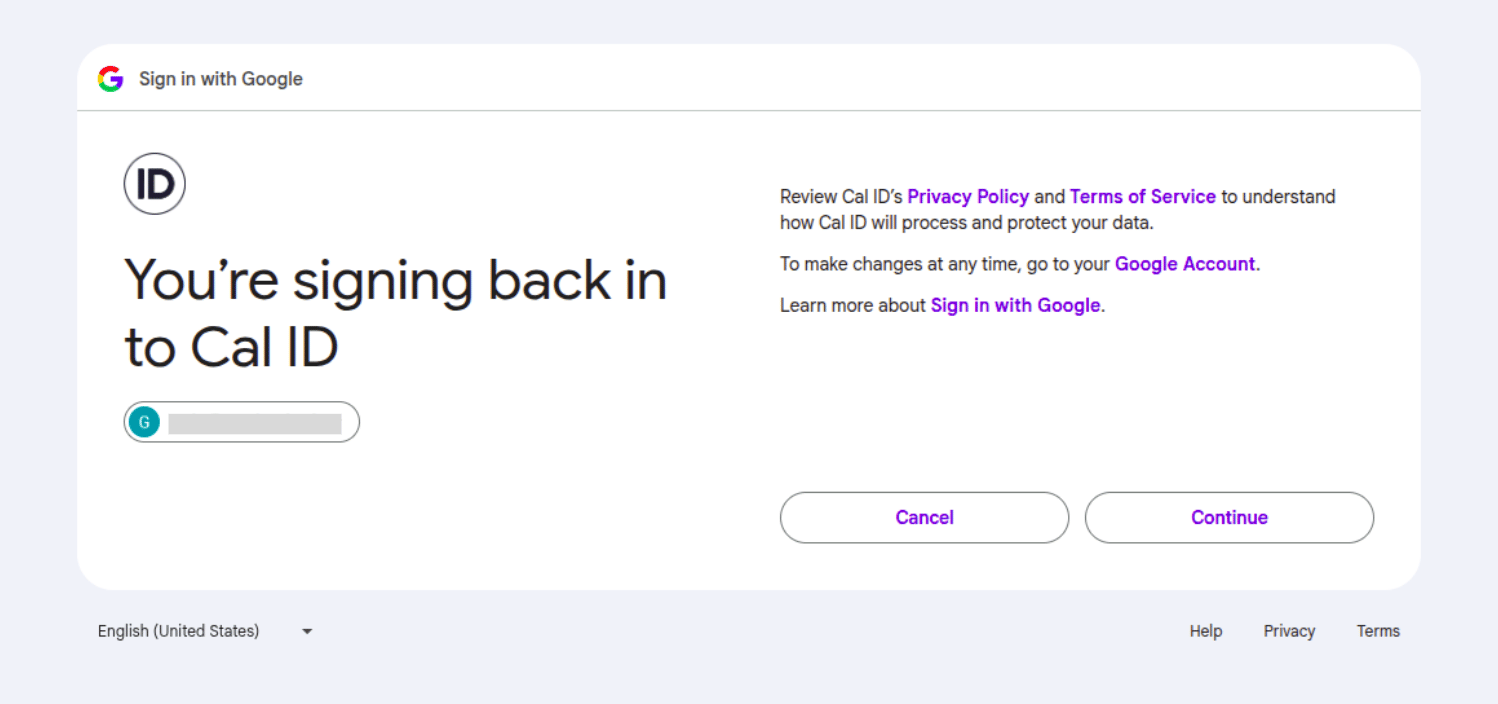
Granting Cal ID access to your calendar
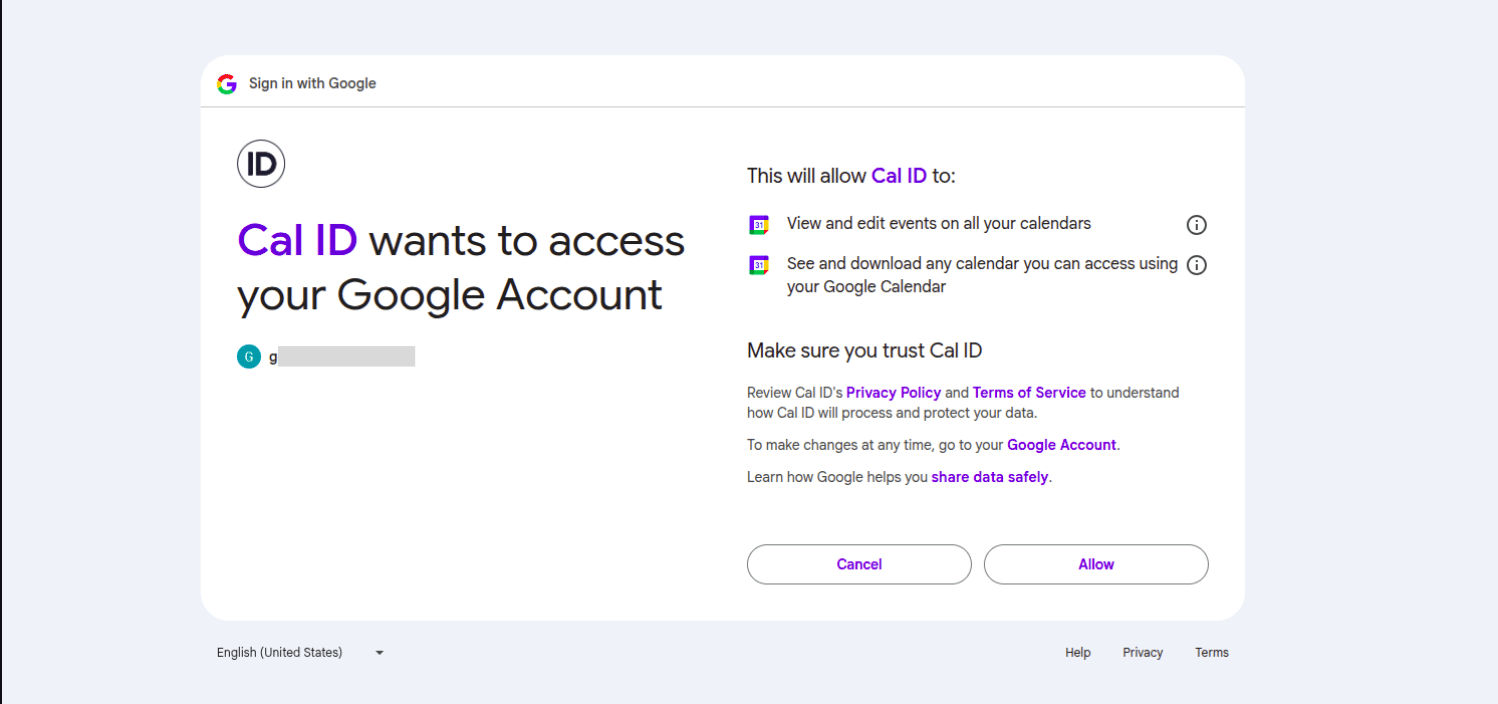
Approving the access Cal ID needs
Why does Cal ID need these permissions?
1
View your calendar
Cal ID reads your existing events to find open time slots it can offer to others. This is what prevents double-booking and keeps your availability current.
2
Create events
When someone books a time with you through Cal ID, the platform adds the event directly to your Google Calendar, blocking off that slot from other bookings.
3
Edit events
If a meeting is rescheduled through Cal ID, the platform updates the matching event on your Google Calendar so it always reflects the latest change.
4
Delete events
If a booking is cancelled through Cal ID, the platform can remove the event from your Google Calendar, keeping it accurate and up to date.
More calendar setup
Connect Apple Calendar
Sync your iCloud events with an app-specific password.
Add Zoom to events
Set Zoom as the meeting location for your event types.