

Plans & pricing
- Startup
- Business
- Enterprise
Upgrade your subscription
Open Subscription
Choose billing and plan
Choose licenses
Confirm and pay
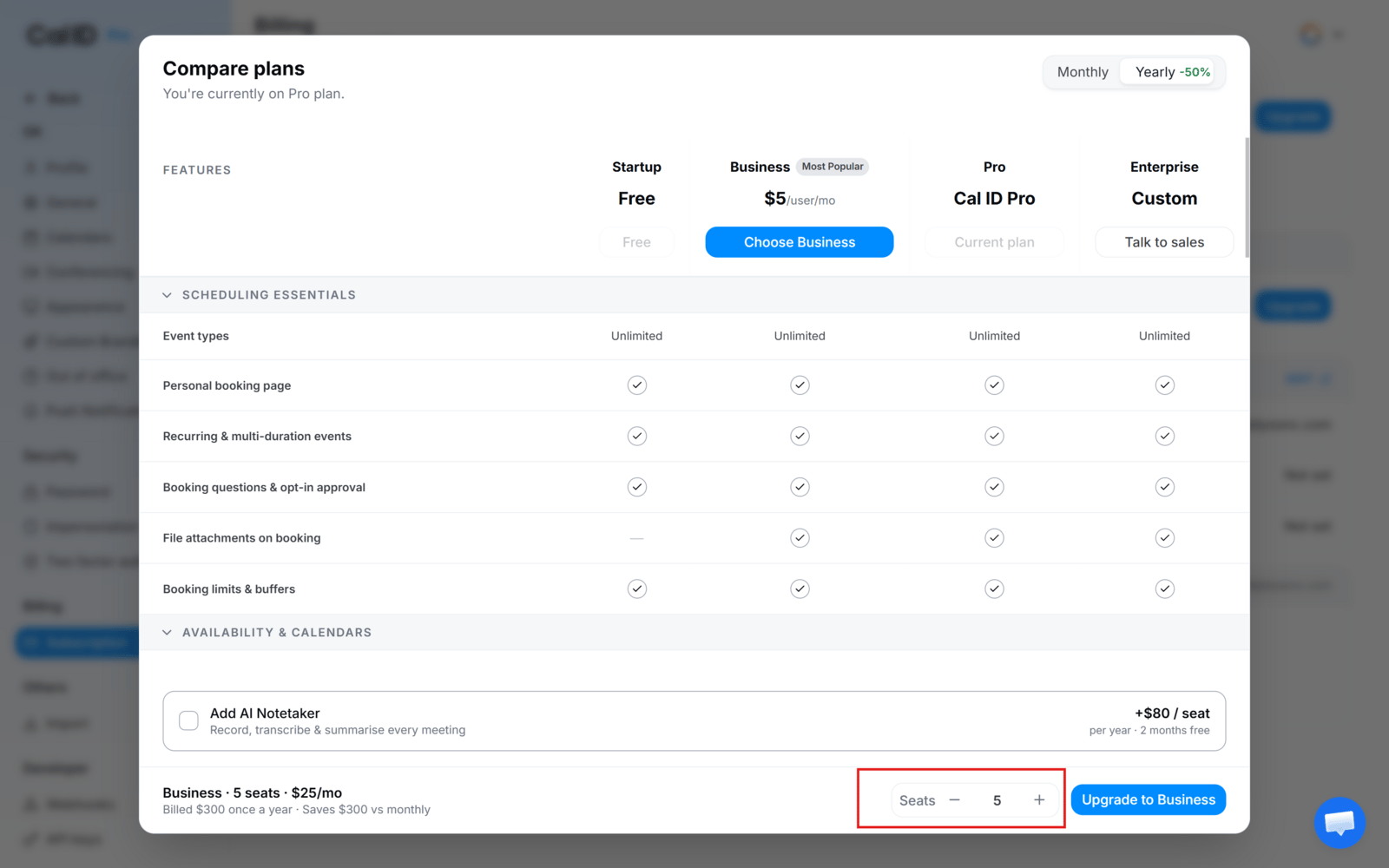
Sizing your plan before checkout
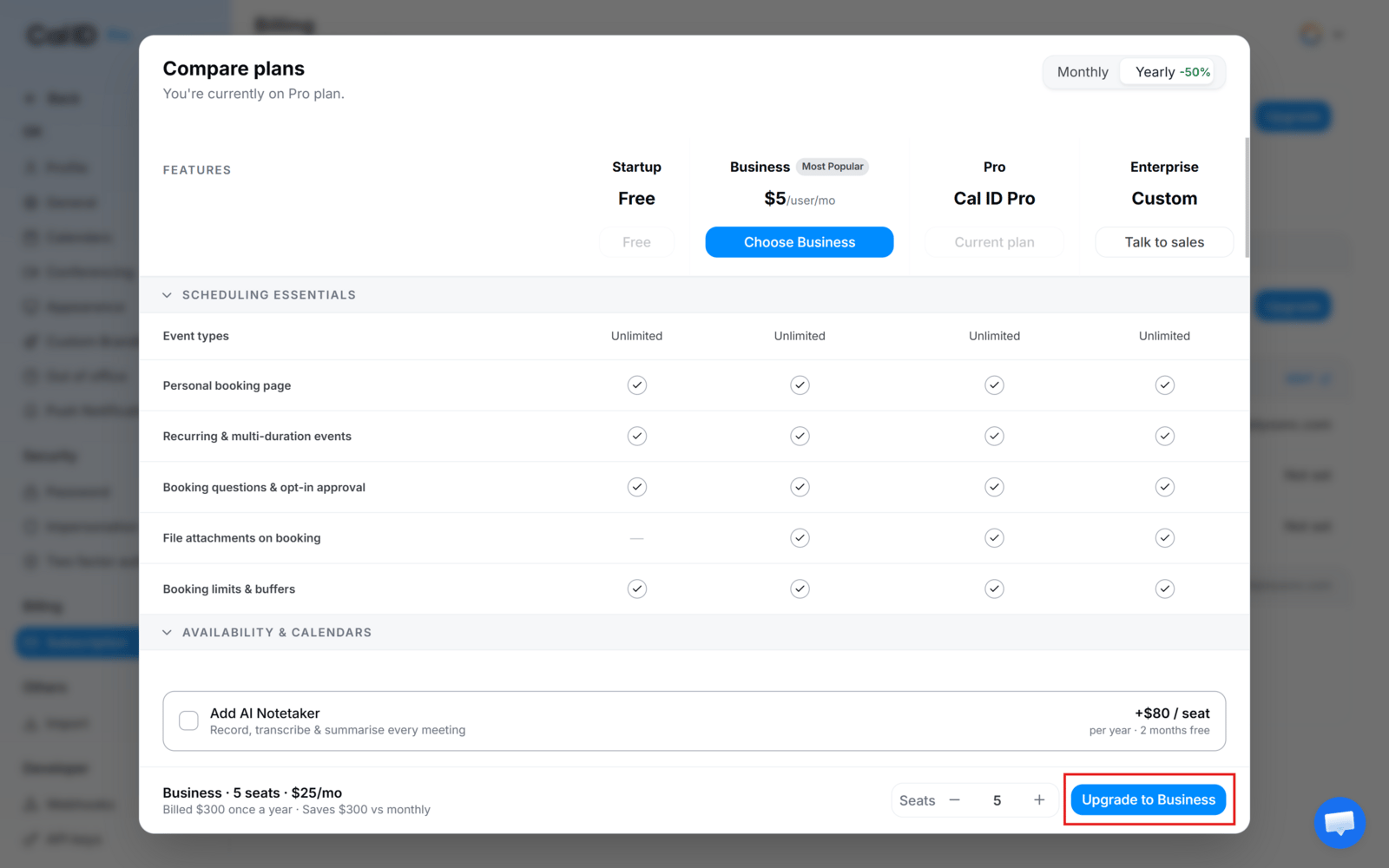
The last click before you're charged
View your subscription
The Subscription page shows your current plan and status. Depending on your account, you may also see seats, subscription date, payment method, billing email, company and billing address, invoices, and available add-ons.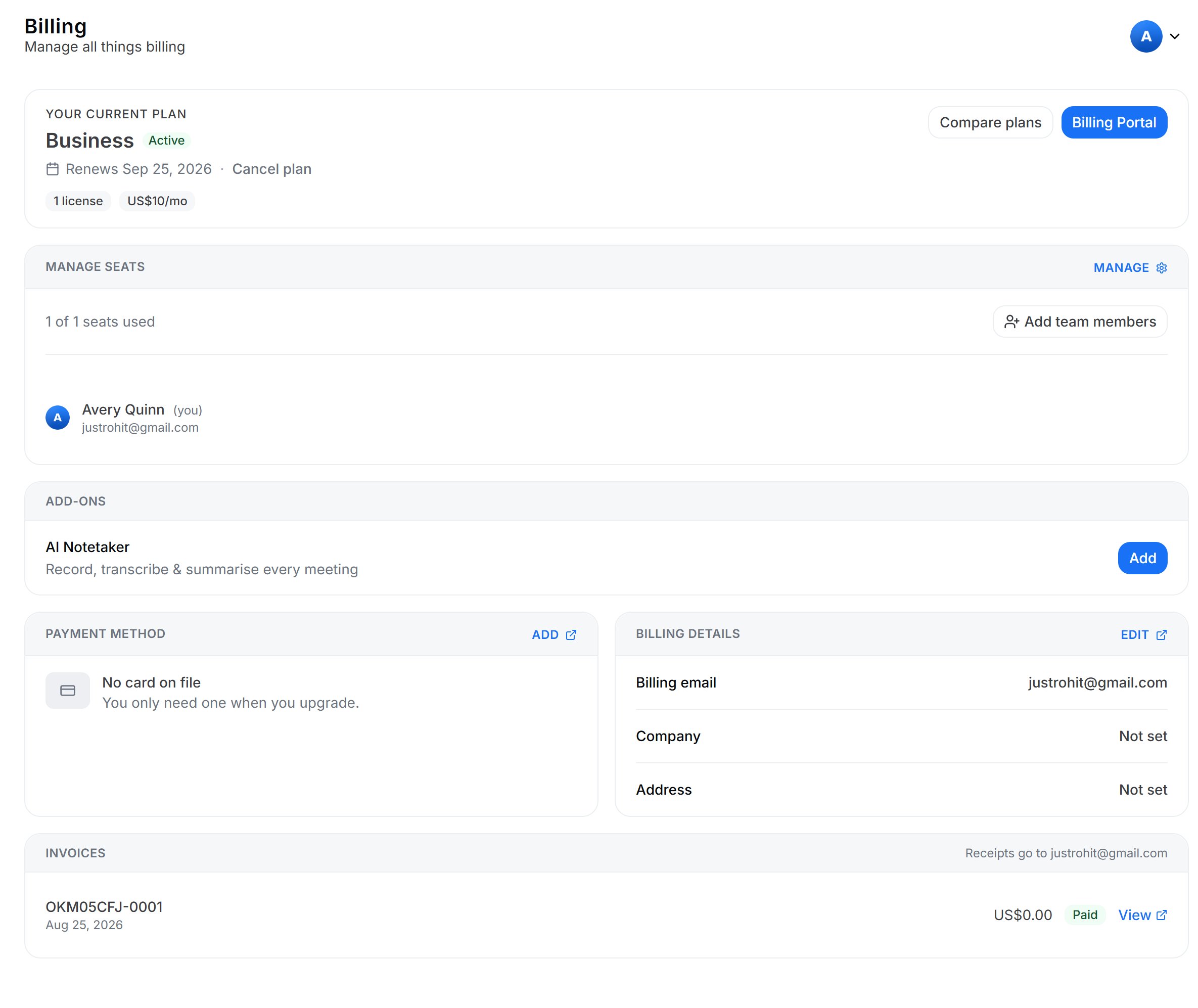
Checking your plan at a glance
Manage Business licenses
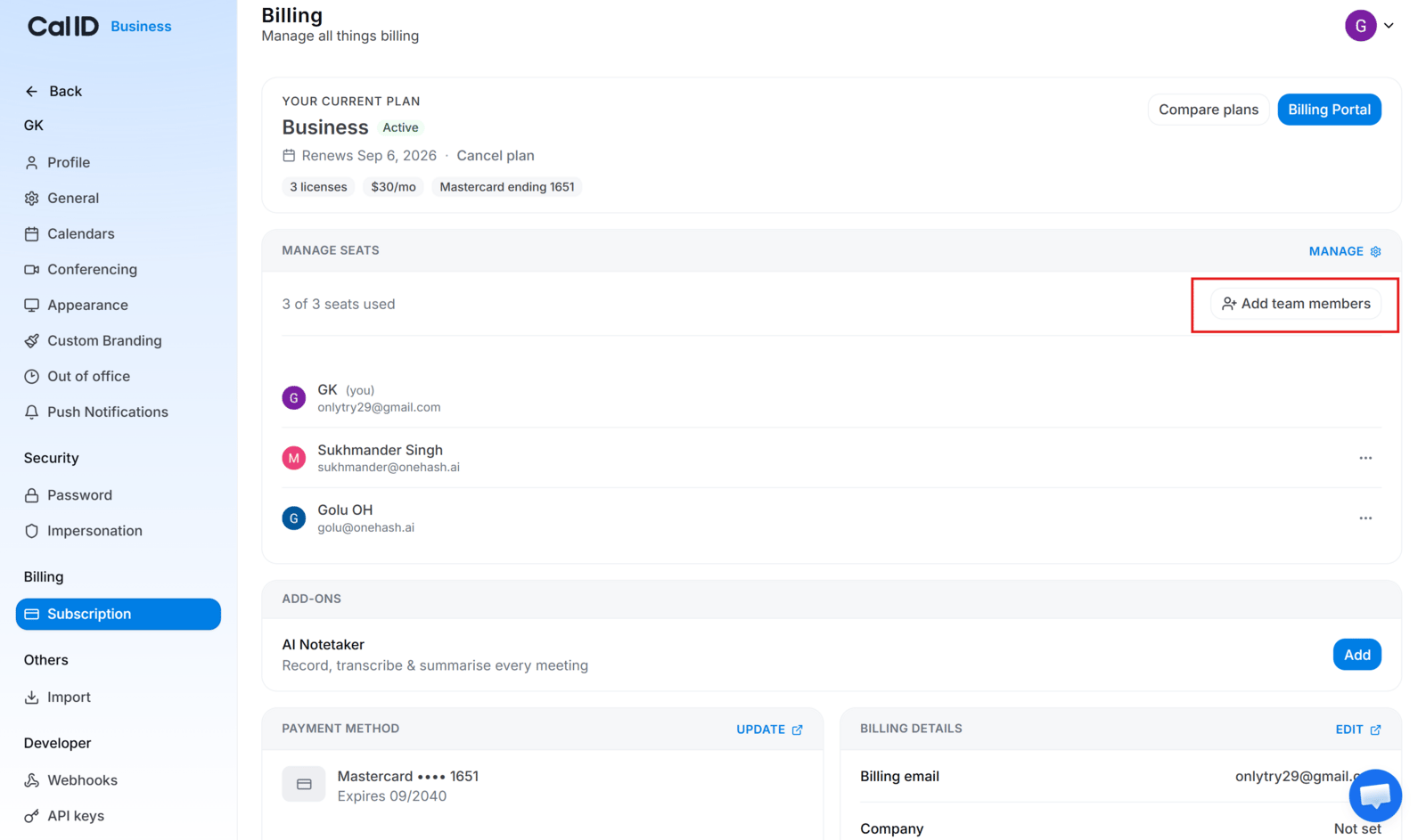
From Settings → Subscription there are two ways to change how many licenses you hold:- Click Manage to increase the license count on your current subscription.
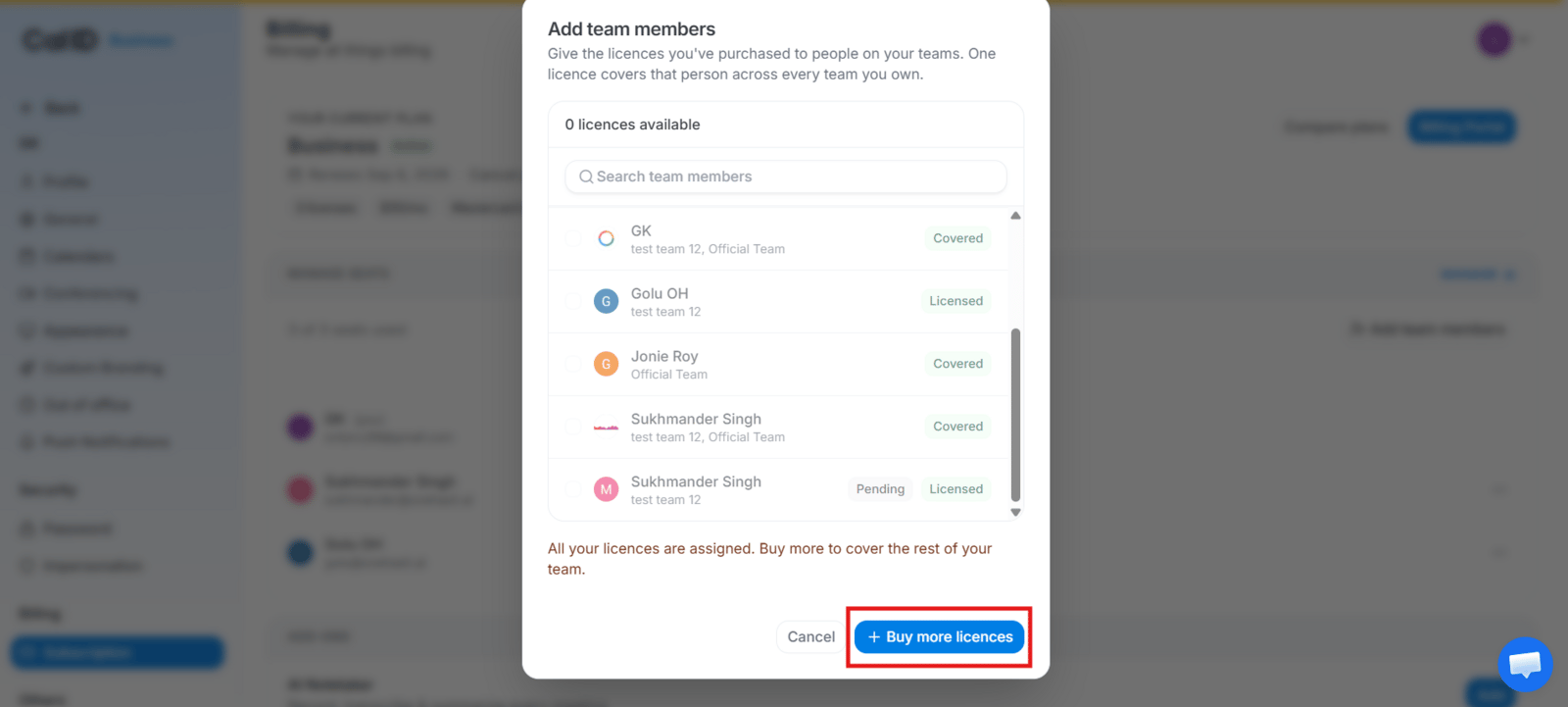
- Click Add team members → Buy more licenses to buy extra seats and complete the checkout.
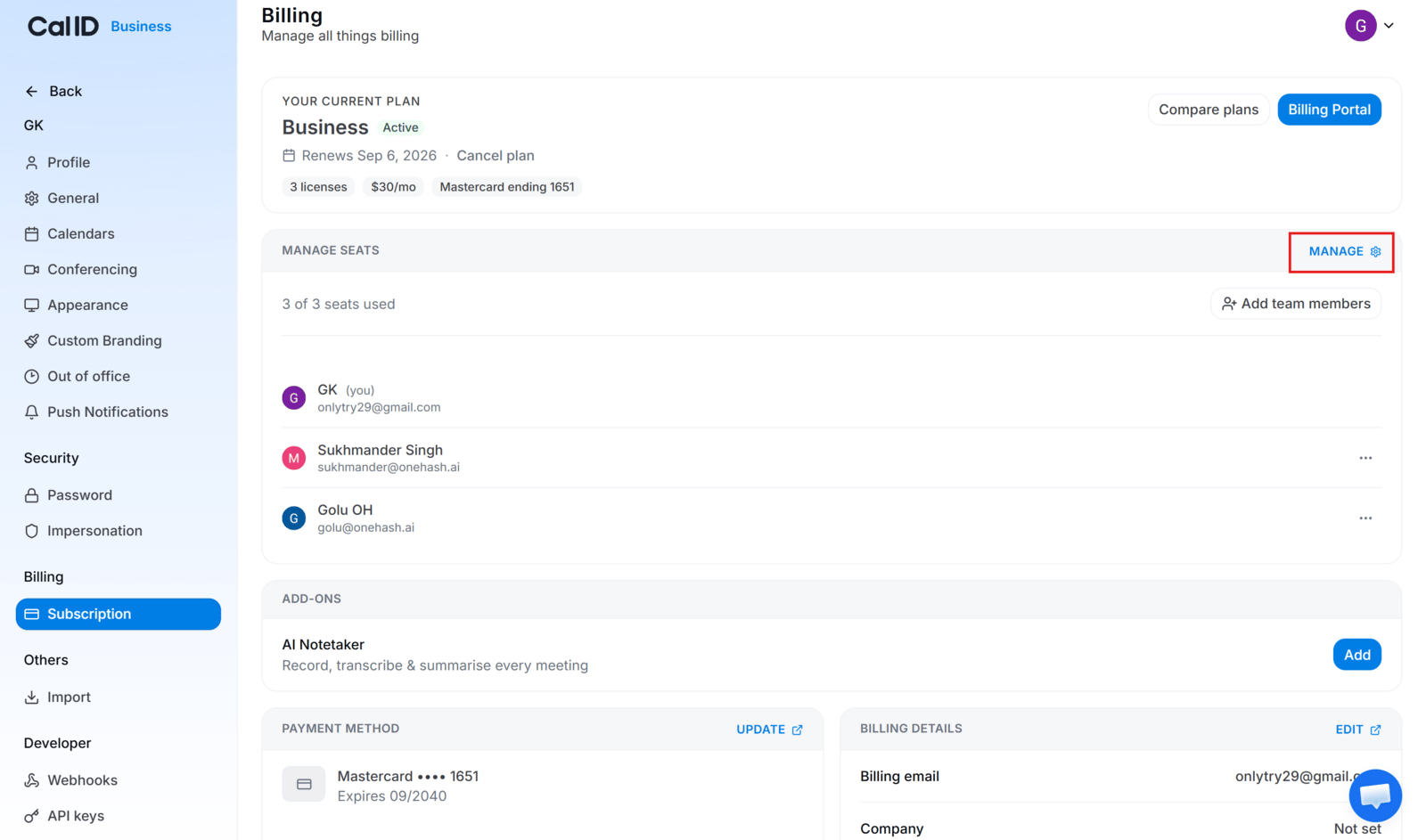
Where a license change starts
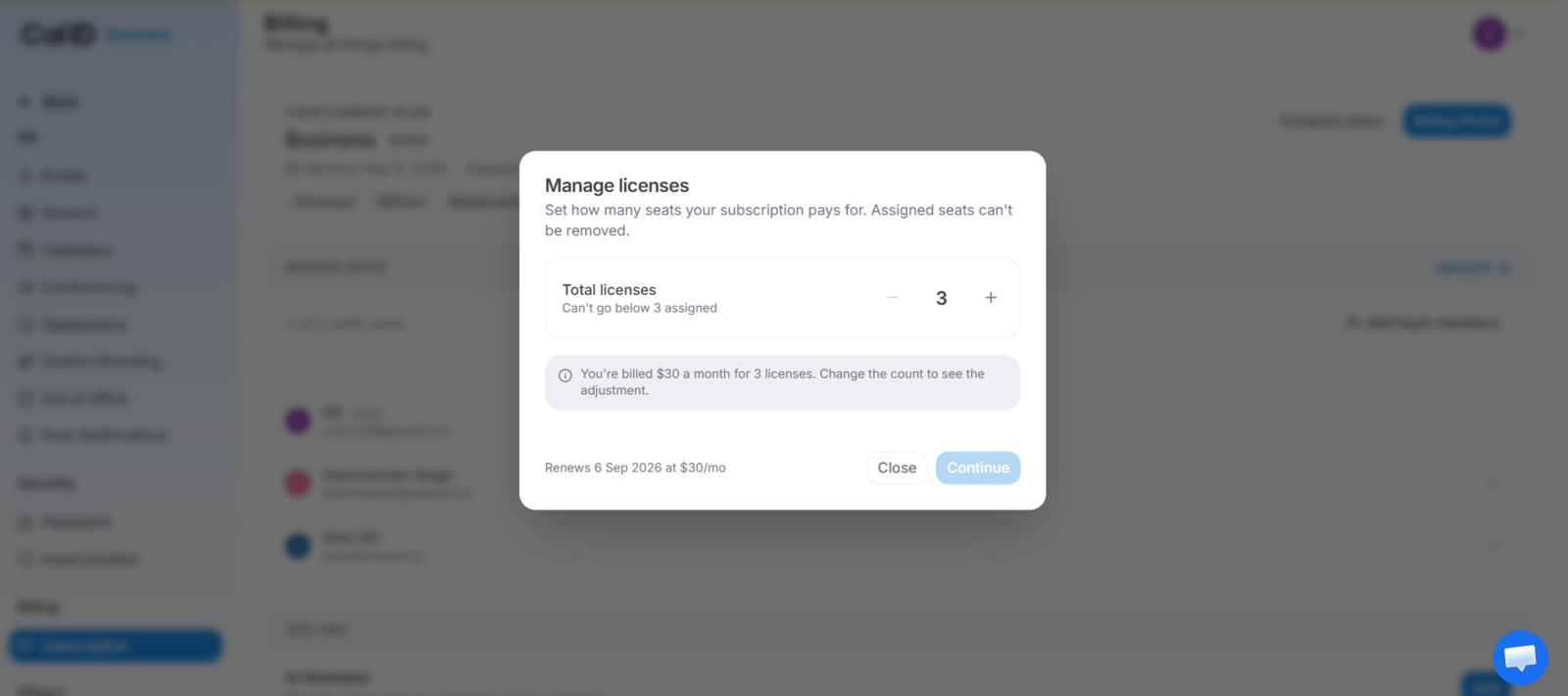
Setting how many seats you need
Buying seats for people you're about to invite
Adding seats for new members
Monthly vs yearly billing
Paid plans offer both monthly and yearly billing where available. Business is $10/user/month** monthly, or **$5/user/month billed annually at $60/user/year — a 50% saving. You can switch between Monthly and Yearly from the plan comparison screen when the option is available for your account.Team scheduling & licensing
Team scheduling is a paid-plan feature. Every member who needs to participate in or access team scheduling must have an eligible paid seat. Either the team owner buys multiple seats and assigns licenses to members, or a member upgrades their own account. A team owner can assign, reassign, or revoke seats from Settings → Subscription or from Teams → Members → three-dot menu → Revoke License. Revoking a license removes that member’s paid access but does not delete their account.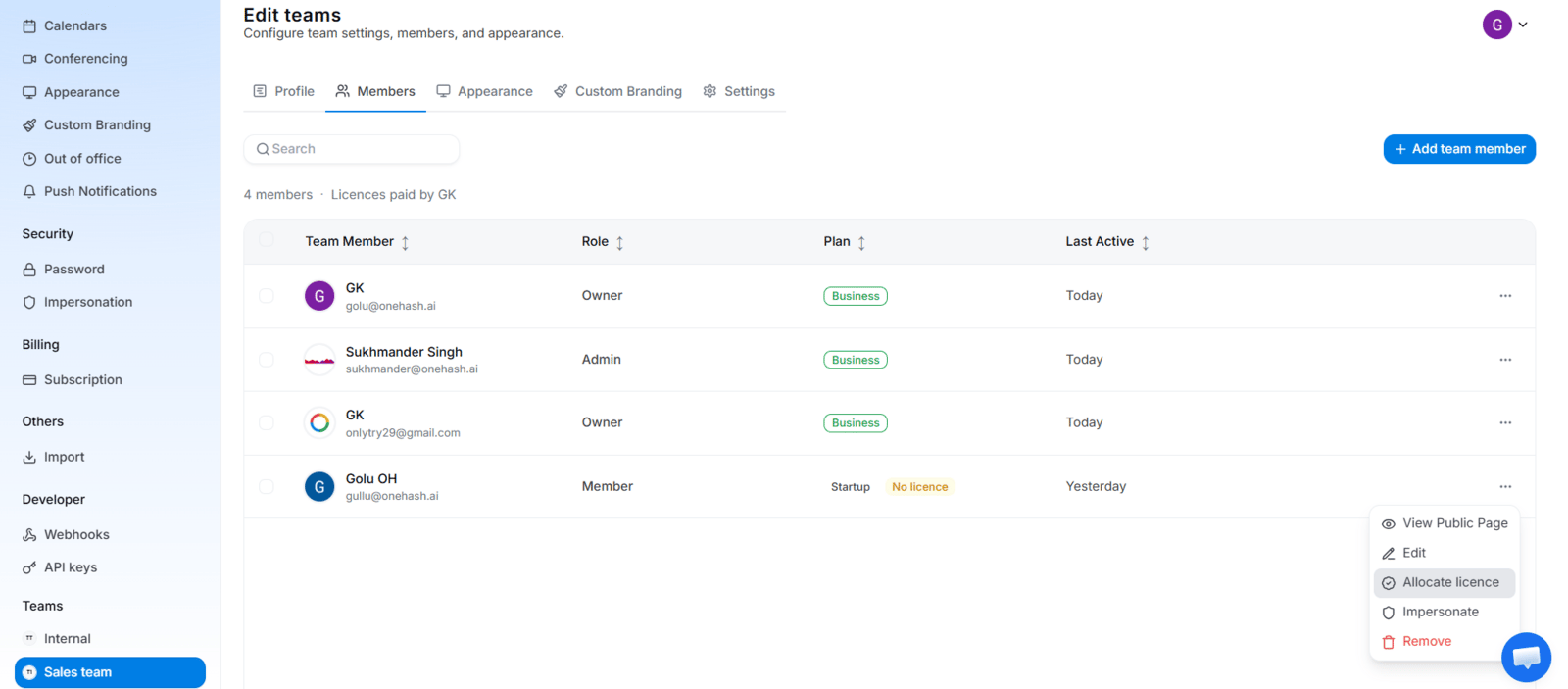
Giving a member paid access
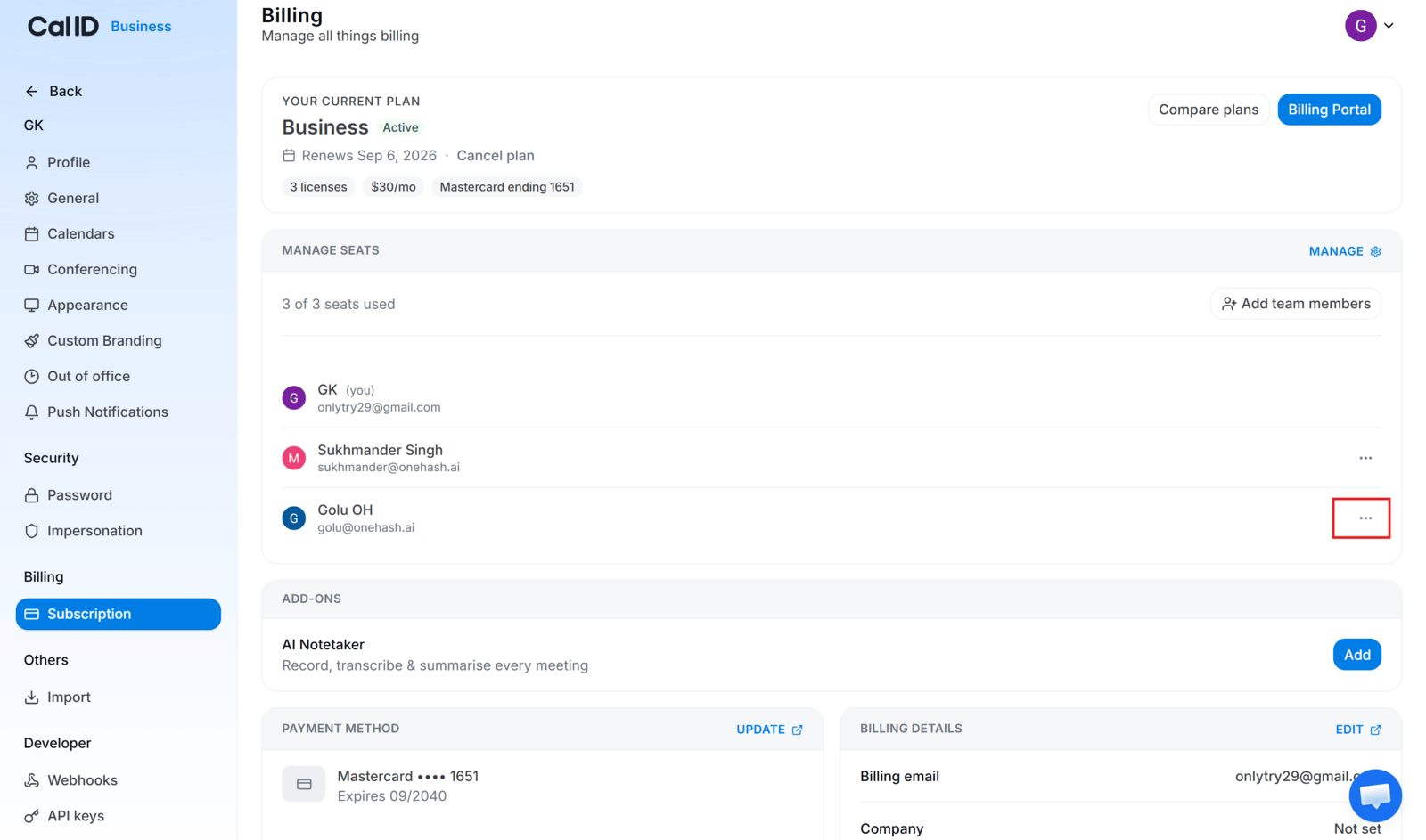
Freeing up a seat to reassign it
Team event types and licensing
Cal ID supports three team event types — Round Robin, Collective, and Managed — each with licensing rules. In every case, an unlicensed host makes the event unbookable for new bookings only; existing bookings are never cancelled or deleted. To fix it, license the host or remove them from the event.- Round Robin — only licensed hosts receive bookings; unlicensed hosts are skipped. If the event uses Fixed Hosts, every fixed host must be licensed, since a fixed host attends every booking.
- Collective — every assigned host must be licensed, because all hosts attend each booking.
- Managed — if a required member is unlicensed, that event’s booking page is unavailable until they have access.
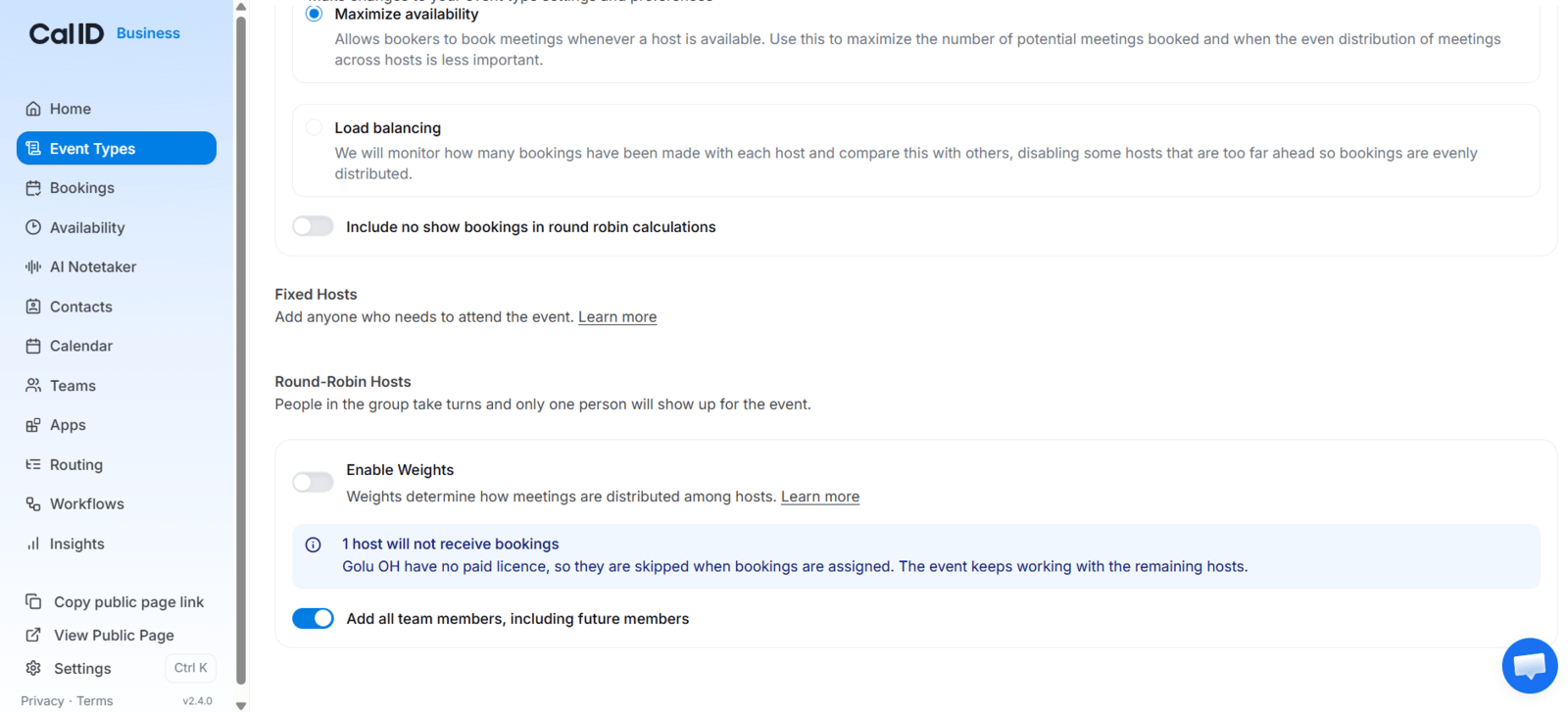
Spotting a host who will be skipped
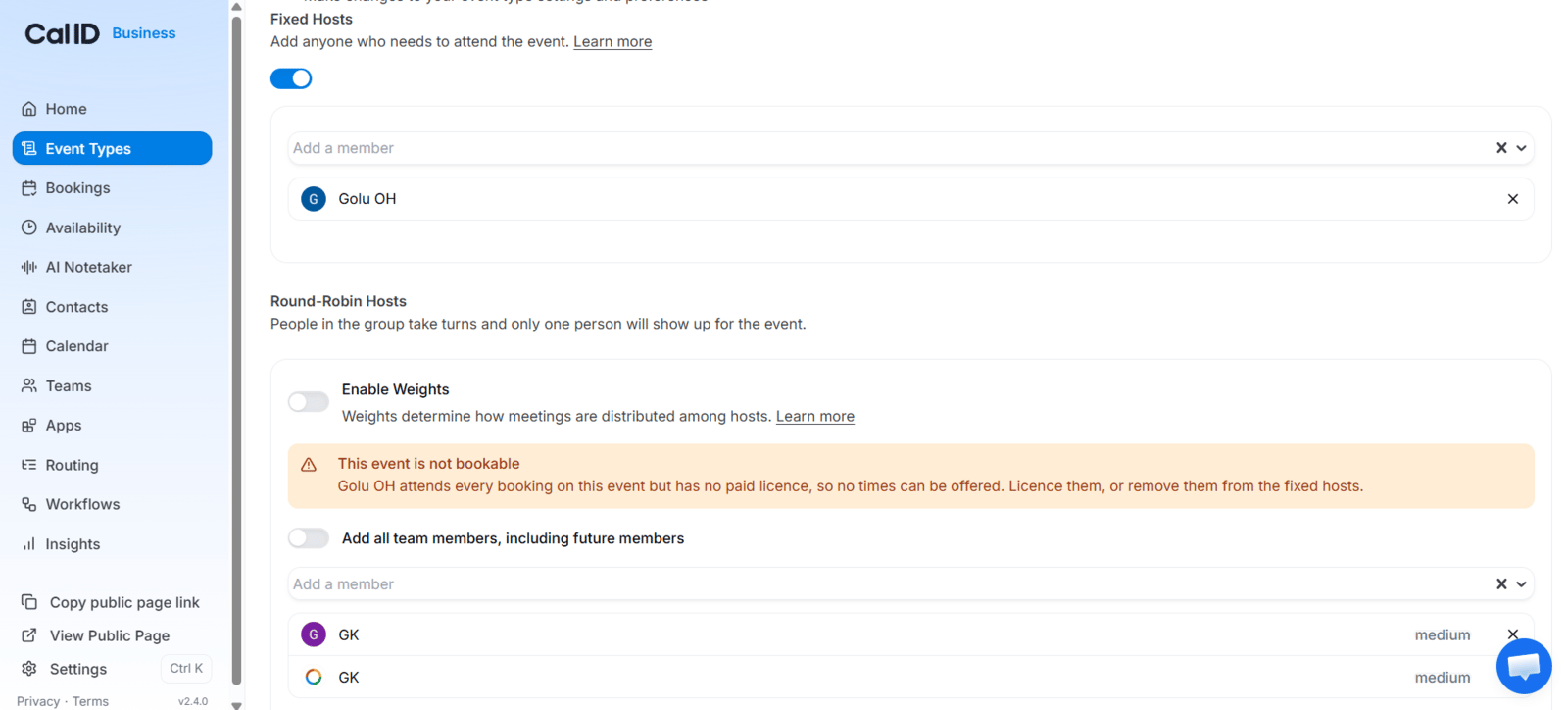
Finding the host who needs a license
Downgrading to Startup
If a team moves to the Startup (free) plan, paid team scheduling is disabled while on Startup — but the team configuration is not deleted. Returning to an eligible paid plan restores it intact. Downgrading also does not affect personal booking (it keeps working under Startup’s features) or existing bookings (they’re not deleted, and you can still reschedule or cancel them).Cancel a paid subscription
Cancel from Settings → Subscription. Your paid features stay available until the end of the period you have already paid for; after that the account moves to Startup. Your data is kept, so nothing needs recreating if you come back to a paid plan later.AI Notetaker add-on
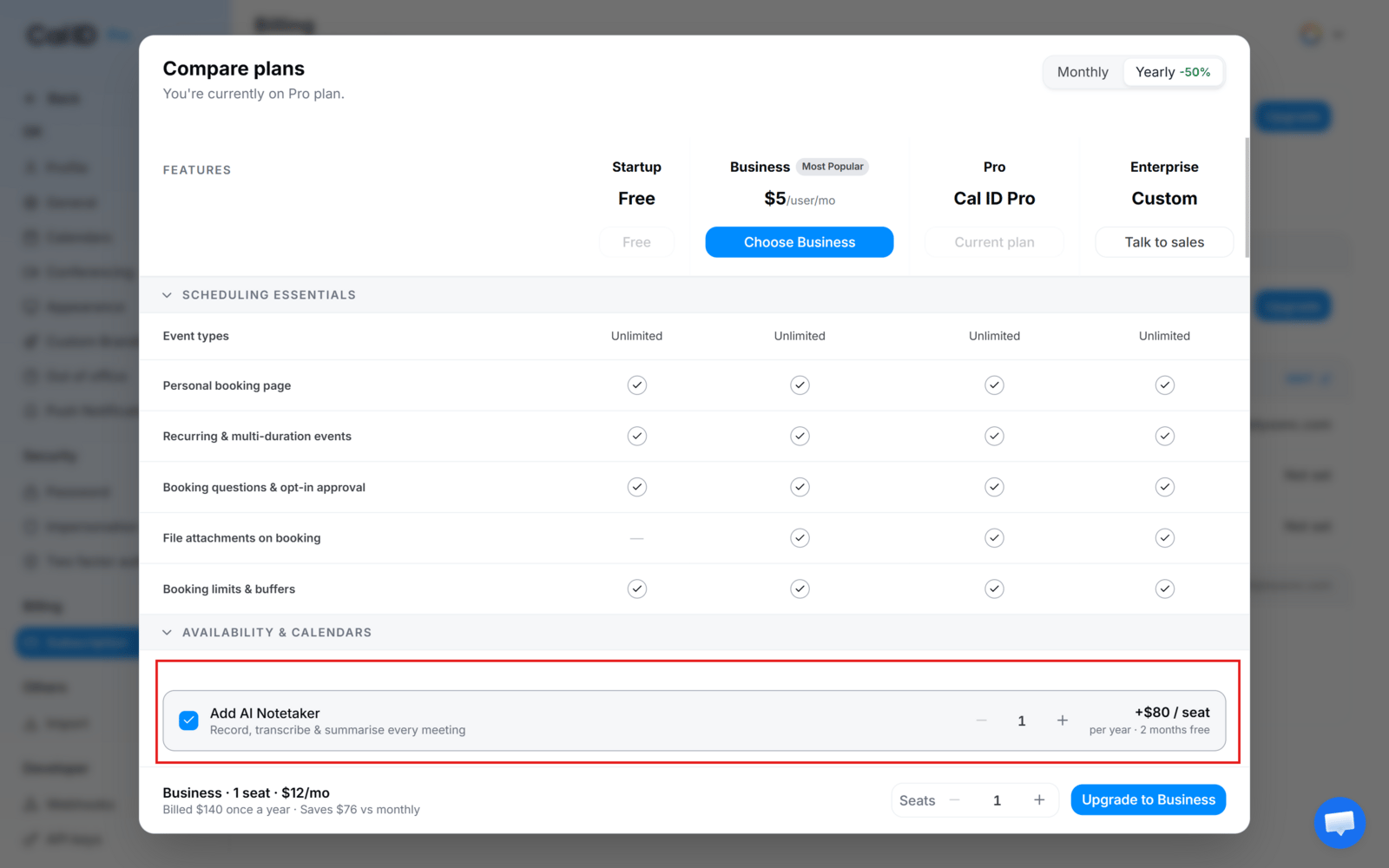
Bolting the notetaker onto your plan
App integrations and plans
App integrations from the App Store are available on every plan, with one exception: WhatsApp Business (used for Book on WhatsApp and WhatsApp Business messaging) requires the Business plan. This includes payment apps — Stripe, Razorpay, and PayPal all connect to any plan so you can charge for paid bookings on Startup, Business, or Enterprise. Plan limits still apply to bundled features such as SMS and WhatsApp workflow messages.Payment, billing & invoices
The Subscription page holds your payment method, billing details, and invoices.Payment method
On Startup with no paid subscription you may see “No card on file”. A payment method is required before you can buy a paid plan or an add-on.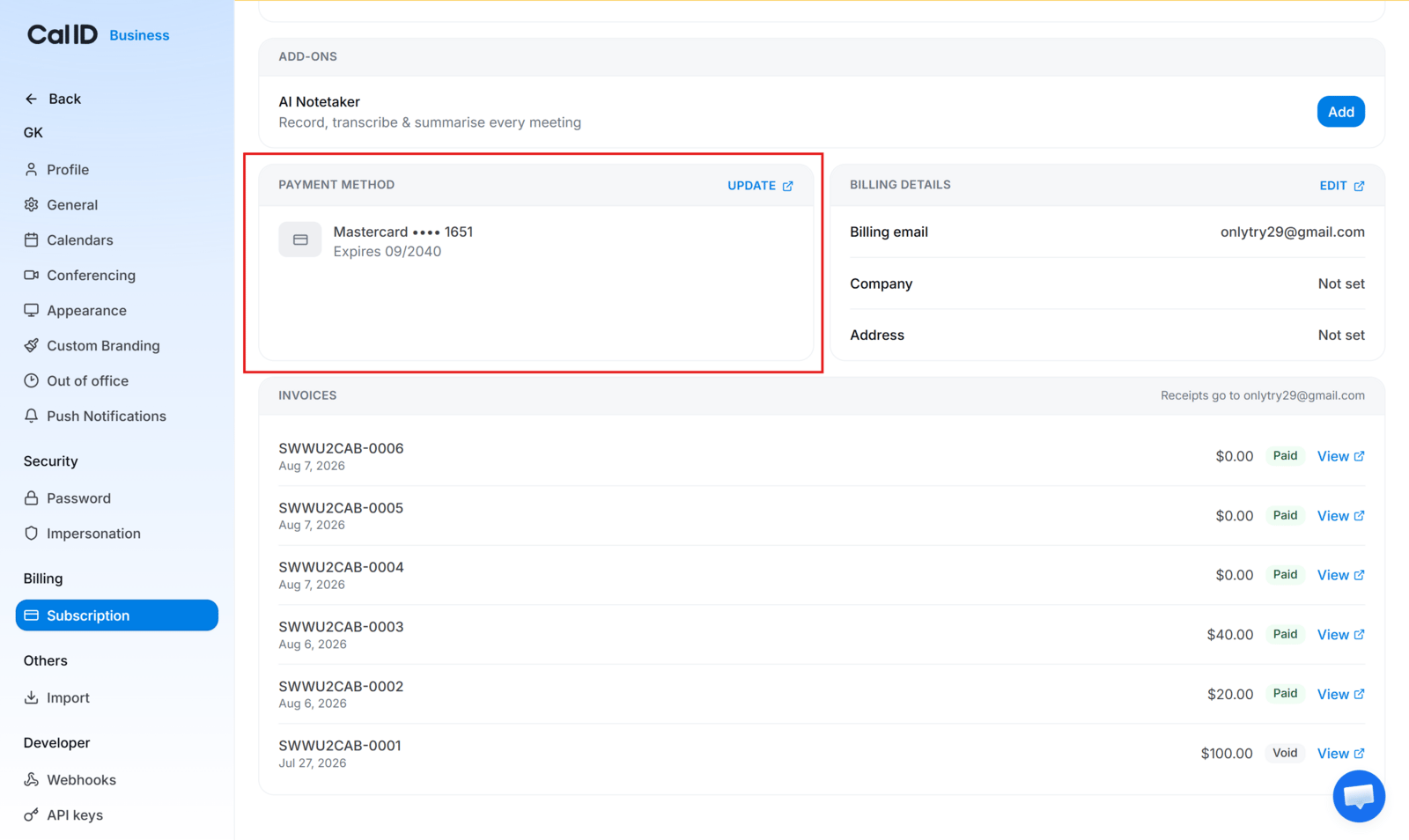
Before you've added a card
Billing details
Edit your billing email, company name, and billing address in the Billing Details section.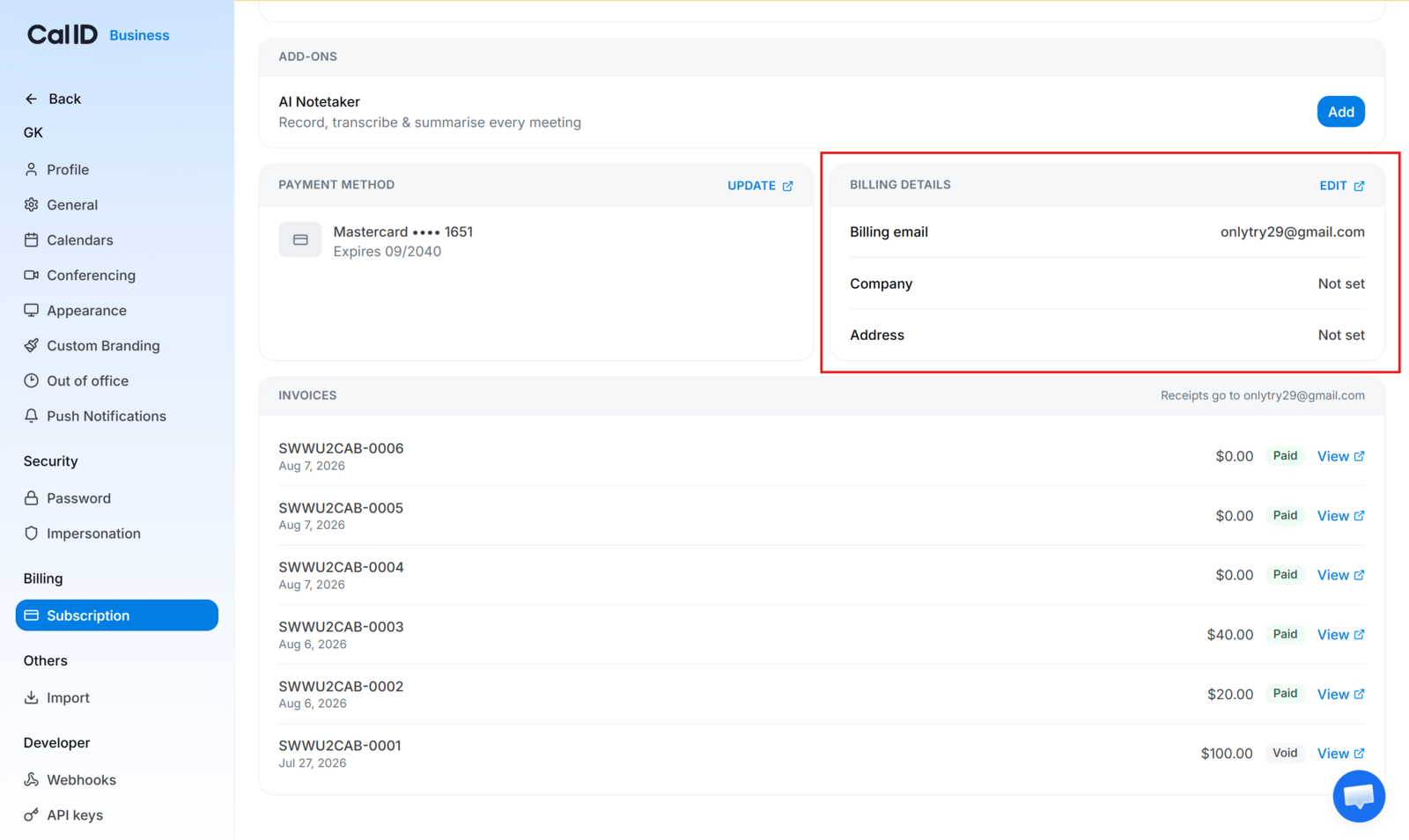
Keeping invoices addressed correctly
Invoices and receipts
Invoices appear in the Invoices section after a paid charge. The page also shows the email address billing receipts are sent to.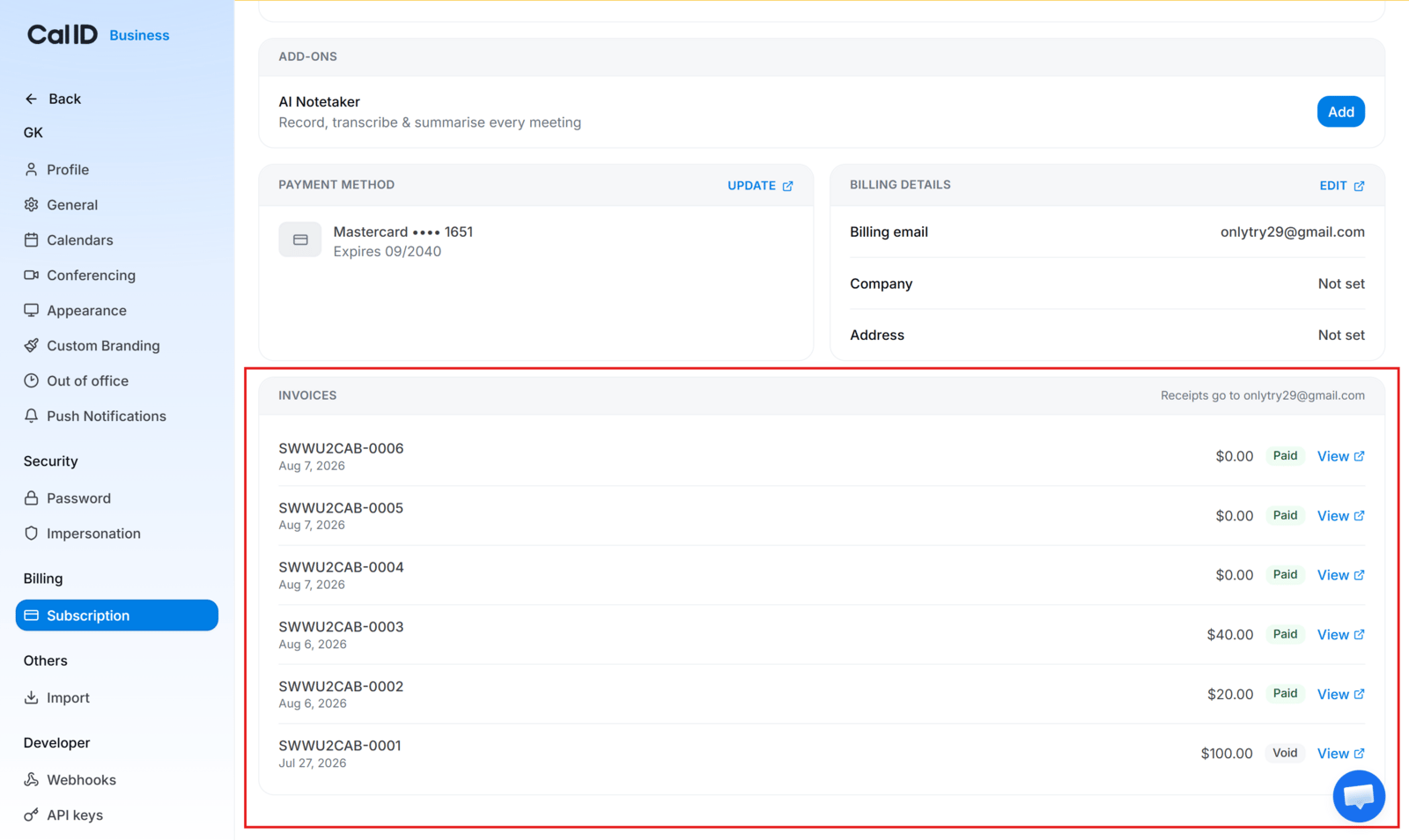
Tracking down a past charge
Frequently asked questions
Is the Startup plan free?
Is the Startup plan free?
Does every team member need a paid plan?
Does every team member need a paid plan?
What happens if a Collective or fixed Round Robin host isn't licensed?
What happens if a Collective or fixed Round Robin host isn't licensed?
What happens to my team if I downgrade to Startup?
What happens to my team if I downgrade to Startup?
Is AI Notetaker included in Business?
Is AI Notetaker included in Business?
Can I switch between monthly and yearly billing?
Can I switch between monthly and yearly billing?
Is there a free trial?
Is there a free trial?
Do you offer quarterly or half-yearly billing?
Do you offer quarterly or half-yearly billing?
Which currency do you bill in, and is GST charged?
Which currency do you bill in, and is GST charged?
How do I cancel my subscription?
How do I cancel my subscription?
Can I get a refund?
Can I get a refund?
Do I need a paid plan to charge for bookings with Stripe, Razorpay, or PayPal?
Do I need a paid plan to charge for bookings with Stripe, Razorpay, or PayPal?
Which app integrations are limited by plan?
Which app integrations are limited by plan?