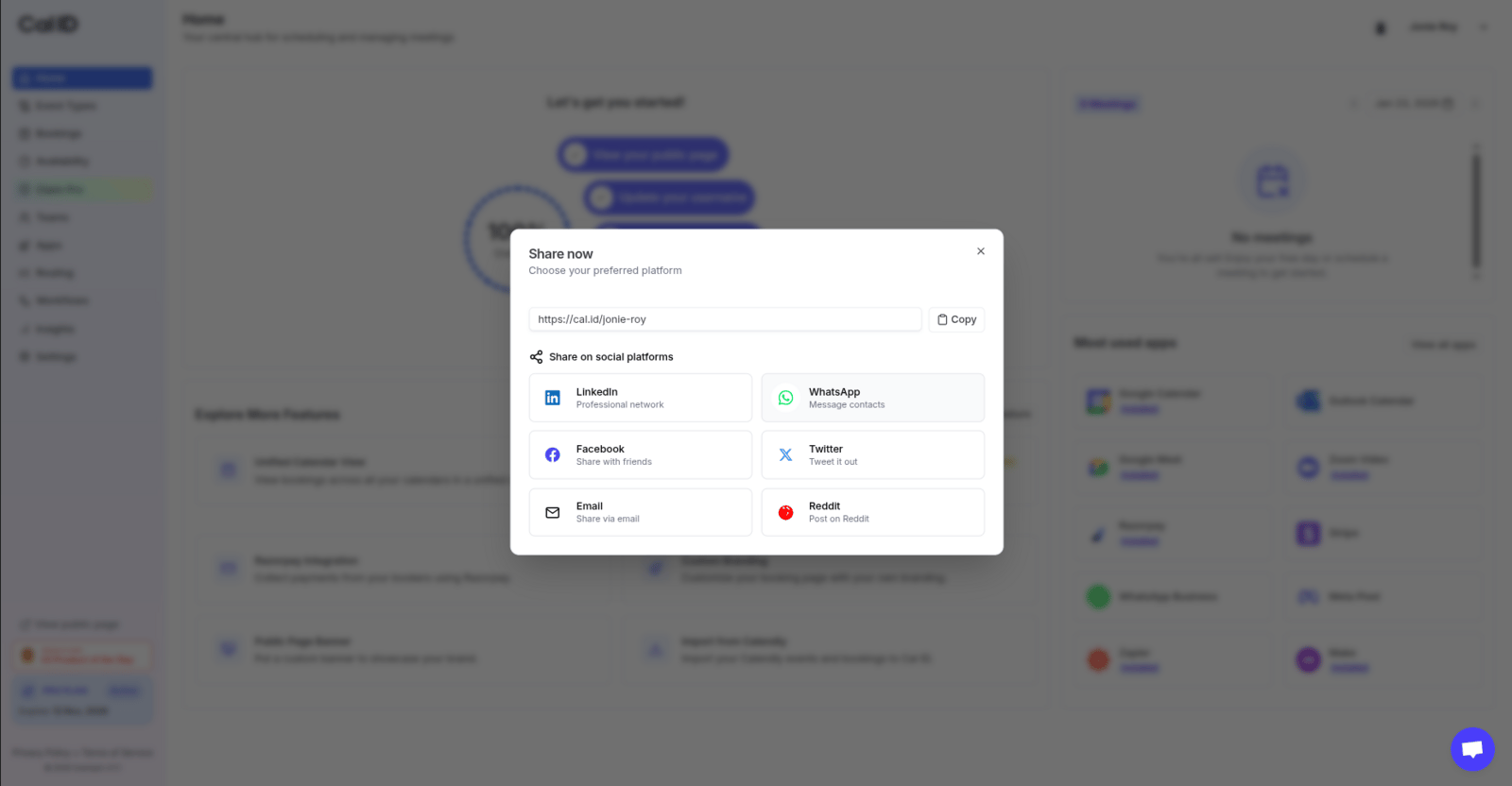
Find your Cal ID booking link and share it from the dashboard, profile settings, or individual event types across email, chat, and social channels.
Your booking link is the address you share with others so they can view your availability and schedule meetings with you. There are several places to find and share it, depending on what you need.
If you want to share a link for a specific meeting type (like an “Interview” or “Introductory Call”) rather than your general profile, follow these steps.
1
Open Event Types
Navigate to the Event Types tab in the left-hand sidebar.
2
Locate the event
Locate the specific event you want to share from your list.
3
To copy quickly
Click the copy icon (two overlapping squares) next to the event URL on the event card.
4
To preview or copy from the editor
Click the Event Name to open the editor. You’ll find the full URL in the URL field on the Event Setup tab.Click the copy icon next to that field, or click the external link icon to view the live booking page before sharing.
{"docsConfig":{"theme":"mint","$schema":"https://mintlify.com/docs.json","name":"Cal ID","description":"Cal ID help center — scheduling, event types, availability, teams, apps, workflows, and developer tools for the Cal ID meeting scheduler.","colors":{"primary":"#1972F5","light":"#5B9BFF","dark":"#0B4FB8"},"logo":{"light":"https://mintcdn.com/cal-id-docs/k1VHQ7P5ONAHeLvP/logo/light.svg?fit=max\u0026auto=format\u0026n=k1VHQ7P5ONAHeLvP\u0026q=85\u0026s=589c4a9c69ea7387516e6452f592553e","dark":"https://mintcdn.com/cal-id-docs/tkghSGJWVIrQX7X0/logo/dark.svg?fit=max\u0026auto=format\u0026n=tkghSGJWVIrQX7X0\u0026q=85\u0026s=3215902115e27959cb7782b1af38e9fe"},"favicon":"https://mintcdn.com/cal-id-docs/NUrc1nmEeHvCjwEV/favicon.svg?fit=max\u0026auto=format\u0026n=NUrc1nmEeHvCjwEV\u0026q=85\u0026s=3247c427392ba77a41b08a807c322bfb","navbar":{"links":[{"href":"mailto:support@cal.id","label":"Email Us"}],"primary":{"type":"button","label":"Go to Cal ID","href":"https://cal.id"}},"footer":{"socials":{"x":"https://x.com/OneHash","linkedin":"https://www.linkedin.com/company/onehash"}},"errors":{"404":{"redirect":false,"title":"We couldn't find that page","description":"The page you're looking for doesn't exist or may have moved. Head back to the [Help Center home](/), or jump to [Event Types](/event-types/overview), [Availability](/availability/create), [Teams](/teams/overview), or the [API Reference](/api-reference) — or use the search bar above. Still stuck? Email us at [support@cal.id](mailto:support@cal.id)."}},"contextual":{"options":["copy","view","chatgpt","claude","perplexity","mcp","cursor","vscode","download-spec"],"display":"header"},"styling":{"latex":true},"navigation":{"pages":[]}},"deployment":{"deploymentMetadataValue":{"subdomain":"cal-id-docs","hasAudioNarration":false,"actualSubdomain":"cal-id-docs","customDomains":["cal.id"],"gitSource":{"type":"github","owner":"onehashai","repo":"mintlify-docs","deployBranch":"main","contentDirectory":"","isPrivate":true,"mountPath":"","label":""},"chroma":{"latestBuiltDeploymentHistoryId":"6ab916db4c0abff9c16e8c99","collectionId":"a1537af2-6a4a-409a-a4fe-70a6408ebcf7","liveDeploymentHistoryId":"6ab916db4c0abff9c16e8c99","schemaVersion":"v3"},"feedback":{"thumbs":true,"agentFeedback":false},"entitlements":{"AI_CHAT":{"status":"ENABLED"},"WEB_MCP":{"status":"ENABLED"},"NARRATION":{"status":"ENABLED"}},"buildId":"6ab916db4c0abff9c16e8c99","clientVersion":"0.0.4044","searchFilterCounts":[{"language":"default","tag":"API Reference","count":60},{"language":"default","tag":"Endpoints","count":58},{"language":"default","tag":"Event Types","count":57},{"language":"default","tag":"Scheduling \u0026 Teams","count":31},{"language":"default","tag":"Get Started","count":31},{"language":"default","tag":"Customization \u0026 Settings","count":23},{"language":"default","tag":"Apps \u0026 Integrations","count":22},{"language":"default","tag":"Advanced","count":18},{"language":"default","tag":"Developers","count":17},{"language":"default","tag":"Teams","count":16}],"searchSettings":{"isFiltersEnabled":false}},"assistantConfig":{"enableAskAiButton":false,"enableStarterQuestions":true,"enableContextualStarterQuestions":true,"enableAskAiSearchBar":true,"deflection":{"enabled":true,"email":"support@cal.id"}},"basePath":"/docs","hasChatPermissions":true,"hasWebMcpPermissions":true,"toggles":[{"name":"kill-isr","enabled":true,"variant":{"name":"disabled","enabled":false,"feature_enabled":true},"impressionData":false},{"name":"agent-mintlify-slack","enabled":true,"variant":{"name":"disabled","enabled":false,"feature_enabled":true},"impressionData":false},{"name":"agent-integrations-settings","enabled":true,"variant":{"name":"disabled","enabled":false,"feature_enabled":true},"impressionData":false},{"name":"automations-pr-grouping","enabled":true,"variant":{"name":"disabled","enabled":false,"feature_enabled":true},"impressionData":false},{"name":"custom-prefix","enabled":true,"variant":{"name":"disabled","enabled":false,"feature_enabled":true},"impressionData":false},{"name":"analytics-v7","enabled":true,"variant":{"name":"disabled","enabled":false,"feature_enabled":true},"impressionData":false},{"name":"user-flows-analytics","enabled":true,"variant":{"name":"disabled","enabled":false,"feature_enabled":true},"impressionData":false},{"name":"no-publish-flow","enabled":true,"variant":{"name":"disabled","enabled":false,"feature_enabled":true},"impressionData":false},{"name":"workos-onboarding","enabled":true,"variant":{"name":"disabled","enabled":false,"feature_enabled":true},"impressionData":false},{"name":"llms-txt-v2","enabled":true,"variant":{"name":"disabled","enabled":false,"feature_enabled":true},"impressionData":false},{"name":"snapshot-serving-live","enabled":true,"variant":{"name":"disabled","enabled":false,"feature_enabled":true},"impressionData":false},{"name":"stripTemperatureMiddleware","enabled":true,"variant":{"name":"disabled","enabled":false,"feature_enabled":true},"impressionData":false},{"name":"support-platform-pylon-zendesk","enabled":true,"variant":{"name":"disabled","enabled":false,"feature_enabled":true},"impressionData":false},{"name":"snapshot-serving","enabled":true,"variant":{"name":"disabled","enabled":false,"feature_enabled":true},"impressionData":false},{"name":"instant-rollback","enabled":true,"variant":{"name":"disabled","enabled":false,"feature_enabled":true},"impressionData":false},{"name":"granular-notifications-server","enabled":true,"variant":{"name":"disabled","enabled":false,"feature_enabled":true},"impressionData":false},{"name":"granular-notifications","enabled":true,"variant":{"name":"disabled","enabled":false,"feature_enabled":true},"impressionData":false},{"name":"automations-fable","enabled":true,"variant":{"name":"disabled","enabled":false,"feature_enabled":true},"impressionData":false},{"name":"fixed-ai-action-pricing","enabled":true,"variant":{"name":"disabled","enabled":false,"feature_enabled":true},"impressionData":false},{"name":"automation-resolve-merge-conflict","enabled":true,"variant":{"name":"disabled","enabled":false,"feature_enabled":true},"impressionData":false},{"name":"scoped-publishing","enabled":true,"variant":{"name":"disabled","enabled":false,"feature_enabled":true},"impressionData":false},{"name":"mintql","enabled":true,"variant":{"name":"disabled","enabled":false,"feature_enabled":true},"impressionData":false},{"name":"page-level-analytics","enabled":true,"variant":{"name":"disabled","enabled":false,"feature_enabled":true},"impressionData":false},{"name":"editor-version-history-v2","enabled":true,"variant":{"name":"disabled","enabled":false,"feature_enabled":true},"impressionData":false},{"name":"billing-page-v2","enabled":true,"variant":{"name":"disabled","enabled":false,"feature_enabled":true},"impressionData":false},{"name":"full-page-search","enabled":true,"variant":{"name":"disabled","enabled":false,"feature_enabled":true},"impressionData":false},{"name":"workspace-projects","enabled":true,"variant":{"name":"disabled","enabled":false,"feature_enabled":true},"impressionData":false},{"name":"assistant-v5","enabled":true,"variant":{"name":"disabled","enabled":false,"feature_enabled":true},"impressionData":false},{"name":"byok-sep-25","enabled":true,"variant":{"name":"disabled","enabled":false,"feature_enabled":true},"impressionData":false},{"name":"fork-pr-previews","enabled":true,"variant":{"name":"disabled","enabled":false,"feature_enabled":true},"impressionData":false},{"name":"revalidation-jwt","enabled":true,"variant":{"name":"disabled","enabled":false,"feature_enabled":true},"impressionData":false},{"name":"vite-origin","enabled":true,"variant":{"name":"disabled","enabled":false,"feature_enabled":true},"impressionData":false},{"name":"billing-updated-9-15","enabled":true,"variant":{"name":"disabled","enabled":false,"feature_enabled":true},"impressionData":false},{"name":"workos-sso-scim","enabled":true,"variant":{"name":"disabled","enabled":false,"feature_enabled":true},"impressionData":false},{"name":"hobby-abuse-scan","enabled":true,"variant":{"name":"disabled","enabled":false,"feature_enabled":true},"impressionData":false},{"name":"dashboard-inbox","enabled":true,"variant":{"name":"disabled","enabled":false,"feature_enabled":true},"impressionData":false},{"name":"workos-signup","enabled":true,"variant":{"name":"disabled","enabled":false,"feature_enabled":true},"impressionData":false},{"name":"turbopuffer-dual-write","enabled":true,"variant":{"name":"disabled","enabled":false,"feature_enabled":true},"impressionData":false},{"name":"workos-enabled","enabled":true,"variant":{"name":"disabled","enabled":false,"feature_enabled":true},"impressionData":false},{"name":"approve-review-flow","enabled":true,"variant":{"name":"disabled","enabled":false,"feature_enabled":true},"impressionData":false},{"name":"sso-setup-deadline-banner","enabled":true,"variant":{"name":"disabled","enabled":false,"feature_enabled":true},"impressionData":false}],"privacy":{"consentBanner":{"enabled":false}},"googleFontsInlined":false},"customCss":[],"page":{"pagePath":"getting-started/share-your-url","slug":"/getting-started/share-your-url","pageMetadata":{"title":"Find and Share Your Cal ID URL","description":"Find your Cal ID booking link and share it from the dashboard, profile settings, or individual event types across email, chat, and social channels.","icon":"link","keywords":["booking link","share availability","scheduling url","personal link","send my calendar","public booking page","copy link"],"related":["/getting-started/schedule-a-meeting","/getting-started/onboarding","/settings/dynamic-group-links","/branding/personal","/settings/profile"],"href":"/getting-started/share-your-url"},"description":{"compiledSource":"\"use strict\";\nconst {jsx: _jsx} = arguments[0];\nconst {useMDXComponents: _provideComponents} = arguments[0];\nfunction _createMdxContent(props) {\n const _components = {\n p: \"p\",\n ..._provideComponents(),\n ...props.components\n };\n return _jsx(_components.p, {\n children: \"Find your Cal ID booking link and share it from the dashboard, profile settings, or individual event types across email, chat, and social channels.\"\n });\n}\nfunction MDXContent(props = {}) {\n const {wrapper: MDXLayout} = {\n ..._provideComponents(),\n ...props.components\n };\n return MDXLayout ? _jsx(MDXLayout, {\n ...props,\n children: _jsx(_createMdxContent, {\n ...props\n })\n }) : _createMdxContent(props);\n}\nreturn {\n default: MDXContent\n};\n","frontmatter":{},"scope":{}},"pageType":"default","mdx":{"mdxSource":{"compiledSource":"\"use strict\";const{Fragment:_Fragment,jsx:_jsx,jsxs:_jsxs}=arguments[0];const{useMDXComponents:_provideComponents}=arguments[0];function _createMdxContent(props){const _components={code:`code`,li:`li`,p:`p`,strong:`strong`,ul:`ul`,..._provideComponents(),...props.components},{Card,CardGroup,Frame,Heading,OptimizedImage,Step,Steps,Tip,Warning}=_components;if(!Card)_missingMdxReference(`Card`,true);if(!CardGroup)_missingMdxReference(`CardGroup`,true);if(!Frame)_missingMdxReference(`Frame`,true);if(!Heading)_missingMdxReference(`Heading`,true);if(!OptimizedImage)_missingMdxReference(`OptimizedImage`,true);if(!Step)_missingMdxReference(`Step`,true);if(!Steps)_missingMdxReference(`Steps`,true);if(!Tip)_missingMdxReference(`Tip`,true);if(!Warning)_missingMdxReference(`Warning`,true);return _jsxs(_Fragment,{children:[_jsx(_components.p,{children:`Your booking link is the address you share with others so they can view your availability and schedule meetings with you. There are several places to find and share it, depending on what you need.`}),`\n`,_jsxs(CardGroup,{cols:2,children:[_jsx(Card,{title:`Home dashboard`,icon:`house`,href:`#using-the-home-dashboard`,children:_jsx(_components.p,{children:`The fastest way to grab and share your link.`})}),_jsx(Card,{title:`Profile settings`,icon:`user`,href:`#using-profile-settings-view-or-change-username`,children:_jsx(_components.p,{children:`View or customize your username.`})}),_jsx(Card,{title:`Event Types page`,icon:`calendar`,href:`#using-the-event-types-page`,children:_jsx(_components.p,{children:`Copy your main link or open your booking page.`})}),_jsx(Card,{title:`Specific event types`,icon:`calendar-check`,href:`#using-specific-event-types`,children:_jsx(_components.p,{children:`Share a link for one meeting type.`})})]}),`\n`,_jsx(Heading,{level:`2`,id:`using-the-home-dashboard`,children:`Using the home dashboard`}),`\n`,_jsxs(Steps,{children:[_jsx(Step,{title:`Log in to your account`,children:_jsxs(_components.p,{children:[_jsx(_components.strong,{children:`Log in`}),` to your Cal ID account.`]})}),_jsx(Step,{title:`Open the checklist`,children:_jsxs(_components.p,{children:[`On the `,_jsx(_components.strong,{children:`Home`}),` tab, find the `,_jsx(_components.strong,{children:`Let’s get you started!`}),` checklist.`]})}),_jsx(Step,{title:`Share your Cal ID`,children:_jsxs(_components.p,{children:[`Click `,_jsx(_components.strong,{children:`Share your Cal ID`}),` in that checklist.`]})}),_jsx(Step,{title:`View your link`,children:_jsx(_components.p,{children:`A pop-up window will appear showing your link.`})}),_jsx(Step,{title:`Copy or share`,children:_jsxs(_components.p,{children:[`Click `,_jsx(_components.strong,{children:`Copy`}),` to save the link, or choose a social platform (like LinkedIn, WhatsApp, or Twitter) to share it directly.`]})})]}),`\n`,_jsx(Frame,{caption:`Copying or sharing your booking link`,children:_jsx(OptimizedImage,{src:`https://mintcdn.com/cal-id-docs/xZDaqY4Zy3nhxfzY/images/getting-started/share-your-url-2.png?fit=max\u0026auto=format\u0026n=xZDaqY4Zy3nhxfzY\u0026q=85\u0026s=642dd8faf6c7fc53d8f5ec4c9e3e9d38`,alt:`Share dialog with the booking URL, a Copy button, and LinkedIn, WhatsApp and X share icons`,\"data-og-width\":`1600`,width:`1600`,\"data-og-height\":`832`,height:`832`,\"data-path\":`images/getting-started/share-your-url-2.png`,\"data-optimize\":`true`,\"data-opv\":`3`,srcset:`https://mintcdn.com/cal-id-docs/xZDaqY4Zy3nhxfzY/images/getting-started/share-your-url-2.png?w=280\u0026fit=max\u0026auto=format\u0026n=xZDaqY4Zy3nhxfzY\u0026q=85\u0026s=4e6e3aea10d55bf730eef722d8226a29 280w, https://mintcdn.com/cal-id-docs/xZDaqY4Zy3nhxfzY/images/getting-started/share-your-url-2.png?w=560\u0026fit=max\u0026auto=format\u0026n=xZDaqY4Zy3nhxfzY\u0026q=85\u0026s=80946bbe050331999f0ca3f39355a7e1 560w, https://mintcdn.com/cal-id-docs/xZDaqY4Zy3nhxfzY/images/getting-started/share-your-url-2.png?w=840\u0026fit=max\u0026auto=format\u0026n=xZDaqY4Zy3nhxfzY\u0026q=85\u0026s=aba9ca9d7a6b02717a480b9d92b42d6f 840w, https://mintcdn.com/cal-id-docs/xZDaqY4Zy3nhxfzY/images/getting-started/share-your-url-2.png?w=1100\u0026fit=max\u0026auto=format\u0026n=xZDaqY4Zy3nhxfzY\u0026q=85\u0026s=89f4fbf34b502ad3e62fed4c7548ea24 1100w, https://mintcdn.com/cal-id-docs/xZDaqY4Zy3nhxfzY/images/getting-started/share-your-url-2.png?w=1650\u0026fit=max\u0026auto=format\u0026n=xZDaqY4Zy3nhxfzY\u0026q=85\u0026s=8ff23d76ed80272845bd806efd753501 1650w, https://mintcdn.com/cal-id-docs/xZDaqY4Zy3nhxfzY/images/getting-started/share-your-url-2.png?w=2500\u0026fit=max\u0026auto=format\u0026n=xZDaqY4Zy3nhxfzY\u0026q=85\u0026s=bf3a8b8632b9110217f3fe724cf519a1 2500w`})}),`\n`,_jsx(Heading,{level:`2`,id:`using-profile-settings-view-or-change-username`,children:`Using profile settings (view or change username)`}),`\n`,_jsx(_components.p,{children:`If you want to see your link or customize it to something more professional, follow these steps.`}),`\n`,_jsxs(Steps,{children:[_jsx(Step,{title:`Open Settings`,children:_jsxs(_components.p,{children:[`Navigate to `,_jsx(_components.strong,{children:`Settings`}),` in the left-hand sidebar.`]})}),_jsx(Step,{title:`Go to Profile`,children:_jsxs(_components.p,{children:[`Select the `,_jsx(_components.strong,{children:`Profile`}),` section.`]})}),_jsx(Step,{title:`Find the Username field`,children:_jsxs(_components.p,{children:[`Look for the `,_jsx(_components.strong,{children:`Username`}),` field, near the top of the `,_jsx(_components.strong,{children:`Profile`}),` form. This name is what appears at the end of your link (e.g., `,_jsx(_components.code,{children:`cal.id/yourname`}),`).`]})}),_jsx(Step,{title:`To copy`,children:_jsxs(_components.p,{children:[`Highlight and copy the text in the `,_jsx(_components.strong,{children:`Username`}),` field.`]})}),_jsx(Step,{title:`To change`,children:_jsxs(_components.p,{children:[`Edit the `,_jsx(_components.strong,{children:`Username`}),` field to update your username, then click `,_jsx(_components.strong,{children:`Update`}),`.`]})})]}),`\n`,_jsx(Warning,{children:_jsx(_components.p,{children:`Changing your username will change your booking link. Make sure to update any links you have already shared.`})}),`\n`,_jsx(Heading,{level:`2`,id:`using-the-event-types-page`,children:`Using the Event Types page`}),`\n`,_jsx(_components.p,{children:`You can also find and copy your main booking link directly from the dashboard where you manage your event types.`}),`\n`,_jsxs(_components.ul,{children:[`\n`,_jsxs(_components.li,{children:[`Navigate to `,_jsx(_components.strong,{children:`Event Types`}),` in the left-hand sidebar.`]}),`\n`,_jsxs(_components.li,{children:[`At the top of the page, next to the search bar, you’ll see your general booking link (e.g., `,_jsx(_components.code,{children:`cal.id/your-username`}),`).`]}),`\n`,_jsxs(_components.li,{children:[`Click the `,_jsx(_components.strong,{children:`copy icon`}),` (two overlapping squares) next to the URL to save it to your clipboard.`]}),`\n`]}),`\n`,_jsx(Tip,{children:_jsxs(_components.p,{children:[`Click the `,_jsx(_components.strong,{children:`external link icon`}),` (arrow pointing out of a square) to open your booking page in a new tab.`]})}),`\n`,_jsx(Heading,{level:`2`,id:`using-specific-event-types`,children:`Using specific event types`}),`\n`,_jsx(_components.p,{children:`If you want to share a link for a specific meeting type (like an “Interview” or “Introductory Call”) rather than your general profile, follow these steps.`}),`\n`,_jsxs(Steps,{children:[_jsx(Step,{title:`Open Event Types`,children:_jsxs(_components.p,{children:[`Navigate to the `,_jsx(_components.strong,{children:`Event Types`}),` tab in the left-hand sidebar.`]})}),_jsx(Step,{title:`Locate the event`,children:_jsx(_components.p,{children:`Locate the specific event you want to share from your list.`})}),_jsx(Step,{title:`To copy quickly`,children:_jsxs(_components.p,{children:[`Click the `,_jsx(_components.strong,{children:`copy icon`}),` (two overlapping squares) next to the event URL on the event card.`]})}),_jsxs(Step,{title:`To preview or copy from the editor`,children:[_jsxs(_components.p,{children:[`Click the `,_jsx(_components.strong,{children:`Event Name`}),` to open the editor. You’ll find the full URL in the `,_jsx(_components.strong,{children:`URL`}),` field on the `,_jsx(_components.strong,{children:`Event Setup`}),` tab.`]}),_jsxs(_components.p,{children:[`Click the `,_jsx(_components.strong,{children:`copy icon`}),` next to that field, or click the `,_jsx(_components.strong,{children:`external link icon`}),` to view the live booking page before sharing.`]}),_jsx(Frame,{caption:`Previewing what bookers will see`,children:_jsx(OptimizedImage,{src:`https://mintcdn.com/cal-id-docs/xz--DpivWLYp8__F/images/getting-started/share-your-url-7.png?fit=max\u0026auto=format\u0026n=xz--DpivWLYp8__F\u0026q=85\u0026s=5f5a2897a27177038c683b48f578d112`,alt:`Live booking page for a single event type, showing the event name, duration and the calendar of open slots`,\"data-og-width\":`2880`,width:`2880`,\"data-og-height\":`1800`,height:`1800`,\"data-path\":`images/getting-started/share-your-url-7.png`,\"data-optimize\":`true`,\"data-opv\":`3`,srcset:`https://mintcdn.com/cal-id-docs/xz--DpivWLYp8__F/images/getting-started/share-your-url-7.png?w=280\u0026fit=max\u0026auto=format\u0026n=xz--DpivWLYp8__F\u0026q=85\u0026s=0af46ea365e78d03a63ad4e05c478325 280w, https://mintcdn.com/cal-id-docs/xz--DpivWLYp8__F/images/getting-started/share-your-url-7.png?w=560\u0026fit=max\u0026auto=format\u0026n=xz--DpivWLYp8__F\u0026q=85\u0026s=1f2f9b7aeeed351e40539a8c3b278335 560w, https://mintcdn.com/cal-id-docs/xz--DpivWLYp8__F/images/getting-started/share-your-url-7.png?w=840\u0026fit=max\u0026auto=format\u0026n=xz--DpivWLYp8__F\u0026q=85\u0026s=f61ab861591a95647cf10a50b86d55d2 840w, https://mintcdn.com/cal-id-docs/xz--DpivWLYp8__F/images/getting-started/share-your-url-7.png?w=1100\u0026fit=max\u0026auto=format\u0026n=xz--DpivWLYp8__F\u0026q=85\u0026s=dea5dc82637ff2f301ea1d5d3d2cff30 1100w, https://mintcdn.com/cal-id-docs/xz--DpivWLYp8__F/images/getting-started/share-your-url-7.png?w=1650\u0026fit=max\u0026auto=format\u0026n=xz--DpivWLYp8__F\u0026q=85\u0026s=aaca2350f0b412d2cbbdd30d48cc32ec 1650w, https://mintcdn.com/cal-id-docs/xz--DpivWLYp8__F/images/getting-started/share-your-url-7.png?w=2500\u0026fit=max\u0026auto=format\u0026n=xz--DpivWLYp8__F\u0026q=85\u0026s=13cce4616115d774ad104c57093666eb 2500w`})})]})]}),`\n`,_jsx(Heading,{level:`2`,id:`make-your-link-work-harder`,children:`Make your link work harder`}),`\n`,_jsxs(CardGroup,{cols:2,children:[_jsx(Card,{title:`Schedule a meeting`,icon:`calendar-plus`,href:`/getting-started/schedule-a-meeting`,children:_jsx(_components.p,{children:`See how bookings work once someone opens your link.`})}),_jsx(Card,{title:`Customize your booking page`,icon:`paintbrush`,href:`/appearance/appearance`,children:_jsx(_components.p,{children:`Style your booking page to match your brand.`})})]})]})}function MDXContent(props={}){const{wrapper:MDXLayout}={..._provideComponents(),...props.components};return MDXLayout?_jsx(MDXLayout,{...props,children:_jsx(_createMdxContent,{...props})}):_createMdxContent(props)}return{default:MDXContent};function _missingMdxReference(id,component){throw new Error(`Expected `+(component?`component`:`object`)+\" `\"+id+\"` to be defined: you likely forgot to import, pass, or provide it.\")}","frontmatter":{},"scope":{"config":{},"pageMetadata":{"title":"Find and Share Your Cal ID URL","description":"Find your Cal ID booking link and share it from the dashboard, profile settings, or individual event types across email, chat, and social channels.","icon":"link","keywords":["booking link","share availability","scheduling url","personal link","send my calendar","public booking page","copy link"],"related":["/getting-started/schedule-a-meeting","/getting-started/onboarding","/settings/dynamic-group-links","/branding/personal","/settings/profile"],"href":"/getting-started/share-your-url"}}},"mdxSourceWithNoJs":null},"mdxExtracts":{"tableOfContents":[{"title":"Using the home dashboard","slug":"using-the-home-dashboard","depth":2,"children":[]},{"title":"Using profile settings (view or change username)","slug":"using-profile-settings-view-or-change-username","depth":2,"children":[]},{"title":"Using the Event Types page","slug":"using-the-event-types-page","depth":2,"children":[]},{"title":"Using specific event types","slug":"using-specific-event-types","depth":2,"children":[]},{"title":"Make your link work harder","slug":"make-your-link-work-harder","depth":2,"children":[]}],"codeExamples":{}},"jsLinks":["/docs/_mintlify/custom/cal-id-docs/09b4d95490dd9c71/support-crisp.js"],"subdomain":"cal-id-docs","siteName":"Cal ID","title":"Find and Share Your Cal ID URL - Cal ID","relatedPages":[{"title":"Schedule a Meeting","link":"/getting-started/schedule-a-meeting","icon":"calendar-check"},{"title":"Complete Your Cal ID Onboarding","link":"/getting-started/onboarding","icon":"rocket"},{"title":"Dynamic Group Links","link":"/settings/dynamic-group-links","icon":"link"},{"title":"Custom Branding for Personal","link":"/branding/personal","icon":"wand-magic-sparkles"},{"title":"Managing Your Cal ID Profile Settings","link":"/settings/profile","icon":"user"}],"relatedPagesConfig":{"enabled":true,"limit":5,"mode":"automatic"},"contextualStarterQuestions":[{"_id":"6a986296cabf01e77694fbf9","deploymentId":"6a6c20ecc3064aa95c02d1fd","questionText":"Can I share specific event types?","status":"active","generatedBy":"contextual","path":"getting-started/share-your-url","createdAt":"2026-09-02T17:53:26.701Z","updatedAt":"2026-09-02T17:53:26.701Z","__v":0},{"_id":"6a986296cabf01e77694fbf8","deploymentId":"6a6c20ecc3064aa95c02d1fd","questionText":"Where can I find my Cal ID URL?","status":"active","generatedBy":"contextual","path":"getting-started/share-your-url","createdAt":"2026-09-02T17:53:26.701Z","updatedAt":"2026-09-02T17:53:26.701Z","__v":0},{"_id":"6a986296cabf01e77694fbf7","deploymentId":"6a6c20ecc3064aa95c02d1fd","questionText":"How do I share my booking link?","status":"active","generatedBy":"contextual","path":"getting-started/share-your-url","createdAt":"2026-09-02T17:53:26.701Z","updatedAt":"2026-09-02T17:53:26.701Z","__v":0}],"navMaps":{"firstHrefInVersion":{},"firstHrefInLanguage":{}},"lastModified":"2026-09-02T17:52:54.806Z","originalFileLocation":"getting-started/share-your-url.mdx"},"headHtml":"\u003cscript data-mint-head>(function(){var d=document.documentElement,p=null;if(!p){try{p=localStorage.getItem(\"isDarkMode\")}catch(e){}if(p==='true')p='dark';else if(p==='false')p='light';if(p!=='light'\u0026\u0026p!=='dark'\u0026\u0026p!=='system')p=\"system\"}var r=p==='system'?(matchMedia(\"(prefers-color-scheme: dark)\").matches?'dark':'light'):p;d.classList.remove(r==='dark'?'light':'dark');d.classList.add(r);d.setAttribute(\"data-theme-preference\",p)})();\u003c/script>\u003cmeta data-mint-head name=\"description\" content=\"Find your Cal ID booking link and share it from the dashboard, profile settings, or individual event types across email, chat, and social channels.\">\u003cmeta data-mint-head name=\"application-name\" content=\"Cal ID\">\u003cmeta data-mint-head name=\"generator\" content=\"Mintlify\">\u003clink data-mint-head rel=\"icon\" type=\"image/png\" sizes=\"192x192\" href=\"/docs/mintlify-assets/_mintlify/favicons/cal-id-docs/Ah-PiVKdxwxdJ_gr/_generated/favicon/android-chrome-192x192.png\" media=\"(prefers-color-scheme: light)\">\u003clink data-mint-head rel=\"apple-touch-icon\" type=\"image/png\" sizes=\"180x180\" href=\"/docs/mintlify-assets/_mintlify/favicons/cal-id-docs/Ah-PiVKdxwxdJ_gr/_generated/favicon/apple-touch-icon.png\">\u003clink data-mint-head rel=\"icon\" type=\"image/png\" sizes=\"16x16\" href=\"/docs/mintlify-assets/_mintlify/favicons/cal-id-docs/Ah-PiVKdxwxdJ_gr/_generated/favicon/favicon-16x16.png\" media=\"(prefers-color-scheme: light)\">\u003clink data-mint-head rel=\"icon\" type=\"image/png\" sizes=\"32x32\" href=\"/docs/mintlify-assets/_mintlify/favicons/cal-id-docs/Ah-PiVKdxwxdJ_gr/_generated/favicon/favicon-32x32.png\" media=\"(prefers-color-scheme: light)\">\u003clink data-mint-head rel=\"shortcut icon\" type=\"image/x-icon\" href=\"/docs/mintlify-assets/_mintlify/favicons/cal-id-docs/Ah-PiVKdxwxdJ_gr/_generated/favicon/favicon.ico\" media=\"(prefers-color-scheme: light)\">\u003clink data-mint-head rel=\"icon\" type=\"image/png\" sizes=\"192x192\" href=\"/docs/mintlify-assets/_mintlify/favicons/cal-id-docs/Ah-PiVKdxwxdJ_gr/_generated/favicon-dark/android-chrome-192x192.png\" media=\"(prefers-color-scheme: dark)\">\u003clink data-mint-head rel=\"icon\" type=\"image/png\" sizes=\"16x16\" href=\"/docs/mintlify-assets/_mintlify/favicons/cal-id-docs/Ah-PiVKdxwxdJ_gr/_generated/favicon-dark/favicon-16x16.png\" media=\"(prefers-color-scheme: dark)\">\u003clink data-mint-head rel=\"icon\" type=\"image/png\" sizes=\"32x32\" href=\"/docs/mintlify-assets/_mintlify/favicons/cal-id-docs/Ah-PiVKdxwxdJ_gr/_generated/favicon-dark/favicon-32x32.png\" media=\"(prefers-color-scheme: dark)\">\u003clink data-mint-head rel=\"shortcut icon\" type=\"image/x-icon\" href=\"/docs/mintlify-assets/_mintlify/favicons/cal-id-docs/Ah-PiVKdxwxdJ_gr/_generated/favicon-dark/favicon.ico\" media=\"(prefers-color-scheme: dark)\">\u003cmeta data-mint-head property=\"og:title\" content=\"Find and Share Your Cal ID URL - Cal ID\">\u003cmeta data-mint-head property=\"og:description\" content=\"Find your Cal ID booking link and share it from the dashboard, profile settings, or individual event types across email, chat, and social channels.\">\u003cmeta data-mint-head property=\"og:site_name\" content=\"Cal ID\">\u003cmeta data-mint-head property=\"og:url\" content=\"https://cal.id/docs/getting-started/share-your-url\">\u003cmeta data-mint-head property=\"og:type\" content=\"website\">\u003cmeta data-mint-head property=\"og:image\" content=\"https://cal-id-docs.mintlify.app/_mintlify/api/og/v2?division=Get+Started\u0026amp;title=Find+and+Share+Your+Cal+ID+URL\u0026amp;description=Find+your+Cal+ID+booking+link+and+share+it+from+the+dashboard%2C+profile+settings%2C+or+individual+event+types+across+email%2C+chat%2C+and+social+channels.\u0026amp;theme=1ce1fba1bcc16a5579de1fe3\u0026amp;signature=005a53efd3769396f2ccc332c8fb281ba10aa7e93ed36cc39de21b1e3032eeb2\">\u003cmeta data-mint-head property=\"og:image:width\" content=\"1200\">\u003cmeta data-mint-head property=\"og:image:height\" content=\"630\">\u003cmeta data-mint-head name=\"twitter:card\" content=\"summary_large_image\">\u003cmeta data-mint-head name=\"twitter:title\" content=\"Find and Share Your Cal ID URL - Cal ID\">\u003cmeta data-mint-head name=\"twitter:description\" content=\"Find your Cal ID booking link and share it from the dashboard, profile settings, or individual event types across email, chat, and social channels.\">\u003cmeta data-mint-head name=\"twitter:image\" content=\"https://cal-id-docs.mintlify.app/_mintlify/api/og/v2?division=Get+Started\u0026amp;title=Find+and+Share+Your+Cal+ID+URL\u0026amp;description=Find+your+Cal+ID+booking+link+and+share+it+from+the+dashboard%2C+profile+settings%2C+or+individual+event+types+across+email%2C+chat%2C+and+social+channels.\u0026amp;theme=1ce1fba1bcc16a5579de1fe3\u0026amp;signature=005a53efd3769396f2ccc332c8fb281ba10aa7e93ed36cc39de21b1e3032eeb2\">\u003cmeta data-mint-head name=\"twitter:image:width\" content=\"1200\">\u003cmeta data-mint-head name=\"twitter:image:height\" content=\"630\">\u003cmeta data-mint-head name=\"msapplication-config\" content=\"/docs/mintlify-assets/_mintlify/favicons/cal-id-docs/Ah-PiVKdxwxdJ_gr/_generated/favicon/browserconfig.xml\">\u003cmeta data-mint-head name=\"apple-mobile-web-app-title\" content=\"Cal ID\">\u003cmeta data-mint-head name=\"msapplication-TileColor\" content=\"#1972F5\">\u003clink data-mint-head rel=\"canonical\" href=\"https://cal.id/docs/getting-started/share-your-url\">\u003clink data-mint-head rel=\"alternate\" type=\"application/xml\" href=\"/docs/sitemap.xml\">\u003clink data-mint-head rel=\"alternate\" type=\"text/markdown\" href=\"/docs/getting-started/share-your-url.md\">\u003cscript data-mint-head type=\"application/ld+json\">{\"@context\":\"https://schema.org\",\"@graph\":[{\"@type\":\"Organization\",\"@id\":\"https://cal.id/#organization\",\"name\":\"Cal ID\",\"url\":\"https://cal.id\",\"logo\":{\"@type\":\"ImageObject\",\"url\":\"https://mintcdn.com/cal-id-docs/k1VHQ7P5ONAHeLvP/logo/light.svg?fit=max\u0026auto=format\u0026n=k1VHQ7P5ONAHeLvP\u0026q=85\u0026s=589c4a9c69ea7387516e6452f592553e\"}},{\"@type\":\"WebSite\",\"@id\":\"https://cal.id/docs#website\",\"name\":\"Cal ID\",\"url\":\"https://cal.id/docs\",\"publisher\":{\"@id\":\"https://cal.id/#organization\"}},{\"@type\":\"WebPage\",\"@id\":\"https://cal.id/docs/getting-started/share-your-url#webpage\",\"url\":\"https://cal.id/docs/getting-started/share-your-url\",\"name\":\"Find and Share Your Cal ID URL\",\"description\":\"Find your Cal ID booking link and share it from the dashboard, profile settings, or individual event types across email, chat, and social channels.\",\"dateModified\":\"2026-09-02T17:52:54.806Z\",\"isPartOf\":{\"@id\":\"https://cal.id/docs#website\"},\"breadcrumb\":{\"@id\":\"https://cal.id/docs/getting-started/share-your-url#breadcrumb\"}},{\"@type\":\"BreadcrumbList\",\"@id\":\"https://cal.id/docs/getting-started/share-your-url#breadcrumb\",\"itemListElement\":[{\"@type\":\"ListItem\",\"position\":1,\"name\":\"Get Started\",\"item\":\"https://cal.id/docs/index\"},{\"@type\":\"ListItem\",\"position\":2,\"name\":\"Find and Share Your Cal ID URL\",\"item\":\"https://cal.id/docs/getting-started/share-your-url\"}]},{\"@type\":[\"Article\",\"TechArticle\"],\"@id\":\"https://cal.id/docs/getting-started/share-your-url#article\",\"headline\":\"Find and Share Your Cal ID URL\",\"name\":\"Find and Share Your Cal ID URL\",\"description\":\"Find your Cal ID booking link and share it from the dashboard, profile settings, or individual event types across email, chat, and social channels.\",\"url\":\"https://cal.id/docs/getting-started/share-your-url\",\"mainEntityOfPage\":{\"@id\":\"https://cal.id/docs/getting-started/share-your-url#webpage\"},\"dateModified\":\"2026-09-02T17:52:54.806Z\",\"keywords\":\"booking link, share availability, scheduling url, personal link, send my calendar, public booking page, copy link\",\"publisher\":{\"@id\":\"https://cal.id/#organization\"},\"isPartOf\":{\"@id\":\"https://cal.id/docs#website\"}}]}\u003c/script>\u003cscript data-mint-head type=\"application/ld+json\">{\"@context\":\"https://schema.org\",\"@type\":\"WebSite\",\"name\":\"Cal ID\",\"creator\":{\"@type\":\"Organization\",\"name\":\"Mintlify\",\"url\":\"https://mintlify.com\"}}\u003c/script>","siteName":"Cal ID","nav":{"global":null,"tabs":[{"tab":"Get Started","groups":[{"group":"Get Started","pages":[{"title":"Cal ID Help Center","icon":"house","sidebarTitle":"Welcome","href":""},{"title":"Complete Your Cal ID Onboarding","icon":"rocket","href":"/getting-started/onboarding"},{"title":"Resetting a Forgotten Password","sidebarTitle":"Reset password","description":"Recover a forgotten Cal ID password from the login page by requesting a reset email and setting a new password from the recovery link.","icon":"key","href":"/getting-started/reset-password"},{"title":"Find and Share Your Cal ID URL","icon":"link","href":"/getting-started/share-your-url"},{"title":"Schedule a Meeting","description":"Book a meeting through a Cal ID booking link by picking a time, providing your details, and confirming the slot as the booker.","icon":"calendar-check","href":"/getting-started/schedule-a-meeting"},{"title":"Schedule Meetings Directly Inside WhatsApp","sidebarTitle":"Book on WhatsApp","icon":"whatsapp","href":"/getting-started/whatsapp-scheduling"},{"title":"Unified Calendar","icon":"calendar-days","href":"/getting-started/unified-calendar"},{"title":"Manage Your Contacts","icon":"address-book","href":"/getting-started/contacts"},{"title":"Import Your Data from Calendly to Cal ID","icon":"file-import","href":"/getting-started/import-from-calendly"},{"title":"Command Bar Quick Actions","icon":"terminal","href":"/getting-started/command-bar"},{"title":"Cal ID Mobile Apps","icon":"mobile-screen","href":"/getting-started/mobile-apps"}]},{"group":"Reference","pages":[{"title":"Cal ID Glossary","icon":"book","href":"/getting-started/glossary"},{"title":"Subscription \u0026 Pricing Plans","icon":"credit-card","sidebarTitle":"Subscription \u0026 Pricing","href":"/getting-started/subscription-and-pricing"},{"title":"Cal ID FAQs","icon":"circle-question","href":"/getting-started/faq"},{"title":"Features Not Available Yet","sidebarTitle":"Not Available Yet","icon":"circle-half-stroke","href":"/getting-started/not-yet-supported"},{"title":"Getting Help","icon":"life-ring","sidebarTitle":"Get help","href":"/getting-started/get-help"},{"title":"Troubleshooting Cal ID","sidebarTitle":"Overview","icon":"wrench","href":"/troubleshooting/overview"},{"title":"No Available Times on Your Booking Page","sidebarTitle":"No available times","icon":"calendar-xmark","href":"/troubleshooting/no-available-times"},{"title":"Calendar Sync Problems","sidebarTitle":"Calendar sync","icon":"arrows-rotate","href":"/troubleshooting/calendar-sync"},{"title":"How to Request a Feature","sidebarTitle":"Request a feature","icon":"lightbulb","href":"/getting-started/request-a-feature"}]}]},{"tab":"Event Types","pages":[{"title":"Event Types","href":"/event-types/overview"}]},{"tab":"Scheduling \u0026 Teams","pages":[{"title":"Scheduling \u0026 Teams","href":"/scheduling/overview"}]},{"tab":"Apps \u0026 Integrations","pages":[{"title":"Apps \u0026 Integrations","href":"/apps/overview"}]},{"tab":"Customization \u0026 Settings","pages":[{"title":"Customization \u0026 Settings","href":"/customization/overview"}]},{"tab":"Developers","pages":[{"title":"Developers","href":"/developers/overview"}]},{"tab":"MCP","icon":"plug","pages":[{"title":"MCP","href":"/mcp/overview"}]},{"tab":"API Reference","pages":[{"title":"API Reference","href":"/api-reference/introduction"}]}]},"basePath":"","title":"Find and Share Your Cal ID URL - Cal ID","buildId":"dpl_6cCEiK8XNNvaLBBkWzcBhdE9QfLC","deploymentId":"dpl_6cCEiK8XNNvaLBBkWzcBhdE9QfLC","dynamics":["07c022d89b","a74be98ba7"],"chunks":["Frame-Bj1PpgeO.js","DynamicMarkdown-Bas9A7wq.js","zoom-image-lightbox-B-WKhCOL.js","lightbox-handle-r17bVUz3.js"]}