

Benefits of using teams
- Shared availability — instantly find times when team members are free and avoid scheduling conflicts.
- Efficient workload distribution — automatically spread meetings across available team members.
- Cohesive brand image — present a single, unified booking page for your entire team.
Create a team
1
Log in to Cal ID
Access your account dashboard.
2
Go to the Teams page
Go to the Teams Page.
3
Create a team
Click + New to start the setup process.
4
Enter team details
- Enter the Team name; this name is reflected in your team’s booking link.
- Set the Team URL.
The person who creates the team automatically becomes the Owner.
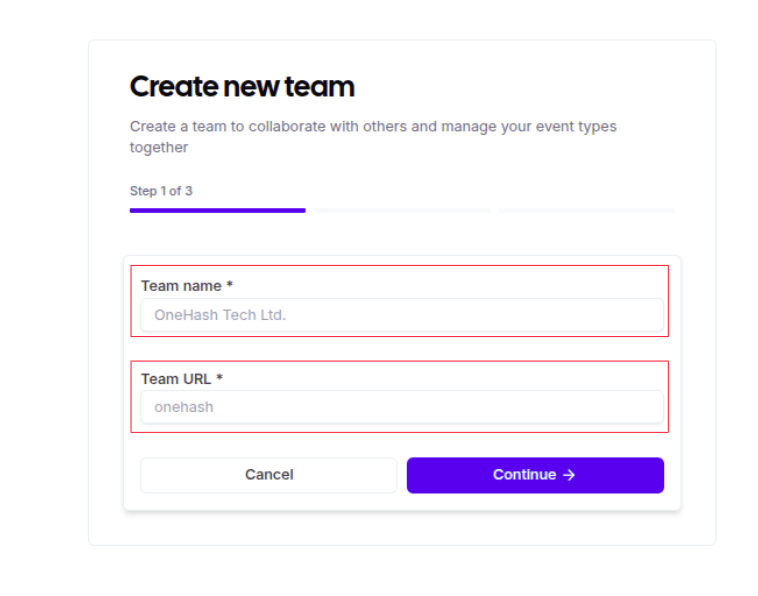
Naming the team and its link
5
Add team members
- Enter the email address of the person you want to invite.
- Select their role: Owner, Admin, or Member.
- Click on Send invite.
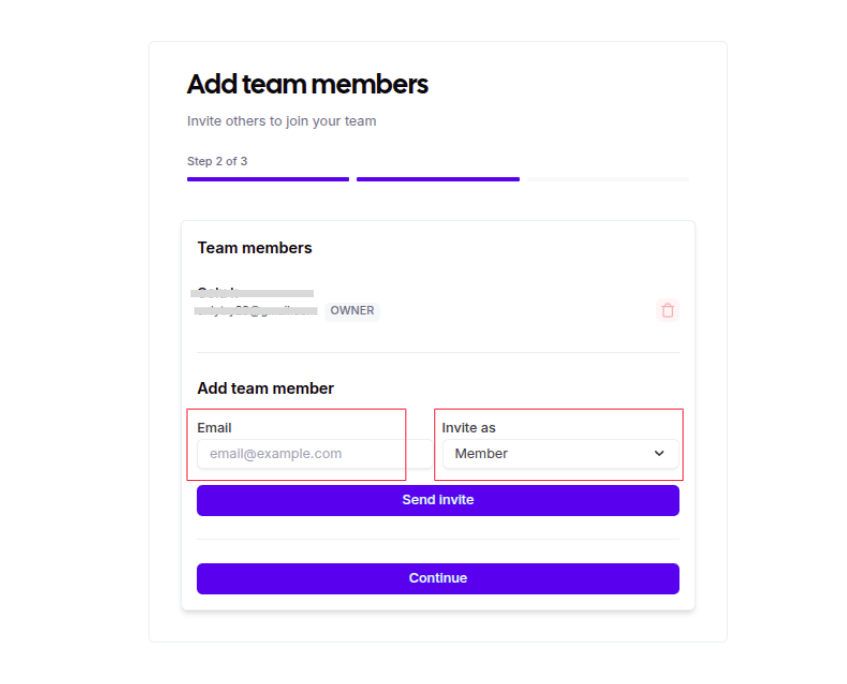
Inviting colleagues with the right role
6
Finalize team
Click Continue to move to event creation.
Roles and permissions
Every team member has a role that determines what they can change.Create a team event type
After creating the team, define how they will be booked:- Title & Duration — enter a clear title for the event type and select the duration.
- Scheduling Type — choose how the meeting should be booked based on your use case.
- Description — write a brief description about the event type for your clients.
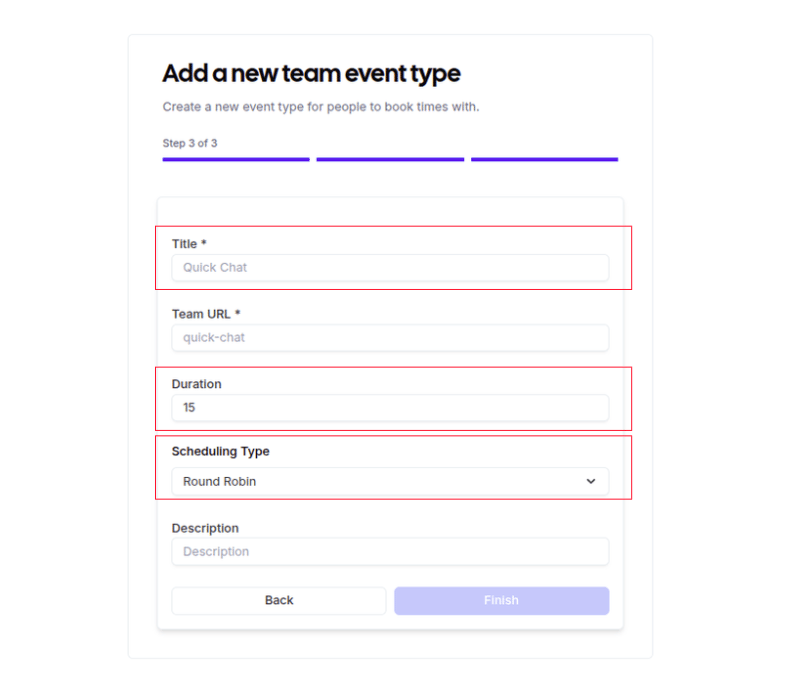
Defining how the team gets booked
Scheduling types
Choose the scheduling type that matches how your team meets clients.Round Robin
Books the meeting with one available team member automatically, reducing wait times for clients. Ideal for evenly distributing sales demos among account executives.
Collective
Books the meeting only when all selected team members are free simultaneously. Ideal for panel interviews or technical consultations requiring multiple team members.
Managed
Books meetings from a template controlled strictly by the admin, ensuring standardized booking processes. Ideal for keeping event settings consistent across the team.
Customize your team settings
Team settings and profile
Edit your team name, bio, and logo, or disband a team.
Invite members
Add new members to an existing team.
Leave a team
Remove yourself from a team you belong to.
Remove a member
Take a member off your team.
Custom branding
Apply your brand to the team’s booking pages.
Team appearance
Adjust how your team page looks.
Advanced settings
Fine-tune advanced team configuration.
Install a calendar on a team
Add a shared calendar as the team’s destination and conflict calendar.
Internal team meeting
Find common free time and book a meeting with your own colleagues.