Manage your Cal ID availability during vacation or absence by blocking your calendar completely or redirecting incoming bookings to a colleague.
In Cal ID, the Out of Office (OOO) feature lets you manage your availability during absences. Depending on your preference, you can either block your calendar entirely or redirect bookers to a colleague.
You can hand your meetings to a teammate or close your calendar. The “Provide a link to a team member when OOO” toggle decides which: ON forwards bookers to a colleague, OFF makes your calendar unavailable for those dates.
Redirect to a teammate
Block your calendar
When you want a colleague to handle your meetings while you are away, use the redirection tool.
Setup: In the Out of office entry, toggle ON the switch “Provide a link to a team member when OOO”.
Selection: Use the Team member search bar that appears below the toggle to pick the colleague you want to forward bookings to, then click Create.
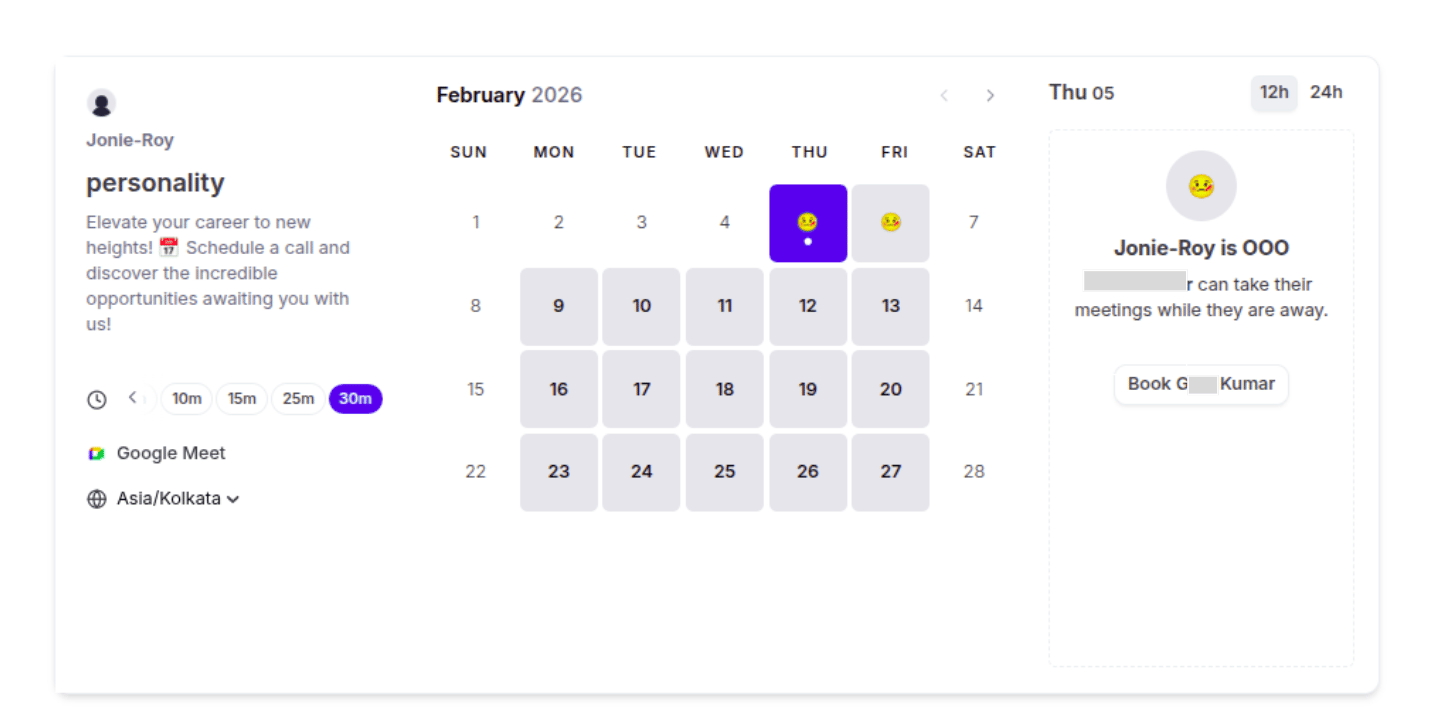
Booker experience: Your booking page will show a notice: “[Your Name] is OOO. [Team Member] can take their meetings while they are away.”
What bookers see while you're away
Action: A prominent “Book [Team Member Name]” button appears below that notice, so the booker can schedule with your backup immediately.
If you do not toggle ON the “Provide a link to a team member when OOO” option, your calendar will be unavailable.
Setup: Leave the “Provide a link to a team member when OOO” toggle OFF, then click Create.
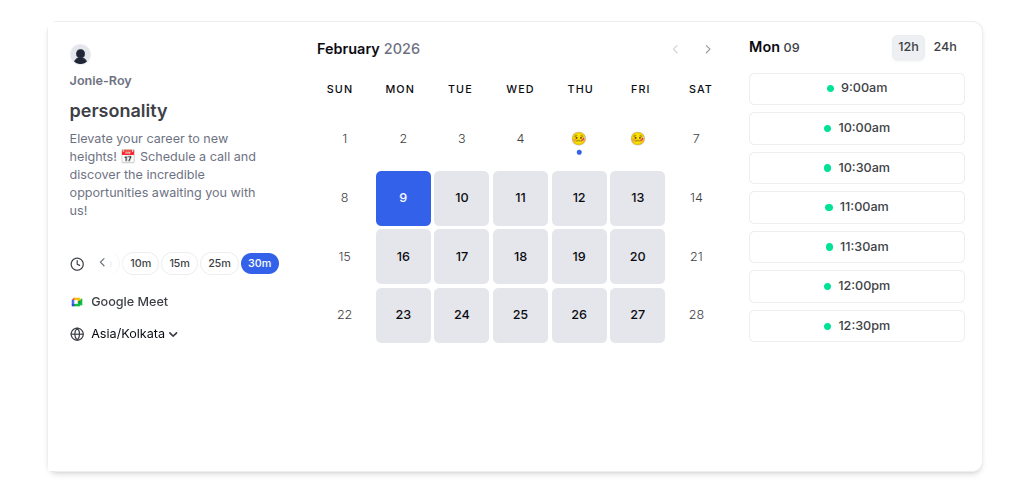
Booker experience: Your booking page will show the calendar with your OOO dates greyed out.
Visual cues: A status emoji representing your reason will appear on the blocked dates.
How blocked dates appear to bookers
Action: Bookers can’t click or select any time slots for those days; they must wait until your return date to book.
Pre-Leave Review: Before your OOO period begins, check your Bookings dashboard to manage active appointments:
Upcoming: Reschedule or cancel any confirmed meetings that conflict with your leave.
Unconfirmed: Clear your pending requests so bookers aren’t left waiting for an approval.
Past: If an attendee missed a meeting just before you left, use the Mark no-show button to keep your records accurate.
{"docsConfig":{"theme":"mint","$schema":"https://mintlify.com/docs.json","name":"Cal ID","description":"Cal ID help center — scheduling, event types, availability, teams, apps, workflows, and developer tools for the Cal ID meeting scheduler.","colors":{"primary":"#1972F5","light":"#5B9BFF","dark":"#0B4FB8"},"logo":{"light":"https://mintcdn.com/cal-id-docs/k1VHQ7P5ONAHeLvP/logo/light.svg?fit=max\u0026auto=format\u0026n=k1VHQ7P5ONAHeLvP\u0026q=85\u0026s=589c4a9c69ea7387516e6452f592553e","dark":"https://mintcdn.com/cal-id-docs/tkghSGJWVIrQX7X0/logo/dark.svg?fit=max\u0026auto=format\u0026n=tkghSGJWVIrQX7X0\u0026q=85\u0026s=3215902115e27959cb7782b1af38e9fe"},"favicon":"https://mintcdn.com/cal-id-docs/NUrc1nmEeHvCjwEV/favicon.svg?fit=max\u0026auto=format\u0026n=NUrc1nmEeHvCjwEV\u0026q=85\u0026s=3247c427392ba77a41b08a807c322bfb","navbar":{"links":[{"href":"mailto:support@cal.id","label":"Email Us"}],"primary":{"type":"button","label":"Go to Cal ID","href":"https://cal.id"}},"footer":{"socials":{"x":"https://x.com/OneHash","linkedin":"https://www.linkedin.com/company/onehash"}},"errors":{"404":{"redirect":false,"title":"We couldn't find that page","description":"The page you're looking for doesn't exist or may have moved. Head back to the [Help Center home](/), or jump to [Event Types](/event-types/overview), [Availability](/availability/create), [Teams](/teams/overview), or the [API Reference](/api-reference) — or use the search bar above. Still stuck? Email us at [support@cal.id](mailto:support@cal.id)."}},"contextual":{"options":["copy","view","chatgpt","claude","perplexity","mcp","cursor","vscode","download-spec"],"display":"header"},"styling":{"latex":true},"navigation":{"pages":[]}},"deployment":{"deploymentMetadataValue":{"subdomain":"cal-id-docs","hasAudioNarration":false,"actualSubdomain":"cal-id-docs","customDomains":["cal.id"],"gitSource":{"type":"github","owner":"onehashai","repo":"mintlify-docs","deployBranch":"main","contentDirectory":"","isPrivate":true,"mountPath":"","label":""},"chroma":{"latestBuiltDeploymentHistoryId":"6ab916db4c0abff9c16e8c99","collectionId":"a1537af2-6a4a-409a-a4fe-70a6408ebcf7","liveDeploymentHistoryId":"6ab916db4c0abff9c16e8c99","schemaVersion":"v3"},"feedback":{"thumbs":true,"agentFeedback":false},"entitlements":{"AI_CHAT":{"status":"ENABLED"},"WEB_MCP":{"status":"ENABLED"},"NARRATION":{"status":"ENABLED"}},"buildId":"6ab916db4c0abff9c16e8c99","clientVersion":"0.0.4044","searchFilterCounts":[{"language":"default","tag":"API Reference","count":60},{"language":"default","tag":"Endpoints","count":58},{"language":"default","tag":"Event Types","count":57},{"language":"default","tag":"Scheduling \u0026 Teams","count":31},{"language":"default","tag":"Get Started","count":31},{"language":"default","tag":"Customization \u0026 Settings","count":23},{"language":"default","tag":"Apps \u0026 Integrations","count":22},{"language":"default","tag":"Advanced","count":18},{"language":"default","tag":"Developers","count":17},{"language":"default","tag":"Teams","count":16}],"searchSettings":{"isFiltersEnabled":false}},"assistantConfig":{"enableAskAiButton":false,"enableStarterQuestions":true,"enableContextualStarterQuestions":true,"enableAskAiSearchBar":true,"deflection":{"enabled":true,"email":"support@cal.id"}},"basePath":"/docs","hasChatPermissions":true,"hasWebMcpPermissions":true,"toggles":[{"name":"kill-isr","enabled":true,"variant":{"name":"disabled","enabled":false,"feature_enabled":true},"impressionData":false},{"name":"agent-mintlify-slack","enabled":true,"variant":{"name":"disabled","enabled":false,"feature_enabled":true},"impressionData":false},{"name":"agent-integrations-settings","enabled":true,"variant":{"name":"disabled","enabled":false,"feature_enabled":true},"impressionData":false},{"name":"automations-pr-grouping","enabled":true,"variant":{"name":"disabled","enabled":false,"feature_enabled":true},"impressionData":false},{"name":"custom-prefix","enabled":true,"variant":{"name":"disabled","enabled":false,"feature_enabled":true},"impressionData":false},{"name":"analytics-v7","enabled":true,"variant":{"name":"disabled","enabled":false,"feature_enabled":true},"impressionData":false},{"name":"user-flows-analytics","enabled":true,"variant":{"name":"disabled","enabled":false,"feature_enabled":true},"impressionData":false},{"name":"no-publish-flow","enabled":true,"variant":{"name":"disabled","enabled":false,"feature_enabled":true},"impressionData":false},{"name":"workos-onboarding","enabled":true,"variant":{"name":"disabled","enabled":false,"feature_enabled":true},"impressionData":false},{"name":"llms-txt-v2","enabled":true,"variant":{"name":"disabled","enabled":false,"feature_enabled":true},"impressionData":false},{"name":"snapshot-serving-live","enabled":true,"variant":{"name":"disabled","enabled":false,"feature_enabled":true},"impressionData":false},{"name":"stripTemperatureMiddleware","enabled":true,"variant":{"name":"disabled","enabled":false,"feature_enabled":true},"impressionData":false},{"name":"support-platform-pylon-zendesk","enabled":true,"variant":{"name":"disabled","enabled":false,"feature_enabled":true},"impressionData":false},{"name":"snapshot-serving","enabled":true,"variant":{"name":"disabled","enabled":false,"feature_enabled":true},"impressionData":false},{"name":"instant-rollback","enabled":true,"variant":{"name":"disabled","enabled":false,"feature_enabled":true},"impressionData":false},{"name":"granular-notifications-server","enabled":true,"variant":{"name":"disabled","enabled":false,"feature_enabled":true},"impressionData":false},{"name":"granular-notifications","enabled":true,"variant":{"name":"disabled","enabled":false,"feature_enabled":true},"impressionData":false},{"name":"automations-fable","enabled":true,"variant":{"name":"disabled","enabled":false,"feature_enabled":true},"impressionData":false},{"name":"fixed-ai-action-pricing","enabled":true,"variant":{"name":"disabled","enabled":false,"feature_enabled":true},"impressionData":false},{"name":"automation-resolve-merge-conflict","enabled":true,"variant":{"name":"disabled","enabled":false,"feature_enabled":true},"impressionData":false},{"name":"scoped-publishing","enabled":true,"variant":{"name":"disabled","enabled":false,"feature_enabled":true},"impressionData":false},{"name":"mintql","enabled":true,"variant":{"name":"disabled","enabled":false,"feature_enabled":true},"impressionData":false},{"name":"page-level-analytics","enabled":true,"variant":{"name":"disabled","enabled":false,"feature_enabled":true},"impressionData":false},{"name":"editor-version-history-v2","enabled":true,"variant":{"name":"disabled","enabled":false,"feature_enabled":true},"impressionData":false},{"name":"billing-page-v2","enabled":true,"variant":{"name":"disabled","enabled":false,"feature_enabled":true},"impressionData":false},{"name":"full-page-search","enabled":true,"variant":{"name":"disabled","enabled":false,"feature_enabled":true},"impressionData":false},{"name":"workspace-projects","enabled":true,"variant":{"name":"disabled","enabled":false,"feature_enabled":true},"impressionData":false},{"name":"assistant-v5","enabled":true,"variant":{"name":"disabled","enabled":false,"feature_enabled":true},"impressionData":false},{"name":"byok-sep-25","enabled":true,"variant":{"name":"disabled","enabled":false,"feature_enabled":true},"impressionData":false},{"name":"fork-pr-previews","enabled":true,"variant":{"name":"disabled","enabled":false,"feature_enabled":true},"impressionData":false},{"name":"revalidation-jwt","enabled":true,"variant":{"name":"disabled","enabled":false,"feature_enabled":true},"impressionData":false},{"name":"vite-origin","enabled":true,"variant":{"name":"disabled","enabled":false,"feature_enabled":true},"impressionData":false},{"name":"billing-updated-9-15","enabled":true,"variant":{"name":"disabled","enabled":false,"feature_enabled":true},"impressionData":false},{"name":"workos-sso-scim","enabled":true,"variant":{"name":"disabled","enabled":false,"feature_enabled":true},"impressionData":false},{"name":"hobby-abuse-scan","enabled":true,"variant":{"name":"disabled","enabled":false,"feature_enabled":true},"impressionData":false},{"name":"dashboard-inbox","enabled":true,"variant":{"name":"disabled","enabled":false,"feature_enabled":true},"impressionData":false},{"name":"workos-signup","enabled":true,"variant":{"name":"disabled","enabled":false,"feature_enabled":true},"impressionData":false},{"name":"turbopuffer-dual-write","enabled":true,"variant":{"name":"disabled","enabled":false,"feature_enabled":true},"impressionData":false},{"name":"workos-enabled","enabled":true,"variant":{"name":"disabled","enabled":false,"feature_enabled":true},"impressionData":false},{"name":"approve-review-flow","enabled":true,"variant":{"name":"disabled","enabled":false,"feature_enabled":true},"impressionData":false},{"name":"sso-setup-deadline-banner","enabled":true,"variant":{"name":"disabled","enabled":false,"feature_enabled":true},"impressionData":false}],"privacy":{"consentBanner":{"enabled":false}},"googleFontsInlined":false},"customCss":[],"page":{"pagePath":"availability/out-of-office","slug":"/availability/out-of-office","pageMetadata":{"title":"Set Out of Office in Cal ID","sidebarTitle":"Out of Office","description":"Manage your Cal ID availability during vacation or absence by blocking your calendar completely or redirecting incoming bookings to a colleague.","icon":"plane-departure","keywords":["out of office","time off","vacation","away days","block dates","unavailable","holiday mode"],"related":["/availability/date-overrides","/availability/create","/availability/team-availability","/availability/multiple-schedules","/bookings/view-details"],"href":"/availability/out-of-office"},"description":{"compiledSource":"\"use strict\";\nconst {jsx: _jsx} = arguments[0];\nconst {useMDXComponents: _provideComponents} = arguments[0];\nfunction _createMdxContent(props) {\n const _components = {\n p: \"p\",\n ..._provideComponents(),\n ...props.components\n };\n return _jsx(_components.p, {\n children: \"Manage your Cal ID availability during vacation or absence by blocking your calendar completely or redirecting incoming bookings to a colleague.\"\n });\n}\nfunction MDXContent(props = {}) {\n const {wrapper: MDXLayout} = {\n ..._provideComponents(),\n ...props.components\n };\n return MDXLayout ? _jsx(MDXLayout, {\n ...props,\n children: _jsx(_createMdxContent, {\n ...props\n })\n }) : _createMdxContent(props);\n}\nreturn {\n default: MDXContent\n};\n","frontmatter":{},"scope":{}},"pageType":"default","mdx":{"mdxSource":{"compiledSource":"\"use strict\";const{Fragment:_Fragment,jsx:_jsx,jsxs:_jsxs}=arguments[0];const{useMDXComponents:_provideComponents}=arguments[0];function _createMdxContent(props){const _components={a:`a`,li:`li`,p:`p`,strong:`strong`,ul:`ul`,..._provideComponents(),...props.components},{Card,CardGroup,Frame,Heading,Info,OptimizedImage,Step,Steps,Tab,Tabs,Tip}=_components;if(!Card)_missingMdxReference(`Card`,true);if(!CardGroup)_missingMdxReference(`CardGroup`,true);if(!Frame)_missingMdxReference(`Frame`,true);if(!Heading)_missingMdxReference(`Heading`,true);if(!Info)_missingMdxReference(`Info`,true);if(!OptimizedImage)_missingMdxReference(`OptimizedImage`,true);if(!Step)_missingMdxReference(`Step`,true);if(!Steps)_missingMdxReference(`Steps`,true);if(!Tab)_missingMdxReference(`Tab`,true);if(!Tabs)_missingMdxReference(`Tabs`,true);if(!Tip)_missingMdxReference(`Tip`,true);return _jsxs(_Fragment,{children:[_jsxs(_components.p,{children:[`In `,_jsx(_components.strong,{children:`Cal ID`}),`, the `,_jsx(_components.strong,{children:`Out of Office (OOO)`}),` feature lets you manage your availability during absences. Depending on your preference, you can either block your calendar entirely or redirect bookers to a colleague.`]}),`\n`,_jsx(Heading,{level:`2`,id:`set-up-out-of-office`,children:`Set up out of office`}),`\n`,_jsxs(Steps,{children:[_jsx(Step,{title:`Log in to Cal ID`,children:_jsxs(_components.p,{children:[`Sign in at `,_jsx(_components.a,{href:`https://cal.id/home`,children:`Cal ID`}),`.`]})}),_jsx(Step,{title:`Open the Out of office settings`,children:_jsxs(_components.p,{children:[`Go to your profile settings and select the `,_jsx(_components.a,{href:`https://cal.id/settings/my-account/out-of-office`,children:_jsx(_components.strong,{children:`Out of office`})}),` tab.`]})}),_jsx(Step,{title:`Add a new entry`,children:_jsxs(_components.p,{children:[`Click the `,_jsx(_components.strong,{children:`+ Add`}),` button to start.`]})}),_jsx(Step,{title:`Set the timeline`,children:_jsxs(_components.p,{children:[`Select the `,_jsx(_components.strong,{children:`Dates`}),` for your absence (e.g., Feb 05 - Feb 07).`]})}),_jsxs(Step,{title:`Select a reason`,children:[_jsxs(_components.p,{children:[`Choose a reason from the dropdown, such as `,_jsx(_components.strong,{children:`Unspecified`}),`, `,_jsx(_components.strong,{children:`Vacation`}),`, `,_jsx(_components.strong,{children:`Sick leave`}),`, `,_jsx(_components.strong,{children:`Public holiday`}),`, or `,_jsx(_components.strong,{children:`Others`}),`, and add optional notes.`]}),_jsx(Frame,{caption:`Logging a single absence in one dialog`,children:_jsx(OptimizedImage,{src:`https://mintcdn.com/cal-id-docs/xz--DpivWLYp8__F/images/availability/out-of-office-1.png?fit=max\u0026auto=format\u0026n=xz--DpivWLYp8__F\u0026q=85\u0026s=4b6e283b9c763fe439350b821087df75`,alt:`Add out-of-office dialog with a Dates range field, a Reason dropdown, a notes box, and the \"Provide a link to a team member when OOO\" toggle above the Create button`,\"data-og-width\":`1024`,width:`1024`,\"data-og-height\":`1092`,height:`1092`,\"data-path\":`images/availability/out-of-office-1.png`,\"data-optimize\":`true`,\"data-opv\":`3`,srcset:`https://mintcdn.com/cal-id-docs/xz--DpivWLYp8__F/images/availability/out-of-office-1.png?w=280\u0026fit=max\u0026auto=format\u0026n=xz--DpivWLYp8__F\u0026q=85\u0026s=6e02e81d63af97281d3740ee8982ba3e 280w, https://mintcdn.com/cal-id-docs/xz--DpivWLYp8__F/images/availability/out-of-office-1.png?w=560\u0026fit=max\u0026auto=format\u0026n=xz--DpivWLYp8__F\u0026q=85\u0026s=62efb452fc8a487a3475755702459e97 560w, https://mintcdn.com/cal-id-docs/xz--DpivWLYp8__F/images/availability/out-of-office-1.png?w=840\u0026fit=max\u0026auto=format\u0026n=xz--DpivWLYp8__F\u0026q=85\u0026s=c33dc0ee13e1f06cf987611528848d4f 840w, https://mintcdn.com/cal-id-docs/xz--DpivWLYp8__F/images/availability/out-of-office-1.png?w=1100\u0026fit=max\u0026auto=format\u0026n=xz--DpivWLYp8__F\u0026q=85\u0026s=3adc56ba3e6505d1e01244650d3373e2 1100w, https://mintcdn.com/cal-id-docs/xz--DpivWLYp8__F/images/availability/out-of-office-1.png?w=1650\u0026fit=max\u0026auto=format\u0026n=xz--DpivWLYp8__F\u0026q=85\u0026s=959a8eb40f02216acc9721c150abc616 1650w, https://mintcdn.com/cal-id-docs/xz--DpivWLYp8__F/images/availability/out-of-office-1.png?w=2500\u0026fit=max\u0026auto=format\u0026n=xz--DpivWLYp8__F\u0026q=85\u0026s=bbf5682b9913772a4644842e03c4b71d 2500w`})})]})]}),`\n`,_jsx(Heading,{level:`2`,id:`choose-what-happens-while-you’re-away`,children:`Choose what happens while you’re away`}),`\n`,_jsx(Info,{children:_jsxs(_components.p,{children:[`You can hand your meetings to a teammate or close your calendar. The `,_jsx(_components.strong,{children:`“Provide a link to a team member when OOO”`}),` toggle decides which: `,_jsx(_components.strong,{children:`ON`}),` forwards bookers to a colleague, `,_jsx(_components.strong,{children:`OFF`}),` makes your calendar unavailable for those dates.`]})}),`\n`,_jsxs(Tabs,{children:[_jsxs(Tab,{title:`Redirect to a teammate`,id:`redirect-to-a-teammate`,children:[_jsx(_components.p,{children:`When you want a colleague to handle your meetings while you are away, use the redirection tool.`}),_jsxs(_components.ul,{children:[`\n`,_jsxs(_components.li,{children:[_jsx(_components.strong,{children:`Setup:`}),` In the Out of office entry, toggle `,_jsx(_components.strong,{children:`ON`}),` the switch `,_jsx(_components.strong,{children:`“Provide a link to a team member when OOO”`}),`.`]}),`\n`,_jsxs(_components.li,{children:[_jsx(_components.strong,{children:`Selection:`}),` Use the `,_jsx(_components.strong,{children:`Team member`}),` search bar that appears below the toggle to pick the colleague you want to forward bookings to, then click `,_jsx(_components.strong,{children:`Create`}),`.`]}),`\n`,_jsxs(_components.li,{children:[_jsx(_components.strong,{children:`Booker experience:`}),` Your booking page will show a notice: `,_jsx(_components.strong,{children:`“[Your Name] is OOO. [Team Member] can take their meetings while they are away.”`})]}),`\n`]}),_jsx(Frame,{caption:`What bookers see while you're away`,children:_jsx(OptimizedImage,{src:`https://mintcdn.com/cal-id-docs/NUrc1nmEeHvCjwEV/images/availability/out-of-office-3.png?fit=max\u0026auto=format\u0026n=NUrc1nmEeHvCjwEV\u0026q=85\u0026s=a6c6bebdc6874492a9136d3f1cbc09e5`,alt:`Booking page showing the OOO notice naming the host and the covering team member, with a \"Book Team Member Name\" button directly below it`,\"data-og-width\":`1430`,width:`1430`,\"data-og-height\":`726`,height:`726`,\"data-path\":`images/availability/out-of-office-3.png`,\"data-optimize\":`true`,\"data-opv\":`3`,srcset:`https://mintcdn.com/cal-id-docs/NUrc1nmEeHvCjwEV/images/availability/out-of-office-3.png?w=280\u0026fit=max\u0026auto=format\u0026n=NUrc1nmEeHvCjwEV\u0026q=85\u0026s=e084a7a0c27a0bc2ce685ad5eec90f8f 280w, https://mintcdn.com/cal-id-docs/NUrc1nmEeHvCjwEV/images/availability/out-of-office-3.png?w=560\u0026fit=max\u0026auto=format\u0026n=NUrc1nmEeHvCjwEV\u0026q=85\u0026s=e34f4343622041bba759e14dc9df0a09 560w, https://mintcdn.com/cal-id-docs/NUrc1nmEeHvCjwEV/images/availability/out-of-office-3.png?w=840\u0026fit=max\u0026auto=format\u0026n=NUrc1nmEeHvCjwEV\u0026q=85\u0026s=58e2884725a31585012dbdc180ce7fc5 840w, https://mintcdn.com/cal-id-docs/NUrc1nmEeHvCjwEV/images/availability/out-of-office-3.png?w=1100\u0026fit=max\u0026auto=format\u0026n=NUrc1nmEeHvCjwEV\u0026q=85\u0026s=4d7c583c24cc5eb5408085f94b0e5897 1100w, https://mintcdn.com/cal-id-docs/NUrc1nmEeHvCjwEV/images/availability/out-of-office-3.png?w=1650\u0026fit=max\u0026auto=format\u0026n=NUrc1nmEeHvCjwEV\u0026q=85\u0026s=72534c89eb1da936f1ac805ec1bd2099 1650w, https://mintcdn.com/cal-id-docs/NUrc1nmEeHvCjwEV/images/availability/out-of-office-3.png?w=2500\u0026fit=max\u0026auto=format\u0026n=NUrc1nmEeHvCjwEV\u0026q=85\u0026s=1b7c75267198625f6842bcb91e1a3bed 2500w`})}),_jsxs(_components.ul,{children:[`\n`,_jsxs(_components.li,{children:[_jsx(_components.strong,{children:`Action:`}),` A prominent `,_jsx(_components.strong,{children:`“Book [Team Member Name]”`}),` button appears below that notice, so the booker can schedule with your backup immediately.`]}),`\n`]})]}),_jsxs(Tab,{title:`Block your calendar`,id:`block-your-calendar`,children:[_jsx(_components.p,{children:`If you do not toggle ON the “Provide a link to a team member when OOO” option, your calendar will be unavailable.`}),_jsxs(_components.ul,{children:[`\n`,_jsxs(_components.li,{children:[_jsx(_components.strong,{children:`Setup:`}),` Leave the `,_jsx(_components.strong,{children:`“Provide a link to a team member when OOO”`}),` toggle `,_jsx(_components.strong,{children:`OFF`}),`, then click `,_jsx(_components.strong,{children:`Create`}),`.`]}),`\n`,_jsxs(_components.li,{children:[_jsx(_components.strong,{children:`Booker experience:`}),` Your booking page will show the calendar with your OOO dates greyed out.`]}),`\n`,_jsxs(_components.li,{children:[_jsx(_components.strong,{children:`Visual cues:`}),` A status emoji representing your reason will appear on the blocked dates.`]}),`\n`]}),_jsx(Frame,{caption:`How blocked dates appear to bookers`,children:_jsx(OptimizedImage,{src:`https://mintcdn.com/cal-id-docs/NUrc1nmEeHvCjwEV/images/availability/out-of-office-6.png?fit=max\u0026auto=format\u0026n=NUrc1nmEeHvCjwEV\u0026q=85\u0026s=057c6a03ee5ad03501b0e664629e7ad6`,alt:`Month calendar on the booking page with the out-of-office dates greyed out and unselectable, each carrying a status emoji for the absence reason`,\"data-og-width\":`1025`,width:`1025`,\"data-og-height\":`493`,height:`493`,\"data-path\":`images/availability/out-of-office-6.png`,\"data-optimize\":`true`,\"data-opv\":`3`,srcset:`https://mintcdn.com/cal-id-docs/NUrc1nmEeHvCjwEV/images/availability/out-of-office-6.png?w=280\u0026fit=max\u0026auto=format\u0026n=NUrc1nmEeHvCjwEV\u0026q=85\u0026s=cec694ec96054cbdfa36322cd37a9ba0 280w, https://mintcdn.com/cal-id-docs/NUrc1nmEeHvCjwEV/images/availability/out-of-office-6.png?w=560\u0026fit=max\u0026auto=format\u0026n=NUrc1nmEeHvCjwEV\u0026q=85\u0026s=ef309f931d1ddbd85b3cd532fb764363 560w, https://mintcdn.com/cal-id-docs/NUrc1nmEeHvCjwEV/images/availability/out-of-office-6.png?w=840\u0026fit=max\u0026auto=format\u0026n=NUrc1nmEeHvCjwEV\u0026q=85\u0026s=db75d467a19a4cb83eeb912497450b5c 840w, https://mintcdn.com/cal-id-docs/NUrc1nmEeHvCjwEV/images/availability/out-of-office-6.png?w=1100\u0026fit=max\u0026auto=format\u0026n=NUrc1nmEeHvCjwEV\u0026q=85\u0026s=6d51d65c3b7a82eddb3489192cfa3693 1100w, https://mintcdn.com/cal-id-docs/NUrc1nmEeHvCjwEV/images/availability/out-of-office-6.png?w=1650\u0026fit=max\u0026auto=format\u0026n=NUrc1nmEeHvCjwEV\u0026q=85\u0026s=f01ddc6d58f9e002a7e09114b17e21c6 1650w, https://mintcdn.com/cal-id-docs/NUrc1nmEeHvCjwEV/images/availability/out-of-office-6.png?w=2500\u0026fit=max\u0026auto=format\u0026n=NUrc1nmEeHvCjwEV\u0026q=85\u0026s=351dc4962a9ec6308c072ef99702dbab 2500w`})}),_jsxs(_components.ul,{children:[`\n`,_jsxs(_components.li,{children:[_jsx(_components.strong,{children:`Action:`}),` Bookers can’t click or select any time slots for those days; they must wait until your return date to book.`]}),`\n`]})]})]}),`\n`,_jsxs(Tip,{children:[_jsxs(_components.p,{children:[_jsx(_components.strong,{children:`Pre-Leave Review:`}),` Before your OOO period begins, check your `,_jsx(_components.strong,{children:`Bookings`}),` dashboard to manage active appointments:`]}),_jsxs(_components.ul,{children:[`\n`,_jsxs(_components.li,{children:[_jsx(_components.strong,{children:`Upcoming:`}),` Reschedule or cancel any confirmed meetings that conflict with your leave.`]}),`\n`,_jsxs(_components.li,{children:[_jsx(_components.strong,{children:`Unconfirmed:`}),` Clear your pending requests so bookers aren’t left waiting for an approval.`]}),`\n`,_jsxs(_components.li,{children:[_jsx(_components.strong,{children:`Past:`}),` If an attendee missed a meeting just before you left, use the `,_jsx(_components.strong,{children:`Mark no-show`}),` button to keep your records accurate.`]}),`\n`]})]}),`\n`,_jsx(Heading,{level:`2`,id:`related-time-off-settings`,children:`Related time-off settings`}),`\n`,_jsxs(CardGroup,{cols:2,children:[_jsx(Card,{title:`Date Overrides or Set Unavailable`,icon:`calendar-xmark`,href:`/availability/date-overrides`,children:_jsx(_components.p,{children:`Block a single day instead of a full absence window.`})}),_jsx(Card,{title:`Create Availability in Cal ID`,icon:`calendar`,href:`/availability/create`,children:_jsx(_components.p,{children:`Set the regular hours your out-of-office dates override.`})}),_jsx(Card,{title:`Team Availability`,icon:`users-gear`,href:`/availability/team-availability`,children:_jsx(_components.p,{children:`Manage shared schedules and pick a teammate to cover you.`})}),_jsx(Card,{title:`See booking details`,icon:`list`,href:`/bookings/view-details`,children:_jsx(_components.p,{children:`Review and reschedule meetings before your leave begins.`})})]})]})}function MDXContent(props={}){const{wrapper:MDXLayout}={..._provideComponents(),...props.components};return MDXLayout?_jsx(MDXLayout,{...props,children:_jsx(_createMdxContent,{...props})}):_createMdxContent(props)}return{default:MDXContent};function _missingMdxReference(id,component){throw new Error(`Expected `+(component?`component`:`object`)+\" `\"+id+\"` to be defined: you likely forgot to import, pass, or provide it.\")}","frontmatter":{},"scope":{"config":{},"pageMetadata":{"title":"Set Out of Office in Cal ID","sidebarTitle":"Out of Office","description":"Manage your Cal ID availability during vacation or absence by blocking your calendar completely or redirecting incoming bookings to a colleague.","icon":"plane-departure","keywords":["out of office","time off","vacation","away days","block dates","unavailable","holiday mode"],"related":["/availability/date-overrides","/availability/create","/availability/team-availability","/availability/multiple-schedules","/bookings/view-details"],"href":"/availability/out-of-office"}}},"mdxSourceWithNoJs":null},"mdxExtracts":{"tableOfContents":[{"title":"Set up out of office","slug":"set-up-out-of-office","depth":2,"children":[]},{"title":"Choose what happens while you’re away","slug":"choose-what-happens-while-you’re-away","depth":2,"children":[]},{"title":"Related time-off settings","slug":"related-time-off-settings","depth":2,"children":[]}],"codeExamples":{}},"jsLinks":["/docs/_mintlify/custom/cal-id-docs/09b4d95490dd9c71/support-crisp.js"],"subdomain":"cal-id-docs","siteName":"Cal ID","title":"Set Out of Office in Cal ID - Cal ID","relatedPages":[{"title":"Date Overrides or Set Unavailable","link":"/availability/date-overrides","icon":"calendar-xmark"},{"title":"Create Availability in Cal ID","link":"/availability/create","icon":"calendar"},{"title":"Team Availability","link":"/availability/team-availability","icon":"users-gear"},{"title":"Multiple Schedules","link":"/availability/multiple-schedules","icon":"calendar-days"},{"title":"View Booking Details","link":"/bookings/view-details","icon":"list"}],"relatedPagesConfig":{"enabled":true,"limit":5,"mode":"automatic"},"contextualStarterQuestions":[{"_id":"6a9862a6cabf01e77694fed1","deploymentId":"6a6c20ecc3064aa95c02d1fd","questionText":"What reasons can I select for OOO?","status":"active","generatedBy":"contextual","path":"availability/out-of-office","createdAt":"2026-09-02T17:53:42.902Z","updatedAt":"2026-09-02T17:53:42.902Z","__v":0},{"_id":"6a9862a6cabf01e77694fed0","deploymentId":"6a6c20ecc3064aa95c02d1fd","questionText":"Can I redirect bookings to colleagues?","status":"active","generatedBy":"contextual","path":"availability/out-of-office","createdAt":"2026-09-02T17:53:42.902Z","updatedAt":"2026-09-02T17:53:42.902Z","__v":0},{"_id":"6a9862a6cabf01e77694fecf","deploymentId":"6a6c20ecc3064aa95c02d1fd","questionText":"How do I set up out of office?","status":"active","generatedBy":"contextual","path":"availability/out-of-office","createdAt":"2026-09-02T17:53:42.901Z","updatedAt":"2026-09-02T17:53:42.901Z","__v":0}],"navMaps":{"firstHrefInVersion":{},"firstHrefInLanguage":{}},"lastModified":"2026-09-02T17:53:02.568Z","originalFileLocation":"availability/out-of-office.mdx"},"headHtml":"\u003cscript data-mint-head>(function(){var d=document.documentElement,p=null;if(!p){try{p=localStorage.getItem(\"isDarkMode\")}catch(e){}if(p==='true')p='dark';else if(p==='false')p='light';if(p!=='light'\u0026\u0026p!=='dark'\u0026\u0026p!=='system')p=\"system\"}var r=p==='system'?(matchMedia(\"(prefers-color-scheme: dark)\").matches?'dark':'light'):p;d.classList.remove(r==='dark'?'light':'dark');d.classList.add(r);d.setAttribute(\"data-theme-preference\",p)})();\u003c/script>\u003cmeta data-mint-head name=\"description\" content=\"Manage your Cal ID availability during vacation or absence by blocking your calendar completely or redirecting incoming bookings to a colleague.\">\u003cmeta data-mint-head name=\"application-name\" content=\"Cal ID\">\u003cmeta data-mint-head name=\"generator\" content=\"Mintlify\">\u003clink data-mint-head rel=\"icon\" type=\"image/png\" sizes=\"192x192\" href=\"/docs/mintlify-assets/_mintlify/favicons/cal-id-docs/Ah-PiVKdxwxdJ_gr/_generated/favicon/android-chrome-192x192.png\" media=\"(prefers-color-scheme: light)\">\u003clink data-mint-head rel=\"apple-touch-icon\" type=\"image/png\" sizes=\"180x180\" href=\"/docs/mintlify-assets/_mintlify/favicons/cal-id-docs/Ah-PiVKdxwxdJ_gr/_generated/favicon/apple-touch-icon.png\">\u003clink data-mint-head rel=\"icon\" type=\"image/png\" sizes=\"16x16\" href=\"/docs/mintlify-assets/_mintlify/favicons/cal-id-docs/Ah-PiVKdxwxdJ_gr/_generated/favicon/favicon-16x16.png\" media=\"(prefers-color-scheme: light)\">\u003clink data-mint-head rel=\"icon\" type=\"image/png\" sizes=\"32x32\" href=\"/docs/mintlify-assets/_mintlify/favicons/cal-id-docs/Ah-PiVKdxwxdJ_gr/_generated/favicon/favicon-32x32.png\" media=\"(prefers-color-scheme: light)\">\u003clink data-mint-head rel=\"shortcut icon\" type=\"image/x-icon\" href=\"/docs/mintlify-assets/_mintlify/favicons/cal-id-docs/Ah-PiVKdxwxdJ_gr/_generated/favicon/favicon.ico\" media=\"(prefers-color-scheme: light)\">\u003clink data-mint-head rel=\"icon\" type=\"image/png\" sizes=\"192x192\" href=\"/docs/mintlify-assets/_mintlify/favicons/cal-id-docs/Ah-PiVKdxwxdJ_gr/_generated/favicon-dark/android-chrome-192x192.png\" media=\"(prefers-color-scheme: dark)\">\u003clink data-mint-head rel=\"icon\" type=\"image/png\" sizes=\"16x16\" href=\"/docs/mintlify-assets/_mintlify/favicons/cal-id-docs/Ah-PiVKdxwxdJ_gr/_generated/favicon-dark/favicon-16x16.png\" media=\"(prefers-color-scheme: dark)\">\u003clink data-mint-head rel=\"icon\" type=\"image/png\" sizes=\"32x32\" href=\"/docs/mintlify-assets/_mintlify/favicons/cal-id-docs/Ah-PiVKdxwxdJ_gr/_generated/favicon-dark/favicon-32x32.png\" media=\"(prefers-color-scheme: dark)\">\u003clink data-mint-head rel=\"shortcut icon\" type=\"image/x-icon\" href=\"/docs/mintlify-assets/_mintlify/favicons/cal-id-docs/Ah-PiVKdxwxdJ_gr/_generated/favicon-dark/favicon.ico\" media=\"(prefers-color-scheme: dark)\">\u003cmeta data-mint-head property=\"og:title\" content=\"Set Out of Office in Cal ID - Cal ID\">\u003cmeta data-mint-head property=\"og:description\" content=\"Manage your Cal ID availability during vacation or absence by blocking your calendar completely or redirecting incoming bookings to a colleague.\">\u003cmeta data-mint-head property=\"og:site_name\" content=\"Cal ID\">\u003cmeta data-mint-head property=\"og:url\" content=\"https://cal.id/docs/availability/out-of-office\">\u003cmeta data-mint-head property=\"og:type\" content=\"website\">\u003cmeta data-mint-head property=\"og:image\" content=\"https://cal-id-docs.mintlify.app/_mintlify/api/og/v2?division=Availability\u0026amp;title=Set+Out+of+Office+in+Cal+ID\u0026amp;description=Manage+your+Cal+ID+availability+during+vacation+or+absence+by+blocking+your+calendar+completely+or+redirecting+incoming+bookings+to+a+colleague.\u0026amp;theme=1ce1fba1bcc16a5579de1fe3\u0026amp;signature=6dfe7773acda80b88823ab2de5348dbea921dd59fe50f2d728a58c190dbaae53\">\u003cmeta data-mint-head property=\"og:image:width\" content=\"1200\">\u003cmeta data-mint-head property=\"og:image:height\" content=\"630\">\u003cmeta data-mint-head name=\"twitter:card\" content=\"summary_large_image\">\u003cmeta data-mint-head name=\"twitter:title\" content=\"Set Out of Office in Cal ID - Cal ID\">\u003cmeta data-mint-head name=\"twitter:description\" content=\"Manage your Cal ID availability during vacation or absence by blocking your calendar completely or redirecting incoming bookings to a colleague.\">\u003cmeta data-mint-head name=\"twitter:image\" content=\"https://cal-id-docs.mintlify.app/_mintlify/api/og/v2?division=Availability\u0026amp;title=Set+Out+of+Office+in+Cal+ID\u0026amp;description=Manage+your+Cal+ID+availability+during+vacation+or+absence+by+blocking+your+calendar+completely+or+redirecting+incoming+bookings+to+a+colleague.\u0026amp;theme=1ce1fba1bcc16a5579de1fe3\u0026amp;signature=6dfe7773acda80b88823ab2de5348dbea921dd59fe50f2d728a58c190dbaae53\">\u003cmeta data-mint-head name=\"twitter:image:width\" content=\"1200\">\u003cmeta data-mint-head name=\"twitter:image:height\" content=\"630\">\u003cmeta data-mint-head name=\"msapplication-config\" content=\"/docs/mintlify-assets/_mintlify/favicons/cal-id-docs/Ah-PiVKdxwxdJ_gr/_generated/favicon/browserconfig.xml\">\u003cmeta data-mint-head name=\"apple-mobile-web-app-title\" content=\"Cal ID\">\u003cmeta data-mint-head name=\"msapplication-TileColor\" content=\"#1972F5\">\u003clink data-mint-head rel=\"canonical\" href=\"https://cal.id/docs/availability/out-of-office\">\u003clink data-mint-head rel=\"alternate\" type=\"application/xml\" href=\"/docs/sitemap.xml\">\u003clink data-mint-head rel=\"alternate\" type=\"text/markdown\" href=\"/docs/availability/out-of-office.md\">\u003cscript data-mint-head type=\"application/ld+json\">{\"@context\":\"https://schema.org\",\"@graph\":[{\"@type\":\"Organization\",\"@id\":\"https://cal.id/#organization\",\"name\":\"Cal ID\",\"url\":\"https://cal.id\",\"logo\":{\"@type\":\"ImageObject\",\"url\":\"https://mintcdn.com/cal-id-docs/k1VHQ7P5ONAHeLvP/logo/light.svg?fit=max\u0026auto=format\u0026n=k1VHQ7P5ONAHeLvP\u0026q=85\u0026s=589c4a9c69ea7387516e6452f592553e\"}},{\"@type\":\"WebSite\",\"@id\":\"https://cal.id/docs#website\",\"name\":\"Cal ID\",\"url\":\"https://cal.id/docs\",\"publisher\":{\"@id\":\"https://cal.id/#organization\"}},{\"@type\":\"WebPage\",\"@id\":\"https://cal.id/docs/availability/out-of-office#webpage\",\"url\":\"https://cal.id/docs/availability/out-of-office\",\"name\":\"Set Out of Office in Cal ID\",\"description\":\"Manage your Cal ID availability during vacation or absence by blocking your calendar completely or redirecting incoming bookings to a colleague.\",\"dateModified\":\"2026-09-02T17:53:02.568Z\",\"isPartOf\":{\"@id\":\"https://cal.id/docs#website\"},\"breadcrumb\":{\"@id\":\"https://cal.id/docs/availability/out-of-office#breadcrumb\"}},{\"@type\":\"BreadcrumbList\",\"@id\":\"https://cal.id/docs/availability/out-of-office#breadcrumb\",\"itemListElement\":[{\"@type\":\"ListItem\",\"position\":1,\"name\":\"Availability\",\"item\":\"https://cal.id/docs/availability/create\"},{\"@type\":\"ListItem\",\"position\":2,\"name\":\"Set Out of Office in Cal ID\",\"item\":\"https://cal.id/docs/availability/out-of-office\"}]},{\"@type\":[\"Article\",\"TechArticle\"],\"@id\":\"https://cal.id/docs/availability/out-of-office#article\",\"headline\":\"Set Out of Office in Cal ID\",\"name\":\"Set Out of Office in Cal ID\",\"description\":\"Manage your Cal ID availability during vacation or absence by blocking your calendar completely or redirecting incoming bookings to a colleague.\",\"url\":\"https://cal.id/docs/availability/out-of-office\",\"mainEntityOfPage\":{\"@id\":\"https://cal.id/docs/availability/out-of-office#webpage\"},\"dateModified\":\"2026-09-02T17:53:02.568Z\",\"keywords\":\"out of office, time off, vacation, away days, block dates, unavailable, holiday mode\",\"publisher\":{\"@id\":\"https://cal.id/#organization\"},\"isPartOf\":{\"@id\":\"https://cal.id/docs#website\"}}]}\u003c/script>\u003cscript data-mint-head type=\"application/ld+json\">{\"@context\":\"https://schema.org\",\"@type\":\"WebSite\",\"name\":\"Cal ID\",\"creator\":{\"@type\":\"Organization\",\"name\":\"Mintlify\",\"url\":\"https://mintlify.com\"}}\u003c/script>","siteName":"Cal ID","nav":{"global":null,"tabs":[{"tab":"Get Started","pages":[{"title":"Get Started","href":""}]},{"tab":"Event Types","pages":[{"title":"Event Types","href":"/event-types/overview"}]},{"tab":"Scheduling \u0026 Teams","groups":[{"group":"Overview","pages":[{"title":"Scheduling \u0026 Teams","icon":"calendar-days","sidebarTitle":"Overview","href":"/scheduling/overview"}]},{"group":"Availability","pages":[{"title":"Create Availability in Cal ID","icon":"calendar","href":"/availability/create"},{"title":"Multiple Schedules","icon":"calendar-days","href":"/availability/multiple-schedules"},{"title":"Multiple Time Slots per Day","icon":"clock","href":"/availability/multiple-time-slots"},{"title":"Date Overrides or Set Unavailable","icon":"calendar-xmark","href":"/availability/date-overrides"},{"title":"Extended Timezone Availability","sidebarTitle":"Extended timezone","description":"Assign timezones to individual availability slots in Cal ID so bookers only see the hours you set aside for their region.","icon":"globe","href":"/availability/extended-timezone"},{"title":"Set Out of Office in Cal ID","sidebarTitle":"Out of Office","icon":"plane-departure","href":"/availability/out-of-office"},{"title":"Team Availability","description":"View, create, edit, and delete your team's shared availability schedules in Cal ID and switch between personal and team scheduling views.","icon":"users-gear","href":"/availability/team-availability"}]},{"group":"Bookings","pages":[{"title":"View Booking Details","icon":"list","href":"/bookings/view-details"},{"title":"Canceling and Rescheduling Bookings","sidebarTitle":"Cancel or reschedule","icon":"calendar-xmark","href":"/bookings/cancel-reschedule"},{"title":"Reassigning a Team Booking","sidebarTitle":"Reassign a booking","icon":"arrow-right-arrow-left","href":"/bookings/reassign-round-robin"},{"title":"Export Booking Details","icon":"file-export","href":"/bookings/export"},{"title":"Mark Attendees as No-Show","icon":"user-xmark","href":"/bookings/no-show"},{"title":"Track Notification Delivery","icon":"bolt","href":"/bookings/workflow-status"}]},{"group":"Routing","pages":[{"title":"Set Up Routing Forms","icon":"diagram-project","href":"/routing/routing-forms"}]},{"group":"Workflows","pages":[{"title":"Workflows Setup to Cal ID","icon":"bell","href":"/workflows/overview"},{"title":"Customizing Your Workflow Messages","icon":"pen-to-square","href":"/workflows/custom-messages"},{"title":"Integrate WhatsApp Business","icon":"whatsapp","href":"/workflows/whatsapp-business"},{"title":"Connect with WhatsApp Business App","icon":"whatsapp","href":"/workflows/connect-whatsapp-app"},{"title":"Create New WhatsApp Business Account","icon":"whatsapp","href":"/workflows/create-whatsapp-account"}]},{"group":"Teams","pages":[{"title":"Teams in Cal ID","icon":"users","href":"/teams/overview"},{"title":"Install a Calendar on a Team","icon":"calendar-plus","href":"/teams/install-team-calendar"},{"title":"Invite Team Members","icon":"user-plus","href":"/teams/invite-members"},{"title":"Remove a Team Member","icon":"user-minus","href":"/teams/remove-member"},{"title":"Leave a Cal ID Team","sidebarTitle":"Leave a Team","icon":"right-from-bracket","href":"/teams/leave-team"},{"title":"Cal ID Team Profile Settings","sidebarTitle":"Team Profile","icon":"gear","href":"/teams/settings"},{"title":"Team Advanced Settings","icon":"sliders","href":"/teams/advanced-settings"},{"title":"Round-Robin Scheduling","icon":"arrows-rotate","href":"/teams/round-robin"},{"title":"Collective Events","icon":"user-group","href":"/teams/collective"},{"title":"Managed Event Types for Teams","sidebarTitle":"Managed Events","icon":"layer-group","href":"/teams/managed"},{"title":"Internal Team Meeting","icon":"calendar-check","href":"/teams/internal-meeting"}]}]},{"tab":"Apps \u0026 Integrations","pages":[{"title":"Apps \u0026 Integrations","href":"/apps/overview"}]},{"tab":"Customization \u0026 Settings","pages":[{"title":"Customization \u0026 Settings","href":"/customization/overview"}]},{"tab":"Developers","pages":[{"title":"Developers","href":"/developers/overview"}]},{"tab":"MCP","icon":"plug","pages":[{"title":"MCP","href":"/mcp/overview"}]},{"tab":"API Reference","pages":[{"title":"API Reference","href":"/api-reference/introduction"}]}]},"basePath":"","title":"Set Out of Office in Cal ID - Cal ID","buildId":"dpl_6cCEiK8XNNvaLBBkWzcBhdE9QfLC","deploymentId":"dpl_6cCEiK8XNNvaLBBkWzcBhdE9QfLC","dynamics":["07c022d89b","a74be98ba7"],"chunks":["Frame-Bj1PpgeO.js","DynamicMarkdown-Bas9A7wq.js","zoom-image-lightbox-B-WKhCOL.js","lightbox-handle-r17bVUz3.js"]}