

Who can change a booking
Attendees never need a Cal ID account. Everything they can do reaches them by email.
Cancel or reschedule from the Bookings tab
1
Open Bookings
Click Bookings in the left sidebar.
2
Find the booking
Locate the meeting under Bookings → Upcoming.
3
Open the actions menu
Click the three dots (…) at the right of the booking row.
4
Choose an action
Pick Reschedule booking to select a new date and time yourself, Cancel event to call the meeting off, or Request reschedule to hand the choice back to the attendee.
5
Add a reason and confirm
Every action accepts an optional note. Whatever you write is included in the email the other side receives, so use it to explain the change.
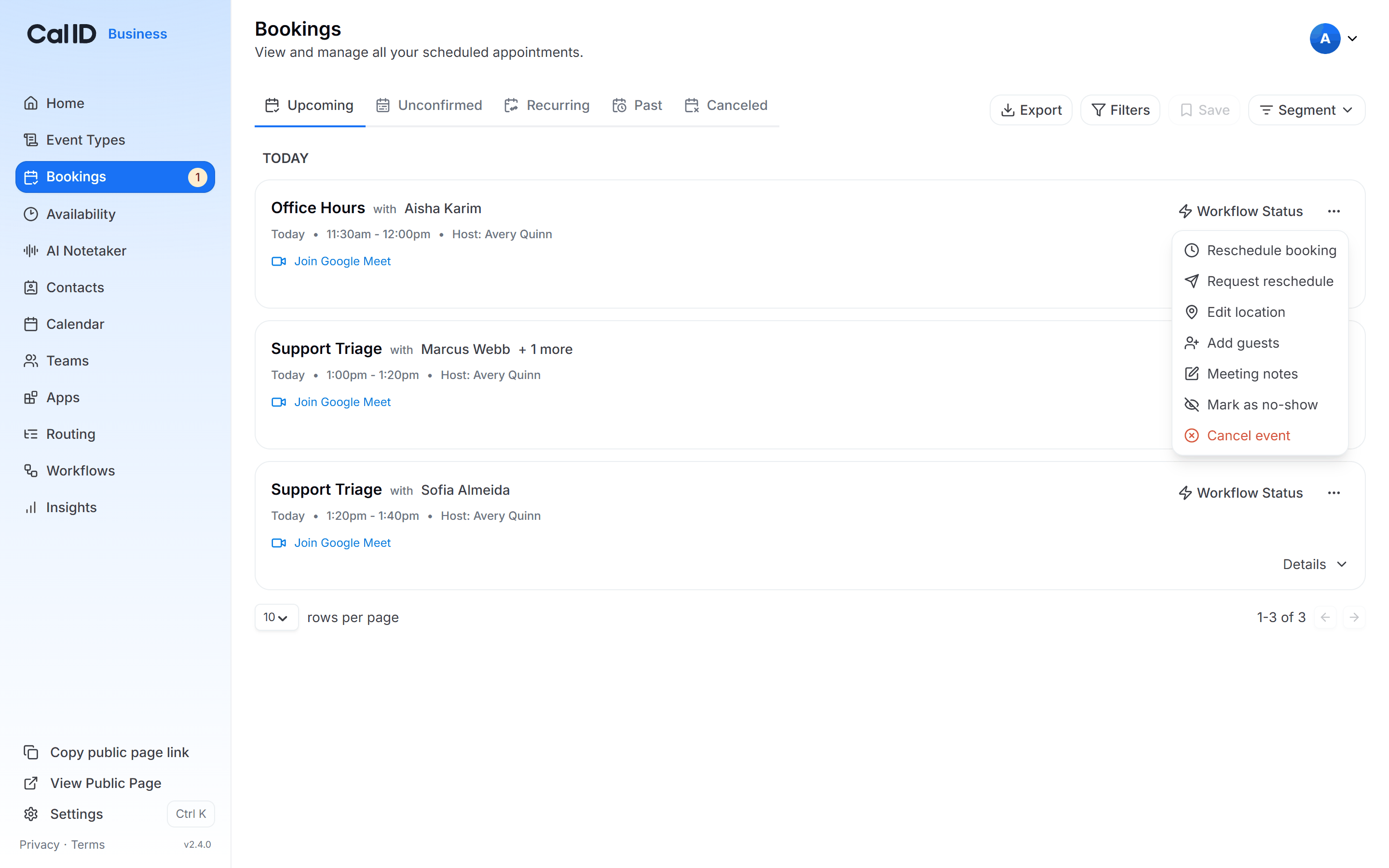
Choosing what happens to a booking
Reschedule versus request reschedule
The two options look similar in the menu but behave differently.Cancel or reschedule from the calendar
The unified calendar is faster when you are moving several meetings around in one sitting.1
Open the calendar
Click Calendar in the left sidebar.
2
Drag to reschedule
Drag the meeting block to a new day or time. The booking updates to the slot you drop it on.
3
Click to cancel
Click the meeting block, choose Cancel, add an optional reason, and confirm.
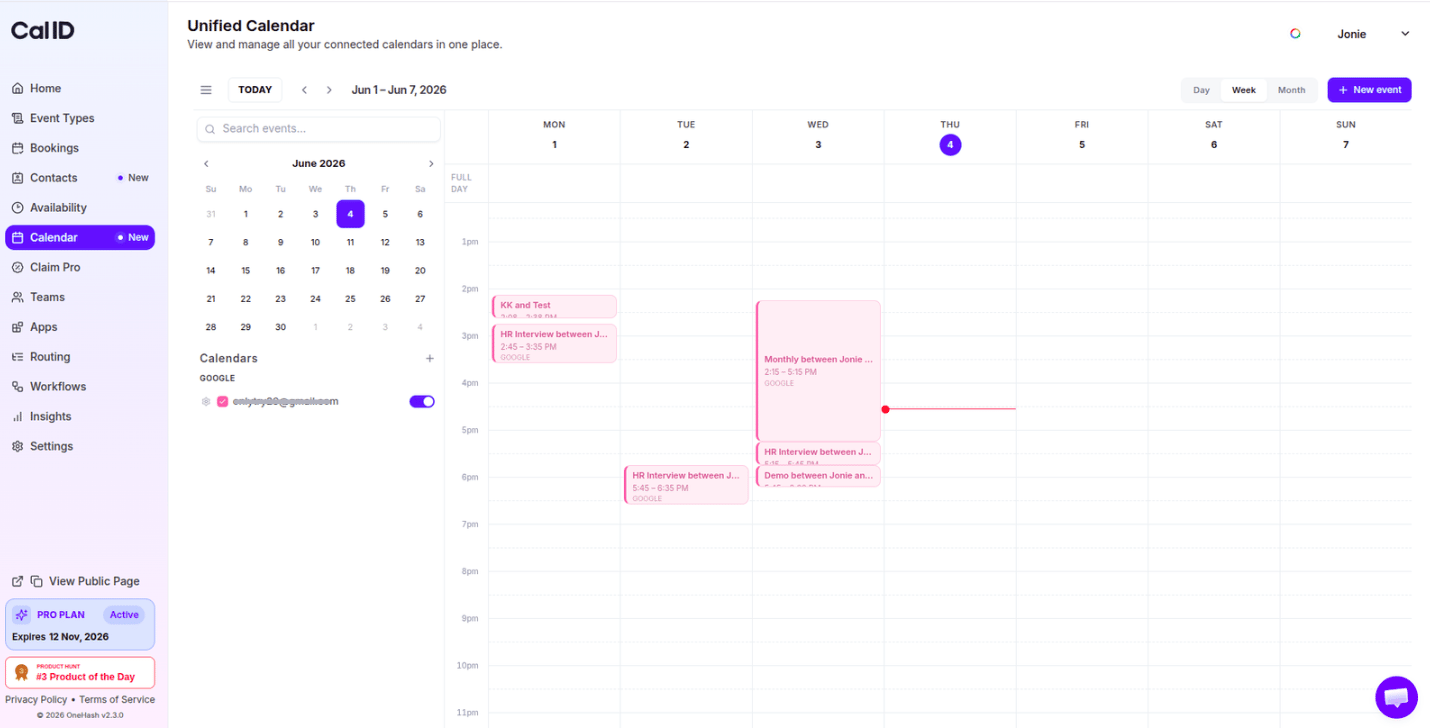
Shifting meetings without opening each one
How attendees cancel or reschedule
1
Open the confirmation email
The attendee opens the original booking confirmation, or any reminder that followed it.
2
Use the links in the email
Each email carries Reschedule and Cancel links.
3
Complete the change
Reschedule opens your booking page so they can choose another slot. Cancel lets them submit a reason and frees the slot for someone else.
These links appear only if rescheduling and cancellation are enabled on the event type. When they are turned off, the links are absent and the attendee has to contact you directly. See Disable rescheduling and cancelling.
What each side receives
A change never requires the attendee to re-accept the meeting.- On a reschedule: Cal ID emails both sides with the new time, moves the entry on any connected calendar, and fires the
BOOKING_RESCHEDULEDwebhook. The booking stays under Upcoming at its new time. - On a cancellation: Cal ID emails both sides with the cancellation and any reason you supplied, removes the entry from connected calendars, and fires the
BOOKING_CANCELLEDwebhook. The booking moves to Bookings → Cancelled. - On a request reschedule: the attendee gets a private booking link. A new time is only set once they choose one.
Edge cases worth knowing
- Past bookings. Whether a finished meeting can still be moved depends on the event type. See Allow rescheduling past bookings.
- Recurring bookings. These appear under Bookings → Recurring. Act on the individual occurrence you want to change.
- Unconfirmed bookings. A booking still awaiting your approval sits under Bookings → Unconfirmed. Reject it there rather than cancelling it.
- Team bookings. If the assigned host is unavailable but the meeting should still go ahead, reassign it instead of cancelling. See Reassigning a team booking.
- Rebooking a cancelled slot. A cancellation link can be turned into a fresh booking path. See Book via reschedule link.
More booking management
View booking details
Open any booking to see attendee info, notes, links, and workflow status.
Reassign a team booking
Hand a round-robin meeting to another host without cancelling it.
Disable rescheduling and cancelling
Remove the attendee-facing links for a specific event type.
Booking webhooks
React to
BOOKING_RESCHEDULED and BOOKING_CANCELLED in your own systems.