Link an existing WhatsApp Business app on your phone to Cal ID using an access code and QR scan so bookings can trigger WhatsApp reminders and follow-ups.
Follow these steps if you already have a WhatsApp Business app installed on your mobile device and want to link it to Cal ID.
Your address and Tax ID must be verified to trigger the message.
1
Select the connection method
From the integration screen, click Connect WhatsApp Business app. This opens the connection process for your existing app.
2
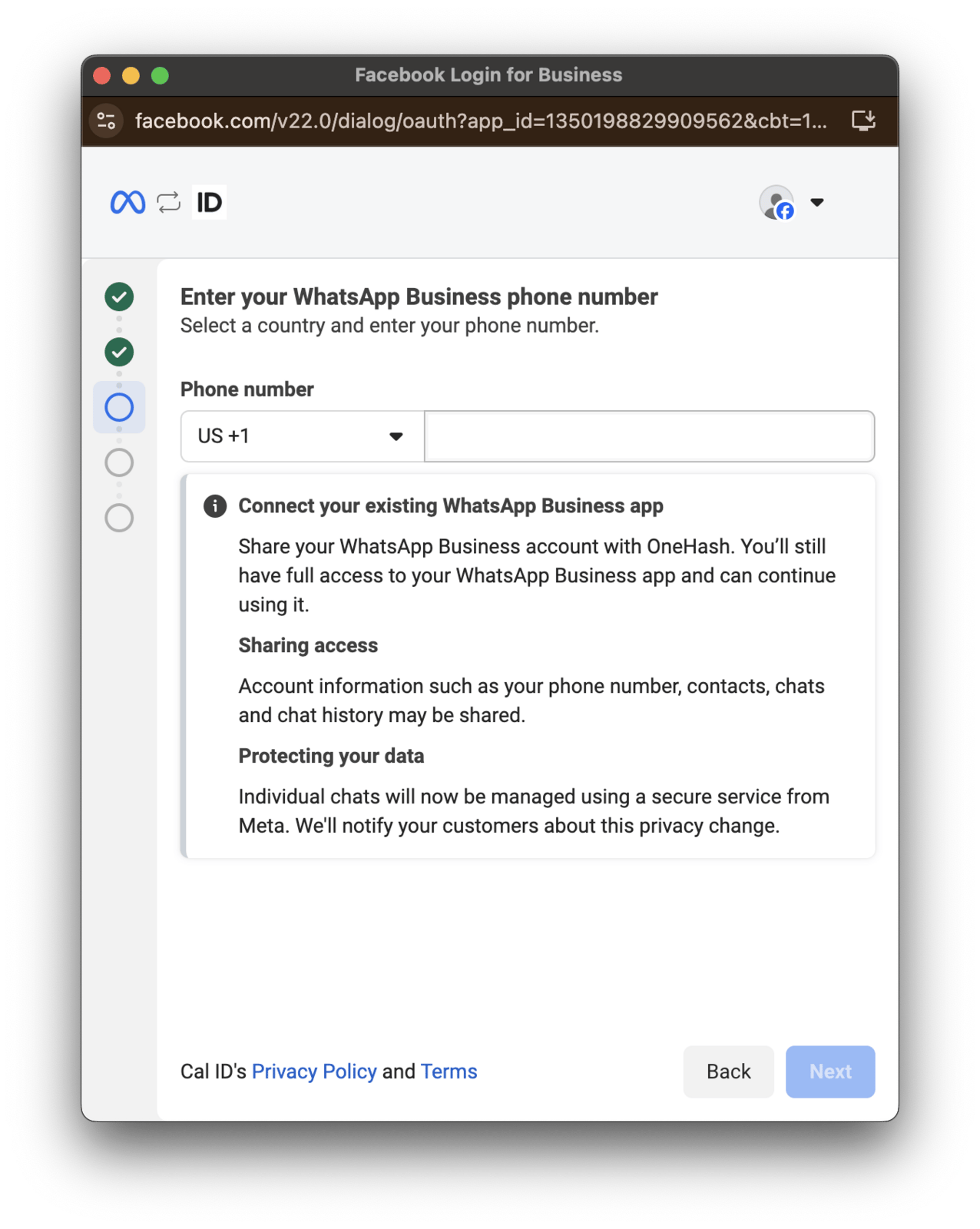
Enter your phone number
Type the phone number associated with your WhatsApp Business app, then click Next. Only verified phone numbers are shown here.
Choosing which number to link
3
Get your access code
On the verification screen, click Use an access code instead to generate a secure access code, and note it down.
4
Enter the code on your mobile device
On your phone:
Open the WhatsApp Business app.
Go to Menu or Settings by tapping the menu icon.
Select Account.
Select Business platform.
Enter the access code you copied earlier.
Click Next.
Paste the generated code.
Linking the app with an access code
5
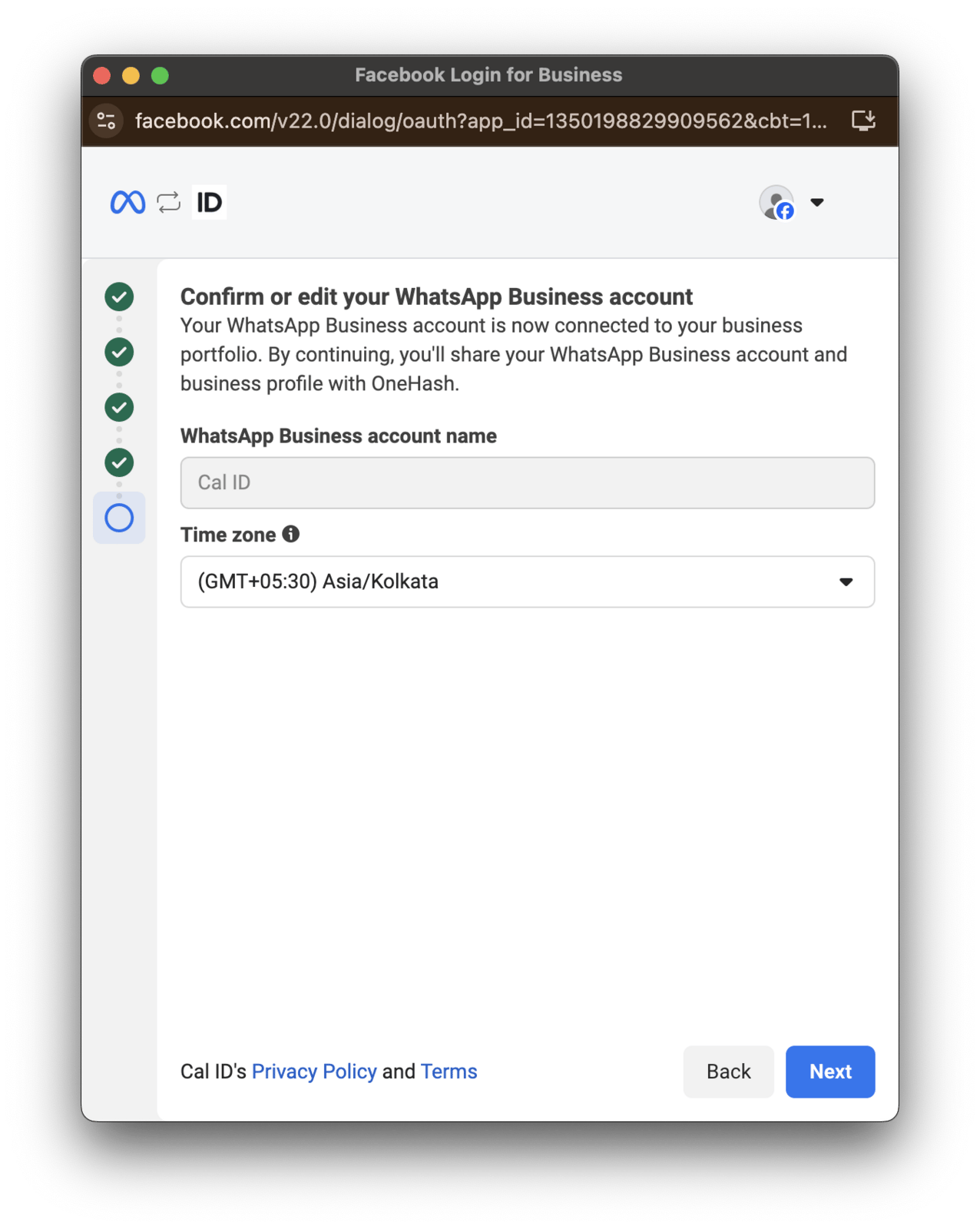
Enter additional data
Complete any additional details requested, then click Next.
Completing the remaining business details
6
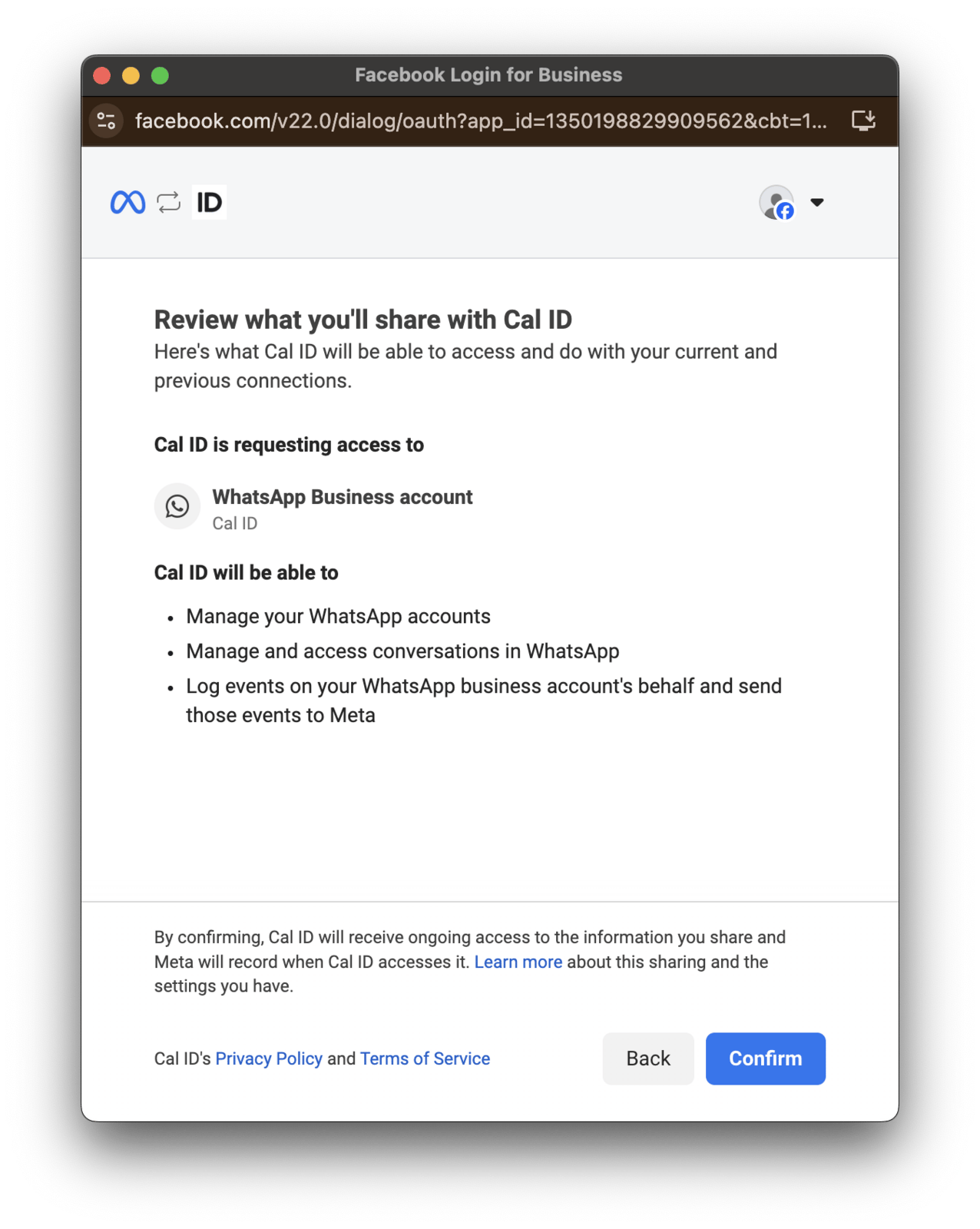
Confirm the connection
Review all details to check that everything is correct, then click Confirm.
Reviewing the details before you commit
7
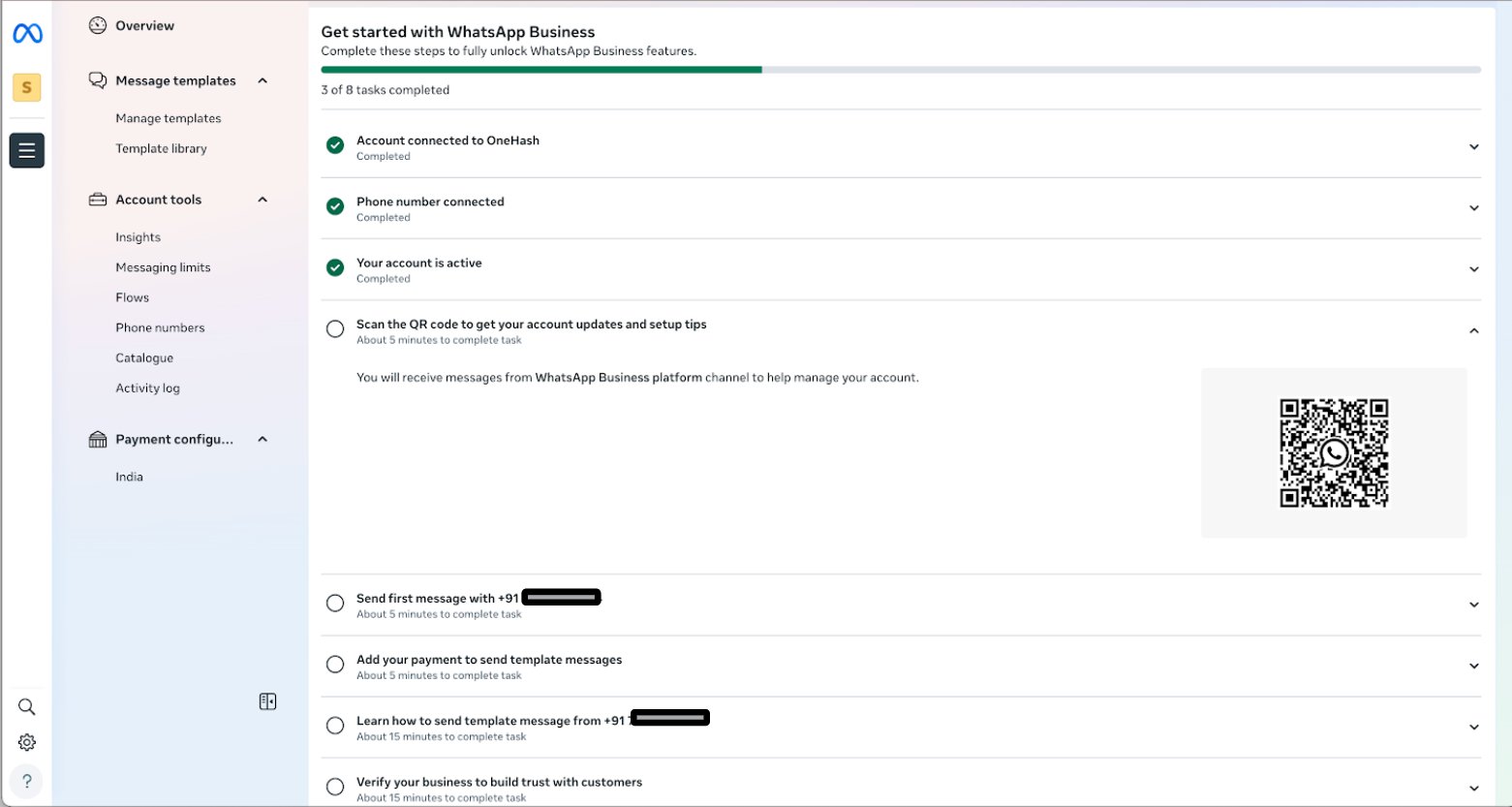
Scan the QR code
A QR code page appears. Scan the code with your mobile device and follow the on-screen instructions to complete any additional steps.
Finishing setup from your phone
Your WhatsApp Business app is connected to Cal ID and ready to send workflow messages.
{"docsConfig":{"theme":"mint","$schema":"https://mintlify.com/docs.json","name":"Cal ID","description":"Cal ID help center — scheduling, event types, availability, teams, apps, workflows, and developer tools for the Cal ID meeting scheduler.","colors":{"primary":"#1972F5","light":"#5B9BFF","dark":"#0B4FB8"},"logo":{"light":"https://mintcdn.com/cal-id-docs/k1VHQ7P5ONAHeLvP/logo/light.svg?fit=max\u0026auto=format\u0026n=k1VHQ7P5ONAHeLvP\u0026q=85\u0026s=589c4a9c69ea7387516e6452f592553e","dark":"https://mintcdn.com/cal-id-docs/tkghSGJWVIrQX7X0/logo/dark.svg?fit=max\u0026auto=format\u0026n=tkghSGJWVIrQX7X0\u0026q=85\u0026s=3215902115e27959cb7782b1af38e9fe"},"favicon":"https://mintcdn.com/cal-id-docs/NUrc1nmEeHvCjwEV/favicon.svg?fit=max\u0026auto=format\u0026n=NUrc1nmEeHvCjwEV\u0026q=85\u0026s=3247c427392ba77a41b08a807c322bfb","navbar":{"links":[{"href":"mailto:support@cal.id","label":"Email Us"}],"primary":{"type":"button","label":"Go to Cal ID","href":"https://cal.id"}},"footer":{"socials":{"x":"https://x.com/OneHash","linkedin":"https://www.linkedin.com/company/onehash"}},"errors":{"404":{"redirect":false,"title":"We couldn't find that page","description":"The page you're looking for doesn't exist or may have moved. Head back to the [Help Center home](/), or jump to [Event Types](/event-types/overview), [Availability](/availability/create), [Teams](/teams/overview), or the [API Reference](/api-reference) — or use the search bar above. Still stuck? Email us at [support@cal.id](mailto:support@cal.id)."}},"contextual":{"options":["copy","view","chatgpt","claude","perplexity","mcp","cursor","vscode","download-spec"],"display":"header"},"styling":{"latex":true},"navigation":{"pages":[]}},"deployment":{"deploymentMetadataValue":{"subdomain":"cal-id-docs","hasAudioNarration":false,"actualSubdomain":"cal-id-docs","customDomains":["cal.id"],"gitSource":{"type":"github","owner":"onehashai","repo":"mintlify-docs","deployBranch":"main","contentDirectory":"","isPrivate":true,"mountPath":"","label":""},"chroma":{"latestBuiltDeploymentHistoryId":"6ab916db4c0abff9c16e8c99","collectionId":"a1537af2-6a4a-409a-a4fe-70a6408ebcf7","liveDeploymentHistoryId":"6ab916db4c0abff9c16e8c99","schemaVersion":"v3"},"feedback":{"thumbs":true,"agentFeedback":false},"entitlements":{"AI_CHAT":{"status":"ENABLED"},"WEB_MCP":{"status":"ENABLED"},"NARRATION":{"status":"ENABLED"}},"buildId":"6ab916db4c0abff9c16e8c99","clientVersion":"0.0.4044","searchFilterCounts":[{"language":"default","tag":"API Reference","count":60},{"language":"default","tag":"Endpoints","count":58},{"language":"default","tag":"Event Types","count":57},{"language":"default","tag":"Scheduling \u0026 Teams","count":31},{"language":"default","tag":"Get Started","count":31},{"language":"default","tag":"Customization \u0026 Settings","count":23},{"language":"default","tag":"Apps \u0026 Integrations","count":22},{"language":"default","tag":"Advanced","count":18},{"language":"default","tag":"Developers","count":17},{"language":"default","tag":"Teams","count":16}],"searchSettings":{"isFiltersEnabled":false}},"assistantConfig":{"enableAskAiButton":false,"enableStarterQuestions":true,"enableContextualStarterQuestions":true,"enableAskAiSearchBar":true,"deflection":{"enabled":true,"email":"support@cal.id"}},"basePath":"/docs","hasChatPermissions":true,"hasWebMcpPermissions":true,"toggles":[{"name":"kill-isr","enabled":true,"variant":{"name":"disabled","enabled":false,"feature_enabled":true},"impressionData":false},{"name":"agent-mintlify-slack","enabled":true,"variant":{"name":"disabled","enabled":false,"feature_enabled":true},"impressionData":false},{"name":"agent-integrations-settings","enabled":true,"variant":{"name":"disabled","enabled":false,"feature_enabled":true},"impressionData":false},{"name":"automations-pr-grouping","enabled":true,"variant":{"name":"disabled","enabled":false,"feature_enabled":true},"impressionData":false},{"name":"custom-prefix","enabled":true,"variant":{"name":"disabled","enabled":false,"feature_enabled":true},"impressionData":false},{"name":"analytics-v7","enabled":true,"variant":{"name":"disabled","enabled":false,"feature_enabled":true},"impressionData":false},{"name":"user-flows-analytics","enabled":true,"variant":{"name":"disabled","enabled":false,"feature_enabled":true},"impressionData":false},{"name":"no-publish-flow","enabled":true,"variant":{"name":"disabled","enabled":false,"feature_enabled":true},"impressionData":false},{"name":"workos-onboarding","enabled":true,"variant":{"name":"disabled","enabled":false,"feature_enabled":true},"impressionData":false},{"name":"llms-txt-v2","enabled":true,"variant":{"name":"disabled","enabled":false,"feature_enabled":true},"impressionData":false},{"name":"snapshot-serving-live","enabled":true,"variant":{"name":"disabled","enabled":false,"feature_enabled":true},"impressionData":false},{"name":"stripTemperatureMiddleware","enabled":true,"variant":{"name":"disabled","enabled":false,"feature_enabled":true},"impressionData":false},{"name":"support-platform-pylon-zendesk","enabled":true,"variant":{"name":"disabled","enabled":false,"feature_enabled":true},"impressionData":false},{"name":"snapshot-serving","enabled":true,"variant":{"name":"disabled","enabled":false,"feature_enabled":true},"impressionData":false},{"name":"instant-rollback","enabled":true,"variant":{"name":"disabled","enabled":false,"feature_enabled":true},"impressionData":false},{"name":"granular-notifications-server","enabled":true,"variant":{"name":"disabled","enabled":false,"feature_enabled":true},"impressionData":false},{"name":"granular-notifications","enabled":true,"variant":{"name":"disabled","enabled":false,"feature_enabled":true},"impressionData":false},{"name":"automations-fable","enabled":true,"variant":{"name":"disabled","enabled":false,"feature_enabled":true},"impressionData":false},{"name":"fixed-ai-action-pricing","enabled":true,"variant":{"name":"disabled","enabled":false,"feature_enabled":true},"impressionData":false},{"name":"automation-resolve-merge-conflict","enabled":true,"variant":{"name":"disabled","enabled":false,"feature_enabled":true},"impressionData":false},{"name":"scoped-publishing","enabled":true,"variant":{"name":"disabled","enabled":false,"feature_enabled":true},"impressionData":false},{"name":"mintql","enabled":true,"variant":{"name":"disabled","enabled":false,"feature_enabled":true},"impressionData":false},{"name":"page-level-analytics","enabled":true,"variant":{"name":"disabled","enabled":false,"feature_enabled":true},"impressionData":false},{"name":"editor-version-history-v2","enabled":true,"variant":{"name":"disabled","enabled":false,"feature_enabled":true},"impressionData":false},{"name":"billing-page-v2","enabled":true,"variant":{"name":"disabled","enabled":false,"feature_enabled":true},"impressionData":false},{"name":"full-page-search","enabled":true,"variant":{"name":"disabled","enabled":false,"feature_enabled":true},"impressionData":false},{"name":"workspace-projects","enabled":true,"variant":{"name":"disabled","enabled":false,"feature_enabled":true},"impressionData":false},{"name":"assistant-v5","enabled":true,"variant":{"name":"disabled","enabled":false,"feature_enabled":true},"impressionData":false},{"name":"byok-sep-25","enabled":true,"variant":{"name":"disabled","enabled":false,"feature_enabled":true},"impressionData":false},{"name":"fork-pr-previews","enabled":true,"variant":{"name":"disabled","enabled":false,"feature_enabled":true},"impressionData":false},{"name":"revalidation-jwt","enabled":true,"variant":{"name":"disabled","enabled":false,"feature_enabled":true},"impressionData":false},{"name":"vite-origin","enabled":true,"variant":{"name":"disabled","enabled":false,"feature_enabled":true},"impressionData":false},{"name":"billing-updated-9-15","enabled":true,"variant":{"name":"disabled","enabled":false,"feature_enabled":true},"impressionData":false},{"name":"workos-sso-scim","enabled":true,"variant":{"name":"disabled","enabled":false,"feature_enabled":true},"impressionData":false},{"name":"hobby-abuse-scan","enabled":true,"variant":{"name":"disabled","enabled":false,"feature_enabled":true},"impressionData":false},{"name":"dashboard-inbox","enabled":true,"variant":{"name":"disabled","enabled":false,"feature_enabled":true},"impressionData":false},{"name":"workos-signup","enabled":true,"variant":{"name":"disabled","enabled":false,"feature_enabled":true},"impressionData":false},{"name":"turbopuffer-dual-write","enabled":true,"variant":{"name":"disabled","enabled":false,"feature_enabled":true},"impressionData":false},{"name":"workos-enabled","enabled":true,"variant":{"name":"disabled","enabled":false,"feature_enabled":true},"impressionData":false},{"name":"approve-review-flow","enabled":true,"variant":{"name":"disabled","enabled":false,"feature_enabled":true},"impressionData":false},{"name":"sso-setup-deadline-banner","enabled":true,"variant":{"name":"disabled","enabled":false,"feature_enabled":true},"impressionData":false}],"privacy":{"consentBanner":{"enabled":false}},"googleFontsInlined":false},"customCss":[],"page":{"pagePath":"workflows/connect-whatsapp-app","slug":"/workflows/connect-whatsapp-app","pageMetadata":{"title":"Connect with WhatsApp Business App","description":"Link an existing WhatsApp Business app on your phone to Cal ID using an access code and QR scan so bookings can trigger WhatsApp reminders and follow-ups.","icon":"whatsapp","keywords":["connect whatsapp","link whatsapp","whatsapp integration","setup whatsapp","install whatsapp app","whatsapp connection"],"related":["/workflows/whatsapp-business","/workflows/create-whatsapp-account","/workflows/overview","/workflows/custom-messages","/apps/install-app"],"href":"/workflows/connect-whatsapp-app"},"description":{"compiledSource":"\"use strict\";\nconst {jsx: _jsx} = arguments[0];\nconst {useMDXComponents: _provideComponents} = arguments[0];\nfunction _createMdxContent(props) {\n const _components = {\n p: \"p\",\n ..._provideComponents(),\n ...props.components\n };\n return _jsx(_components.p, {\n children: \"Link an existing WhatsApp Business app on your phone to Cal ID using an access code and QR scan so bookings can trigger WhatsApp reminders and follow-ups.\"\n });\n}\nfunction MDXContent(props = {}) {\n const {wrapper: MDXLayout} = {\n ..._provideComponents(),\n ...props.components\n };\n return MDXLayout ? _jsx(MDXLayout, {\n ...props,\n children: _jsx(_createMdxContent, {\n ...props\n })\n }) : _createMdxContent(props);\n}\nreturn {\n default: MDXContent\n};\n","frontmatter":{},"scope":{}},"pageType":"default","mdx":{"mdxSource":{"compiledSource":"\"use strict\";const{Fragment:_Fragment,jsx:_jsx,jsxs:_jsxs}=arguments[0];const{useMDXComponents:_provideComponents}=arguments[0];function _createMdxContent(props){const _components={li:`li`,ol:`ol`,p:`p`,strong:`strong`,..._provideComponents(),...props.components},{Card,CardGroup,Check,Frame,Heading,Info,OptimizedImage,Step,Steps}=_components;if(!Card)_missingMdxReference(`Card`,true);if(!CardGroup)_missingMdxReference(`CardGroup`,true);if(!Check)_missingMdxReference(`Check`,true);if(!Frame)_missingMdxReference(`Frame`,true);if(!Heading)_missingMdxReference(`Heading`,true);if(!Info)_missingMdxReference(`Info`,true);if(!OptimizedImage)_missingMdxReference(`OptimizedImage`,true);if(!Step)_missingMdxReference(`Step`,true);if(!Steps)_missingMdxReference(`Steps`,true);return _jsxs(_Fragment,{children:[_jsxs(_components.p,{children:[`Follow these steps if you already have a `,_jsx(_components.strong,{children:`WhatsApp Business app`}),` installed on your mobile device and want to link it to Cal ID.`]}),`\n`,_jsx(Info,{children:_jsx(_components.p,{children:`Your address and Tax ID must be verified to trigger the message.`})}),`\n`,_jsxs(Steps,{children:[_jsx(Step,{title:`Select the connection method`,children:_jsxs(_components.p,{children:[`From the integration screen, click `,_jsx(_components.strong,{children:`Connect WhatsApp Business app`}),`. This opens the connection process for your existing app.`]})}),_jsxs(Step,{title:`Enter your phone number`,children:[_jsxs(_components.p,{children:[`Type the phone number associated with your WhatsApp Business app, then click `,_jsx(_components.strong,{children:`Next`}),`. Only `,_jsx(_components.strong,{children:`verified phone numbers`}),` are shown here.`]}),_jsx(Frame,{caption:`Choosing which number to link`,children:_jsx(OptimizedImage,{src:`https://mintcdn.com/cal-id-docs/k1VHQ7P5ONAHeLvP/images/workflows/connect-whatsapp-app-2.png?fit=max\u0026auto=format\u0026n=k1VHQ7P5ONAHeLvP\u0026q=85\u0026s=25fee5237c3f96e2652e87da8300b28c`,alt:`Phone number screen with a country code selector, the verified WhatsApp Business number filled in, and a Next button`,\"data-og-width\":`1276`,width:`1276`,\"data-og-height\":`1600`,height:`1600`,\"data-path\":`images/workflows/connect-whatsapp-app-2.png`,\"data-optimize\":`true`,\"data-opv\":`3`,srcset:`https://mintcdn.com/cal-id-docs/k1VHQ7P5ONAHeLvP/images/workflows/connect-whatsapp-app-2.png?w=280\u0026fit=max\u0026auto=format\u0026n=k1VHQ7P5ONAHeLvP\u0026q=85\u0026s=69bcd2d5c496d5ba270f3c25292af89f 280w, https://mintcdn.com/cal-id-docs/k1VHQ7P5ONAHeLvP/images/workflows/connect-whatsapp-app-2.png?w=560\u0026fit=max\u0026auto=format\u0026n=k1VHQ7P5ONAHeLvP\u0026q=85\u0026s=edf0c3cbf398ad4f14298807cc801053 560w, https://mintcdn.com/cal-id-docs/k1VHQ7P5ONAHeLvP/images/workflows/connect-whatsapp-app-2.png?w=840\u0026fit=max\u0026auto=format\u0026n=k1VHQ7P5ONAHeLvP\u0026q=85\u0026s=265fa47fe5df6824250b559984ab7cb9 840w, https://mintcdn.com/cal-id-docs/k1VHQ7P5ONAHeLvP/images/workflows/connect-whatsapp-app-2.png?w=1100\u0026fit=max\u0026auto=format\u0026n=k1VHQ7P5ONAHeLvP\u0026q=85\u0026s=05013edc8c253bb0df0e2d28dd117d7d 1100w, https://mintcdn.com/cal-id-docs/k1VHQ7P5ONAHeLvP/images/workflows/connect-whatsapp-app-2.png?w=1650\u0026fit=max\u0026auto=format\u0026n=k1VHQ7P5ONAHeLvP\u0026q=85\u0026s=861120eaca4289f9a476a56513d07e1f 1650w, https://mintcdn.com/cal-id-docs/k1VHQ7P5ONAHeLvP/images/workflows/connect-whatsapp-app-2.png?w=2500\u0026fit=max\u0026auto=format\u0026n=k1VHQ7P5ONAHeLvP\u0026q=85\u0026s=26ecd10cfde77b0baf02004dfb854b26 2500w`})})]}),_jsx(Step,{title:`Get your access code`,children:_jsxs(_components.p,{children:[`On the verification screen, click `,_jsx(_components.strong,{children:`Use an access code instead`}),` to generate a secure access code, and note it down.`]})}),_jsxs(Step,{title:`Enter the code on your mobile device`,children:[_jsx(_components.p,{children:`On your phone:`}),_jsxs(_components.ol,{children:[`\n`,_jsxs(_components.li,{children:[`Open the `,_jsx(_components.strong,{children:`WhatsApp Business app`}),`.`]}),`\n`,_jsxs(_components.li,{children:[`Go to `,_jsx(_components.strong,{children:`Menu`}),` or `,_jsx(_components.strong,{children:`Settings`}),` by tapping the menu icon.`]}),`\n`,_jsxs(_components.li,{children:[`Select `,_jsx(_components.strong,{children:`Account`}),`.`]}),`\n`,_jsxs(_components.li,{children:[`Select `,_jsx(_components.strong,{children:`Business platform`}),`.`]}),`\n`,_jsxs(_components.li,{children:[`Enter the `,_jsx(_components.strong,{children:`access code`}),` you copied earlier.`]}),`\n`,_jsxs(_components.li,{children:[`Click `,_jsx(_components.strong,{children:`Next`}),`.`]}),`\n`,_jsx(_components.li,{children:`Paste the generated code.`}),`\n`]}),_jsx(Frame,{caption:`Linking the app with an access code`,children:_jsx(OptimizedImage,{src:`https://mintcdn.com/cal-id-docs/k1VHQ7P5ONAHeLvP/images/workflows/connect-whatsapp-app-4.png?fit=max\u0026auto=format\u0026n=k1VHQ7P5ONAHeLvP\u0026q=85\u0026s=b2649401e49ece16ed65db9615f9582a`,alt:`WhatsApp Business app Business platform screen with the access code entry field and a Next button`,\"data-og-width\":`257`,width:`257`,\"data-og-height\":`1600`,height:`1600`,\"data-path\":`images/workflows/connect-whatsapp-app-4.png`,\"data-optimize\":`true`,\"data-opv\":`3`,srcset:`https://mintcdn.com/cal-id-docs/k1VHQ7P5ONAHeLvP/images/workflows/connect-whatsapp-app-4.png?w=280\u0026fit=max\u0026auto=format\u0026n=k1VHQ7P5ONAHeLvP\u0026q=85\u0026s=4e9494b51f440dc95de21e29ee8970ef 280w, https://mintcdn.com/cal-id-docs/k1VHQ7P5ONAHeLvP/images/workflows/connect-whatsapp-app-4.png?w=560\u0026fit=max\u0026auto=format\u0026n=k1VHQ7P5ONAHeLvP\u0026q=85\u0026s=d3e9375e294325e65226007802febfdf 560w, https://mintcdn.com/cal-id-docs/k1VHQ7P5ONAHeLvP/images/workflows/connect-whatsapp-app-4.png?w=840\u0026fit=max\u0026auto=format\u0026n=k1VHQ7P5ONAHeLvP\u0026q=85\u0026s=f1d0f75bd22644666ce49e0dd09fd420 840w, https://mintcdn.com/cal-id-docs/k1VHQ7P5ONAHeLvP/images/workflows/connect-whatsapp-app-4.png?w=1100\u0026fit=max\u0026auto=format\u0026n=k1VHQ7P5ONAHeLvP\u0026q=85\u0026s=f76906c5f1b4cb157243b7947e978845 1100w, https://mintcdn.com/cal-id-docs/k1VHQ7P5ONAHeLvP/images/workflows/connect-whatsapp-app-4.png?w=1650\u0026fit=max\u0026auto=format\u0026n=k1VHQ7P5ONAHeLvP\u0026q=85\u0026s=c779322e22219140f0ccf795e794996c 1650w, https://mintcdn.com/cal-id-docs/k1VHQ7P5ONAHeLvP/images/workflows/connect-whatsapp-app-4.png?w=2500\u0026fit=max\u0026auto=format\u0026n=k1VHQ7P5ONAHeLvP\u0026q=85\u0026s=0dc9718fd750610a2e6e0dabf547dda8 2500w`})})]}),_jsxs(Step,{title:`Enter additional data`,children:[_jsxs(_components.p,{children:[`Complete any additional details requested, then click `,_jsx(_components.strong,{children:`Next`}),`.`]}),_jsx(Frame,{caption:`Completing the remaining business details`,children:_jsx(OptimizedImage,{src:`https://mintcdn.com/cal-id-docs/k1VHQ7P5ONAHeLvP/images/workflows/connect-whatsapp-app-5.png?fit=max\u0026auto=format\u0026n=k1VHQ7P5ONAHeLvP\u0026q=85\u0026s=1cf6d22bf0e1f7003b46dfecbc217ba8`,alt:`Additional details form with the required business information fields and a Next button`,\"data-og-width\":`1276`,width:`1276`,\"data-og-height\":`1600`,height:`1600`,\"data-path\":`images/workflows/connect-whatsapp-app-5.png`,\"data-optimize\":`true`,\"data-opv\":`3`,srcset:`https://mintcdn.com/cal-id-docs/k1VHQ7P5ONAHeLvP/images/workflows/connect-whatsapp-app-5.png?w=280\u0026fit=max\u0026auto=format\u0026n=k1VHQ7P5ONAHeLvP\u0026q=85\u0026s=8ead5ac0ac666249e1f312f55f31cf35 280w, https://mintcdn.com/cal-id-docs/k1VHQ7P5ONAHeLvP/images/workflows/connect-whatsapp-app-5.png?w=560\u0026fit=max\u0026auto=format\u0026n=k1VHQ7P5ONAHeLvP\u0026q=85\u0026s=659544967149c5067c01bbe674cc911e 560w, https://mintcdn.com/cal-id-docs/k1VHQ7P5ONAHeLvP/images/workflows/connect-whatsapp-app-5.png?w=840\u0026fit=max\u0026auto=format\u0026n=k1VHQ7P5ONAHeLvP\u0026q=85\u0026s=2710f3890fd77713b64ebbf450b4f7b8 840w, https://mintcdn.com/cal-id-docs/k1VHQ7P5ONAHeLvP/images/workflows/connect-whatsapp-app-5.png?w=1100\u0026fit=max\u0026auto=format\u0026n=k1VHQ7P5ONAHeLvP\u0026q=85\u0026s=cc315d4995301026dcf4e128021f3a38 1100w, https://mintcdn.com/cal-id-docs/k1VHQ7P5ONAHeLvP/images/workflows/connect-whatsapp-app-5.png?w=1650\u0026fit=max\u0026auto=format\u0026n=k1VHQ7P5ONAHeLvP\u0026q=85\u0026s=9cac16c47a169ebf63b58a704de882a2 1650w, https://mintcdn.com/cal-id-docs/k1VHQ7P5ONAHeLvP/images/workflows/connect-whatsapp-app-5.png?w=2500\u0026fit=max\u0026auto=format\u0026n=k1VHQ7P5ONAHeLvP\u0026q=85\u0026s=4501c111b814e2408b20c7a523240b07 2500w`})})]}),_jsxs(Step,{title:`Confirm the connection`,children:[_jsxs(_components.p,{children:[`Review all details to check that everything is correct, then click `,_jsx(_components.strong,{children:`Confirm`}),`.`]}),_jsx(Frame,{caption:`Reviewing the details before you commit`,children:_jsx(OptimizedImage,{src:`https://mintcdn.com/cal-id-docs/k1VHQ7P5ONAHeLvP/images/workflows/connect-whatsapp-app-6.png?fit=max\u0026auto=format\u0026n=k1VHQ7P5ONAHeLvP\u0026q=85\u0026s=b183bc84c6460d857c7d83fc4d3e3293`,alt:`Review screen listing the selected phone number and account details above a Confirm button`,\"data-og-width\":`1276`,width:`1276`,\"data-og-height\":`1600`,height:`1600`,\"data-path\":`images/workflows/connect-whatsapp-app-6.png`,\"data-optimize\":`true`,\"data-opv\":`3`,srcset:`https://mintcdn.com/cal-id-docs/k1VHQ7P5ONAHeLvP/images/workflows/connect-whatsapp-app-6.png?w=280\u0026fit=max\u0026auto=format\u0026n=k1VHQ7P5ONAHeLvP\u0026q=85\u0026s=fec19b378983d86004a40cb09f8b4458 280w, https://mintcdn.com/cal-id-docs/k1VHQ7P5ONAHeLvP/images/workflows/connect-whatsapp-app-6.png?w=560\u0026fit=max\u0026auto=format\u0026n=k1VHQ7P5ONAHeLvP\u0026q=85\u0026s=a07c5e1fb2b61e0fb95e4eac8c560860 560w, https://mintcdn.com/cal-id-docs/k1VHQ7P5ONAHeLvP/images/workflows/connect-whatsapp-app-6.png?w=840\u0026fit=max\u0026auto=format\u0026n=k1VHQ7P5ONAHeLvP\u0026q=85\u0026s=13dec45f489c8d94512cba5f87429141 840w, https://mintcdn.com/cal-id-docs/k1VHQ7P5ONAHeLvP/images/workflows/connect-whatsapp-app-6.png?w=1100\u0026fit=max\u0026auto=format\u0026n=k1VHQ7P5ONAHeLvP\u0026q=85\u0026s=8c7c8393f908790654592782849674a2 1100w, https://mintcdn.com/cal-id-docs/k1VHQ7P5ONAHeLvP/images/workflows/connect-whatsapp-app-6.png?w=1650\u0026fit=max\u0026auto=format\u0026n=k1VHQ7P5ONAHeLvP\u0026q=85\u0026s=5ee4b53684a36075a83a00145a86d00b 1650w, https://mintcdn.com/cal-id-docs/k1VHQ7P5ONAHeLvP/images/workflows/connect-whatsapp-app-6.png?w=2500\u0026fit=max\u0026auto=format\u0026n=k1VHQ7P5ONAHeLvP\u0026q=85\u0026s=476e97fd821811d4aa737eb7d6e61655 2500w`})})]}),_jsxs(Step,{title:`Scan the QR code`,children:[_jsx(_components.p,{children:`A QR code page appears. Scan the code with your mobile device and follow the on-screen instructions to complete any additional steps.`}),_jsx(Frame,{caption:`Finishing setup from your phone`,children:_jsx(OptimizedImage,{src:`https://mintcdn.com/cal-id-docs/k1VHQ7P5ONAHeLvP/images/workflows/connect-whatsapp-app-7.png?fit=max\u0026auto=format\u0026n=k1VHQ7P5ONAHeLvP\u0026q=85\u0026s=bd55ef88f1213e04e7ccc433106916fd`,alt:`QR code page showing a scannable code alongside on-screen instructions for completing the connection`,\"data-og-width\":`1561`,width:`1561`,\"data-og-height\":`833`,height:`833`,\"data-path\":`images/workflows/connect-whatsapp-app-7.png`,\"data-optimize\":`true`,\"data-opv\":`3`,srcset:`https://mintcdn.com/cal-id-docs/k1VHQ7P5ONAHeLvP/images/workflows/connect-whatsapp-app-7.png?w=280\u0026fit=max\u0026auto=format\u0026n=k1VHQ7P5ONAHeLvP\u0026q=85\u0026s=27509e33cb626e1206a7661fe68e245b 280w, https://mintcdn.com/cal-id-docs/k1VHQ7P5ONAHeLvP/images/workflows/connect-whatsapp-app-7.png?w=560\u0026fit=max\u0026auto=format\u0026n=k1VHQ7P5ONAHeLvP\u0026q=85\u0026s=a53d553c644506d86babff81230f89b5 560w, https://mintcdn.com/cal-id-docs/k1VHQ7P5ONAHeLvP/images/workflows/connect-whatsapp-app-7.png?w=840\u0026fit=max\u0026auto=format\u0026n=k1VHQ7P5ONAHeLvP\u0026q=85\u0026s=d82277ac08475c50effdabf41185f1d8 840w, https://mintcdn.com/cal-id-docs/k1VHQ7P5ONAHeLvP/images/workflows/connect-whatsapp-app-7.png?w=1100\u0026fit=max\u0026auto=format\u0026n=k1VHQ7P5ONAHeLvP\u0026q=85\u0026s=393b93d0548d2b0fc50eecfd8361eb55 1100w, https://mintcdn.com/cal-id-docs/k1VHQ7P5ONAHeLvP/images/workflows/connect-whatsapp-app-7.png?w=1650\u0026fit=max\u0026auto=format\u0026n=k1VHQ7P5ONAHeLvP\u0026q=85\u0026s=d824d633f8a1517a5221264dec16d48a 1650w, https://mintcdn.com/cal-id-docs/k1VHQ7P5ONAHeLvP/images/workflows/connect-whatsapp-app-7.png?w=2500\u0026fit=max\u0026auto=format\u0026n=k1VHQ7P5ONAHeLvP\u0026q=85\u0026s=1e1de95c1d0b27514864d8c625dfd363 2500w`})})]})]}),`\n`,_jsx(Check,{children:_jsx(_components.p,{children:`Your WhatsApp Business app is connected to Cal ID and ready to send workflow messages.`})}),`\n`,_jsx(Heading,{level:`2`,id:`more-whatsapp-workflow-steps`,children:`More WhatsApp workflow steps`}),`\n`,_jsxs(CardGroup,{cols:2,children:[_jsx(Card,{title:`Integrate WhatsApp Business`,icon:`whatsapp`,href:`/workflows/whatsapp-business`,children:_jsx(_components.p,{children:`Review the full setup and attach your number to a workflow.`})}),_jsx(Card,{title:`Set up a workflow`,icon:`bell`,href:`/workflows/overview`,children:_jsx(_components.p,{children:`Send reminders and follow-ups from your WhatsApp number.`})}),_jsx(Card,{title:`Customize your messages`,icon:`pen-to-square`,href:`/workflows/custom-messages`,children:_jsx(_components.p,{children:`Personalize sender names, subjects, and booking variables.`})}),_jsx(Card,{title:`Create a new account`,icon:`plus`,href:`/workflows/create-whatsapp-account`,children:_jsx(_components.p,{children:`Set up a business portfolio and WhatsApp Business account in Meta.`})})]})]})}function MDXContent(props={}){const{wrapper:MDXLayout}={..._provideComponents(),...props.components};return MDXLayout?_jsx(MDXLayout,{...props,children:_jsx(_createMdxContent,{...props})}):_createMdxContent(props)}return{default:MDXContent};function _missingMdxReference(id,component){throw new Error(`Expected `+(component?`component`:`object`)+\" `\"+id+\"` to be defined: you likely forgot to import, pass, or provide it.\")}","frontmatter":{},"scope":{"config":{},"pageMetadata":{"title":"Connect with WhatsApp Business App","description":"Link an existing WhatsApp Business app on your phone to Cal ID using an access code and QR scan so bookings can trigger WhatsApp reminders and follow-ups.","icon":"whatsapp","keywords":["connect whatsapp","link whatsapp","whatsapp integration","setup whatsapp","install whatsapp app","whatsapp connection"],"related":["/workflows/whatsapp-business","/workflows/create-whatsapp-account","/workflows/overview","/workflows/custom-messages","/apps/install-app"],"href":"/workflows/connect-whatsapp-app"}}},"mdxSourceWithNoJs":null},"mdxExtracts":{"tableOfContents":[{"title":"More WhatsApp workflow steps","slug":"more-whatsapp-workflow-steps","depth":2,"children":[]}],"codeExamples":{}},"jsLinks":["/docs/_mintlify/custom/cal-id-docs/09b4d95490dd9c71/support-crisp.js"],"subdomain":"cal-id-docs","siteName":"Cal ID","title":"Connect with WhatsApp Business App - Cal ID","relatedPages":[{"title":"Integrate WhatsApp Business","link":"/workflows/whatsapp-business","icon":"whatsapp"},{"title":"Create New WhatsApp Business Account","link":"/workflows/create-whatsapp-account","icon":"whatsapp"},{"title":"Workflows Setup to Cal ID","link":"/workflows/overview","icon":"bell"},{"title":"Customizing Your Workflow Messages","link":"/workflows/custom-messages","icon":"pen-to-square"},{"title":"Install New App on Cal ID","link":"/apps/install-app","icon":"download"}],"relatedPagesConfig":{"enabled":true,"limit":5,"mode":"automatic"},"contextualStarterQuestions":[{"_id":"6a986293cabf01e77694fb57","deploymentId":"6a6c20ecc3064aa95c02d1fd","questionText":"How do I link WhatsApp to Cal ID?","status":"active","generatedBy":"contextual","path":"workflows/connect-whatsapp-app","createdAt":"2026-09-02T17:53:23.185Z","updatedAt":"2026-09-02T17:53:23.185Z","__v":0},{"_id":"6a986293cabf01e77694fb59","deploymentId":"6a6c20ecc3064aa95c02d1fd","questionText":"How do I select my phone number?","status":"active","generatedBy":"contextual","path":"workflows/connect-whatsapp-app","createdAt":"2026-09-02T17:53:23.185Z","updatedAt":"2026-09-02T17:53:23.185Z","__v":0},{"_id":"6a986293cabf01e77694fb58","deploymentId":"6a6c20ecc3064aa95c02d1fd","questionText":"What requirements do I need first?","status":"active","generatedBy":"contextual","path":"workflows/connect-whatsapp-app","createdAt":"2026-09-02T17:53:23.185Z","updatedAt":"2026-09-02T17:53:23.185Z","__v":0}],"navMaps":{"firstHrefInVersion":{},"firstHrefInLanguage":{}},"lastModified":"2026-09-02T17:52:54.796Z","originalFileLocation":"workflows/connect-whatsapp-app.mdx"},"headHtml":"\u003cscript data-mint-head>(function(){var d=document.documentElement,p=null;if(!p){try{p=localStorage.getItem(\"isDarkMode\")}catch(e){}if(p==='true')p='dark';else if(p==='false')p='light';if(p!=='light'\u0026\u0026p!=='dark'\u0026\u0026p!=='system')p=\"system\"}var r=p==='system'?(matchMedia(\"(prefers-color-scheme: dark)\").matches?'dark':'light'):p;d.classList.remove(r==='dark'?'light':'dark');d.classList.add(r);d.setAttribute(\"data-theme-preference\",p)})();\u003c/script>\u003cmeta data-mint-head name=\"description\" content=\"Link an existing WhatsApp Business app on your phone to Cal ID using an access code and QR scan so bookings can trigger WhatsApp reminders and follow-ups.\">\u003cmeta data-mint-head name=\"application-name\" content=\"Cal ID\">\u003cmeta data-mint-head name=\"generator\" content=\"Mintlify\">\u003clink data-mint-head rel=\"icon\" type=\"image/png\" sizes=\"192x192\" href=\"/docs/mintlify-assets/_mintlify/favicons/cal-id-docs/Ah-PiVKdxwxdJ_gr/_generated/favicon/android-chrome-192x192.png\" media=\"(prefers-color-scheme: light)\">\u003clink data-mint-head rel=\"apple-touch-icon\" type=\"image/png\" sizes=\"180x180\" href=\"/docs/mintlify-assets/_mintlify/favicons/cal-id-docs/Ah-PiVKdxwxdJ_gr/_generated/favicon/apple-touch-icon.png\">\u003clink data-mint-head rel=\"icon\" type=\"image/png\" sizes=\"16x16\" href=\"/docs/mintlify-assets/_mintlify/favicons/cal-id-docs/Ah-PiVKdxwxdJ_gr/_generated/favicon/favicon-16x16.png\" media=\"(prefers-color-scheme: light)\">\u003clink data-mint-head rel=\"icon\" type=\"image/png\" sizes=\"32x32\" href=\"/docs/mintlify-assets/_mintlify/favicons/cal-id-docs/Ah-PiVKdxwxdJ_gr/_generated/favicon/favicon-32x32.png\" media=\"(prefers-color-scheme: light)\">\u003clink data-mint-head rel=\"shortcut icon\" type=\"image/x-icon\" href=\"/docs/mintlify-assets/_mintlify/favicons/cal-id-docs/Ah-PiVKdxwxdJ_gr/_generated/favicon/favicon.ico\" media=\"(prefers-color-scheme: light)\">\u003clink data-mint-head rel=\"icon\" type=\"image/png\" sizes=\"192x192\" href=\"/docs/mintlify-assets/_mintlify/favicons/cal-id-docs/Ah-PiVKdxwxdJ_gr/_generated/favicon-dark/android-chrome-192x192.png\" media=\"(prefers-color-scheme: dark)\">\u003clink data-mint-head rel=\"icon\" type=\"image/png\" sizes=\"16x16\" href=\"/docs/mintlify-assets/_mintlify/favicons/cal-id-docs/Ah-PiVKdxwxdJ_gr/_generated/favicon-dark/favicon-16x16.png\" media=\"(prefers-color-scheme: dark)\">\u003clink data-mint-head rel=\"icon\" type=\"image/png\" sizes=\"32x32\" href=\"/docs/mintlify-assets/_mintlify/favicons/cal-id-docs/Ah-PiVKdxwxdJ_gr/_generated/favicon-dark/favicon-32x32.png\" media=\"(prefers-color-scheme: dark)\">\u003clink data-mint-head rel=\"shortcut icon\" type=\"image/x-icon\" href=\"/docs/mintlify-assets/_mintlify/favicons/cal-id-docs/Ah-PiVKdxwxdJ_gr/_generated/favicon-dark/favicon.ico\" media=\"(prefers-color-scheme: dark)\">\u003cmeta data-mint-head property=\"og:title\" content=\"Connect with WhatsApp Business App - Cal ID\">\u003cmeta data-mint-head property=\"og:description\" content=\"Link an existing WhatsApp Business app on your phone to Cal ID using an access code and QR scan so bookings can trigger WhatsApp reminders and follow-ups.\">\u003cmeta data-mint-head property=\"og:site_name\" content=\"Cal ID\">\u003cmeta data-mint-head property=\"og:url\" content=\"https://cal.id/docs/workflows/connect-whatsapp-app\">\u003cmeta data-mint-head property=\"og:type\" content=\"website\">\u003cmeta data-mint-head property=\"og:image\" content=\"https://cal-id-docs.mintlify.app/_mintlify/api/og/v2?division=Workflows\u0026amp;title=Connect+with+WhatsApp+Business+App\u0026amp;description=Link+an+existing+WhatsApp+Business+app+on+your+phone+to+Cal+ID+using+an+access+code+and+QR+scan+so+bookings+can+trigger+WhatsApp+reminders+and+follow-ups.\u0026amp;theme=1ce1fba1bcc16a5579de1fe3\u0026amp;signature=605fefb30f005588ab992fc92cb372e6148b2876d212e66e895a3fd659fc43c9\">\u003cmeta data-mint-head property=\"og:image:width\" content=\"1200\">\u003cmeta data-mint-head property=\"og:image:height\" content=\"630\">\u003cmeta data-mint-head name=\"twitter:card\" content=\"summary_large_image\">\u003cmeta data-mint-head name=\"twitter:title\" content=\"Connect with WhatsApp Business App - Cal ID\">\u003cmeta data-mint-head name=\"twitter:description\" content=\"Link an existing WhatsApp Business app on your phone to Cal ID using an access code and QR scan so bookings can trigger WhatsApp reminders and follow-ups.\">\u003cmeta data-mint-head name=\"twitter:image\" content=\"https://cal-id-docs.mintlify.app/_mintlify/api/og/v2?division=Workflows\u0026amp;title=Connect+with+WhatsApp+Business+App\u0026amp;description=Link+an+existing+WhatsApp+Business+app+on+your+phone+to+Cal+ID+using+an+access+code+and+QR+scan+so+bookings+can+trigger+WhatsApp+reminders+and+follow-ups.\u0026amp;theme=1ce1fba1bcc16a5579de1fe3\u0026amp;signature=605fefb30f005588ab992fc92cb372e6148b2876d212e66e895a3fd659fc43c9\">\u003cmeta data-mint-head name=\"twitter:image:width\" content=\"1200\">\u003cmeta data-mint-head name=\"twitter:image:height\" content=\"630\">\u003cmeta data-mint-head name=\"msapplication-config\" content=\"/docs/mintlify-assets/_mintlify/favicons/cal-id-docs/Ah-PiVKdxwxdJ_gr/_generated/favicon/browserconfig.xml\">\u003cmeta data-mint-head name=\"apple-mobile-web-app-title\" content=\"Cal ID\">\u003cmeta data-mint-head name=\"msapplication-TileColor\" content=\"#1972F5\">\u003clink data-mint-head rel=\"canonical\" href=\"https://cal.id/docs/workflows/connect-whatsapp-app\">\u003clink data-mint-head rel=\"alternate\" type=\"application/xml\" href=\"/docs/sitemap.xml\">\u003clink data-mint-head rel=\"alternate\" type=\"text/markdown\" href=\"/docs/workflows/connect-whatsapp-app.md\">\u003cscript data-mint-head type=\"application/ld+json\">{\"@context\":\"https://schema.org\",\"@graph\":[{\"@type\":\"Organization\",\"@id\":\"https://cal.id/#organization\",\"name\":\"Cal ID\",\"url\":\"https://cal.id\",\"logo\":{\"@type\":\"ImageObject\",\"url\":\"https://mintcdn.com/cal-id-docs/k1VHQ7P5ONAHeLvP/logo/light.svg?fit=max\u0026auto=format\u0026n=k1VHQ7P5ONAHeLvP\u0026q=85\u0026s=589c4a9c69ea7387516e6452f592553e\"}},{\"@type\":\"WebSite\",\"@id\":\"https://cal.id/docs#website\",\"name\":\"Cal ID\",\"url\":\"https://cal.id/docs\",\"publisher\":{\"@id\":\"https://cal.id/#organization\"}},{\"@type\":\"WebPage\",\"@id\":\"https://cal.id/docs/workflows/connect-whatsapp-app#webpage\",\"url\":\"https://cal.id/docs/workflows/connect-whatsapp-app\",\"name\":\"Connect with WhatsApp Business App\",\"description\":\"Link an existing WhatsApp Business app on your phone to Cal ID using an access code and QR scan so bookings can trigger WhatsApp reminders and follow-ups.\",\"dateModified\":\"2026-09-02T17:52:54.796Z\",\"isPartOf\":{\"@id\":\"https://cal.id/docs#website\"},\"breadcrumb\":{\"@id\":\"https://cal.id/docs/workflows/connect-whatsapp-app#breadcrumb\"}},{\"@type\":\"BreadcrumbList\",\"@id\":\"https://cal.id/docs/workflows/connect-whatsapp-app#breadcrumb\",\"itemListElement\":[{\"@type\":\"ListItem\",\"position\":1,\"name\":\"Workflows\",\"item\":\"https://cal.id/docs/workflows/overview\"},{\"@type\":\"ListItem\",\"position\":2,\"name\":\"Connect with WhatsApp Business App\",\"item\":\"https://cal.id/docs/workflows/connect-whatsapp-app\"}]},{\"@type\":[\"Article\",\"TechArticle\"],\"@id\":\"https://cal.id/docs/workflows/connect-whatsapp-app#article\",\"headline\":\"Connect with WhatsApp Business App\",\"name\":\"Connect with WhatsApp Business App\",\"description\":\"Link an existing WhatsApp Business app on your phone to Cal ID using an access code and QR scan so bookings can trigger WhatsApp reminders and follow-ups.\",\"url\":\"https://cal.id/docs/workflows/connect-whatsapp-app\",\"mainEntityOfPage\":{\"@id\":\"https://cal.id/docs/workflows/connect-whatsapp-app#webpage\"},\"dateModified\":\"2026-09-02T17:52:54.796Z\",\"keywords\":\"connect whatsapp, link whatsapp, whatsapp integration, setup whatsapp, install whatsapp app, whatsapp connection\",\"publisher\":{\"@id\":\"https://cal.id/#organization\"},\"isPartOf\":{\"@id\":\"https://cal.id/docs#website\"}}]}\u003c/script>\u003cscript data-mint-head type=\"application/ld+json\">{\"@context\":\"https://schema.org\",\"@type\":\"WebSite\",\"name\":\"Cal ID\",\"creator\":{\"@type\":\"Organization\",\"name\":\"Mintlify\",\"url\":\"https://mintlify.com\"}}\u003c/script>","siteName":"Cal ID","nav":{"global":null,"tabs":[{"tab":"Get Started","pages":[{"title":"Get Started","href":""}]},{"tab":"Event Types","pages":[{"title":"Event Types","href":"/event-types/overview"}]},{"tab":"Scheduling \u0026 Teams","groups":[{"group":"Overview","pages":[{"title":"Scheduling \u0026 Teams","icon":"calendar-days","sidebarTitle":"Overview","href":"/scheduling/overview"}]},{"group":"Availability","pages":[{"title":"Create Availability in Cal ID","icon":"calendar","href":"/availability/create"},{"title":"Multiple Schedules","icon":"calendar-days","href":"/availability/multiple-schedules"},{"title":"Multiple Time Slots per Day","icon":"clock","href":"/availability/multiple-time-slots"},{"title":"Date Overrides or Set Unavailable","icon":"calendar-xmark","href":"/availability/date-overrides"},{"title":"Extended Timezone Availability","sidebarTitle":"Extended timezone","icon":"globe","href":"/availability/extended-timezone"},{"title":"Set Out of Office in Cal ID","sidebarTitle":"Out of Office","icon":"plane-departure","href":"/availability/out-of-office"},{"title":"Team Availability","icon":"users-gear","href":"/availability/team-availability"}]},{"group":"Bookings","pages":[{"title":"View Booking Details","icon":"list","href":"/bookings/view-details"},{"title":"Canceling and Rescheduling Bookings","sidebarTitle":"Cancel or reschedule","icon":"calendar-xmark","href":"/bookings/cancel-reschedule"},{"title":"Reassigning a Team Booking","sidebarTitle":"Reassign a booking","icon":"arrow-right-arrow-left","href":"/bookings/reassign-round-robin"},{"title":"Export Booking Details","icon":"file-export","href":"/bookings/export"},{"title":"Mark Attendees as No-Show","icon":"user-xmark","href":"/bookings/no-show"},{"title":"Track Notification Delivery","icon":"bolt","href":"/bookings/workflow-status"}]},{"group":"Routing","pages":[{"title":"Set Up Routing Forms","icon":"diagram-project","href":"/routing/routing-forms"}]},{"group":"Workflows","pages":[{"title":"Workflows Setup to Cal ID","icon":"bell","href":"/workflows/overview"},{"title":"Customizing Your Workflow Messages","icon":"pen-to-square","href":"/workflows/custom-messages"},{"title":"Integrate WhatsApp Business","description":"Connect your own WhatsApp Business phone number to Cal ID so workflow reminders and confirmations are sent to attendees from your official business account.","icon":"whatsapp","href":"/workflows/whatsapp-business"},{"title":"Connect with WhatsApp Business App","icon":"whatsapp","href":"/workflows/connect-whatsapp-app"},{"title":"Create New WhatsApp Business Account","description":"Create a new business portfolio and WhatsApp Business account in Meta Business Suite so you can connect it to Cal ID for automated booking messages.","icon":"whatsapp","href":"/workflows/create-whatsapp-account"}]},{"group":"Teams","pages":[{"title":"Teams in Cal ID","icon":"users","href":"/teams/overview"},{"title":"Install a Calendar on a Team","icon":"calendar-plus","href":"/teams/install-team-calendar"},{"title":"Invite Team Members","icon":"user-plus","href":"/teams/invite-members"},{"title":"Remove a Team Member","icon":"user-minus","href":"/teams/remove-member"},{"title":"Leave a Cal ID Team","sidebarTitle":"Leave a Team","icon":"right-from-bracket","href":"/teams/leave-team"},{"title":"Cal ID Team Profile Settings","sidebarTitle":"Team Profile","icon":"gear","href":"/teams/settings"},{"title":"Team Advanced Settings","icon":"sliders","href":"/teams/advanced-settings"},{"title":"Round-Robin Scheduling","icon":"arrows-rotate","href":"/teams/round-robin"},{"title":"Collective Events","icon":"user-group","href":"/teams/collective"},{"title":"Managed Event Types for Teams","sidebarTitle":"Managed Events","icon":"layer-group","href":"/teams/managed"},{"title":"Internal Team Meeting","icon":"calendar-check","href":"/teams/internal-meeting"}]}]},{"tab":"Apps \u0026 Integrations","pages":[{"title":"Apps \u0026 Integrations","href":"/apps/overview"}]},{"tab":"Customization \u0026 Settings","pages":[{"title":"Customization \u0026 Settings","href":"/customization/overview"}]},{"tab":"Developers","pages":[{"title":"Developers","href":"/developers/overview"}]},{"tab":"MCP","icon":"plug","pages":[{"title":"MCP","href":"/mcp/overview"}]},{"tab":"API Reference","pages":[{"title":"API Reference","href":"/api-reference/introduction"}]}]},"basePath":"","title":"Connect with WhatsApp Business App - Cal ID","buildId":"dpl_6cCEiK8XNNvaLBBkWzcBhdE9QfLC","deploymentId":"dpl_6cCEiK8XNNvaLBBkWzcBhdE9QfLC","dynamics":["07c022d89b","a74be98ba7"],"chunks":["Frame-Bj1PpgeO.js","DynamicMarkdown-Bas9A7wq.js","zoom-image-lightbox-B-WKhCOL.js","lightbox-handle-r17bVUz3.js"]}