

How to check the status
1
Go to Bookings
Click Bookings in the left menu.
2
Find the meeting
Look for the specific meeting in your list.
3
Open Workflow Status
Click Workflow Status (the lightning bolt icon) on the right side of the booking row.
What the status words mean
When you open the status window, you’ll see a list of messages, each at one of these stages:Scheduled / Queued
The message is waiting and will be sent at the right time.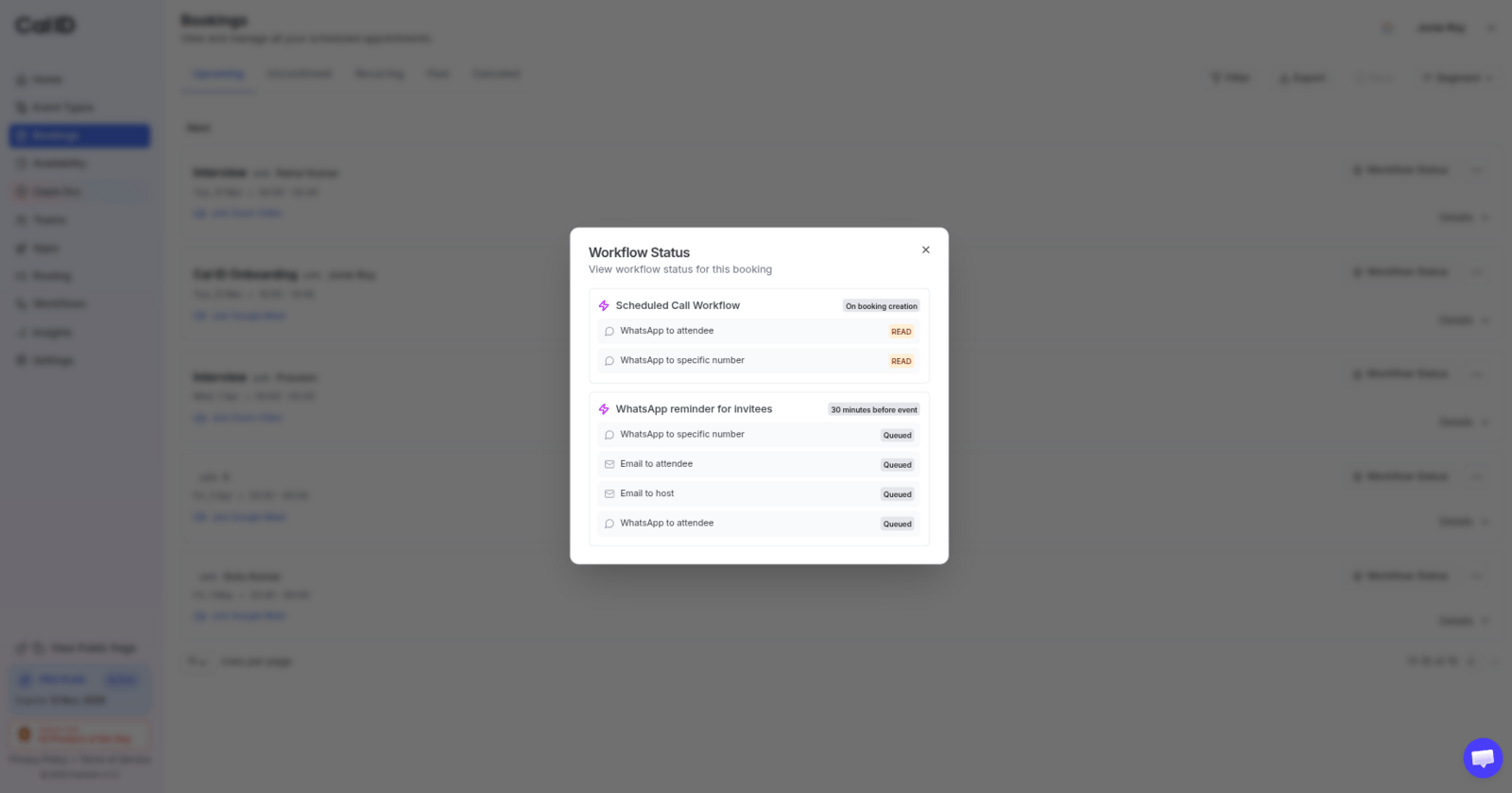
Confirming a reminder is still pending
Delivered
The message was successfully sent and reached the person’s inbox or phone.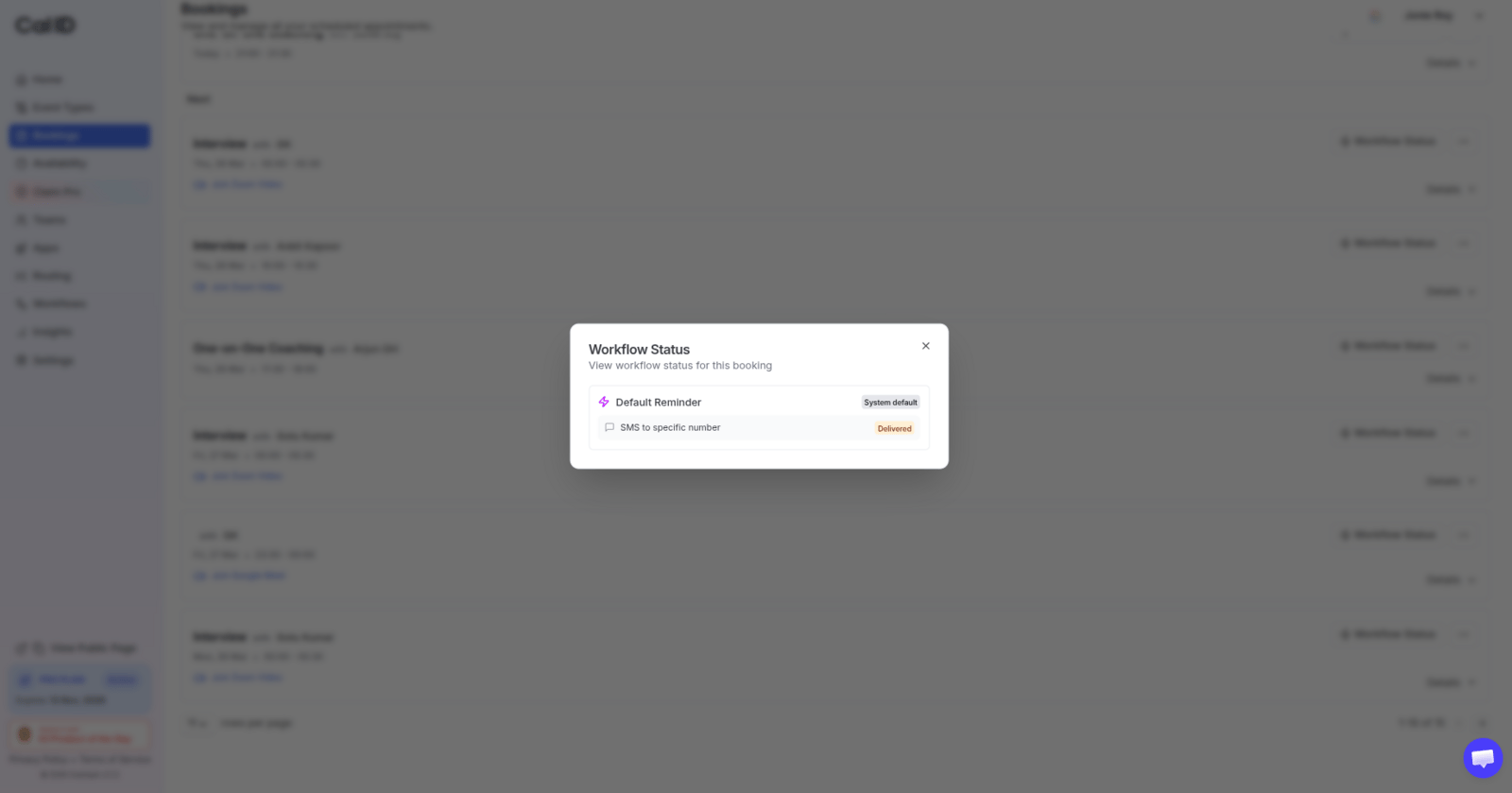
Checking the message actually landed
Read
The person has opened and looked at the message.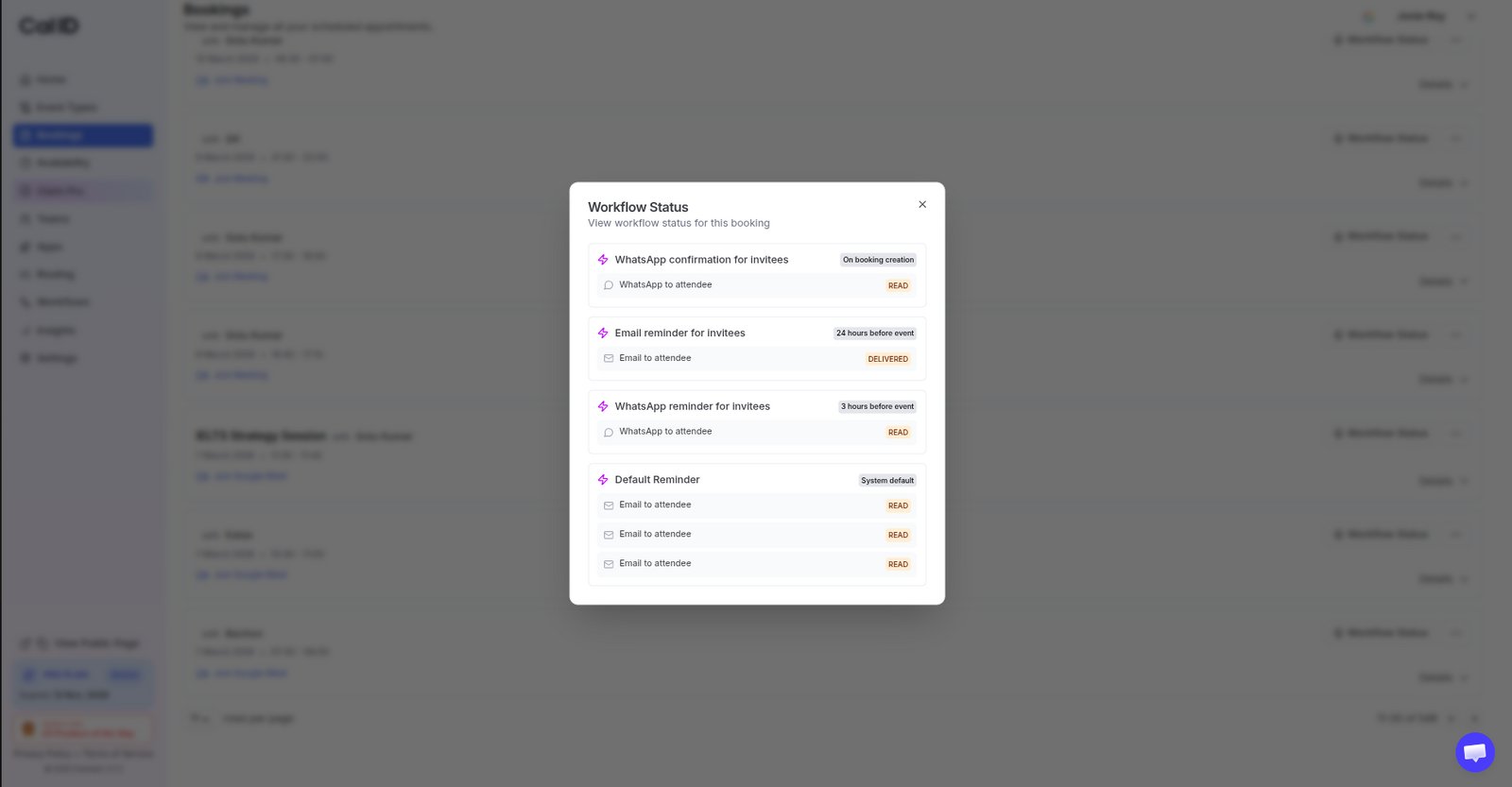
Knowing the attendee has seen it
Bounced
The message could not be delivered. This usually happens if the email address is wrong or the inbox is full.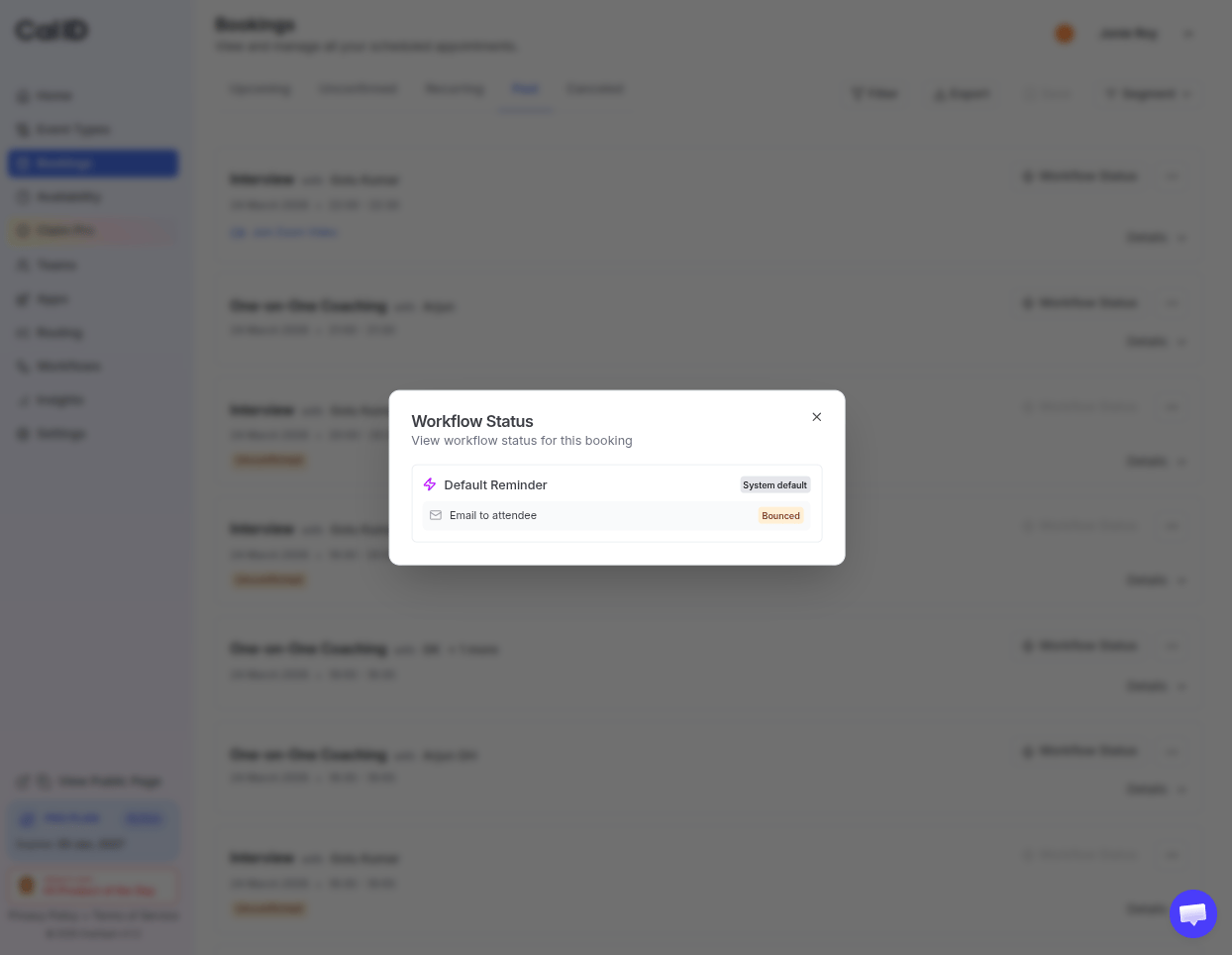
Spotting an address that rejected mail
Failed
There was an error, and the message could not be sent.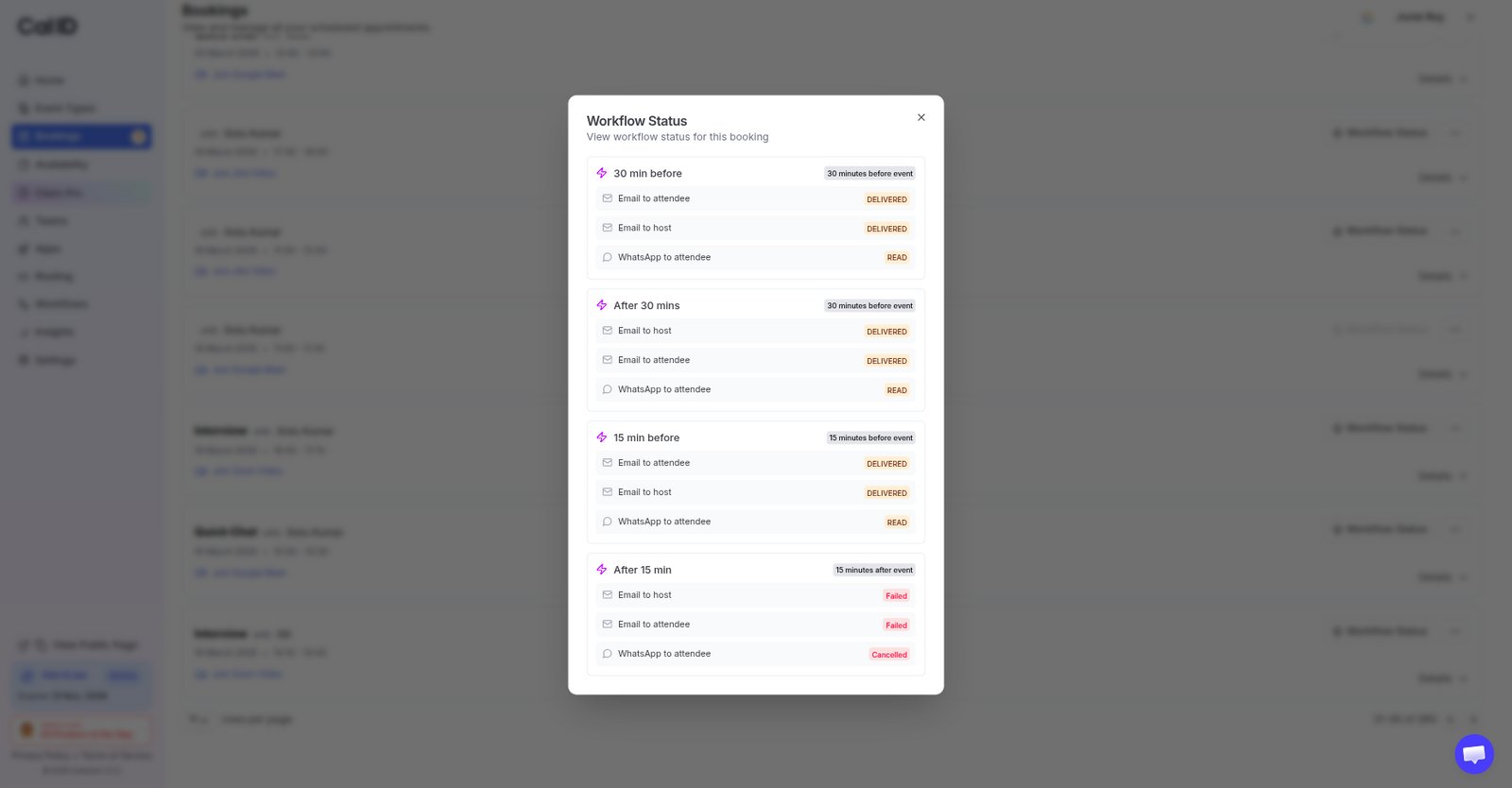
Catching a send that never worked
Cancelled
If you cancel the meeting, the system automatically stops all future messages and marks them as “Cancelled”.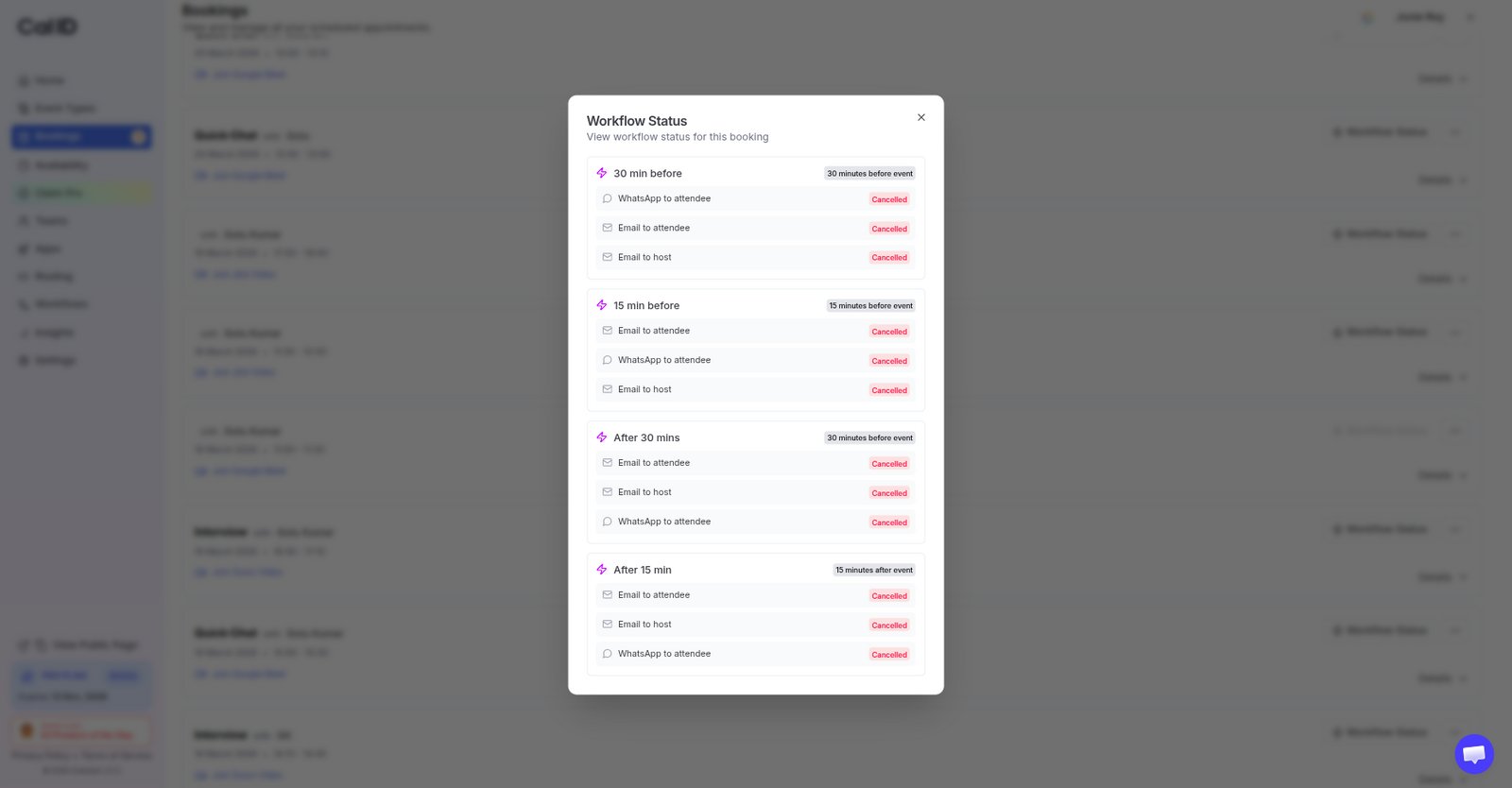
Reminders stopped after you called it off
Why this is helpful
- No more guessing: If a client says they didn’t get the link, you can check here to see if it Bounced or was Delivered.
- Check attendance: If the status shows Read, you know the attendee is aware of the meeting.
- Automatic cleanup: You don’t have to worry about reminders going out for a cancelled meeting; the system handles the Cancellation for you.
More about workflows
Build a workflow
Set up the automated reminders and notifications tracked here.
Customize your messages
Tailor the text of the emails and messages your workflows send.