

Reach for this feature when the event happens at a specific place or a fixed moment: in-person workshops, destination tours, and live-streamed webinars. For purely virtual events where each booker joins from their own location, leave it off so times show in their local timezone.
Why use “Lock Timezone”?
- In-Person Events: If you are hosting a workshop in London, it starts at 10:00 AM GMT regardless of where the booker is currently located. Locking the timezone prevents confusion.
- Travel and Tours: For business owners in the travel industry, bookers often book from a different timezone but need to see the “local” time of the destination.
- Fixed Broadcasts: If you are running a live stream at a set time in a specific region, locking the timezone ensures everyone refers to the same “master” clock.
How to set it up
1
Go to Event Types
Click on Event Types in the left sidebar.
2
Select an Event
Click on the specific event you want to lock.
3
Navigate to Advanced
Click on the Advanced tab in the top navigation bar.
4
Find the Toggle
Locate the Lock timezone on booking page option.
5
Enable
Switch the toggle to ON.
6
Select the timezone
Choose the timezone you want to lock the booking page to.
7
Save
Click the Save button at the top right.
How it works for the booker
- Standard Behavior: A booker in New York booking a meeting with someone in London (5 hours ahead) would see “9:00 AM” for a 2:00 PM GMT slot.
- Locked Behavior: With the timezone locked to GMT, the booker in New York will see “2:00 PM” on the calendar, with a clear indication that the time is in GMT.
- Clarity: It effectively tells the booker: “This event happens at this specific time in this specific place.”
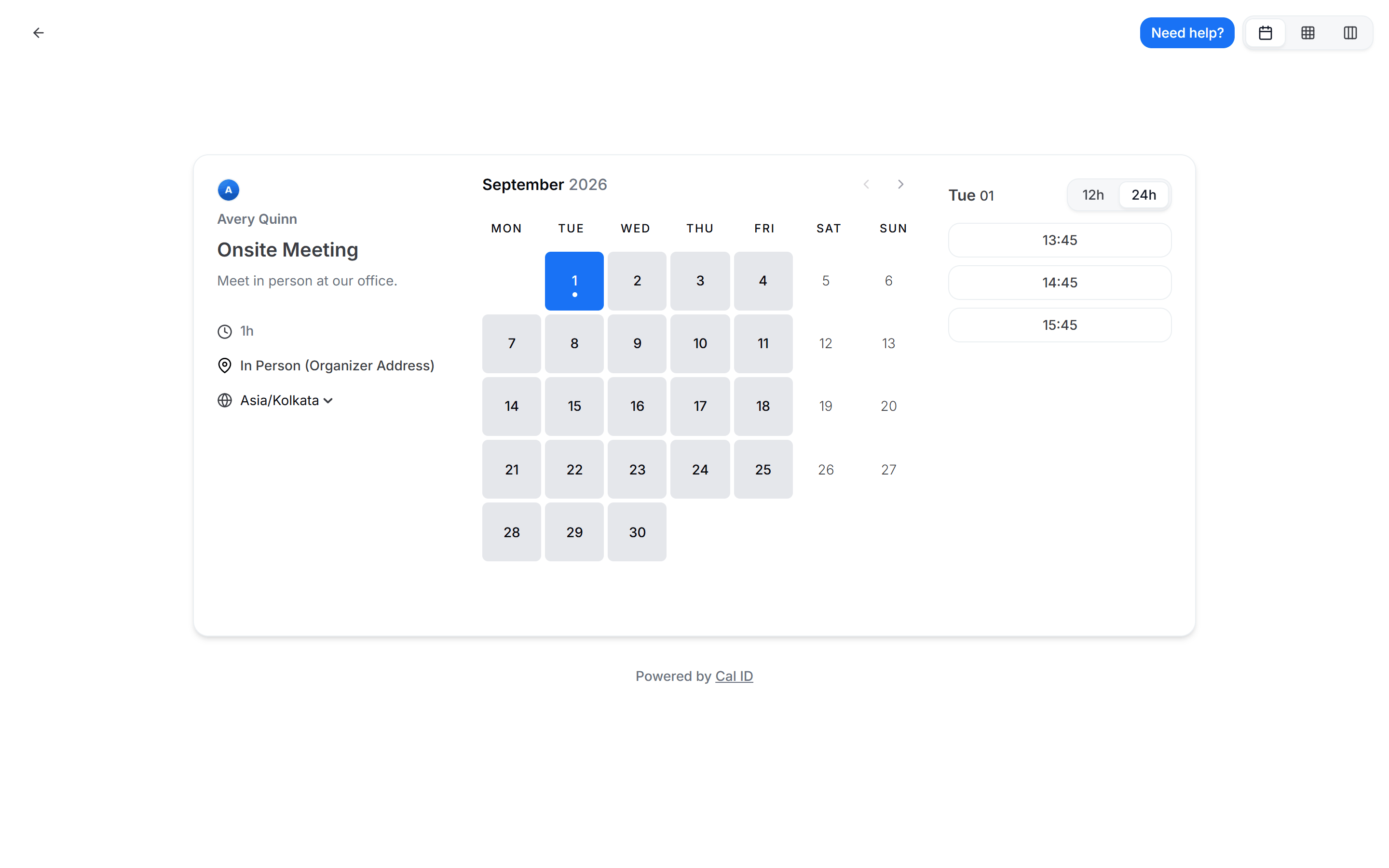
Showing one fixed time to everyone
Related booking page settings
Set the event location
Pair a locked timezone with a physical address so bookers know exactly where and when to show up.
Allow rescheduling past events
Keep the reschedule link working even after a fixed-time event has passed.