

Choosing how far ahead people book
Rolling window vs. fixed date range — the two modes behave very differently:
- Rolling window (a number of days, weeks, or months): the window moves forward with today’s date, always keeping the same amount of availability open ahead of you.
- Fixed date range (a start and end date): availability is pinned to specific calendar dates and shrinks as those dates approach, eventually running out until you reset it.
How to set a rolling 30-day booking window
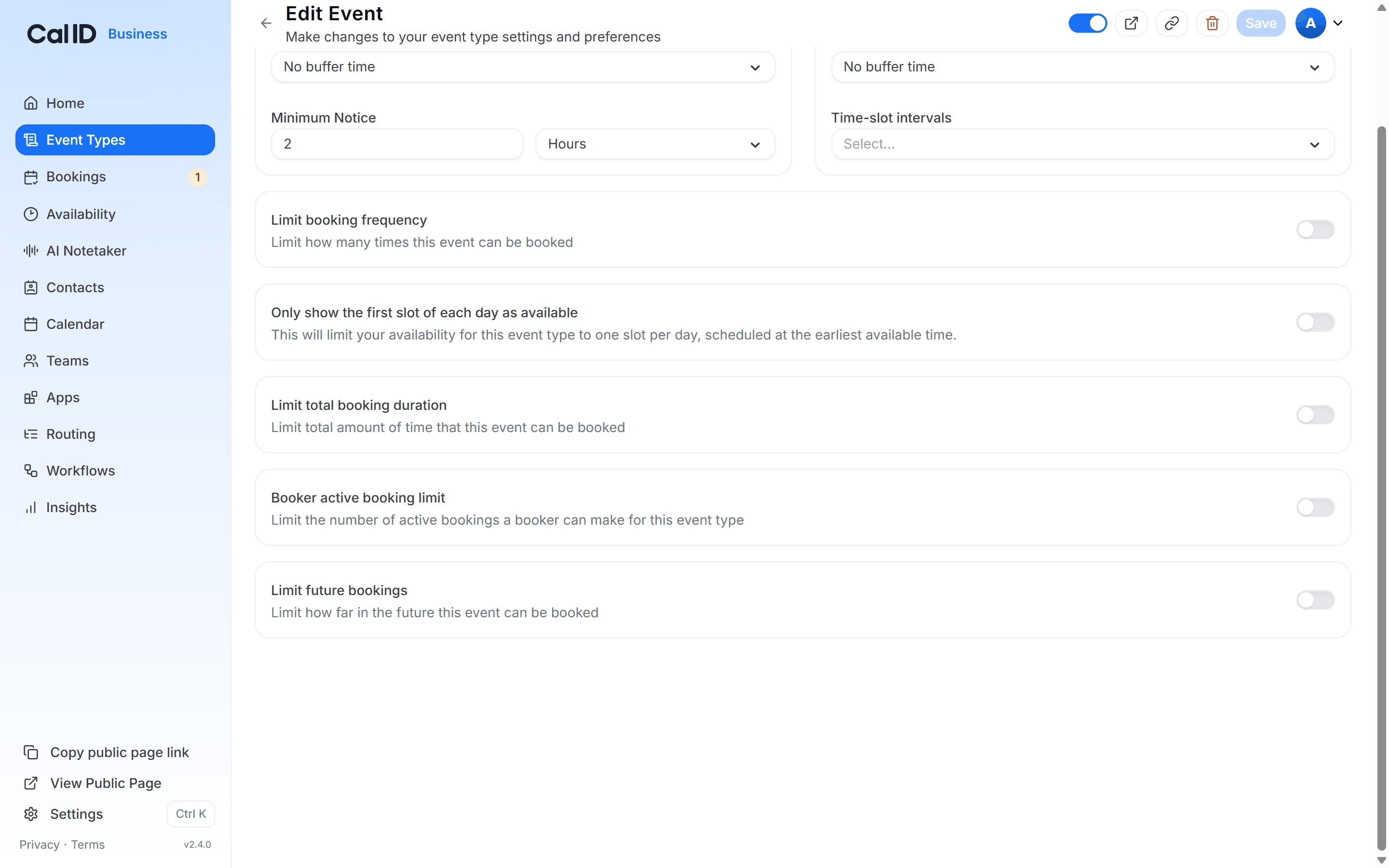
To keep a constant 30-day availability for your clients, follow these steps within the Limits tab of your event settings:1
Enable the limit
Toggle the Limit future bookings switch to ON (the switch turns blue).
2
Define the range
In the input field, enter 30 and select business days (or calendar days) from the dropdown menu.
3
Activate the rolling window
Check the box labeled “Always 30 days available.”
4
Save
Click the Save button in the top right corner to apply your changes.
Why use “Always 30 days available”?
This setting creates a rolling booking window, the most efficient way to manage long-term availability:- Continuous availability: Your booking page always displays exactly 30 available days from the current date.
- Automatic updates: As each day passes (or as a day is fully booked), the system automatically opens a new day at the end of the window to replace it. Your schedule never “runs out” of slots.
- Fixed vs. rolling: Without this box checked, your window is fixed. The available days shrink as you get closer to the end of the specified 30-day period, eventually leaving you with no visible slots until you manually reset it.
Related booking window settings
Minimum notice
Set how much lead time you need before a booker can book.
Limit booking frequency
Cap how many bookings you take per day, week, or month.