

Selecting Phone in the Confirmation section makes the Phone Number field required and sets phone as the primary identifier for the booking.
How to switch to phone confirmation
1
Edit your event type
Go to Event Types and open the event you want to change.
2
Open Booking questions
Go to the Booking questions section, which controls the information asked on the booking page.
3
Locate the Confirmation header
Find the Confirmation header, which defines what your booker must provide to receive confirmations.
4
Find the Email/Phone toggle
On the right-hand side of this section, you’ll see a toggle with Email and Phone icons.
5
Click the Phone button
This selects the phone number as the primary identifier for the booking.
6
Confirm the required field
Once selected, the Phone Number question is set to a Required field.
7
Save
Click Save at the top right.
What happens on your booking page?
- Primary requirement: The Phone Number field becomes the mandatory input for bookers to complete their booking.
- Automatic formatting: The phone field includes a country code selector to ensure international numbers are captured correctly.
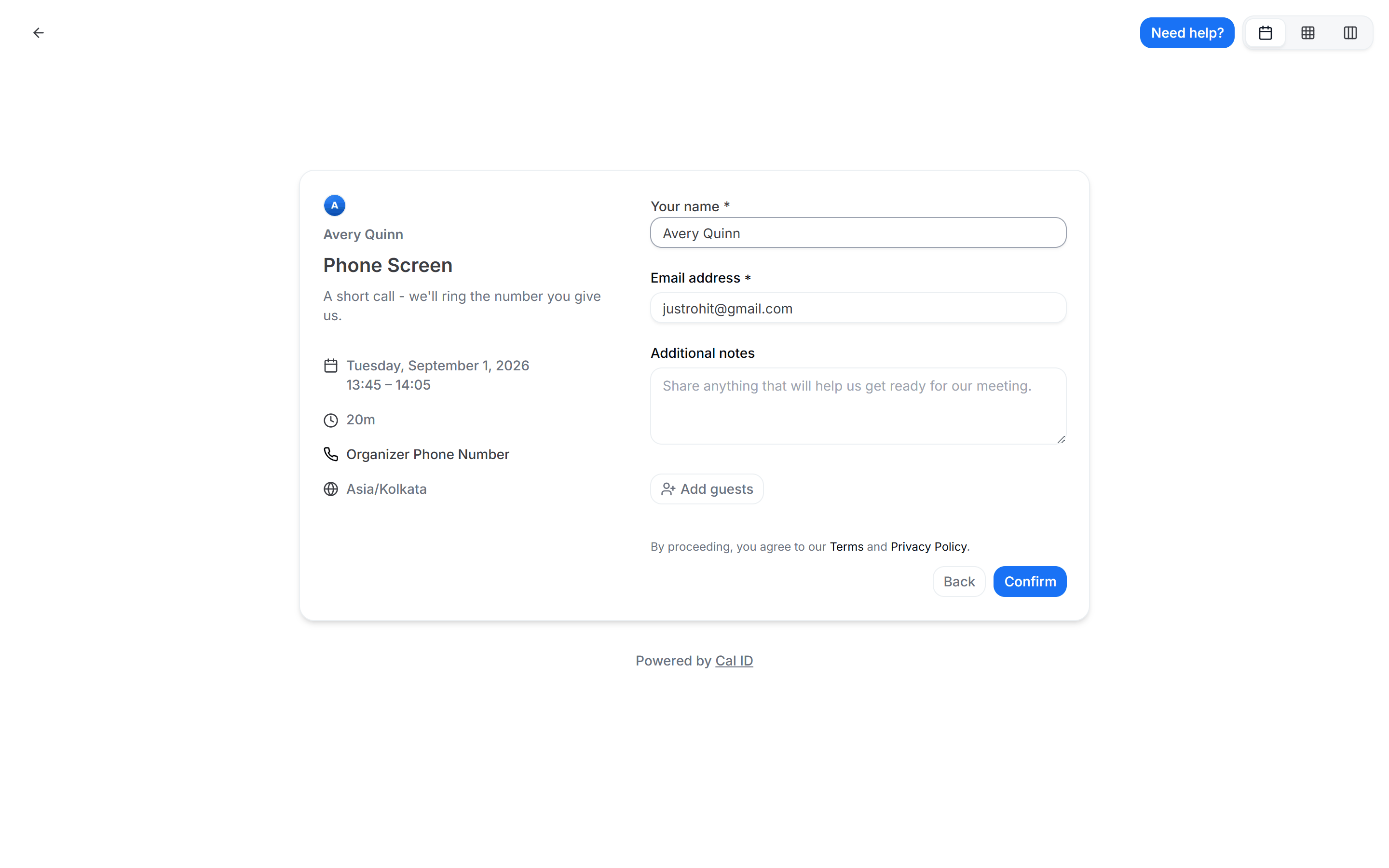
Collecting a number instead of an email
Other booking field setups
Add pre-booking questions
Collect exactly the information you need before someone books.
Split full name
Capture first and last name as separate fields.
Verify booker email
Require a verification code before a booking is confirmed.
Require or exclude email domains
Control who can book with domain validation rules.