

What is a secret event?
- Visible by default: Standard events appear on your main booking page (e.g.,
cal.id/username). - Direct access only: Only people who have the exact link for that specific event can book it.
- Use cases: Perfect for VIP clients, private consultations, or internal team meetings that you don’t want the general public to see.
Secret events are completely hidden from your booking page. They never appear in your profile’s event list and can only be booked by someone you send the direct link to.
How to manage event visibility
You can control whether an event is public or secret using the visibility toggle.- Toggle ON (Visible): Switch the toggle ON if you want to show the event on your Public profile.
- Toggle OFF (Hidden): Switch the toggle OFF if you want to keep the event secret and hide it from your public profile.
Where to find the toggle
- Event Types page: You can toggle visibility directly from the main Event Types list using the switch on the right side of each event card.
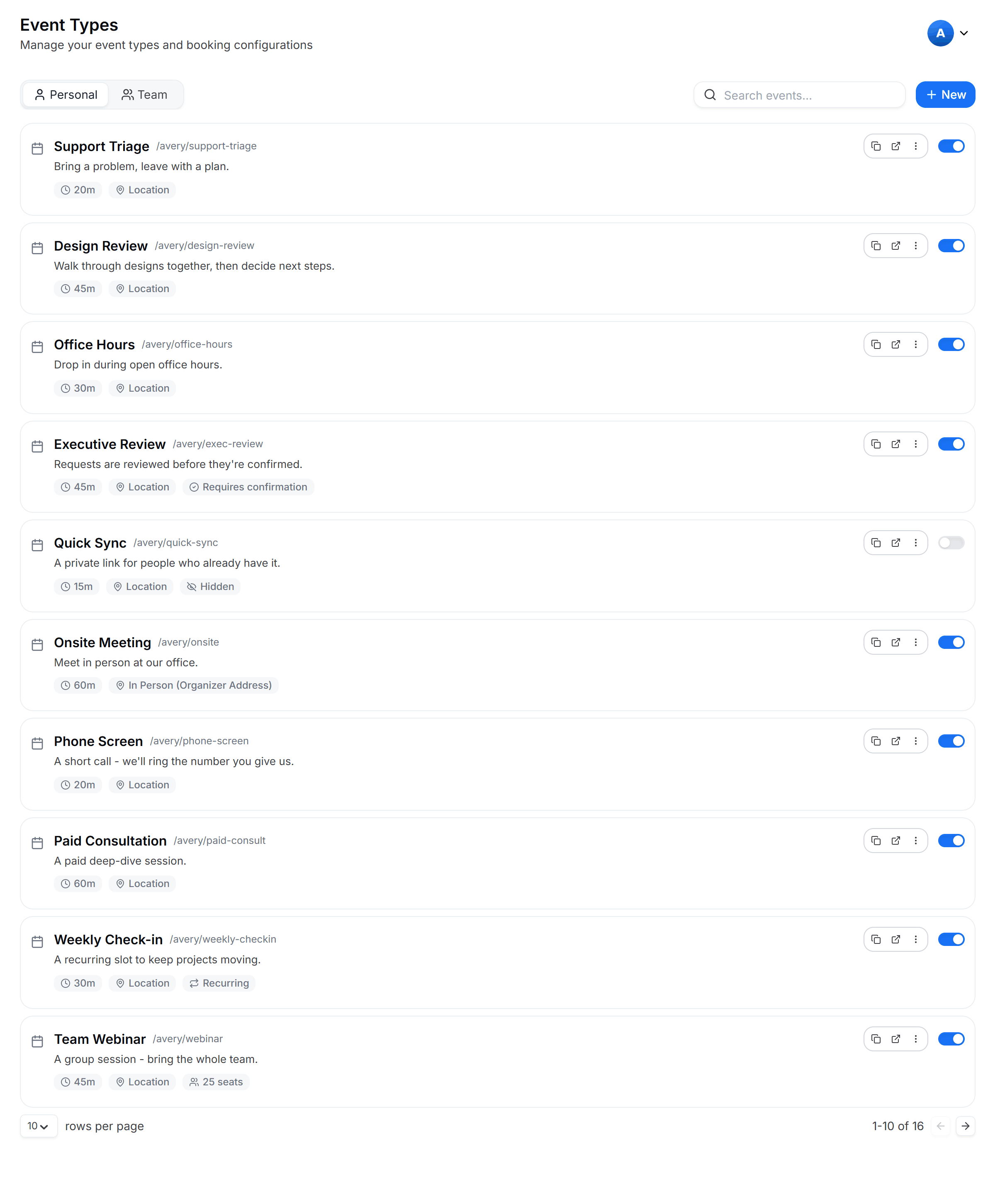
Hiding an event from your profile
- Edit Event page: You can also change this setting by clicking into an event and using the toggle at the top right, next to the Save button.
How to share a secret event
Since these events don’t show up on your main page, you must share the direct link.1
Open your Event Types list
Go to your Event Types list in the dashboard.
2
Copy the direct link
Click the Copy Link icon next to the URL of your Secret Event.
3
Send it to your booker
Send this specific URL (e.g.,
cal.id/username/vip-meeting) directly to the booker via email or message.Things to know
- No “View All” access: Even if a booker is currently on your booking page, they cannot “find” a secret event without the direct link.
- Status indicators: In your dashboard, Secret Events are marked with a “Hidden” badge so you can tell them apart from your public ones.
Related visibility options
Private Links
Share single-use booking links that expire after one use.
Edit Event Details
Update the title, URL, and description of a secret event.
Duplicate an Event Type
Copy an event type to create a private variation.
Event Types Overview
Review how event types work and how to create them.