

Setting booking frequency limits
This setting is perfect for high-energy tasks, such as interviews or deep-dive consultations, where you want to cap the number of sessions you take per day, week, or month.Why use booking frequency limits?
- Prevent burnout: Limit intense event types so you have enough energy for other responsibilities.
- Balanced workload: Distribute your meetings evenly across the week or month instead of having them all clump together in a single day.
- Quality control: By limiting the number of sessions, you ensure you can give 100% of your attention to every attendee.
How to set it up
1
Go to Event Types
Click on Event Types in the left sidebar.
2
Select an event
Click on the specific event you want to limit.
3
Navigate to Limits
Click on the Limits tab in the top navigation bar of the event editor.
4
Enable frequency limits
Find the Limit booking frequency section and toggle the switch to ON (it will turn blue).
5
Define your rules
- Enter the maximum number of bookings you want to allow (e.g., “3”).
- Select the time period from the dropdown menu (e.g., per day, per week, or per month).
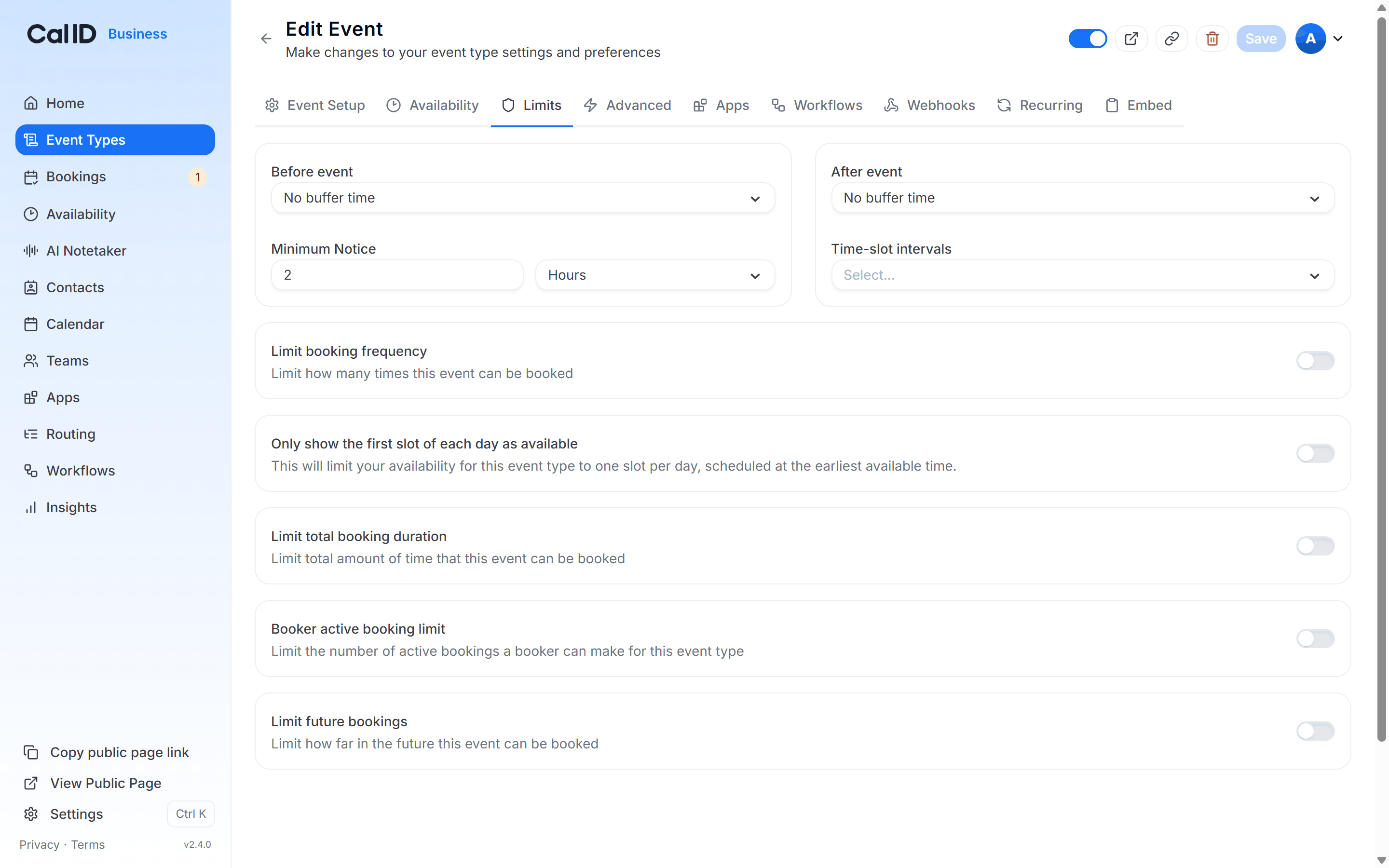
Capping meetings per day or week
6
Save
Click the Save button at the top right to apply these rules.
How it works for the booker
- Once your set limit is reached for that period, the event will automatically show as “Unavailable” on your booking page for the remainder of that day, week, or month.
- For example, if you limit “Interviews” to 2 per day, once the second person books for Tuesday, no one else will see Tuesday as an option for that specific event.
Additional control options
On the same Limits page, you can find other tools to manage your time.Limit total booking duration
Cap the total amount of time (in minutes or hours) that this event can be booked for in a day.
Limit future bookings
Restrict how far into the future (e.g., only 30 days out) bookers are allowed to book.
Booker active booking limit
Prevent a single person from booking too many active meetings at once.